
Nargos Ultimate 2 Wireless Controller
Nargos 8BitDo Ultimate 2 Wireless Controller User Manual
Model: Ultimate 2 Wireless Controller
1. Introduction
This manual provides detailed instructions for the Nargos 8BitDo Ultimate 2 Wireless Controller. It covers setup, operation, maintenance, and troubleshooting to ensure optimal performance and longevity of your device. Please read this manual thoroughly before using the controller.

Figure 1: Nargos 8BitDo Ultimate 2 Wireless Controller (White model) with charging dock.
2. Setup and Connection
2.1 Compatibility
The Nargos 8BitDo Ultimate 2 Wireless Controller is compatible with the following platforms:
- Windows (10 and above) via 2.4G wireless dongle or wired connection.
- Steam (PC) via 2.4G wireless dongle or wired connection.
- Android (9.0 and above) via Bluetooth.
- Steam Deck via Bluetooth.
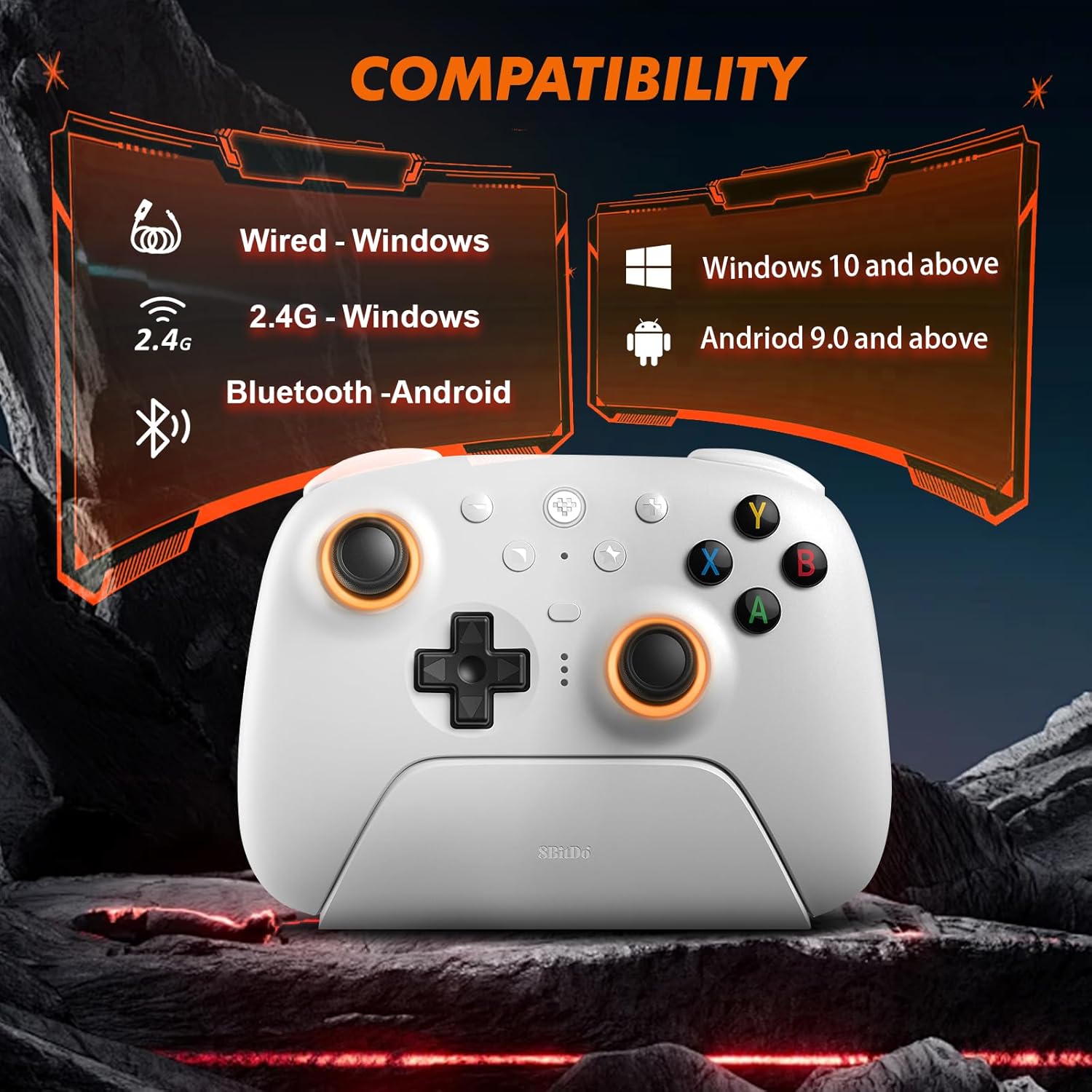
Figure 2: Visual representation of controller compatibility with Windows and Android platforms.
2.2 Charging the Controller
The controller features a 1000mAh battery. To charge:
- Connect the included USB-C cable to the charging dock or directly to the controller.
- Connect the other end of the USB-C cable to a power source (e.g., PC USB port, USB wall adapter).
- A full charge typically takes approximately 2 hours.
A fully charged controller provides approximately 22 hours of gameplay without RGB lighting, or about 6 hours with RGB lighting enabled.

Figure 3: Controller on charging dock, illustrating battery capacity and charge/play times.
2.3 Connecting the Controller
2.3.1 2.4G Wireless Connection (Windows/Steam PC)
- Insert the 2.4G USB-C dongle into an available USB port on your PC. The charging dock can also house the dongle, connecting to your PC via a single USB cable.
- Turn on the controller. The controller will automatically connect to the dongle.
- The controller's indicator lights will confirm a successful connection.
2.3.2 Bluetooth Connection (Android/Steam Deck)
- Ensure your Android device or Steam Deck has Bluetooth enabled.
- On the controller, press and hold the Pairing button (refer to button layout for location) until the indicator lights begin to flash rapidly.
- On your device, search for new Bluetooth devices and select "Nargos Ultimate 2 Controller" from the list.
- The controller's indicator lights will become solid upon successful pairing.
2.3.3 Wired Connection (Windows/Steam PC)
- Connect the USB-C cable directly from the controller to an available USB port on your PC.
- The controller will be recognized as a wired gamepad.
3. Operating Instructions
3.1 Controller Layout
The controller features a standard gamepad layout with additional customizable buttons. Familiarize yourself with the button positions for optimal use.
Figure 4: Front view of the controller, showing joysticks, D-pad, ABXY buttons, and central function buttons.
3.2 TMR Hall Effect Joysticks
The controller is equipped with TMR Hall Effect joysticks, designed to provide high precision and prevent drift. These joysticks offer enhanced durability and responsiveness for various game genres.

Figure 5: Close-up view of the TMR Hall Effect joysticks with active RGB lighting.
3.3 Switchable Triggers (Linear/Tactile)
The LT/RT buttons feature switchable trigger modes, allowing you to select between linear and tactile feedback. This functionality is useful for optimizing performance across different game types:
- Linear Hall Effect Triggers: Ideal for racing games or scenarios requiring precise analog input.
- Non-linear Tactile Triggers (Hair-trigger locks): Suitable for first-person shooter (FPS) games, providing a quicker, clicky response for rapid firing.
To switch modes, locate the physical switches on the underside of the controller near the triggers.

Figure 6: View of the controller's underside, highlighting the switches for dual trigger modes.
3.4 RGB Lighting Customization
The joysticks feature customizable RGB lighting. Use the dedicated button (refer to controller layout) or the Ultimate Software V2 to adjust colors and effects.
3.5 Customizable Buttons
The controller includes extra programmable buttons (L4/R4 on the top and back paddles PL/PR). These buttons can be remapped to other functions or assigned macros using the Ultimate Software V2.
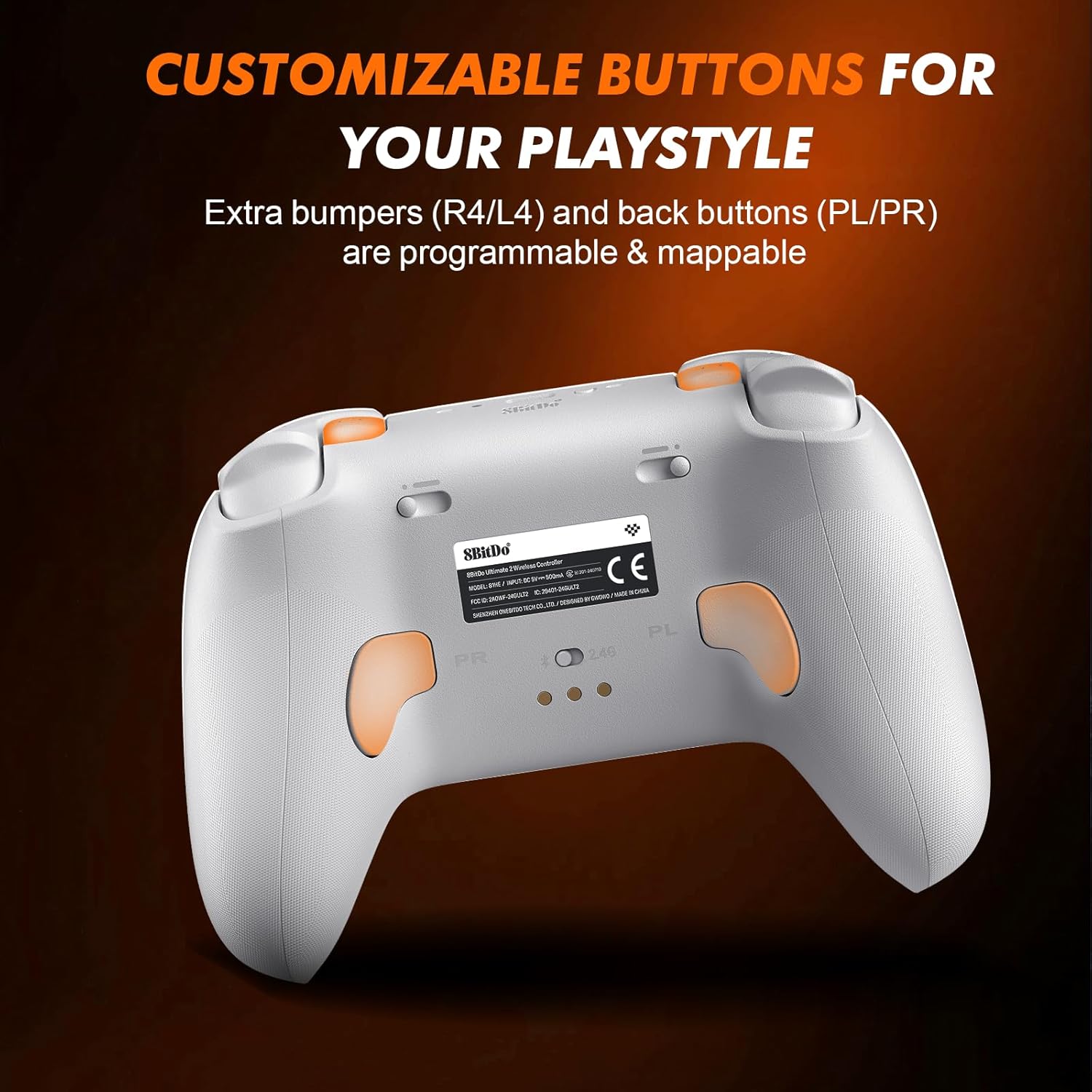
Figure 7: Rear view of the controller, indicating the location of programmable back paddles (PL/PR).
3.6 Six-Axis Gyro Control
The integrated 6-Axis Gyro provides precise motion control, enhancing gameplay in titles that support this feature. Sensitivity adjustments can be made via the Ultimate Software V2.

Figure 8: Controller being used, illustrating the immersive six-axis sensor experience.
3.7 Ultimate Software V2
The Ultimate Software V2 allows for advanced customization, including button remapping, macro programming, trigger sensitivity adjustment, and profile management. This software is compatible with Windows and Steam Deck platforms.
4. Maintenance
4.1 Cleaning
To maintain the controller's condition:
- Wipe the surface with a soft, dry cloth.
- For stubborn dirt, use a slightly damp cloth with mild soap, then wipe dry immediately.
- Avoid using harsh chemicals or abrasive materials, as these can damage the finish.
4.2 Battery Care
- Avoid fully discharging the battery frequently.
- Store the controller in a cool, dry place when not in use for extended periods.
- Do not expose the controller to extreme temperatures.
5. Troubleshooting
- Controller not connecting:
- Ensure the controller is charged.
- For 2.4G connection, verify the dongle is properly inserted and the controller is in 2.4G mode.
- For Bluetooth, ensure Bluetooth is enabled on your device and the controller is in pairing mode. Try re-pairing.
- Attempt a wired connection to rule out wireless issues.
- Input lag or disconnections (Bluetooth):
- Ensure the controller is within range of your device.
- Minimize interference from other wireless devices.
- Consider using the 2.4G dongle or a wired connection for more stable performance on compatible platforms.
- Unexpected vibration:
- Check in-game settings for vibration feedback.
- Update controller firmware using the Ultimate Software V2.
- If persistent, contact customer support.
- Buttons not responding:
- Ensure the controller is properly connected.
- Check for any physical obstructions or debris under the buttons.
- Test button functionality using the Ultimate Software V2.
6. Specifications
| Model | Ultimate 2 Wireless Controller |
| Brand | Nargos |
| Connectivity | 2.4G Wireless, Bluetooth, Wired (USB-C) |
| Compatibility | Windows (10+), Steam (PC), Android (9.0+), Steam Deck |
| Joysticks | TMR Hall Effect Joysticks |
| Triggers | Switchable Linear Hall Effect / Tactile Triggers |
| Special Features | RGB Lighting, Customizable Buttons (L4/R4, PL/PR), 6-Axis Gyro, Ultimate Software V2 Support |
| Battery Capacity | 1000mAh |
| Charging Time | Approx. 2 hours |
| Battery Life | Up to 22 hours (without RGB), Up to 6 hours (with RGB) |
| Dimensions | 2.68 x 5 x 4 inches |
| Weight | 12 ounces |
7. Warranty and Support
Nargos is committed to providing excellent customer service and support for your Ultimate 2 Wireless Controller.
- Customer Service: Expect a quick reply to inquiries within 24 hours.
- Returns & Exchanges: Products are eligible for returns or exchanges within 30 days of purchase.
- Technical Support: Lifetime technical support is provided for the product.
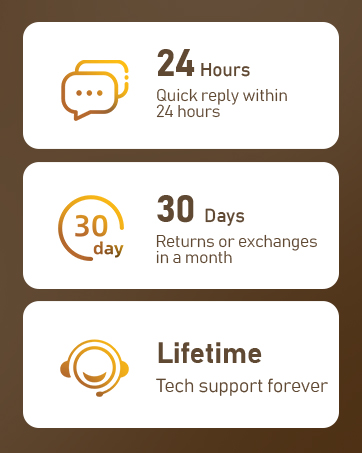
Figure 9: Summary of Nargos customer support and warranty policies.
For further assistance, please refer to the official Nargos website or contact their customer support directly.
Ask a question about this manual
Ask about setup, troubleshooting, compatibility, parts, safety, or missing instructions. Manuals+ will review the question and use this page’s manual context to help answer it.