
1. Introduction
This manual provides essential information for setting up, operating, maintaining, and troubleshooting your HP EliteDesk 800G4 PC. This system is designed for efficient performance in home and office environments, featuring an Intel Core i5 8th Gen processor, 16GB DDR4 RAM, and a 1TB SSD, pre-installed with Windows 11 Pro. It includes dual 24-inch LCD monitors, a wireless keyboard and mouse, and RGB speakers for a complete computing experience.

Image 1.1: HP EliteDesk 800G4 PC with key specifications highlighted, including 16GB RAM, Intel i5 Hexa Core processor, 1TB SSD, and Windows 11 Pro.
As a Microsoft Authorized Refurbisher (MAR) product, this system undergoes rigorous testing and professional refurbishment to ensure quality and performance.

Image 1.2: Certification indicating the product is from a Microsoft Authorized Refurbisher, ensuring quality and adherence to standards.
2. Setup Guide
2.1 Unpacking
Carefully remove all components from the packaging. Verify that all items listed in the packing slip are present: HP EliteDesk 800G4 PC, two 24-inch LCD monitors, wireless keyboard, wireless mouse, RGB speakers, power cables, and display cables.
2.2 Connecting the PC
- Place the HP EliteDesk 800G4 PC on a stable, flat surface with adequate ventilation.
- Connect the PC power cord to the power supply unit on the rear of the PC and then to a wall outlet or surge protector.
2.3 Connecting Dual Monitors
The HP EliteDesk 800G4 supports dual monitors via DisplayPort connections. Each monitor requires a power cable and a DisplayPort cable.
- Connect the power cable to each monitor and then to a power source.
- Connect one end of a DisplayPort cable to a DisplayPort output on the rear of the PC.
- Connect the other end of the DisplayPort cable to the corresponding input on the first monitor.
- Repeat steps 2 and 3 for the second monitor, using the second DisplayPort output on the PC.
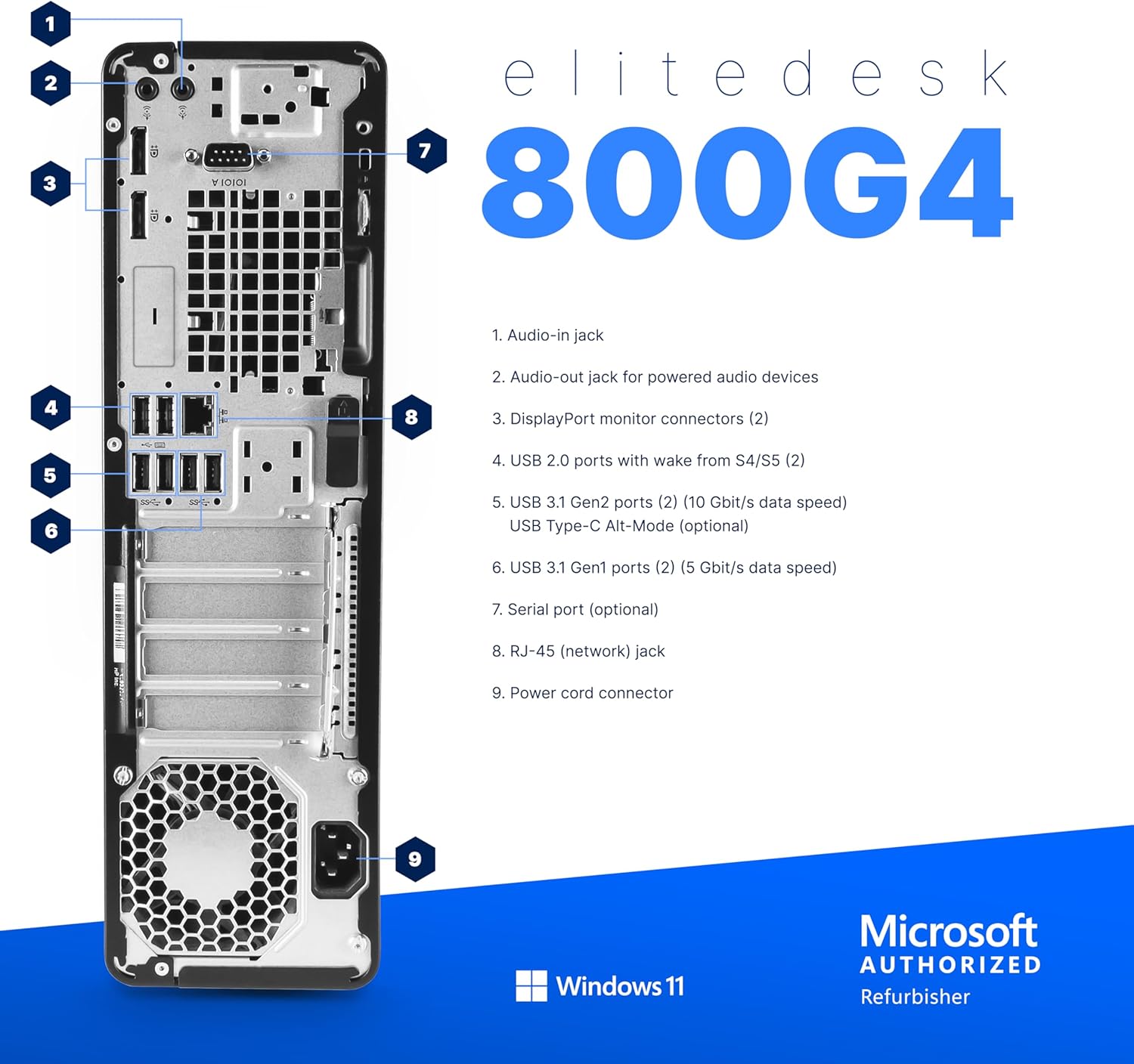
Image 2.1: Rear view of the HP EliteDesk 800G4 PC, showing DisplayPort connectors (labeled 3), USB ports, network jack, and power cord connector.
2.4 Connecting Keyboard and Mouse
The included keyboard and mouse are wireless. Insert the USB receiver (typically found in the mouse or keyboard battery compartment) into an available USB port on the PC. The PC has multiple USB 2.0, USB 3.1 Gen 1, and USB 3.1 Gen 2 ports.

Image 2.2: Front view of the HP EliteDesk 800G4 PC, illustrating USB 2.0 ports (labeled 6, 7), USB 3.1 Gen 2 ports (labeled 8), and a USB Type-C port (labeled 9).
2.5 Connecting RGB Speakers
Connect the RGB speakers to the audio-out jack (headphone jack) on the front or rear of the PC. Ensure the speakers are powered on according to their specific instructions.
2.6 Powering On
Press the power button on the front of the PC. The system will boot into Windows 11 Pro. Follow any on-screen prompts for initial setup if applicable.
3. Operating Instructions
3.1 Windows 11 Pro Basics
Your PC comes with Windows 11 Pro pre-installed. Familiarize yourself with the operating system's interface, including the Start Menu, Taskbar, and File Explorer. Windows 11 Pro offers enhanced security features and tools for productivity.
3.2 Network Connectivity
- Wi-Fi: The PC includes internal WiFi 6 (802.11ax). To connect to a wireless network, click the network icon in the taskbar, select your desired network, and enter the password.
- Ethernet: For a wired connection, connect an Ethernet cable from your router or modem to the RJ-45 (network) jack on the rear of the PC.
3.3 Bluetooth Devices
The PC has integrated Bluetooth. To pair a Bluetooth device:
- Go to Settings > Bluetooth & devices.
- Ensure Bluetooth is turned on.
- Click Add device and select Bluetooth.
- Select your device from the list and follow the on-screen pairing instructions.
3.4 Using Peripherals
- Keyboard and Mouse: The wireless keyboard and mouse should function automatically once their USB receiver is connected. Ensure batteries are installed and charged.
- RGB Speakers: Adjust volume using the controls on the speakers or through the Windows sound settings.

Image 3.1: Illustration comparing the performance of a Quad-Core processor to a Hexa-Core Intel i5, demonstrating smoother and faster operation with the latter.
4. Maintenance
4.1 Cleaning
- Regularly clean the exterior of the PC, monitors, keyboard, and mouse with a soft, dry, lint-free cloth.
- Use compressed air to clear dust from ventilation openings on the PC to ensure proper airflow and prevent overheating.
- Do not use liquid cleaners directly on components; apply to a cloth first.
4.2 Software Updates
Keep your Windows 11 Pro operating system and drivers updated. Go to Settings > Windows Update to check for and install available updates. This ensures optimal performance, security, and compatibility.
4.3 Data Backup
Regularly back up important data to an external drive or cloud storage service to prevent data loss.
4.4 System Performance
Periodically run disk cleanup and defragmentation tools (for HDDs, not necessary for SSDs) to maintain system performance. Monitor task manager for resource-intensive applications.
5. Troubleshooting
5.1 No Power
- Ensure the power cable is securely connected to the PC and the power outlet.
- Verify the power outlet is functional by plugging in another device.
- Check the power supply unit switch on the back of the PC, if present.
5.2 No Display on Monitors
- Ensure both monitors are powered on and their power indicator lights are active.
- Verify that DisplayPort cables are securely connected to both the PC and the monitors.
- Try connecting one monitor at a time to isolate the issue.
- Ensure the correct input source is selected on each monitor (e.g., DisplayPort 1, DisplayPort 2).
5.3 No Sound from Speakers
- Check if the speakers are powered on and their volume is turned up.
- Ensure the audio cable is securely connected to the PC's audio-out jack.
- Verify that the correct audio output device is selected in Windows sound settings (right-click the speaker icon in the taskbar).
- Check if Windows volume is muted or set too low.
5.4 Wireless Keyboard/Mouse Not Responding
- Ensure the USB receiver is securely plugged into a USB port on the PC.
- Check the batteries in the keyboard and mouse and replace them if necessary.
- Try plugging the USB receiver into a different USB port.
5.5 Network Connectivity Issues
- For Wi-Fi, ensure your router is working and the PC is connected to the correct network. Restart your router if necessary.
- For Ethernet, ensure the cable is securely connected to both the PC and the router/modem. Check the network status in Windows settings.
- Run the Windows Network Troubleshooter (Settings > Network & internet > Advanced network settings > Network troubleshooter).
6. Specifications
| Component | Specification |
|---|---|
| Brand | HP |
| Model | EliteDesk 800G4 |
| Operating System | Windows 11 Pro |
| CPU Model | Intel Core i5-8500 (Hexa-Core) |
| CPU Speed | 3.2 GHz |
| RAM Memory | 16 GB DDR4 (2666 MHz) |
| Storage | 1 TB SSD |
| Graphics | Integrated Intel UHD Graphics 630 |
| Monitors | Dual 24-inch LCD (1920x1080) |
| Wireless Connectivity | Internal WiFi 6 (802.11ax), Bluetooth |
| USB Ports | 6x USB 3.1 Gen 1, USB-C, USB 2.0 (front) |
| Video Output | 2x DisplayPort |
| Audio | 3.5mm audio in/out jacks |
| Network | RJ-45 Ethernet |
| Optical Drive | DVD-R (optional) |
| Included Peripherals | Wireless Keyboard, Wireless Mouse, RGB Speakers |
| Dimensions (PC) | 12.1 x 13.3 x 4 inches |
7. Warranty Information
This HP EliteDesk 800G4 PC comes with a 30-day warranty. Please refer to your purchase documentation for specific terms and conditions regarding returns, repairs, and replacements.
8. Support
For further assistance or technical support, please refer to the contact information provided by your seller or retailer. You may also find additional resources and drivers on the official HP support website by searching for the EliteDesk 800G4 model.


