
1. Introduction
This manual provides detailed instructions for the operation and maintenance of your FOXWELL NT716 OBD2 Bidirectional Scan Tool and FOXWELL BT60 6V/12V Wireless Car Battery Tester. Please read this manual thoroughly before using the devices to ensure proper function and to prevent damage. Keep this manual for future reference.
2. Product Overview
2.1 FOXWELL NT716 OBD2 Bidirectional Scan Tool
The FOXWELL NT716 is a professional diagnostic scan tool designed for comprehensive vehicle system analysis. It offers advanced features including bidirectional control, 9 reset functions, and diagnostics for 4 main systems (Engine, Transmission, ABS, SRS).

Image 2.1: The FOXWELL NT716 OBD2 Scanner (left) and BT60 Battery Tester (right). The NT716 features a large display and robust casing, while the BT60 is a compact, handheld device with battery clamps.
- Bidirectional Control: Perform active tests to control various vehicle components.
- 9 Reset Functions: Includes Oil Light Reset, ABS Bleeding, BMS Reset, SAS Reset, DPF Reset, Injector Coding, TPMS Reset, EPB Reset, and Throttle Reset.
- 4 System Diagnostics: Comprehensive scanning for Engine, Transmission, Anti-lock Braking System (ABS), and Supplemental Restraint System (SRS).
- Full OBDII Functions: Read/Erase Codes, Live Data, Freeze Frame Data, I/M Readiness, O2 Sensor Test, On-Board Monitor Test, Component Test, Vehicle Information.
- Free Updates: Ensures access to the latest vehicle data and software enhancements.
2.2 FOXWELL BT60 6V/12V Wireless Car Battery Tester
The FOXWELL BT60 is an innovative, app-supported battery tester designed for 6V and 12V automotive batteries. It connects wirelessly via Bluetooth to your smartphone, providing detailed battery health analysis and report sharing capabilities.

Image 2.2: The FOXWELL BT60 Wireless Battery Tester highlighting its versatile features including State of Health (SOH), State of Charge (SOC), Load Test, Battery Voltage, Resistance Test, Cranking Test, Ripple Test, Data Storage, and Data Share.
- Wireless Connectivity: Bluetooth 5.3 for seamless connection to the BT60 App on your smartphone.
- Comprehensive Battery Analysis: Measures State of Health (SOH), State of Charge (SOC), Battery Voltage, Internal Resistance, Cranking Test, and Charging System Ripple Test.
- App-Supported: Manage multiple battery records, share diagnostic reports, and access quick start guides directly from the app.
- Wide Compatibility: Supports 6V and 12V batteries.
3. Setup
3.1 FOXWELL NT716 Setup
- Power On: Connect the NT716 to the vehicle's OBD-II port. The device will power on automatically.
- Initial Configuration: Follow the on-screen prompts to select language, time zone, and other initial settings.
- Software Update: Connect the NT716 to a computer with internet access and use the FOXWELL update tool to ensure the latest software is installed. This provides access to the most current vehicle data and functions.
3.2 FOXWELL BT60 Setup
- Download App: Download and install the "FOXWELL BT60" application from your smartphone's app store (iOS or Android).
- Charge BT60: Ensure the BT60 device is adequately charged before first use.
- Connect to Battery: Attach the red clamp to the positive (+) terminal and the black clamp to the negative (-) terminal of the vehicle battery.
- Bluetooth Pairing:
- Open the BT60 App on your smartphone.
- Ensure Bluetooth is enabled on your phone.
- The app will automatically search for and connect to the BT60 device. Confirm the pairing if prompted.

Image 3.2: The FOXWELL BT60 connected to a car battery, demonstrating its wireless Bluetooth 5.3 connection to a smartphone app for remote testing and monitoring.
4. Operating Instructions
4.1 Using the FOXWELL NT716 OBD2 Scanner
- Connect to Vehicle: Plug the NT716 into the vehicle's OBD-II port (usually located under the dashboard).
- Select Vehicle: From the main menu, select the vehicle manufacturer and model.
- Choose Function: Navigate through the menu to select the desired diagnostic function.
4.1.1 4 System Diagnostic
This function allows you to read and clear diagnostic trouble codes (DTCs), view live data, and retrieve freeze frame data for the Engine, Transmission, ABS, and SRS systems.

Image 4.1.1: The FOXWELL NT716 displaying its 4-system diagnostic capabilities, including Engine, Transmission, ABS, and SRS, along with full OBDII functions, live data, and code reading/erasing.
- Read Codes: Displays current, pending, and permanent DTCs.
- Erase Codes: Clears DTCs from the vehicle's computer. Ensure the underlying issue is resolved before clearing codes.
- Live Data: Shows real-time data streams from various sensors and components.
4.1.2 Bidirectional Control (Active Test)
Bidirectional control allows the scan tool to send commands to the vehicle's ECUs to perform specific tests and functions, such as activating components to verify their operation.
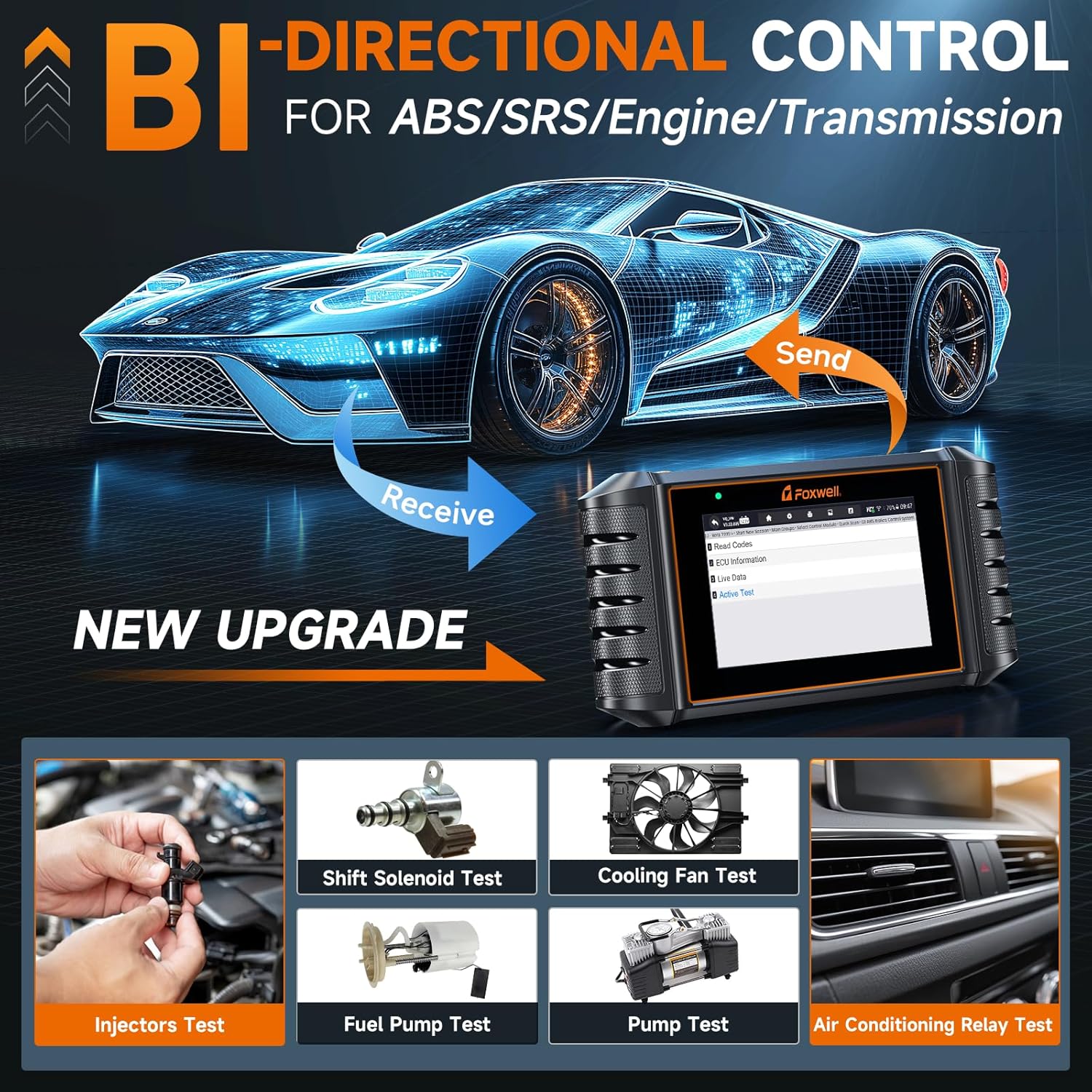
Image 4.1.2: The FOXWELL NT716 demonstrating bidirectional control, allowing the user to send commands to vehicle components like injectors, fuel pump, cooling fan, and A/C relay for active testing.
- Injector Test: Activates individual injectors to check their functionality.
- Fuel Pump Test: Commands the fuel pump to turn on/off.
- Cooling Fan Test: Activates the engine cooling fan.
- A/C Relay Test: Tests the air conditioning compressor relay.
4.1.3 Special Functions (Resets)
The NT716 supports 9 commonly used special reset functions for various vehicle systems.
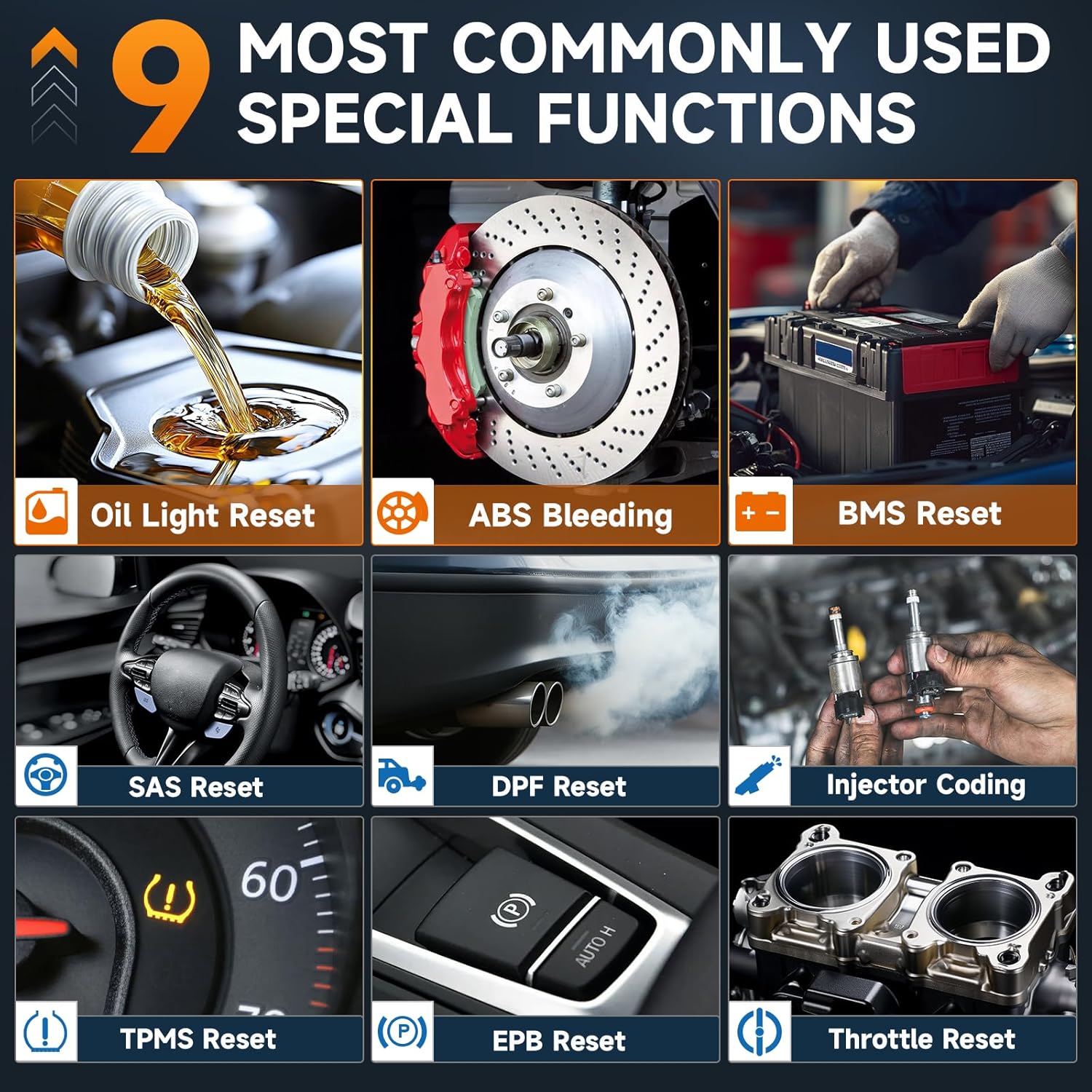
Image 4.1.3: The FOXWELL NT716 displaying its 9 special functions, including Oil Light Reset, ABS Bleeding, BMS Reset, SAS Reset, DPF Reset, Injector Coding, TPMS Reset, EPB Reset, and Throttle Reset.
- Oil Light Reset: Resets the oil service light after an oil change.
- ABS Bleeding: Performs bleeding procedures for the Anti-lock Braking System.
- BMS Reset: Resets the Battery Management System after battery replacement.
- SAS Reset: Calibrates the Steering Angle Sensor.
- DPF Reset: Resets the Diesel Particulate Filter system.
- Injector Coding: Codes new injector values into the ECU.
- TPMS Reset: Resets the Tire Pressure Monitoring System.
- EPB Reset: Resets the Electronic Parking Brake after brake pad replacement.
- Throttle Reset: Relearns throttle body position.
4.2 Using the FOXWELL BT60 Battery Tester
Once the BT60 is connected to the battery and paired with the app, you can perform various tests.

Image 4.2: The FOXWELL BT60 app interface showing battery status at a glance, including tested capacitance, voltage, battery health, state of charge, and resistance. It also displays results for cranking and charging tests.
4.2.1 Battery Test
- Open the BT60 App and select "Battery Test".
- Input battery information (type, standard, CCA) if prompted, or select from saved profiles.
- The app will display the battery's State of Health (SOH), State of Charge (SOC), Voltage, and Internal Resistance.
4.2.2 Cranking Test
This test measures the battery's ability to provide current during engine cranking.
- Select "Cranking Test" in the app.
- Follow the on-screen instructions to start the engine.
- The app will display the cranking voltage and time, indicating the battery's performance during startup.
4.2.3 Charging Test
Evaluates the vehicle's charging system (alternator, regulator) performance.
- Select "Charging Test" in the app.
- Follow the on-screen instructions to rev the engine to specified RPMs.
- The app will display charging voltage and ripple, indicating the health of the charging system.
4.2.4 Data Management and Sharing

Image 4.2.4a: The FOXWELL BT60 app interface showing options for managing multiple batteries, accessing data records, and utilizing online quick guides and diagnosis result definitions.

Image 4.2.4b: The FOXWELL BT60 app demonstrating the ability to share diagnostic reports via images or text, allowing for easy communication of battery health information.
- Manage Multiple Batteries: The app allows you to save and manage test records for various batteries.
- Data Records: Access historical test data for comparison and trend analysis.
- Share Reports: Generate and share diagnostic reports via email, messaging apps, or other platforms directly from the app.
5. Maintenance
- Cleaning: Use a soft, damp cloth to clean the device casings. Do not use abrasive cleaners or solvents.
- Storage: Store the devices in a dry, cool environment away from direct sunlight and extreme temperatures.
- Cable Care: Inspect cables and connectors regularly for damage. Replace if necessary.
- Software Updates: Regularly update the NT716 software via the FOXWELL update tool and ensure the BT60 app is updated to the latest version for optimal performance and compatibility.
6. Troubleshooting
- Device Not Powering On (NT716):
- Ensure the OBD-II cable is securely connected to both the vehicle and the scanner.
- Verify the vehicle's ignition is in the ON position.
- Check the vehicle's fuse for the OBD-II port.
- BT60 Not Connecting to App:
- Ensure Bluetooth is enabled on your smartphone.
- Verify the BT60 device is powered on and connected to the battery.
- Restart the BT60 app and try pairing again.
- Check if the BT60 device has sufficient charge.
- Inaccurate Readings:
- Ensure battery clamps are clean and securely attached to the battery terminals.
- Verify the battery type and CCA values entered in the BT60 app are correct.
- For NT716, ensure the correct vehicle information is selected.
- Software Update Issues:
- Ensure a stable internet connection during updates.
- Temporarily disable antivirus software if it interferes with the update process.
7. Specifications
7.1 FOXWELL NT716 OBD2 Scanner
| Feature | Description |
|---|---|
| Display | Color LCD |
| Connectivity | OBD-II cable, USB for updates |
| Operating Voltage | 9-18V DC (via OBD-II) |
| Supported Protocols | All OBD-II protocols (ISO9141-2, ISO14230-2, ISO15765-4, KWP2000, J1850 VPW, J1850 PWM) |
| Functions | 4 System Diagnostics, Bidirectional Control, 9 Reset Functions, Full OBDII |
7.2 FOXWELL BT60 Battery Tester
| Feature | Description |
|---|---|
| Battery Types | 6V, 12V Lead-Acid Batteries (Flooded, AGM, GEL, EFB) |
| Test Standards | CCA, BCI, CA, MCA, JIS, DIN, IEC, EN, SAE, GB |
| Connectivity | Bluetooth 5.3 (App-controlled) |
| Operating Temperature | 0°C to 50°C (32°F to 122°F) |
| Storage Temperature | -20°C to 70°C (-4°F to 158°F) |
8. Warranty and Support
FOXWELL products typically come with a limited warranty. Please refer to the warranty card included with your product or visit the official FOXWELL website for detailed warranty terms and conditions.
For technical support, product inquiries, or service, please contact FOXWELL customer support through their official website or the contact information provided in your product packaging. Regular software updates are available to enhance functionality and compatibility.
- Official Website: www.foxwelltech.com (Example link, please verify actual URL)
- Customer Service: Refer to product packaging or website for contact details.


