
1. Introduction
Thank you for choosing the EWEADN X23Pro Wireless Gaming Mouse. This high-performance gaming mouse features tri-mode connectivity (2.4G wireless, BT5.0 wireless, and USB-C wired), a lightweight 49g design, and a high-precision 12,000 DPI sensor. It is designed to provide a seamless and responsive experience for both gaming and office tasks. This manual will guide you through the setup, operation, maintenance, and troubleshooting of your new mouse.
2. What's in the Box
- EWEADN X23Pro Gaming Mouse
- USB-C Charging/Data Cable
- User Manual
- Non-slip Stickers (6 Pcs)
3. Product Overview
Familiarize yourself with the components and controls of your EWEADN X23Pro mouse.

Detailed diagram of the X23Pro mouse, pointing out its various buttons and features such as the left/right buttons, scroll wheel, side buttons, DPI button, and USB receiver slot.
- Left Button: Standard left-click function.
- Right Button: Standard right-click function.
- Scroll Wheel: For vertical scrolling and middle-click.
- Forward Button: Navigates forward in web browsers or applications.
- Backward Button: Navigates backward in web browsers or applications.
- Type-C Interface: For wired connection and charging.
- 2.4G/OFF/BT Button: Mode switch for wireless connections and power off.
- Code Key: Used for pairing in 2.4G and Bluetooth modes.
- DPI Button: Cycles through DPI settings.
- USB Receiver: Stores the 2.4G wireless receiver.
4. Setup and Connection
4.1 Powering On and Charging
The X23Pro mouse is equipped with an 800mAh rechargeable battery. To charge, connect the included USB-C cable to the mouse and a power source (e.g., computer USB port, USB wall adapter). The mouse can be used while charging. A full charge provides over 130 hours of use.
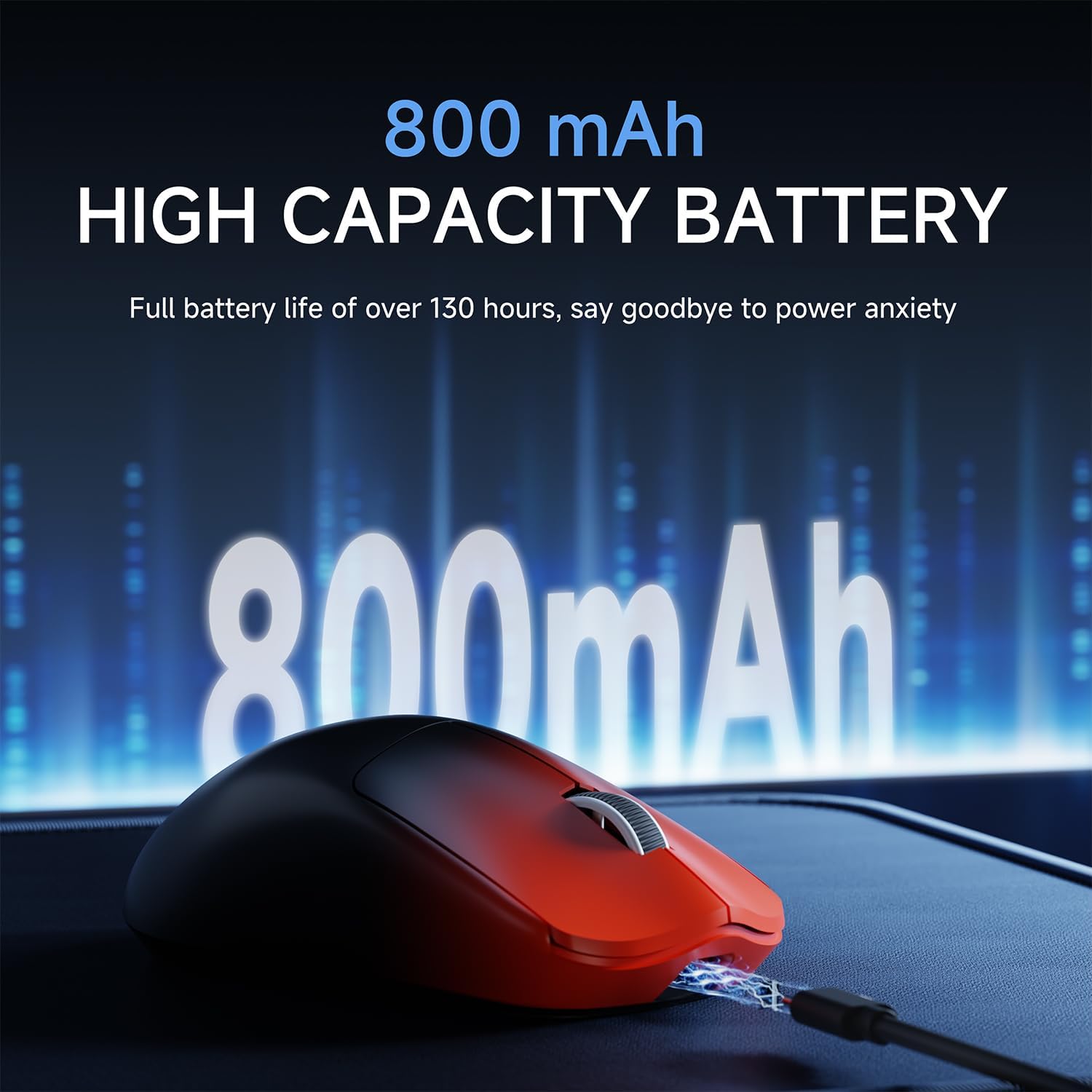
The X23Pro mouse connected via USB-C for charging, emphasizing its 800mAh high-capacity battery for extended use.
4.2 Connection Modes
The X23Pro supports three connection modes: 2.4G wireless, Bluetooth 5.0, and USB-C wired. It can save up to 4 devices simultaneously.

Diagram illustrating the three connection modes of the X23Pro mouse: 2.4GHz wireless, Bluetooth 5.0, and wired USB-C, enabling versatile use across multiple devices.
4.2.1 2.4G Wireless Mode
- Locate the USB receiver stored in the bottom of the mouse.
- Plug the USB receiver into an available USB port on your computer.
- Slide the 2.4G/OFF/BT switch on the bottom of the mouse to the "2.4G" position.
- Long press the "Code Key" on the bottom of the mouse. The top indicator light will flash green, indicating pairing mode.
- The mouse should automatically connect to your device.
4.2.2 Bluetooth 5.0 Mode
- Slide the 2.4G/OFF/BT switch on the bottom of the mouse to the "BT" position.
- Long press the "Code Key" on the bottom of the mouse. The top indicator light will flash blue, indicating pairing mode.
- On your device (PC, Mac, tablet), go to Bluetooth settings and search for new devices.
- Select "EWEADN X23Pro" from the list of available devices to pair.
4.2.3 USB-C Wired Mode
- Connect the included USB-C cable to the Type-C interface on the front of the mouse.
- Connect the other end of the USB-C cable to an available USB port on your computer.
- The mouse will automatically switch to wired mode and begin charging.

Step-by-step guide on connecting the X23Pro mouse, detailing the switch positions for 2.4G and Bluetooth modes, and their respective indicator lights.
5. Operating Instructions
5.1 DPI Adjustment
The X23Pro mouse features 6 adjustable DPI levels: 800, 1600 (default), 2400, 3200, 6400, and 12,000. You can quickly switch DPI by pressing the DPI toggle button located on the bottom of the mouse. For advanced customization, the DPI values can be set using the dedicated driver software.

Illustration showing the EWEADN X23Pro mouse and its capability for up to 12,000 DPI, allowing for precise cursor control.
5.2 Polling Rate Adjustment
Adjust the polling rate to optimize responsiveness. The X23Pro offers 4 adjustable polling rates: 125Hz, 250Hz, 500Hz, and 1000Hz. A higher polling rate provides a smoother and faster response, crucial for gaming. This setting can typically be adjusted via the driver software.

Illustration demonstrating the benefit of the X23Pro's 1000Hz polling rate, ensuring smooth and responsive tracking.
5.3 Programmable Buttons and Macro Customization
The X23Pro features 6 programmable buttons. Each button supports macro programming, allowing you to assign complex commands or sequences of actions. This customization is performed using the dedicated driver software, enhancing your gaming and productivity.

A screenshot of the X23Pro's customization software, showing options for button assignment, macro editing, DPI settings, and power management.
5.4 Sleep Mode
To conserve battery, the mouse enters a primary sleep mode after 1 minute of inactivity. It supports wake-up by either pressing a button or moving the mouse.
6. Maintenance
Proper maintenance ensures the longevity and optimal performance of your mouse.
- Cleaning: Use a soft, dry cloth to wipe the surface of the mouse. For stubborn dirt, slightly dampen the cloth with water or a mild cleaning solution. Avoid harsh chemicals or abrasive materials.
- Sensor Care: Keep the optical sensor on the bottom of the mouse clean and free from dust or debris to ensure accurate tracking.
- Battery Care: While the mouse has an intelligent power management system, avoid completely draining the battery frequently. Charge it regularly to maintain battery health.
- Storage: When not in use for extended periods, store the mouse in a cool, dry place.

The X23Pro mouse is designed to fit various grip styles comfortably.
7. Troubleshooting
If you encounter issues with your EWEADN X23Pro mouse, try the following solutions:
- Mouse not responding:
- Ensure the mouse is powered on and the battery is charged.
- Check the connection mode switch (2.4G/OFF/BT) is in the correct position.
- For 2.4G wireless, ensure the USB receiver is securely plugged in. Try a different USB port.
- For Bluetooth, ensure Bluetooth is enabled on your device and the mouse is paired. Try re-pairing.
- Try connecting via USB-C wired mode to confirm basic functionality.
- Cursor movement is erratic or jumpy:
- Clean the optical sensor on the bottom of the mouse.
- Ensure you are using the mouse on a suitable surface (non-reflective, uniform color).
- Adjust the DPI setting to a lower value if it's too sensitive.
- Buttons not working:
- Check if the buttons are physically obstructed.
- If using custom software, ensure button assignments are correct.
- Battery not charging:
- Ensure the USB-C cable is properly connected to both the mouse and the power source.
- Try a different USB port or charging adapter.
- Ensure the cable is not damaged.
If these steps do not resolve the issue, please refer to the Warranty and Support section for further assistance.
8. Specifications
| Feature | Detail |
|---|---|
| Model Number | X23Pro |
| Connectivity Technology | 2.4GHz Wireless, Bluetooth 5.0, USB-C Wired |
| DPI Levels | 800-1600-2400-3200-6400-12,000 (Adjustable) |
| Polling Rate | 125Hz-250Hz-500Hz-1000Hz (Adjustable) |
| Buttons | 6 Programmable Buttons |
| Battery Capacity | 800mAh Rechargeable |
| Battery Life | Up to 130 hours (approx. 20 days with 5 hours daily use) |
| Weight | 49g (approx. 2.08 ounces) |
| Product Dimensions | 4.6 x 2.4 x 0.04 inches |
| Movement Detection Technology | Optical |
| Compatibility | Windows 7/8/10/XP/Vista, Mac OS, Linux, Android |
9. Warranty and Support
SEUNKWANG is committed to providing high-quality products and excellent customer service. For any inquiries, technical support, or warranty claims, please contact us through the following channels:

Information on SEUNKWANG's comprehensive after-sales support, including pre-sales inquiries, troubleshooting, accessory replacement, and returns/exchanges, with an email contact.
- Email Support: For direct assistance, please email us at zack@eweadn.cn.
- Amazon Store: You can also contact us through our official Amazon store page by finding the store and clicking the "Ask a question" option.
Please provide your product model and a detailed description of the issue when contacting support to ensure a prompt and effective resolution.
10. Product Video
Watch the official product video for a visual overview of the EWEADN X23Pro Wireless Gaming Mouse.
Official video demonstrating the EWEADN X23Pro Wireless Gaming Mouse, showcasing its design and features.