
OLIGHT O-SPHERE-C-300000
OLIGHT Sphere C Smart Night Light User Manual
Model: O-SPHERE-C-300000
Introduction
The OLIGHT Sphere C is a versatile and portable smart night light designed to enhance various environments with its customizable lighting effects. Featuring USB-C recharging, app control, and a magnetic base, it serves as an ideal companion for daily use, family gatherings, outdoor adventures, and more. This manual provides essential information for setting up, operating, and maintaining your Sphere C.

The OLIGHT Sphere C Smart Night Light, showcasing its vibrant colors and app connectivity.
What's in the Box
Upon unboxing your OLIGHT Sphere C, please ensure all components are present:
- Sphere C x 1
- User Manual x 1
Note: The USB-C charging cable is not included in the package.
Features
The OLIGHT Sphere C is packed with features for a personalized lighting experience:
- Universal USB-C Charging: Conveniently charge with common USB-C cables.
- Superior Magnetic Base: Allows for effortless placement and secure attachment to metal surfaces for hands-free use.
- Smart App Control: Adjust brightness, modes, and monitor power. Features include group control, music rhythm, and countdown timers.
- 20+ Lighting Modes: Choose from a wide variety of preset lighting effects across General, Nature, Festive, and Atmosphere categories.
- Long-Lasting Battery: 700mAh capacity battery provides up to 3 hours in bright mode and 40 hours in soft white light mode.
- Automatic Sleep Mode: Enters sleep mode after 30 minutes of no operation to conserve power.
- Durable Design: IP56 dust- and water-resistant, and 1.5m impact-resistant.
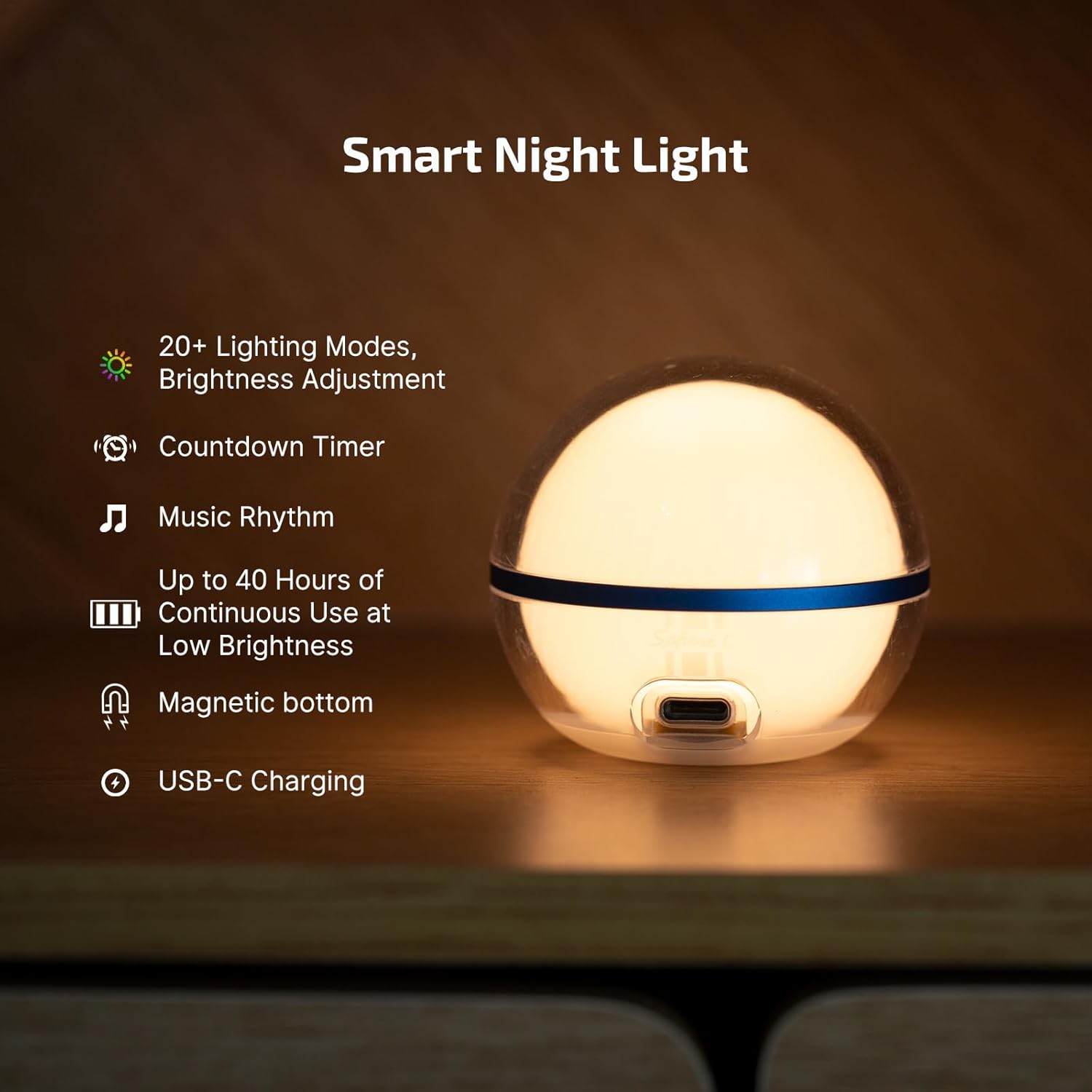
Key features of the Sphere C, including its versatile lighting options and magnetic base.

The Sphere C is designed to be sealed and strong, offering IP56 dust and water resistance, and 1.5m impact resistance.
Setup
Follow these steps to set up your OLIGHT Sphere C:
- Charging: Connect the Sphere C to a USB-C power source using a compatible USB-C cable (not included). The indicator light will show charging status.
- Initial Power On: Press the button located at the bottom of the Sphere C once to turn it on.
- App Download: Download the official OLIGHT app from your device's app store (iOS or Android).
- Pairing: Open the OLIGHT app and follow the on-screen instructions to pair your Sphere C. Ensure Bluetooth is enabled on your device.

The Sphere C features universal USB-C charging for convenience.
Operating
The Sphere C can be operated directly via its bottom button or through the OLIGHT app.
Button Control:
- Single Press: Turns the light on.
- Double Press: Turns the light off.
- Hold: Activates stepless dimming, allowing you to adjust brightness smoothly.
- Press to Cycle: Cycles through 7 lighting modes: white light, red light, red flash, and four replaceable colorful modes.

Control the Sphere C directly using the button on its base.
App Control:
The OLIGHT app provides comprehensive control and customization options:
- Brightness Adjustment: Precisely adjust the light intensity.
- Mode Selection: Choose from over 20 distinct lighting effects categorized as General, Nature, Festive, and Atmosphere.
- Battery Monitoring: Check the current battery level.
- Interactive Features: Utilize group control for multiple Sphere C units, music rhythm synchronization, and set countdown timers for automatic shut-off.
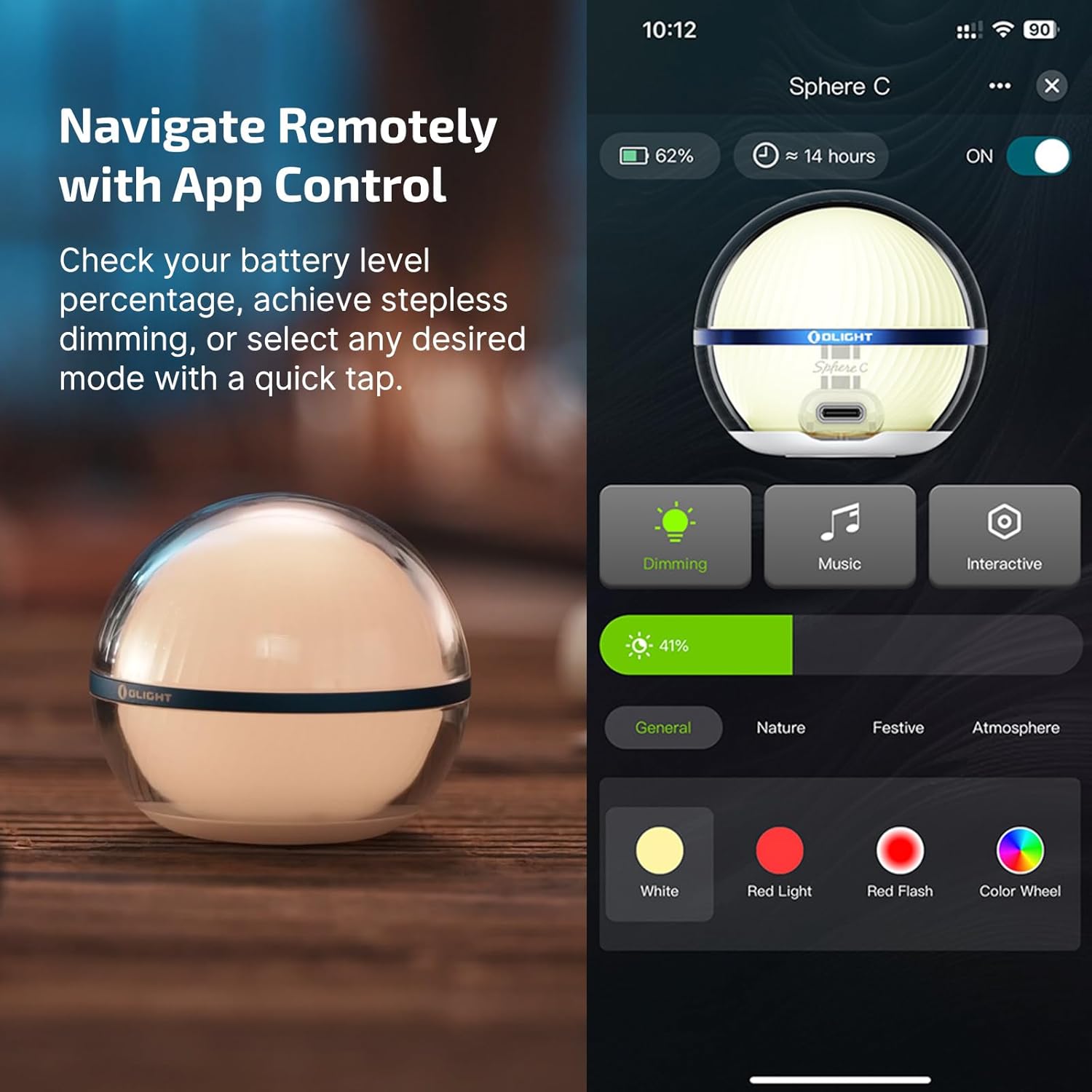
Navigate and customize your Sphere C remotely with the dedicated app.
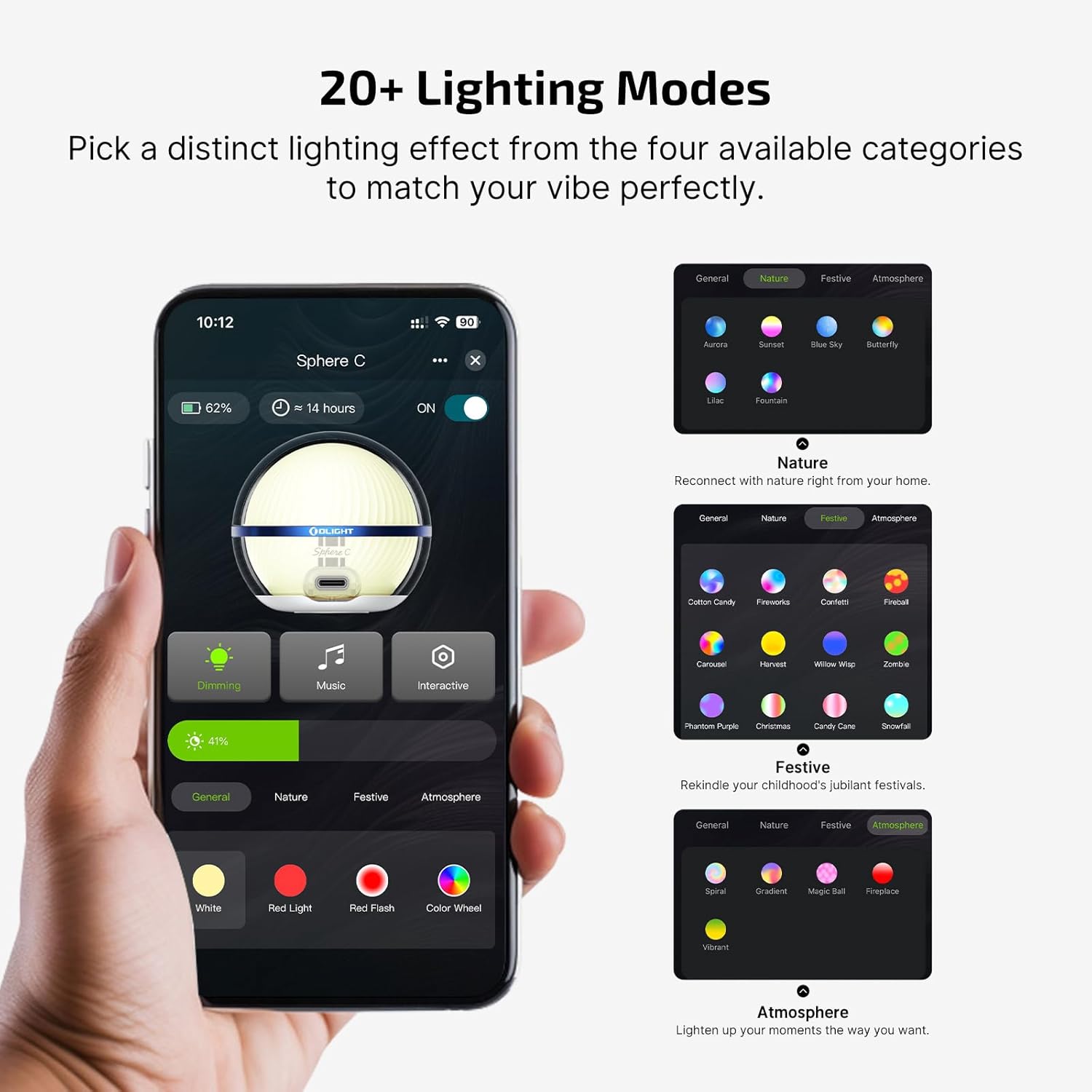
Explore over 20 lighting modes to match any mood or occasion.
Official product video: "Sphere C Rechargeable Smart Night Light" by Olight® Direct. This video demonstrates the various features and uses of the Sphere C, including its app control capabilities and different lighting modes.
Maintenance
To ensure the longevity and optimal performance of your OLIGHT Sphere C, follow these maintenance guidelines:
- Cleaning: Wipe the Sphere C with a soft, damp cloth. Avoid using abrasive cleaners or solvents that could damage the polycarbonate material.
- Storage: Store the Sphere C in a cool, dry place when not in use for extended periods.
- Charging: Recharge the device regularly, even if not in frequent use, to maintain battery health.
- Water Resistance: The Sphere C is IP56 dust- and water-resistant, meaning it can withstand splashes and light rain. However, it is not designed for submersion.
Troubleshooting
If you encounter issues with your OLIGHT Sphere C, refer to the following common solutions:
- Device Not Responding: Ensure the battery is charged. If the device is unresponsive, try connecting it to a power source.
- App Connectivity Issues: Make sure Bluetooth is enabled on your smartphone and the Sphere C is within range. Restarting both the app and the Sphere C may resolve connection problems.
- Multiple Sphere C Units with App: When controlling multiple Sphere C units with the app, it is recommended to keep them within 5 inches of each other for optimal performance.
- Olink Compatibility: Please note that Sphere C is not compatible with Olink.
Specifications
| Specification | Detail |
|---|---|
| Product Dimensions | 2.26"D x 2.26"W x 2.64"H |
| Item Weight | 3.2 ounces |
| Lamp Type | Night Light |
| Shade Material | Polycarbonate |
| Light Source Type | LED |
| Brightness | 75 Lumen |
| Battery | 1 Lithium Polymer (included) |
| Control Method | App (iOS, Android) |
| Water Resistance Level | IP56 (Dust Resistant, Waterproof) |
Warranty
OLIGHT is committed to providing high-quality products. The Sphere C Smart Night Light comes with a Lifetime Warranty, ensuring peace of mind for your purchase. For detailed warranty terms and conditions, please refer to the official OLIGHT website or contact customer support.
Support
For further assistance, technical support, or inquiries regarding your OLIGHT Sphere C Smart Night Light, please contact OLIGHT customer service through their official website or the contact information provided in your product packaging. You can also visit the OLIGHT Store on Amazon for more information and resources.
Related documentsO-SPHERE-C-300000


Ask a question about this manual
Ask about setup, troubleshooting, compatibility, parts, safety, or missing instructions. Manuals+ will review the question and use this page’s manual context to help answer it.