
Blackview BV6200PLUS
Blackview BV6200Plus Rugged Phone User Manual
Model: BV6200PLUS | Brand: Blackview
1. Introduction
Welcome to the user manual for your new Blackview BV6200Plus Rugged Phone. This device is engineered for durability and high performance, designed to withstand challenging environments while providing a seamless smartphone experience. Featuring an ultra-loud speaker, a massive 11000mAh battery, and the latest Android 15 operating system, the BV6200Plus is your reliable companion for any adventure.
This manual provides essential information on setting up, operating, maintaining, and troubleshooting your device to ensure you get the most out of its robust features.
2. What's in the Box
Upon unboxing your Blackview BV6200Plus, please verify that all the following items are included:
- Blackview BV6200Plus Outdoor Smartphone
- Charging Adapter
- USB Cable (Type-C)
- SIM Tray Ejector Tool
- Pre-applied Screen Protector
- User Manual (this document)

Image: Contents of the Blackview BV6200Plus retail package.
3. Product Overview
Familiarize yourself with the physical components of your Blackview BV6200Plus:
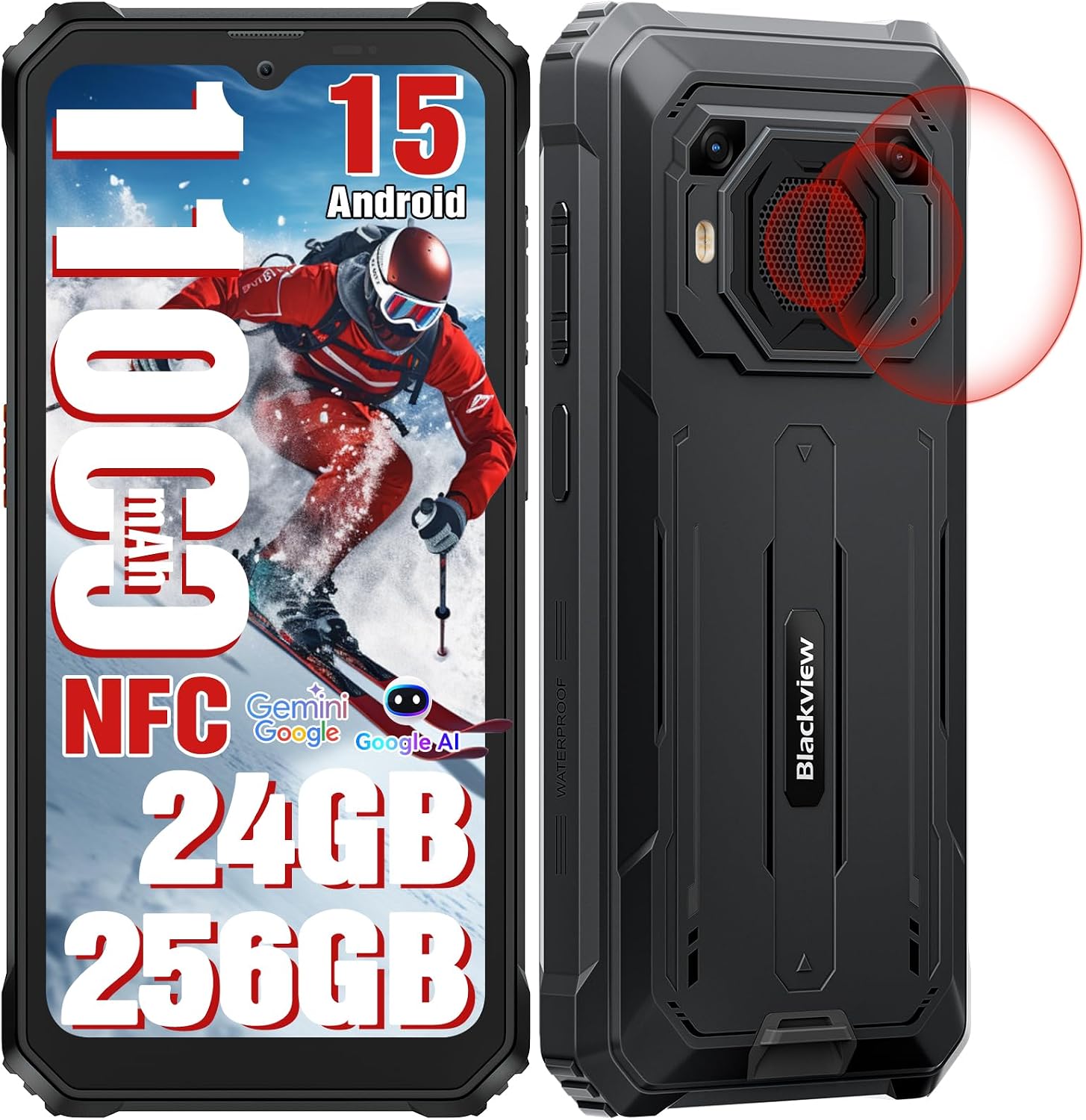
Image: Front and rear view of the Blackview BV6200Plus.
3.1. Physical Components
- Front Display: 6.56-inch HD+ IPS display with 90Hz refresh rate.
- Front Camera: 13MP AI camera, located at the top center of the display.
- Rear Cameras: 16MP AI main camera and a secondary camera.
- Super Speaker: Large 3W peak stereo speaker on the rear, delivering up to 98dB loudness.
- Power Button/Fingerprint Sensor: Located on the right side for secure unlock and power control.
- Volume Buttons: Located on the left side, above the customizable shortcut button.
- USB Type-C Port: Located at the bottom, protected by a rubber flap, for charging and data transfer.
- SIM/TF Card Slot: Located on the left side, protected by a rubber flap, for dual SIM cards and expandable storage.
- 3.5mm Audio Jack: For connecting headphones.

Image: Key features and component locations.
4. Initial Setup
4.1. Installing SIM and TF Card
- Locate the SIM/TF card slot on the left side of the phone.
- Carefully open the protective rubber flap.
- Insert the SIM tray ejector tool into the small hole next to the tray and push gently until the tray pops out.
- Place your Nano-SIM cards (up to two) and/or a TF (microSD) card into the designated slots on the tray. Ensure the gold contacts face downwards.
- Gently push the tray back into the slot until it is flush with the phone's body.
- Close the rubber flap firmly to maintain water and dust resistance.

Image: Three-card slot for SIM and TF card installation.
4.2. Charging the Battery
Your Blackview BV6200Plus is equipped with a large 11000mAh battery. For optimal performance, fully charge the device before first use.
- Open the protective rubber flap covering the USB Type-C port at the bottom of the phone.
- Connect the USB cable to the phone and the charging adapter.
- Plug the charging adapter into a power outlet.
- The charging indicator on the screen will show the charging status. The phone supports 18W fast charging.
- Once fully charged, disconnect the cable and firmly close the rubber flap to maintain water resistance.

Image: Battery and charging features.
4.3. Powering On/Off
- To Power On: Press and hold the Power button (right side) until the Blackview logo appears.
- To Power Off: Press and hold the Power button, then select 'Power off' from the options on the screen.
- To Restart: Press and hold the Power button, then select 'Restart' from the options.
5. Operating Your Phone
5.1. Android 15 and DokeOS 4.0
Your BV6200Plus runs on the latest Android 15 system, customized with Blackview's DokeOS 4.0 for an enhanced user experience. DokeOS 4.0 offers improved privacy protection, app widgets, easy app sharing, and seamless customization with themes, file folders, and icons.

Image: DokeOS 4.0 user interface features.
5.2. Calls and Messaging
To make a call, open the Phone app and dial the number or select a contact. To send a message, open the Messages app and compose your text.
5.3. Internet and Connectivity
- Wi-Fi: Go to Settings > Network & internet > Wi-Fi to connect to available networks.
- Bluetooth: Go to Settings > Connected devices > Bluetooth to pair with Bluetooth devices (BT 5.0 supported).
- Mobile Data: Ensure your SIM card is active and mobile data is enabled in Settings > Network & internet > Mobile network. The phone supports Dual SIM 4G.
- NFC: Use NFC for contactless payments (Google Pay) and quick data sharing. Enable NFC in Settings > Connected devices > Connection preferences > NFC.
5.4. Camera Functions
The BV6200Plus features a 16MP AI main camera and a 13MP AI front camera. Open the Camera app to capture photos and 1080P videos.
- Modes: Explore various modes like Photo, Video, Portrait, and Underwater mode.
- AI Tools: Utilize AI features such as AI Erase and Sky Edit for professional-grade photo enhancements.

Image: Camera features and AI editing capabilities.
5.5. Super Speaker
Experience powerful audio with the 98dB Super Speaker. Ideal for music, movies, and hands-free calls in noisy environments.

Image: Detail of the 3W Ultra-loud Stereo Speaker.
5.6. Navigation and Outdoor Toolkit
The phone supports multiple navigation systems including GPS, GLONASS, Beidou, and Galileo for accurate positioning. The built-in Outdoor Toolkit app provides useful tools like a compass, barometer, and more.

Image: Navigation and Outdoor Toolkit features.
5.7. Security Features
Unlock your phone instantly and securely using Face Unlock or the side-mounted Fingerprint Sensor.
6. Ruggedness and Durability
The Blackview BV6200Plus is built to endure harsh conditions, certified with IP68, IP69K, and MIL-STD-810H standards.
- Water Resistance (IP68 & IP69K): Submersible up to 1.5 meters for 30 minutes. Protected against high-pressure, high-temperature water jets.
- Dust Resistance (IP68 & IP69K): Fully protected against dust ingress.
- Drop Resistance (MIL-STD-810H): Can survive drops from up to 1.2 meters. Features a padded TPU cover, silicone-sealed display, thickened corners, reinforced double-shot molding back shell, and an anti-collision body design.

Image: Ruggedness features and certifications.

Image: Water and dust protection mechanisms.
7. Maintenance and Care
To ensure the longevity and optimal performance of your Blackview BV6200Plus, follow these maintenance guidelines:
- Cleaning: Use a soft, damp cloth to clean the phone's surface. Avoid harsh chemicals or abrasive materials. Ensure all rubber flaps are securely closed before cleaning with water.
- Battery Care: While the 11000mAh battery is robust, avoid extreme temperatures (both hot and cold) as they can affect battery life. Do not fully discharge the battery regularly.
- Software Updates: Regularly check for system updates (Settings > System > System update) to ensure your phone has the latest features, security patches, and performance improvements.
- Port Protection: Always keep the rubber flaps covering the USB port and SIM/TF card slot securely closed when not in use to prevent water and dust ingress.
8. Troubleshooting
Here are solutions to common issues you might encounter:
| Problem | Possible Solution |
|---|---|
| Phone won't turn on | Ensure the battery is charged. Connect to the charger for at least 10 minutes, then try powering on. If it still doesn't turn on, perform a forced restart by holding the Power button for 10-15 seconds. |
| Poor network signal / No service | Check if your SIM card is properly inserted. Verify that your carrier is supported (supports GSM networks like T-mobile and MetroPCS; incompatible with CDMA carriers like AT&T, Cricket Wireless, Verizon, Straight Talk, or U.S.Cellular). Try restarting the phone or toggling Airplane Mode on/off. |
| Battery drains quickly | Close unused apps running in the background. Reduce screen brightness. Disable Wi-Fi, Bluetooth, or GPS when not in use. Check battery usage in Settings to identify power-hungry apps. |
| Apps crashing or freezing | Clear the cache of the problematic app (Settings > Apps > [App Name] > Storage & cache > Clear cache). If the issue persists, try reinstalling the app. Ensure your system software is up to date. |
| Speaker volume is low | Ensure the volume is turned up. Check if the speaker grille is obstructed by dirt or debris. Clean gently if necessary. |
9. Technical Specifications
| Feature | Specification |
|---|---|
| Model | BV6200PLUS |
| Operating System | Android 15 (DokeOS 4.0) |
| Processor | Octa Core Unisoc T606 (2 x A75 + 6 x A55 1.6GHz) |
| RAM | Up to 24GB (8GB + 16GB Extended) |
| Internal Storage (ROM) | 256GB |
| Expandable Storage | Up to 2TB via TF card (microSD) |
| Display | 6.56 inches HD+ IPS, 90Hz Refresh Rate, 450 cd/m² brightness |
| Rear Camera | 16MP AI Main Camera + 13MP Secondary Camera |
| Front Camera | 13MP AI Camera |
| Battery Capacity | 11000mAh |
| Charging | 18W Fast Charging, OTG Reverse Charging |
| Speaker | 3W Peak Stereo Speaker, 98dB Max Loudness |
| Durability | IP68, IP69K, MIL-STD-810H Certified |
| Connectivity | Dual SIM 4G, Bluetooth 5.0, Wi-Fi, NFC |
| Navigation | GPS, GLONASS, Beidou, Galileo |
| Unlock Methods | Fingerprint Unlock, Face Unlock |
| Dimensions | 8.1 x 8.1 x 1.5 inches (Package) |
| Weight | 1.65 pounds |

Image: Processor and memory details.
10. Warranty and Support
Blackview offers a 2-year warranty for your BV6200Plus Rugged Phone, ensuring peace of mind regarding manufacturing defects and hardware issues. Additionally, we provide lifelong technical support to assist you with any questions or problems you may encounter during the product's lifespan.
For technical assistance, troubleshooting, or warranty claims, please contact Blackview customer support. You can find contact information on the official Blackview website or through your purchase platform.

Image: Blackview customer support information.
Official Product Video
Video: An official product video showcasing the Blackview BV6200Plus's features, including its rugged design, powerful speaker, and long-lasting battery. This video provides a visual overview of the phone's capabilities and durability.
Related documentsBV6200PLUS

Ask a question about this manual
Ask about setup, troubleshooting, compatibility, parts, safety, or missing instructions. Manuals+ will review the question and use this page’s manual context to help answer it.