
1. Introduction
The NuPhy Kick75 is a state-of-the-art wireless low-profile mechanical keyboard designed for enhanced efficiency and comfort in both office and gaming environments. Featuring a 75% layout, hot-swappable switches, customizable RGB backlighting, and versatile tri-mode connectivity, it offers a seamless and personalized typing experience across multiple operating systems.

Figure 1: Top view of the NuPhy Kick75 Wireless Mechanical Keyboard.
2. Setup
2.1 Unboxing and Initial Inspection
Upon opening the package, carefully remove the keyboard and all included accessories. Verify that all components listed in the "What's in the Box" section are present.
Video 1: Unboxing the NuPhy Kick75 Tri-Mode Mechanical Keyboard. This video demonstrates the careful unboxing process, revealing the keyboard and its accessories, including the quick guide, Q&A booklet, extra keycaps, 2.4G receiver, and USB cable.
2.2 Connectivity Modes
The Kick75 supports three connectivity modes: 2.4GHz wireless, Bluetooth 5.1, and USB-C wired. Use the switches located on the back of the keyboard to select your preferred mode.
- 2.4GHz Wireless: For low-latency connection, ideal for gaming. Insert the 2.4G dongle into your device's USB port.
- Bluetooth 5.1: For convenient wireless use with multiple devices. Pair the keyboard via your device's Bluetooth settings.
- USB-C Wired: For direct connection and charging. Connect the provided USB-C cable to the keyboard and your device.

Figure 2: Illustration of the three connection modes supported by the Kick75 keyboard.
2.3 Operating System Compatibility
The Kick75 is compatible with Windows, macOS, and Linux operating systems. A dedicated system toggle switch is located on the back of the keyboard to switch between Windows and Mac layouts, ensuring optimal functionality and comfort across platforms.

Figure 3: Side view of the Kick75, illustrating the system and connectivity mode switches.
2.4 Adjustable Feet
The keyboard features adjustable feet on its underside, allowing users to set a preferred typing angle for improved ergonomics and comfort during extended use.

Figure 4: Bottom view of the Kick75, illustrating the adjustable feet and unique design elements.
3. Operating the Keyboard
3.1 Key Customization and Macro Recording
Utilize the NuPhyIO web assistant to customize key functions, knob actions, and lighting effects. This software also supports macro recording, allowing users to program complex sequences for enhanced efficiency in design, programming, and gaming tasks.

Figure 5: NuPhyIO software for keyboard customization.
Video 2: NuPhy Kick75 Partial Function Demonstration. This video showcases the keyboard's customizable features, including the volume knob for designers, key redefinition for programmers, and one-button macro recording for gamers.
3.2 Volume Knob
The red knob located on the top right of the keyboard serves as a volume control. It offers a tactile and satisfying way to adjust audio levels.

Figure 6: Close-up of the volume knob and keycap layout.
3.3 RGB Backlighting
The keyboard features customizable RGB backlighting. Adjust lighting effects and brightness through the NuPhyIO software to personalize your workspace.
3.4 Hybrid Profile (Optional Conversion Kit)
The Kick75 supports a unique "Hybrid Profile" feature, allowing conversion between low-profile and high-profile configurations. This requires an optional conversion kit (sold separately) which includes a taller top case, case foam, and a knob extension. This flexibility allows users to adapt the keyboard to their preferred typing feel.
3.5 Typing Experience
The Kick75 features a gasket mount design and sound-absorbing foam for unparalleled typing comfort, delivering a softer, more responsive keystroke. The pre-lubed Nano switches (e.g., Blush nano, Red nano, Brown nano, Silver nano) provide a smooth and satisfying typing sound.
Video 3: NuPhy Kick75 typing sound demonstration. This video showcases the distinct typing sounds of different Nano switches (Red, Brown, Blush, Silver) on the Kick75 keyboard.
4. Maintenance
4.1 Hot-Swappable Switches
The PCB of the Kick75 is hot-swappable, supporting both 3-pin and 5-pin mechanical switches. This allows for easy replacement and customization of switches without soldering.
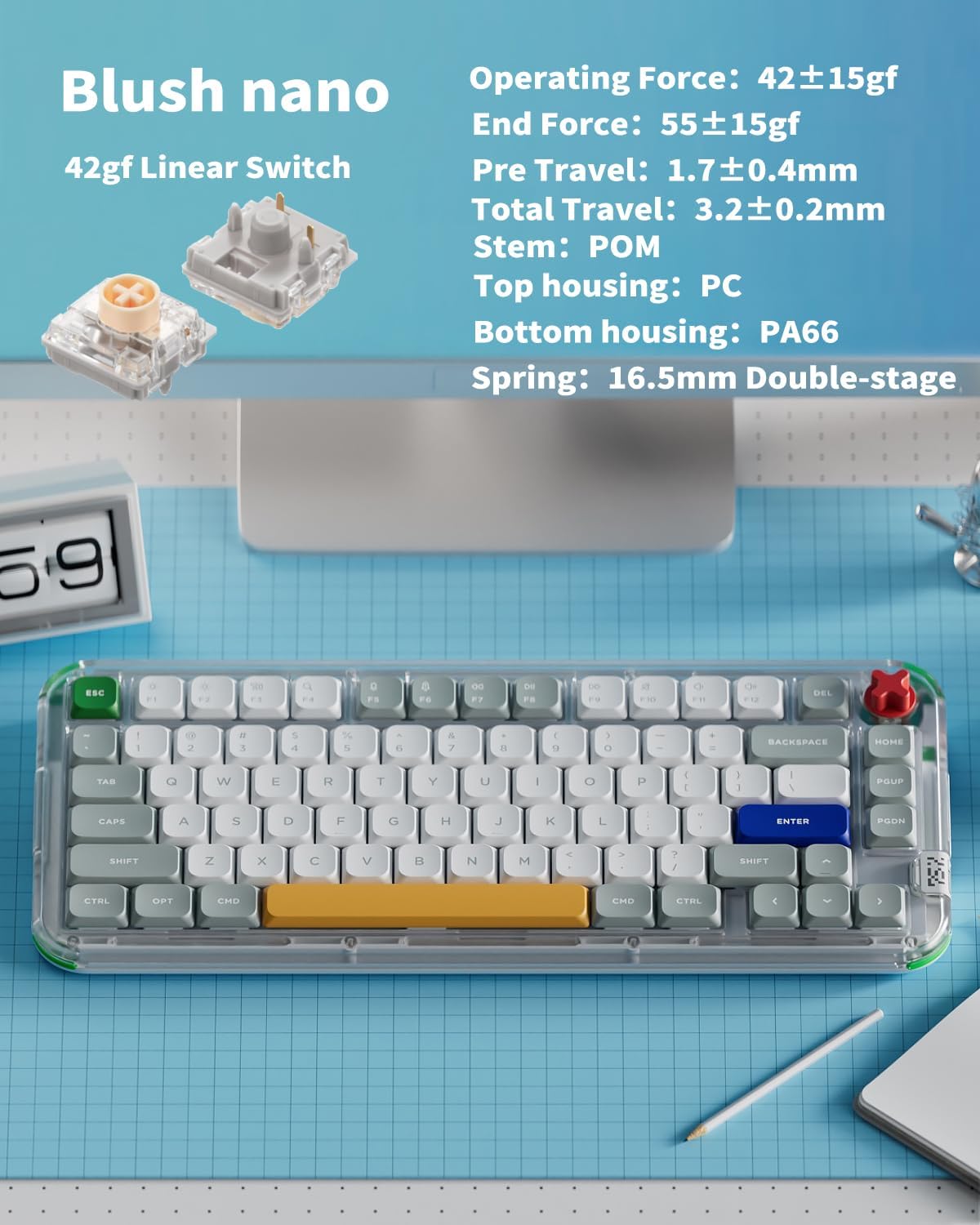
Figure 7: Specifications of the Blush nano switch, one of the available switch types.
4.2 PBT Keycaps
The keyboard is equipped with durable PBT keycaps, designed to resist wear and tear, ensuring longevity and maintaining a premium feel over time. Note that these keycaps do not pass through light.
4.3 Disassembly for Customization
For advanced customization or maintenance, the keyboard can be disassembled. The red rubber piece on the back can be easily removed to access two of the eight screws required for disassembly. A screwdriver is included in the optional conversion kit for this purpose.
5. Specifications
| Feature | Detail |
|---|---|
| Product Dimensions | 12.99 x 5.51 x 1.14 inches |
| Item Weight | 1.74 pounds |
| Manufacturer | nuphy |
| ASIN | B0DZMLL649 |
| Item Model Number | kkl75 |
| Batteries | 1 12V batteries required. (included) |
| Date First Available | March 7, 2025 |
| Compatible Devices | Laptop, PC, Tablet |
| Connectivity Technology | USB-C/2.4GHz/Bluetooth |
| Keyboard Description | Support windows/mac OS/Linux... system |
| Recommended Uses For Product | Gaming |
| Number of Keys | 80 |
| Style | Mechanical Keyboard |
| Included Components | 2.4g dongle, Keycap Puller, Kick75 mechanical keyboard, USB Cable |
| Model Name | Kick75 |
| Power Source | Wired/USB-C/2.4GHz/Bluetooth |
6. Troubleshooting
6.1 Connectivity Issues
- 2.4GHz/Bluetooth Disconnection: Ensure the keyboard is fully charged. Verify the correct mode is selected using the toggle switch on the back. For 2.4GHz, ensure the dongle is securely inserted and within range. For Bluetooth, re-pair the device if necessary.
- Wired Connection Not Recognized: Try a different USB-C port or cable. Ensure the keyboard is switched to wired mode.
6.2 Key Functionality
- Keys Not Responding: Check if the keyboard is in the correct operating mode (wired/wireless). If using wireless, ensure sufficient battery. For specific key issues, consider if the switch might need replacement (due to hot-swappable design).
- Customization Not Applying: Ensure the NuPhyIO software is running and the keyboard is properly connected. Save changes within the software after customization.
7. Warranty and Support
The NuPhy Kick75 keyboard comes with a 1-year warranty. For detailed warranty information, technical support, or further assistance with the NuPhyIO web assistant, please refer to the official NuPhy website or contact their customer service.
- NuPhyIO Web Assistant: For software-related queries and advanced customization.
- Customer Service: For hardware issues, warranty claims, or general inquiries.


