
1. Introduction
The PGST A107F Wireless Home Security Alarm System is designed to provide comprehensive protection for your home or business. Featuring a full-touch screen control panel, this smart system offers real-time alerts via the Tuya APP, supports DIY installation of various sensors, and is compatible with voice assistants like Alexa and Google Assistant. This manual provides detailed instructions for setting up, operating, and maintaining your alarm system to ensure optimal performance and security.
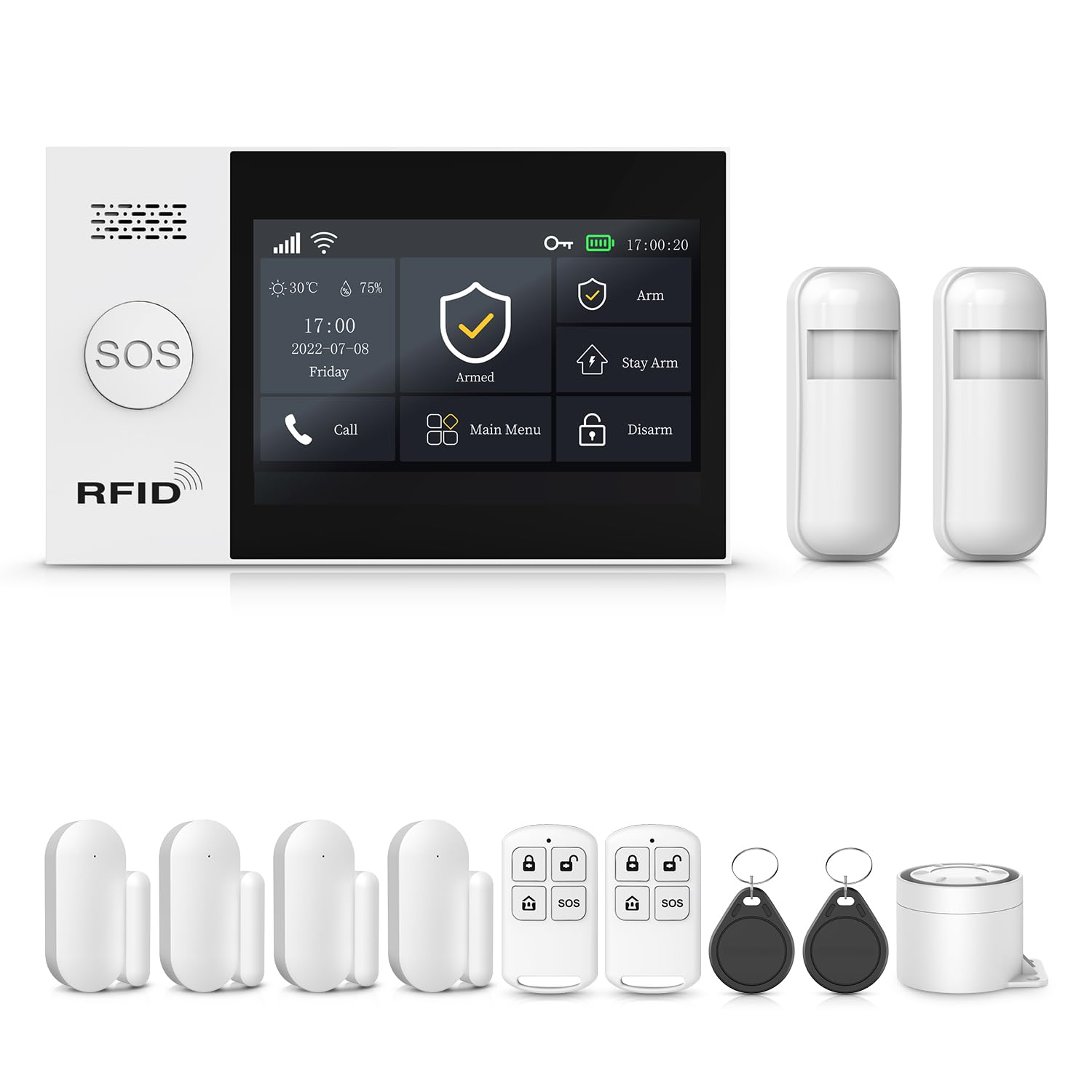
Image: The PGST A107F Wireless Home Security Alarm System with its main control panel and various sensors.

Image: The PGST Alarm System Host, featuring a large touch screen display for easy interaction.

Image: A close-up view of the 4.3-inch TFT colorful display screen, highlighting its multi-function capabilities.

Image: An illustration demonstrating how the PGST system can link with other smart home products for an integrated security solution.
2. Package Contents
Verify that all components are present in your package (12 PIECE KITS):
- 1x PGST A107F Alarm System Control Panel (Host)
- 2x PIR Motion Detectors
- 4x Door/Window Sensors
- 2x Remote Controls
- 2x RFID Tags
- 1x Power Adapter
- 1x User Manual (this document)
- Mounting Hardware (screws, adhesive pads)

Image: Overview of the PGST A107F 12-piece kit components, including the control panel, motion sensors, door/window sensors, remote controls, and RFID tags.
3. Safety Information
- Do not expose the control panel or sensors to extreme temperatures, direct sunlight, or moisture.
- Use only the provided power adapter for the control panel.
- Keep the system away from strong electromagnetic fields.
- Ensure proper ventilation for the control panel.
- Do not attempt to disassemble or repair the device yourself. Contact customer support for assistance.
- Replace batteries in sensors with the correct type and dispose of old batteries responsibly.
4. Setup
4.1 Control Panel Installation
- Choose a central location in your home for the control panel, away from direct sunlight and heat sources.
- Mount the control panel securely to a wall using the provided screws or adhesive pads. Ensure it is within Wi-Fi range.
- Connect the power adapter to the control panel and plug it into a power outlet.
- The control panel will power on and display the main interface.

Image: A hand demonstrating the easy installation of the control panel on a wall.
4.2 Network Configuration and App Connection
The PGST A107F system connects to your home Wi-Fi network and is managed via the Tuya Smart or Smart Life application. Follow these steps to configure the network:
- Download the "Tuya Smart" or "Smart Life" app from your smartphone's app store.
- Register or log in to your account.
- On the control panel, navigate to Menu > Wi-Fi.
- Choose either Soft AP Configure or Air link Configure.
- Follow the on-screen instructions on the control panel and in the app to complete the Wi-Fi connection and device pairing.
- Once connected, the app will allow you to manage your alarm system remotely.
4.3 Sensor Installation and Pairing
Install and pair your door/window sensors and PIR motion detectors:
- Door/Window Sensors: Install the two parts of the sensor on a door or window frame, ensuring they are aligned and within 1 cm of each other when the door/window is closed.
- PIR Motion Detectors: Mount motion detectors in corners or on walls to cover key areas, ensuring a clear line of sight within their 110-degree detection range. Avoid placing them near heat sources or direct sunlight.
- Pairing: Refer to the control panel's menu or the app for instructions on how to add new sensors. Typically, this involves putting the control panel into pairing mode and then triggering the sensor (e.g., separating the door sensor parts, waving in front of the motion sensor).

Image: A door/window sensor installed on a window frame, demonstrating its magnetic field detection technology.
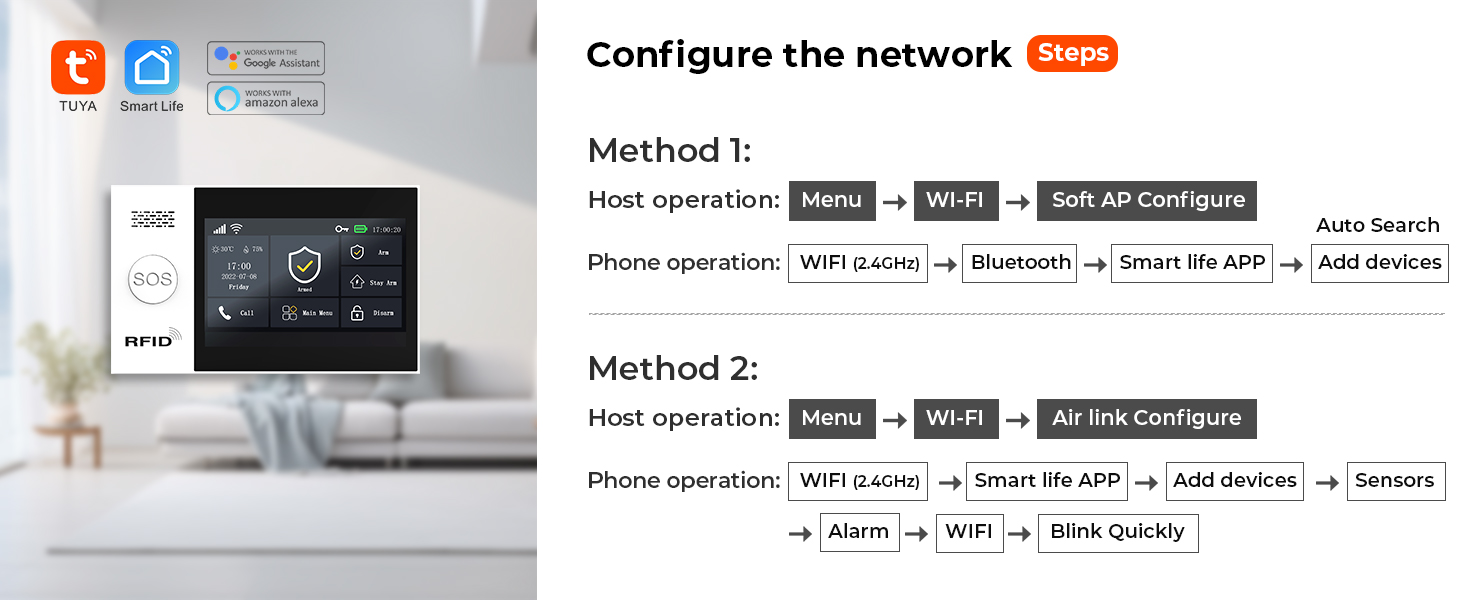
Image: A PIR motion detector mounted on a wall, illustrating its infrared detection capability for intruders.
4.4 Anti-Demolition Alarm Function
The control panel features an anti-demolition alarm. If the device is detached from its mounting location, it will trigger an alarm and send notifications.

Image: A detailed view of the anti-demolition alarm switch located on the back of the alarm host, designed to trigger an alert if the device is removed.
4.5 Setting Up Emergency Contacts
Configure up to five emergency contact numbers in the app or control panel. In case of an alarm, the system will sequentially dial these numbers and send SMS alerts.

Image: The alarm system sending notifications to five pre-set contacts, ensuring no alert is missed.
5. Operating Instructions
5.1 Arming and Disarming
The system offers various arming modes:
- Arm (Away Arm): Activates all sensors. Use when leaving the premises.
- Stay Arm (Home Arm): Activates perimeter sensors (e.g., door/window sensors) while allowing movement within the property. Use when at home.
- Disarm: Deactivates all sensors.
You can arm/disarm using the control panel, remote controls, RFID tags, or the Tuya Smart/Smart Life app.

Image: Examples of scheduled arming and disarming, such as disarming upon waking up and arming when leaving or sleeping.
5.2 SOS Function
Press the SOS button on the control panel or remote control in an emergency. The system will immediately trigger an alarm and notify your preset emergency contacts.
5.3 App Control and Real-Time Alerts
The Tuya Smart/Smart Life app provides full control over your alarm system and delivers instant notifications:
- Arm/Disarm remotely.
- Receive real-time alerts when sensors are triggered.
- View system status and event history.
- Manage sensors and settings.
5.4 Voice Control Integration
The system is compatible with Amazon Alexa and Google Assistant, allowing for convenient voice commands to arm or disarm your system.

Image: Users disarming their home using voice commands with Amazon Alexa and Google Assistant.
5.5 Voice Intercom (with compatible cameras)
If integrated with compatible smart cameras, the system allows for voice intercom functionality through the app, enabling you to communicate with visitors or deter intruders.
Video: Demonstrates the voice intercom feature, showing how linked cameras can be used to communicate or deter potential intruders.
6. Maintenance
6.1 Battery Replacement
Sensors are battery-powered. The system will notify you via the app when a sensor's battery is low. Replace batteries promptly to ensure continuous protection.

Image: Illustration of the low battery alert system for wireless sensors, showing how notifications are pushed to the app.
- Refer to the specific sensor's compartment for battery type (e.g., CR2032 for small sensors, AA/AAA for larger ones).
- Carefully open the sensor casing, remove the old battery, and insert the new one, observing polarity.
- Close the casing securely.
6.2 Cleaning
Wipe the control panel and sensors with a soft, dry cloth. Do not use liquid cleaners or abrasive materials.
6.3 Firmware Updates
Periodically check the Tuya Smart/Smart Life app for available firmware updates for your control panel. Updates can improve performance and add new features.
7. Troubleshooting
| Problem | Possible Cause | Solution |
|---|---|---|
| No app notifications/silent notifications | App notification settings are disabled; phone's silent mode; network issues. |
|
| Sensor not pairing | Sensor too far from control panel; low sensor battery; incorrect pairing mode. |
|
| False alarms | Improper sensor placement; environmental factors (pets, drafts); sensor malfunction. |
|
| Control panel unresponsive | Power issue; system crash. |
|
8. Specifications
| Feature | Detail |
|---|---|
| Brand | PGST |
| Model Number | PGST A107F |
| Color | White |
| Power Source | Corded Electric |
| Compatible Devices | Smartphone (Tuya Smart/Smart Life App), Amazon Alexa, Google Assistant |
| Item Dimensions (L x W x H) | 6 x 8 x 4 inches |
| Connectivity Technology | Wireless (Wi-Fi) |
| Installation Type | Screw-In |
| Alert Type | Audio & Motion, App Notifications, SMS, Phone Call |
| Control Method | App, Control Panel, Remote Control, RFID Tag, Voice Assistant |
| Battery Cell Composition | Alkaline (for sensors) |
| Included Components | 1X PGST107 ALARM SYSTEM (refer to Package Contents for full kit details) |
| Sensor Technology | Motion Sensor, Magnetic Door/Window Sensor |
| Connector Type | USB Type C (for power adapter) |
| Item Weight | 1.81 pounds |
| Batteries Included? | Yes (1 Nonstandard Battery for control panel, others for sensors) |
9. Warranty and Support
The PGST A107F Wireless Home Security Alarm System comes with a 1-Year Warranty from the date of purchase. This warranty covers manufacturing defects and malfunctions under normal use.
For technical support, troubleshooting assistance, or warranty claims, please contact PGST customer service through the retailer's platform or visit the official PGST website for contact information. Please have your product model number (PGST A107F) and purchase details ready when contacting support.


