
Elitech RC-5, ICT-220
Elitech RC-5 Digital USB Temperature Data Logger and ICT-220 Dual K-Type Thermocouple User Manual
Comprehensive Guide for Setup, Operation, and Maintenance
1. Introduction
This manual provides detailed instructions for the safe and effective use of the Elitech RC-5 Digital USB Temperature Data Logger and the Elitech ICT-220 Dual K-Type Thermocouple. Please read this manual thoroughly before operating the devices to ensure optimal performance and longevity.

Image 1.1: Elitech ICT-220 Thermocouple and RC-5 Data Logger
The Elitech ICT-220 is a high-accuracy dual digital thermocouple thermometer designed for precise temperature measurements across a wide range. It supports K-type thermocouples and offers features like MAX/MIN/AVG value measurement, temperature difference display, and Bluetooth connectivity for app integration. The Elitech RC-5 is a multi-use USB temperature data logger capable of storing up to 32,000 recording points, ideal for monitoring temperature over extended periods.
2. Key Features
- ICT-220 Thermocouple:
- Wide Measurement Range: -58 to 932°F (-50 to 500°C) with K-type probes.
- High Accuracy: ±(0.5°C + 0.5% of reading).
- Dual Channel Input: Measures T1 and T2 simultaneously.
- Display Modes: MAX/MIN/AVG values, T1-T2 temperature difference.
- Fast Response Time: T99 < 2 seconds (bare wire).
- Bluetooth Connectivity: Real-time data viewing and control via mobile app.
- Magnetic Design: Allows for hands-free operation.
- OTA Upgrades: Supports over-the-air firmware updates.
- RC-5 Data Logger:
- Temperature Range: -30°C to 70°C (-22°F to 158°F).
- Recording Capacity: 32,000 points.
- Battery Life: Up to 6 months, replaceable battery.
- USB Interface: Direct connection to PC for data download.
- Data Export: Generates PDF, Word, Excel, and TXT reports.
- IP67 Rating: Dustproof and waterproof.
3. Setup
3.1. Elitech ICT-220 Thermocouple
- Battery Installation: The ICT-220 requires 3 AA batteries. Open the battery compartment on the back of the device, insert the batteries according to the polarity markings, and close the compartment securely.
- Probe Connection: Connect the K-type thermocouple probes to the T1 and T2 input jacks located at the top of the device. Ensure a firm connection. The device comes with two K-type probes.
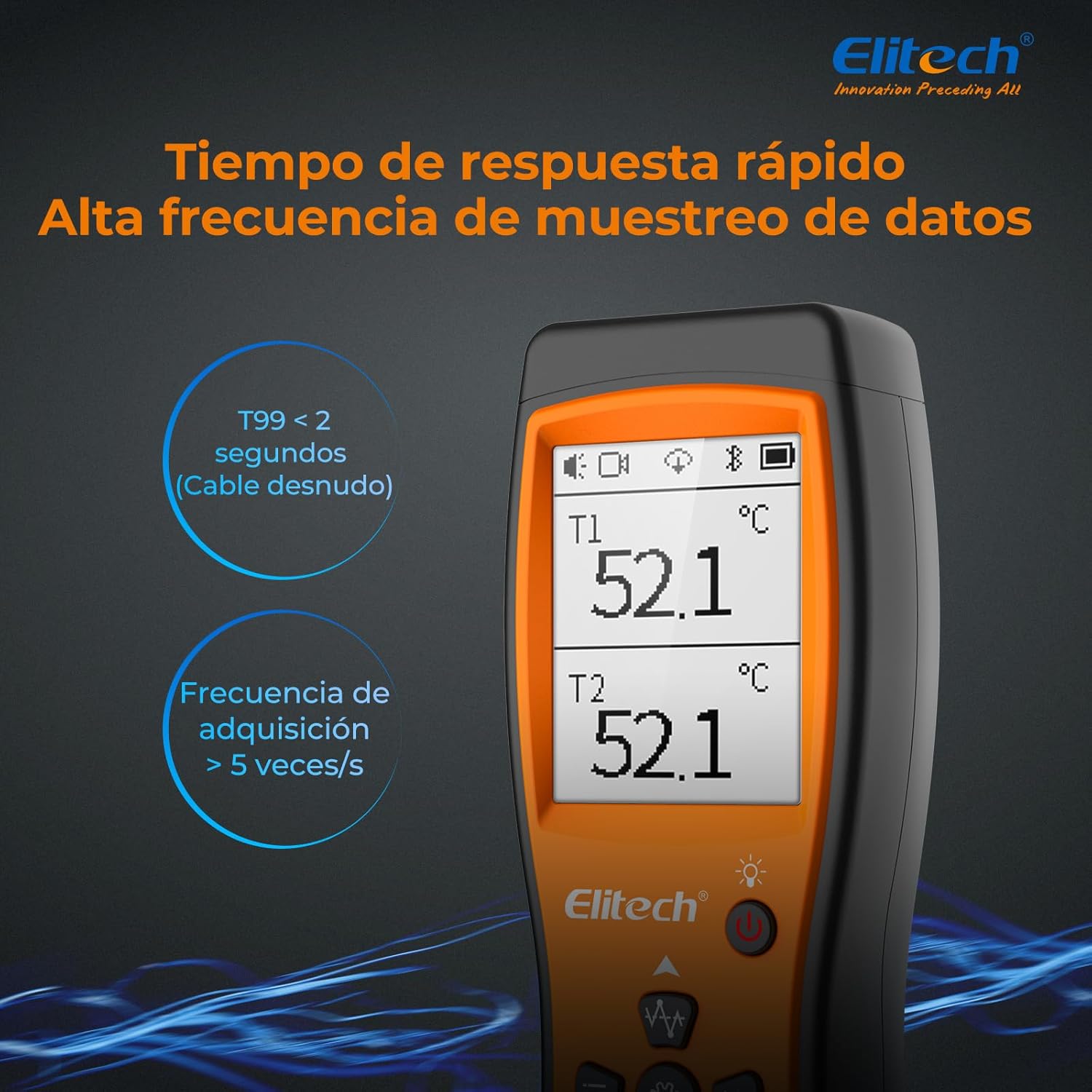
Image 3.1: Connecting K-Type Thermocouple Probes to ICT-220
3.2. Elitech RC-5 Data Logger
- Initial Use: The RC-5 typically comes with a pre-installed battery. Remove any battery insulation strip if present.
- Software Installation: Before connecting the RC-5 to a computer, download and install the Elitech Log software from the official Elitech website. This software is required for configuration and data retrieval.
4. Operation
4.1. Elitech ICT-220 Thermocouple
- Power On/Off: Press and hold the power button (red circle icon) to turn the device on or off. A short press will toggle the backlight.
- Temperature Display: The LCD screen displays T1 and T2 temperatures.
- Display Modes: Press the 'W' button (waveform icon) to cycle through display modes: T1/T2, MAX/MIN values for T1 and T2, AVG values for T1 and T2, and the temperature difference (T1-T2). Press and hold the 'W' button to exit the MAX/MIN/AVG interface.
- Unit Selection (°C/°F): Press and hold the 'Settings' button (gear icon) to enter the settings menu. Use the up/down arrows (W/Bluetooth icons) to navigate to 'UNIT' and press the 'Settings' button to change between Celsius (°C) and Fahrenheit (°F).
- Bluetooth Connectivity: Press the Bluetooth button (down arrow icon) to activate or deactivate Bluetooth. Once activated, the device can connect to the Elitech Tools mobile app for real-time data monitoring and advanced settings.
- Buzzer On/Off: Press the 'Hold' button (star icon) to lock/unlock the interface and toggle the buzzer.
- Mobile App Integration: Download the 'Elitech Tools' app from your device's app store. Connect the ICT-220 via Bluetooth to view real-time temperature data, analyze trends, and generate reports.

Image 4.1: Navigating Display Modes on ICT-220

Image 4.2: Changing Temperature Units on ICT-220

Image 4.3: Real-time Data Viewing via Elitech Tools App
4.2. Elitech RC-5 Data Logger
- Start Recording: Press and hold the play button (triangle icon) for a few seconds until the 'REC' indicator appears on the LCD screen.
- Stop Recording: Press and hold the stop button (two vertical lines icon) for a few seconds until the 'REC' indicator disappears.
- Data Download: Remove the protective cap and plug the RC-5 directly into a USB port on your computer. The device will be recognized as a mass storage device.
- Software Usage (Elitech Log): Open the Elitech Log software. The software will automatically detect the connected RC-5. You can configure logging parameters, download recorded data, and view graphs.
- Report Generation: After downloading data, the Elitech Log software allows you to generate various report formats, including PDF, Word, Excel, and TXT.

Image 4.4: RC-5 Data Logger Connected via USB

Image 4.5: Data Export Options from Elitech Log Software
5. Maintenance
5.1. Cleaning
Wipe the devices with a soft, damp cloth. Do not use abrasive cleaners or solvents. Ensure the devices are dry before storage or next use.
5.2. Battery Replacement (RC-5)
When the battery indicator on the RC-5 shows low power, replace the CR2032 button cell battery. Open the battery compartment, remove the old battery, and insert a new one with the correct polarity. Dispose of old batteries responsibly.
5.3. Probe Care (ICT-220)
Handle thermocouple probes carefully. Avoid bending or kinking the wires sharply. Clean probes after each use, especially if they have been exposed to corrosive substances. Store probes in a dry, protected environment.
6. Troubleshooting
- Device Not Powering On:
- Check battery installation and ensure batteries are fresh.
- For RC-5, ensure the battery insulation strip is removed.
- Incorrect Temperature Readings (ICT-220):
- Ensure probes are correctly and firmly connected.
- Verify the probes are suitable for the measured temperature range.
- Check for any damage to the probe wires or tips.
- RC-5 Not Detected by PC:
- Ensure the Elitech Log software is installed.
- Try a different USB port or cable.
- Restart your computer.
- Bluetooth Connection Issues (ICT-220):
- Ensure Bluetooth is enabled on both the ICT-220 and your mobile device.
- Make sure the device is within the Bluetooth range.
- Restart the app and the ICT-220.
7. Specifications
7.1. Elitech ICT-220 Dual K-Type Thermocouple
| Parameter | Value |
|---|---|
| Measurement Range | -58 to 932°F (-50 to 500°C) |
| Accuracy | ±(0.5°C + 0.5% of reading) |
| Resolution | 0.1°C/°F (≤100°C/212°F), 1.0°C/°F (>100°C/212°F) |
| Response Time | T99 < 2 seconds |
| Display Type | LCD with backlight |
| Connectivity | Bluetooth |
| Power Source | Battery Powered (3x AA) |
| Material | Plastic |
| Dimensions | 60mm x 30mm x 168mm (approx.) |

Image 7.1: Elitech ICT-220 Specifications
7.2. Elitech RC-5 Digital USB Temperature Data Logger
| Parameter | Value |
|---|---|
| Temperature Range | -30°C to 70°C (-22°F to 158°F) |
| Temperature Accuracy | ±0.5°C/0.9°F (-20°C to +40°C); ±1°C/1.8°F (others) |
| Resolution | 0.1°C/°F |
| Recording Points | 32,000 Max |
| Connectivity | USB |
| Power Source | CR2032 Battery |
| Protection Class | IP67 |
| Reusability | Reusable |

Image 7.2: Elitech RC-5 Specifications
8. Warranty and Support
Elitech products are designed for reliability and performance. For warranty information, technical support, or service inquiries, please visit the official Elitech website or contact Elitech customer service. You can also find more information at the Elitech Store on Amazon.
8.1. Certifications
The Elitech ICT-220 and RC-5 devices comply with various international standards and hold certifications including CE, RoHS, FCC, and Bluetooth.

Image 8.1: Elitech Product Certifications
Related documentsRC-5, ICT-220


Ask a question about this manual
Ask about setup, troubleshooting, compatibility, parts, safety, or missing instructions. Manuals+ will review the question and use this page’s manual context to help answer it.