
1. Introduction
This manual provides detailed instructions for the installation, operation, and maintenance of your Leadfan Android Car Radio, specifically designed for Toyota Camry models from 2002 to 2006. Please read this manual thoroughly before installation and use to ensure proper functionality and safety.
1.1 Product Overview
The Leadfan Android Car Radio is a 9-inch IPS touchscreen head unit featuring Wireless Apple CarPlay, Wireless Android Auto, GPS navigation, Bluetooth 5.1, FM radio, Wi-Fi connectivity, and support for steering wheel controls and a backup camera. It is compatible with Toyota Camry vehicles from 2002-2006, including those with a premium J.B.L sound system or a large Navi screen.
1.2 Included Components
Verify that all components are present in the package:
- 9-inch IPS Touchscreen Android Radio Headunit
- Radio Kit and Frame for Toyota Camry 2002-2006
- Backup Camera
- Reversing Camera Input Cable
- Canbus Decoder
- GPS Antenna
- WiFi & Bluetooth Signal Booster Cable
- Plug and Play Power Harness
- External Microphone
- User Manual
- USB Cables (x2)
- RCA Cable

Figure 1: Package Contents
2. Setup and Installation
Professional installation is recommended. Ensure the vehicle's battery is disconnected before beginning installation to prevent electrical damage.
2.1 Pre-Installation Checks
- Confirm vehicle compatibility (Toyota Camry 2002-2006).
- Verify all included components are present.
- Review your vehicle's specific wiring diagrams if available.
2.2 Head Unit Installation
- Carefully remove the original car radio and trim panels.
- Connect the provided plug-and-play power harness to the vehicle's wiring.
- Attach the GPS antenna, WiFi/Bluetooth signal booster cable, and external microphone. Position the GPS antenna in a location with a clear view of the sky.
- Secure the new head unit into the dashboard opening using the provided frame and mounting brackets.
- Reconnect the vehicle's battery and test the basic functions of the radio.
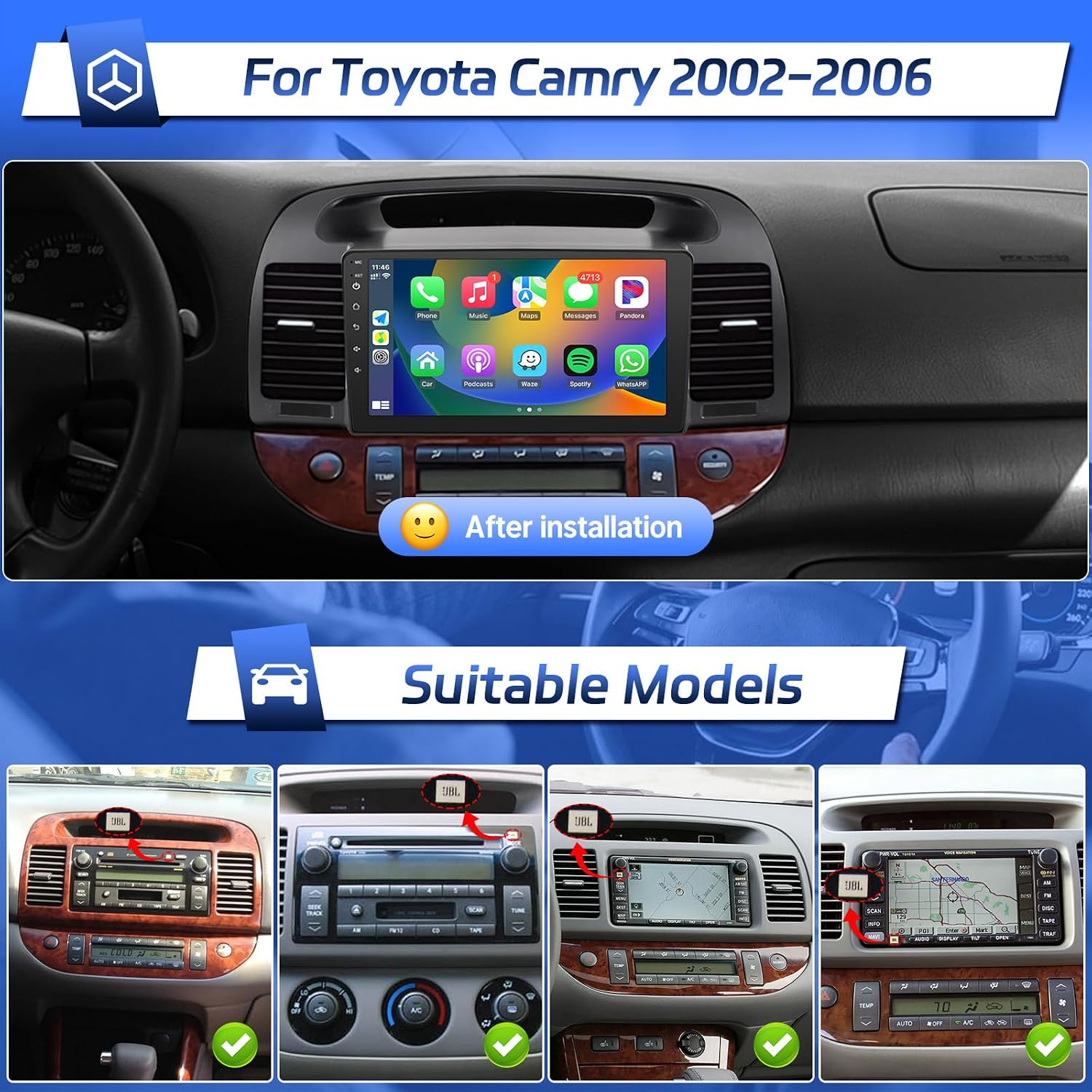
Figure 2: Head Unit Installed in Toyota Camry
2.3 Backup Camera Wiring
The backup camera provides a rear view for safer parking. The reversing input cable must be connected even if the camera is not used.
- Connect the reversing trigger cable (usually a pink or brown wire) from the head unit's power cable to the vehicle's reverse light positive wire.
- Connect the camera's power cable to the vehicle's reverse light (positive and negative).
- Run the video extension cable from the backup camera to the head unit's 'Reverse Input' RCA port.
- Ensure the white plug for the reversing input is securely connected to the radio. Failure to do so may affect Bluetooth and WiFi functionality.

Figure 3: Backup Camera Wiring Diagram
3. Operating Instructions
3.1 Basic Operation
- Power On/Off: Press and hold the power button on the unit or use the vehicle's ignition.
- Touch Screen: Navigate the interface by tapping, swiping, and pinching on the 9-inch IPS display.
- Volume Control: Adjust volume using the on-screen controls or steering wheel buttons.
3.2 Wireless CarPlay & Android Auto
Connect your smartphone wirelessly to access navigation, music, calls, and other apps safely while driving.
- Ensure Bluetooth and Wi-Fi are enabled on your smartphone and the car radio.
- Pair your phone with the car radio via Bluetooth.
- Follow the on-screen prompts to initiate CarPlay (for iOS) or Android Auto (for Android).

Figure 4: Wireless CarPlay and Android Auto Interface
3.3 Bluetooth Connectivity
The unit features Bluetooth 5.1 for hands-free calling and wireless audio streaming.
- Go to the Bluetooth settings on the car radio.
- Enable Bluetooth on your phone and search for available devices.
- Select the car radio from the list and confirm pairing.
- Once connected, you can make/receive calls and play music through the car's speakers.
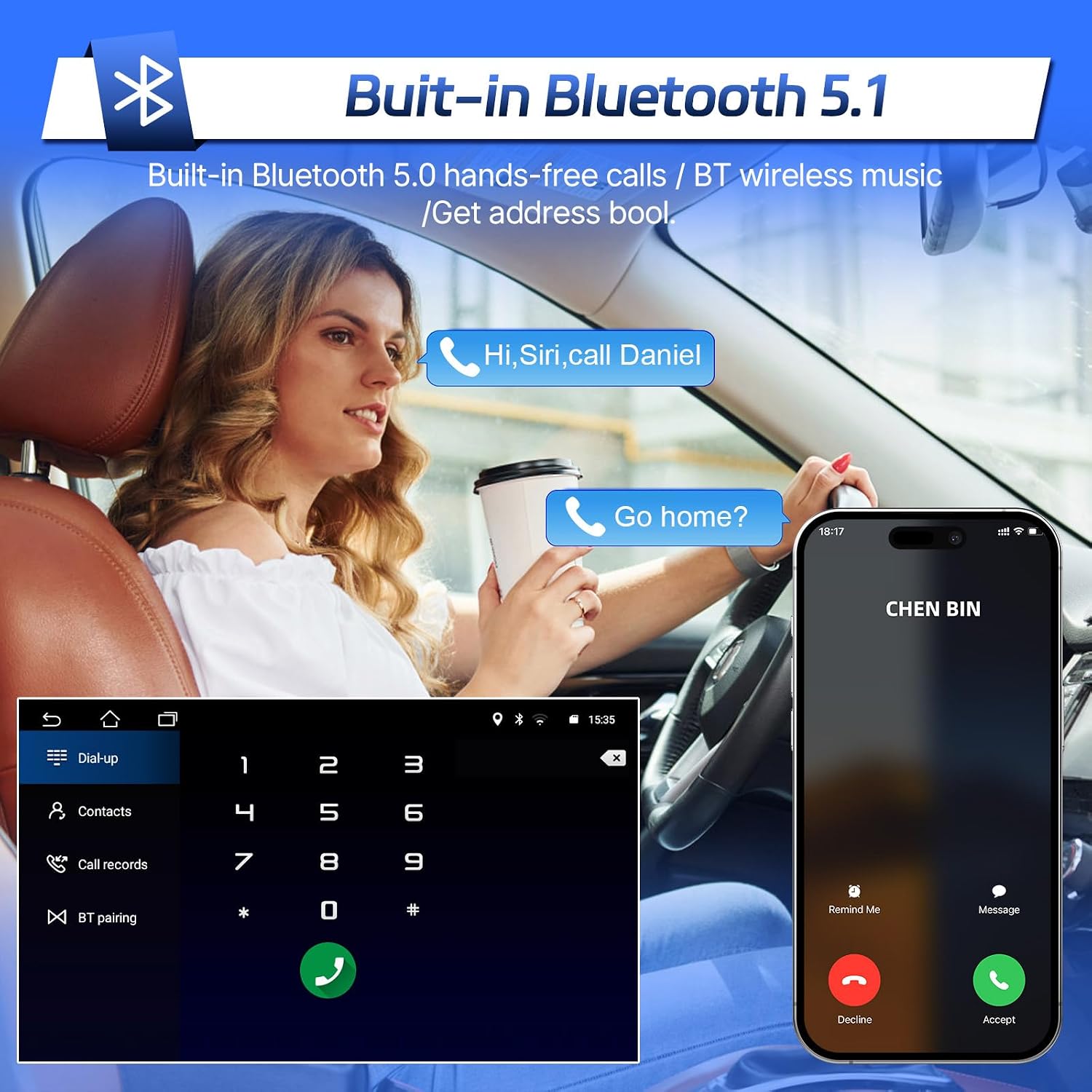
Figure 5: Bluetooth Hands-Free Calling
3.4 GPS Navigation & Wi-Fi
The unit comes with pre-installed offline maps and supports online navigation via Wi-Fi.
- Offline Maps: Access the pre-installed navigation app to use maps without an internet connection.
- Online Maps: Connect the unit to a Wi-Fi hotspot (e.g., from your smartphone) to use online navigation apps and download additional applications from the Play Store.

Figure 6: GPS Navigation and Wi-Fi Connectivity
3.5 FM Radio
Access local radio stations with the built-in FM tuner.
- Open the FM Radio application.
- Use the on-screen controls for manual or automatic station search.
- Save your favorite stations as presets.
3.6 Steering Wheel Control (SWC)
The unit is compatible with your vehicle's original steering wheel controls, allowing for convenient and safe operation.
- Access the SWC settings menu on the car radio.
- Follow the instructions to program each steering wheel button to its corresponding function (e.g., volume up/down, track skip, mode).

Figure 7: Steering Wheel Control Setup
3.7 Split Screen Function
Utilize the split-screen feature to run two applications simultaneously, such as navigation and music playback.
- Open the first application.
- Long-press the recent apps button or follow the specific Android gesture for split-screen mode.
- Select the second application to display alongside the first.

Figure 8: Split Screen Functionality
3.8 Mirror Link
Mirror Link allows you to project your phone's screen onto the car radio display.
- For iOS devices, Mirror Link supports wireless connection.
- For Android devices, Mirror Link supports both wireless and wired connections.
- Follow the instructions within the Mirror Link app on the head unit to establish the connection.
4. Maintenance
4.1 Screen Cleaning
To clean the touchscreen, power off the unit and gently wipe the screen with a soft, lint-free cloth. For stubborn smudges, slightly dampen the cloth with water or a screen-safe cleaner. Avoid harsh chemicals or abrasive materials.
4.2 Software Updates
Periodically check for software updates through the system settings menu. Updates can provide new features, performance improvements, and bug fixes. Ensure a stable internet connection during updates and do not interrupt the process.
5. Troubleshooting
If you encounter issues with your Leadfan Android Car Radio, refer to the following common problems and solutions:
| Problem | Possible Cause | Solution |
|---|---|---|
| Unit does not power on. | Loose power connection, blown fuse. | Check power harness connections. Inspect vehicle's fuse box and the unit's inline fuse. |
| No sound or poor sound quality. | Incorrect speaker wiring, volume too low, ground noise. | Verify speaker connections. Adjust volume. If experiencing ground noise, consider adding an extra ground or a noise filter. |
| Bluetooth/Wi-Fi not working. | White plug for reversing input not connected, antenna issue. | Ensure the white plug for the reversing input cable is securely connected. Check the Wi-Fi/Bluetooth antenna connection. |
| Backup camera not displaying. | Incorrect wiring, camera malfunction. | Review backup camera wiring (Figure 3). Ensure the camera is receiving power and the video signal cable is properly connected. |
| Steering Wheel Controls not functioning. | Incorrect Canbus connection, unprogrammed buttons. | Verify Canbus decoder is correctly installed. Re-program the steering wheel buttons in the settings menu. |
| Touchscreen unresponsive. | Software glitch, physical damage. | Perform a system reset (refer to device settings for reset option). If issue persists, contact support. |
If you encounter an issue not listed here or if the suggested solutions do not resolve the problem, please contact Leadfan customer support for assistance.
6. Specifications
| Feature | Detail |
|---|---|
| Brand | Leadfan |
| Model Name | 2002-2006 Toyota Camry Android Radio + AHD Camera + MIC |
| Model Number | US02-SW600-B |
| Vehicle Service Type | Radio for Toyota Camry 2002 2003 2004 2005 2006 |
| Screen Size | 9 inches |
| Operating System | Android |
| Memory Storage Capacity | 32 GB |
| Special Features | Apple CarPlay, Android Auto, Mirrorlink, Bluetooth & WiFi, GPS Navigation, Steering Wheel Control, Backup Camera Support |
| Connectivity Technology | Bluetooth, USB, Wi-Fi |
| Map Type | North America, Worldwide (pre-installed offline maps) |
| Audio Output Mode | Stereo |
| Mounting Type | Dashboard Mount |
| Display Type | LED, Capacitive Touch Screen |
| Item Weight | 1.22 kg |
7. Warranty and Support
7.1 Product Warranty
The Leadfan Android Car Radio comes with a 1-Year Warranty from the date of purchase. This warranty covers manufacturing defects and malfunctions under normal use. Please retain your proof of purchase for warranty claims.
7.2 Technical Support
For technical assistance, installation queries, or troubleshooting not covered in this manual, please contact Leadfan customer support. Our team is available to provide online help and guidance.
- Online Help: Click "Sold by Leadfan" on the product page and select "Ask a question" to contact us directly.
- Replacement Policy: Replacements are available within 12 months for eligible issues.
- Return Policy: Enjoy a 60-day no-worry return period.

Figure 9: Leadfan Support Information


