
1. Introduction
Welcome to the user manual for your new Apple 13-inch iPad Air (M3). This guide provides essential information to help you set up, operate, maintain, and troubleshoot your device. The iPad Air (M3) is a powerful and versatile tablet, featuring the M3 chip for exceptional performance, a stunning Liquid Retina display, Touch ID for secure authentication, advanced cameras, and a USB-C connector. It supports ultra-fast Wi-Fi 6E for seamless connectivity.

Image 1: Front view of the Apple 13-inch iPad Air (M3).
2. What's Included
Your iPad Air package typically includes the following items:
- Apple 13-inch iPad Air (M3)
- USB-C Charge Cable
- 20W USB-C Power Adapter

Image 2: The iPad Air (M3) and its included accessories: a USB-C charge cable and a 20W USB-C power adapter.
3. Setup
3.1 Powering On and Initial Configuration
- Power On: Press and hold the top button until the Apple logo appears.
- Follow On-Screen Instructions: Your iPad will guide you through the initial setup process, including selecting your language and region, connecting to a Wi-Fi network, and setting up Touch ID.
- Apple ID: Sign in with your Apple ID or create a new one. Your Apple ID is essential for accessing services like the App Store, iCloud, and Messages.
3.2 Charging Your iPad Air
To charge your iPad Air, connect the included USB-C Charge Cable to the USB-C port on your iPad and the other end to the 20W USB-C Power Adapter. Plug the power adapter into a wall outlet. The battery icon in the status bar will indicate charging status.
3.3 Connecting Accessories
The iPad Air (M3) supports various accessories to enhance your experience, including the Apple Pencil Pro and Magic Keyboard.
- Apple Pencil Pro: For drawing, note-taking, and marking up documents. Pair it by attaching it magnetically to the side of your iPad.
- Magic Keyboard: Provides a comfortable typing experience with a built-in trackpad. Attach your iPad magnetically to the Magic Keyboard for instant connection and power.
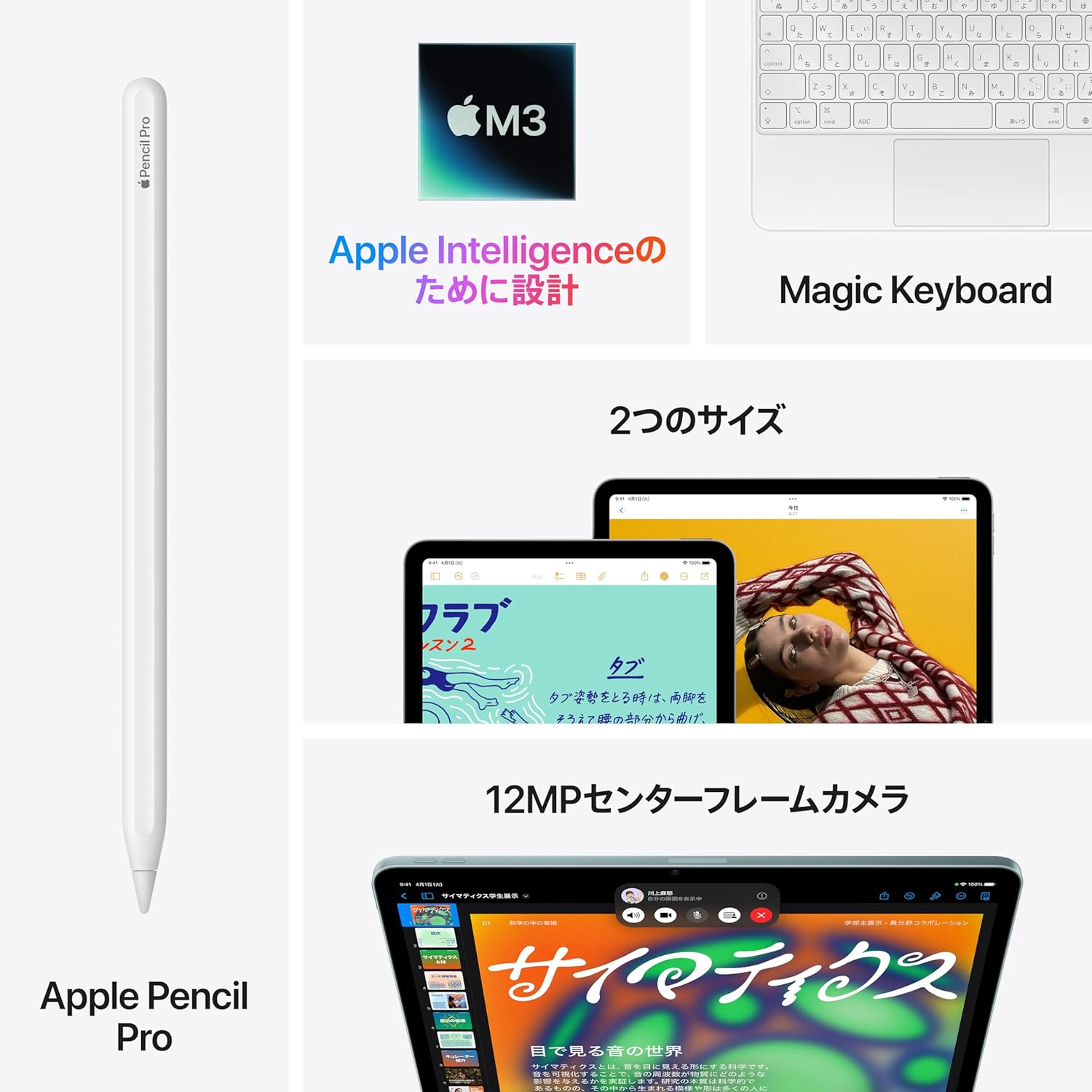
Image 3: The iPad Air (M3) supports accessories like the Apple Pencil Pro and Magic Keyboard, powered by the M3 chip.
4. Operating Your iPad Air
4.1 Navigating iPadOS
iPadOS offers an intuitive interface designed for touch. Use gestures to navigate:
- Home Screen: Swipe up from the bottom edge of the screen.
- App Switcher: Swipe up from the bottom edge and pause in the middle of the screen.
- Control Center: Swipe down from the top-right corner.
- Multitasking with Stage Manager: Resize app windows, overlap multiple apps, and connect to an external display for enhanced productivity.
4.2 Apple Intelligence
The M3 chip in your iPad Air is designed for Apple Intelligence, a personal intelligence system that assists you with various tasks. It helps you write text, express yourself, and complete tasks more easily. Apple Intelligence is built with groundbreaking privacy protection, ensuring your data remains private and inaccessible to others, including Apple.

Image 4: An example of Apple Intelligence features on the iPad Air screen, assisting with note-taking and organization.
4.3 Camera Functions
Your iPad Air is equipped with advanced cameras:
- 12MP Center Stage Front Camera: Ideal for video calls, ensuring you stay centered in the frame, and for taking high-quality selfies.
- 12MP Wide Back Camera: Perfect for scanning documents, capturing detailed photos, and shooting stunning 4K video.
4.4 Touch ID
Touch ID is integrated into the top button of your iPad Air, providing a secure and convenient way to:
- Unlock your iPad Air.
- Sign into apps.
- Make secure purchases with Apple Pay using your fingerprint.
4.5 Connectivity
The iPad Air (M3) offers robust connectivity options:
- Wi-Fi 6E: Provides ultra-fast wireless connections for quick downloads, streaming, and online activities.
- USB-C Connector: Use the USB-C port to connect to external displays, storage devices, and other peripherals.

Image 5: A user interacting with the iPad Air (M3) and Apple Pencil, demonstrating its portability and versatility.
5. Care and Maintenance
Proper care ensures the longevity and optimal performance of your iPad Air.
- Cleaning: Use a soft, lint-free cloth to clean the screen and exterior. Avoid abrasive materials or harsh chemicals.
- Battery Optimization: To maximize battery life, keep your iPad Air updated with the latest iPadOS version. Avoid extreme temperatures and enable Optimized Battery Charging in settings.
- Software Updates: Regularly check for and install iPadOS updates to ensure you have the latest features, security enhancements, and performance improvements. Go to Settings > General > Software Update.
- Storage Management: Periodically review and manage your storage to free up space. Delete unused apps, photos, and videos.
6. Troubleshooting
If you encounter issues with your iPad Air, try these common troubleshooting steps:
- Device Unresponsive: If your iPad is frozen or unresponsive, force restart it. Press and quickly release the Volume Up button, press and quickly release the Volume Down button, then press and hold the Top button until the Apple logo appears.
- Wi-Fi Issues: If you cannot connect to Wi-Fi, try turning Wi-Fi off and on again in Control Center or Settings. Restart your router.
- App Not Responding: Force quit the app by swiping up from the bottom of the screen to open the App Switcher, then swipe the problematic app's card up and off the screen. Reopen the app.
- Battery Draining Quickly: Check battery usage in Settings > Battery to identify apps consuming significant power. Adjust settings or limit background activity for those apps.
- Software Glitches: Ensure your iPadOS is up to date. If problems persist, consider backing up your data and restoring your iPad to factory settings.
7. Technical Specifications
| Feature | Specification |
|---|---|
| Model Name | iPad Air M3 |
| Display Size | 13 inches Liquid Retina Display with P3 wide color, True Tone, and anti-reflective coating |
| Processor | Apple M3 chip |
| Operating System | iPadOS |
| Storage Options | 128GB, 256GB, 512GB, 1TB |
| Cameras | 12MP Wide back camera, 12MP Center Stage front camera |
| Connectivity | Wi-Fi 6E, Bluetooth 5.3, USB-C |
| Security | Touch ID (integrated into top button) |
| Battery Life | Up to 10 hours of surfing the web on Wi-Fi or watching video |
8. Warranty and Support
Your Apple 13-inch iPad Air (M3) comes with a standard limited warranty provided by Apple. For detailed information regarding warranty coverage, terms, and conditions, please refer to the documentation included with your product or visit the official Apple website.
AppleCare+: Extended service and support options, including accidental damage coverage, are available through AppleCare+. You can purchase AppleCare+ separately to extend your coverage.
For technical support, service, and additional resources, please visit the official Apple Support website: support.apple.com/ipad


