
1. Introduction
This manual provides detailed instructions for the BoxWave SlimKeys Bluetooth Keyboard, designed for use with the Nothing CMF Phone 1 and other compatible devices. This keyboard features an integrated LED backlight with seven customizable colors, reliable Bluetooth 3.0 connectivity, and a compact, lightweight design for enhanced portability and typing comfort.

Image 1.1: The BoxWave SlimKeys Bluetooth Keyboard shown alongside a Nothing CMF Phone 1, illustrating its compact size and compatibility.
2. Setup
2.1 Charging the Keyboard
Before initial use, ensure the keyboard is fully charged. Connect the included charging cable to the keyboard's charging port and to a standard USB power source. The 'Charge' indicator light will illuminate during charging and turn off when the battery is full.

Image 2.1: The SlimKeys keyboard connected to a charging cable, highlighting its long-lasting battery and convenient recharging.
2.2 Bluetooth Pairing
- Power On: Locate the ON/OFF switch on the keyboard and slide it to the 'ON' position. The 'Power' indicator light will briefly illuminate.
- Activate Pairing Mode: Press the 'Connect' button on the keyboard. The 'Bluetooth' indicator light will begin to flash, indicating the keyboard is in pairing mode.
- Enable Bluetooth on Your Device: On your Nothing CMF Phone 1 (or other compatible device), navigate to the Bluetooth settings and ensure Bluetooth is enabled.
- Select Keyboard: Your device will search for available Bluetooth devices. Select 'BoxWave SlimKeys Keyboard' (or similar name) from the list.
- Confirm Connection: Follow any on-screen prompts to complete the pairing process. Once successfully paired, the 'Bluetooth' indicator light on the keyboard will stop flashing and remain solid or turn off, depending on the keyboard's status.

Image 2.2: A detailed view of the SlimKeys keyboard, showing the 'Connect' button and indicator lights for power, charge, and Bluetooth status.
3. Operating Instructions
3.1 Backlight Control
The SlimKeys keyboard features an integrated LED backlight with seven color options. To control the backlight:
- Press the light bulb icon key to turn the backlight ON/OFF.
- Press the RGB icon key (often next to the light bulb icon) to cycle through the seven available backlight colors.

Image 3.1: The SlimKeys keyboard showcasing its seven customizable backlight colors, allowing users to personalize their typing experience.
3.2 Specialized Function Keys
The keyboard includes a row of specialized function keys (F1-F12) that provide quick access to common commands. These functions may vary slightly depending on your connected device's operating system (Android, iOS, Windows).

Image 3.2: A visual guide to the specialized function keys, including Home, Search, Select All, Copy, Paste, Cut, media controls, volume, and brightness adjustments.
3.3 Multi-Platform Compatibility
The SlimKeys keyboard is designed for seamless operation across multiple operating systems. Use the dedicated OS keys (Android, Windows, iOS) to optimize key functions for your specific device.
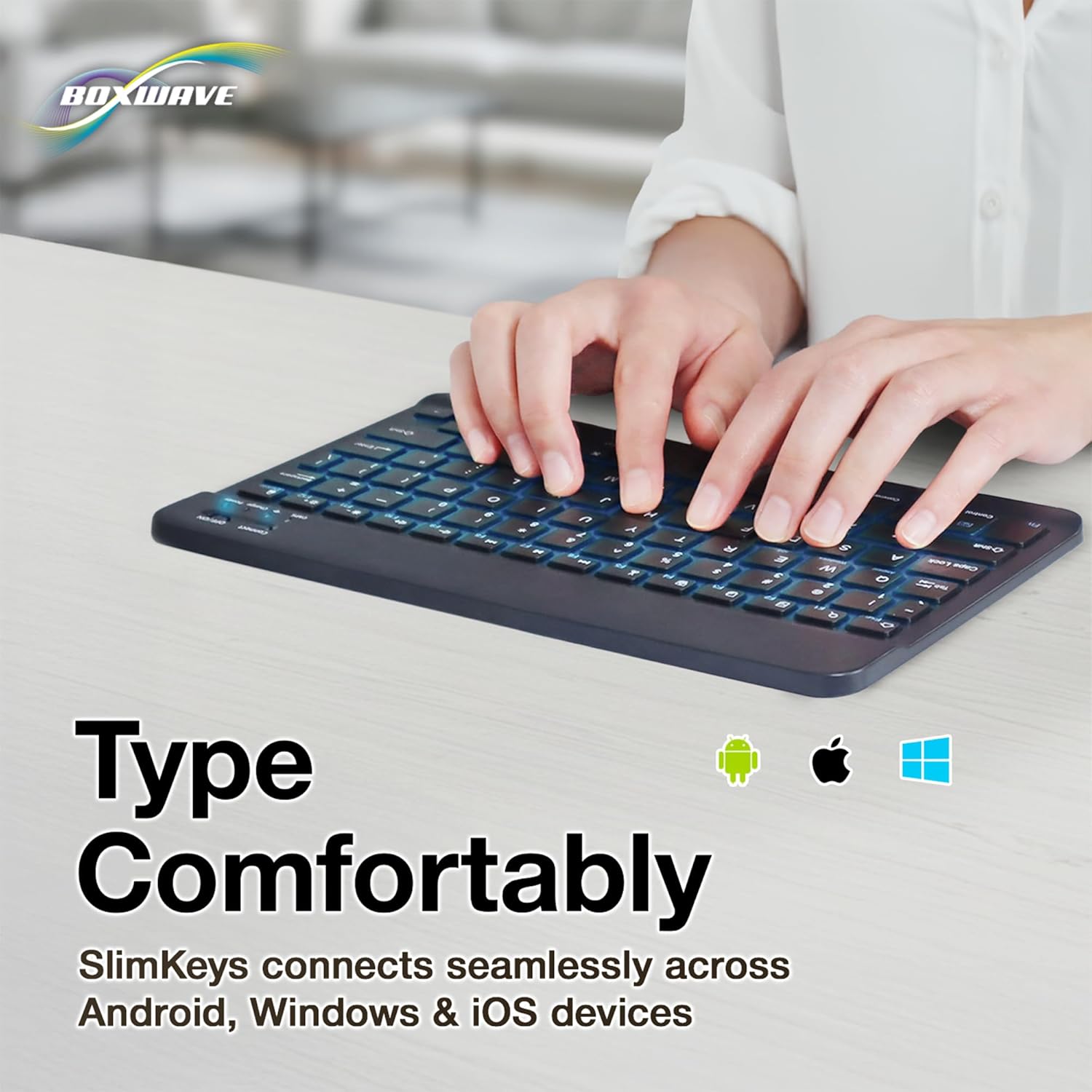
Image 3.3: A user typing on the SlimKeys keyboard, emphasizing its comfortable chiclet keys and compatibility with Android, Windows, and iOS devices.
4. Maintenance
4.1 Cleaning
To clean your keyboard, gently wipe the surface with a soft, lint-free cloth. For stubborn dirt, slightly dampen the cloth with water or a mild, non-abrasive cleaning solution. Avoid excessive moisture and do not spray cleaners directly onto the keyboard.
4.2 Storage
When not in use, store the keyboard in a cool, dry place away from direct sunlight and extreme temperatures. Ensure the power switch is in the 'OFF' position to conserve battery life.

Image 4.1: The SlimKeys keyboard's ultra-slim profile, demonstrating its portability and ease of storage.
5. Troubleshooting
5.1 Keyboard Not Connecting
- Ensure the keyboard is powered ON and fully charged.
- Verify Bluetooth is enabled on your device.
- Make sure the keyboard is in pairing mode (Bluetooth indicator flashing).
- If previously paired, try 'forgetting' the device on your phone's Bluetooth settings and re-pairing.
- Restart both the keyboard (OFF then ON) and your device.
5.2 Backlight Not Working
- Ensure the keyboard is powered ON.
- Press the light bulb icon key to toggle the backlight.
- Check battery level; low battery might disable backlight to conserve power.
5.3 Keys Not Responding
- Confirm the keyboard is connected via Bluetooth.
- Check battery level.
- Restart the keyboard and your device.
6. Specifications
| Feature | Detail |
|---|---|
| Model Name | SlimKeys Bluetooth Keyboard |
| Connectivity | Bluetooth 3.0 |
| Backlight | 7 LED Colors |
| Compatibility | Android, iOS, Windows (including Nothing CMF Phone 1) |
| Item Weight | 8.6 ounces |
| Dimensions | 9.5 in (Width) x 5.75 in (Depth) x 0.2 in (Height) |
| Manufacturer | BoxWave |
| ASIN | B0DZ7HXCMD |
| First Available | September 4, 2024 |

Image 6.1: The SlimKeys keyboard displaying its ultra-slim and lightweight design with precise dimensions (Width: 9.5 in, Depth: 5.75 in, Height: 0.2 in).
7. Warranty & Support
7.1 Product Warranty
BoxWave products typically come with a limited manufacturer's warranty. Please refer to the warranty information included with your purchase or visit the official BoxWave website for specific details regarding warranty coverage, terms, and conditions.
7.2 Customer Support
For technical assistance, troubleshooting, or any questions regarding your BoxWave SlimKeys Bluetooth Keyboard, please contact BoxWave Customer Support. You can find contact information, FAQs, and additional resources on the official BoxWave website: