
1. Introduction
This user manual provides comprehensive instructions for the setup, operation, and maintenance of your KTC H27T27 27-inch QHD IPS Monitor. Please read this manual thoroughly before using the product to ensure proper functionality and to prevent damage.
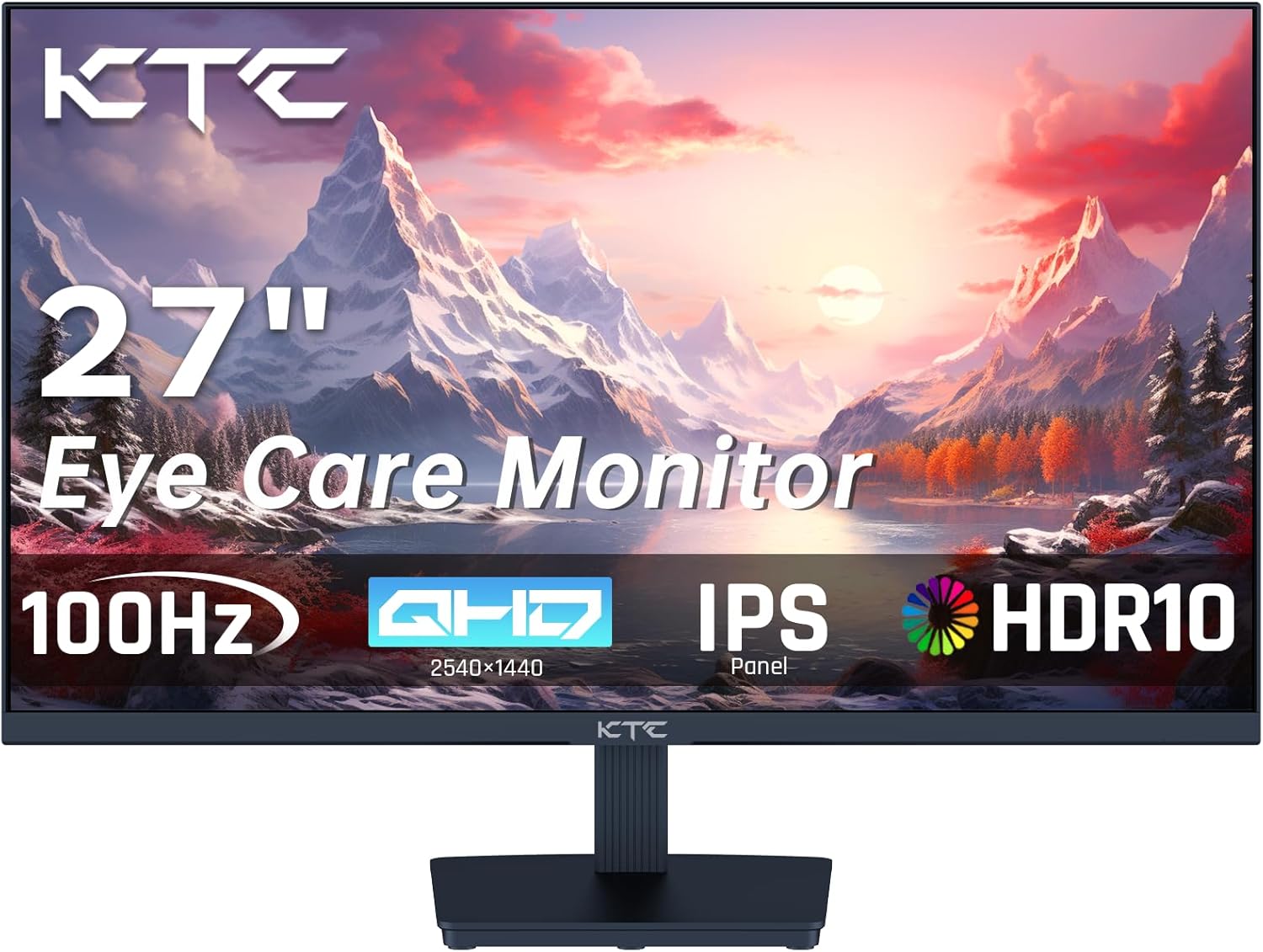
Image: Front view of the KTC H27T27 monitor, highlighting its 27-inch display, QHD resolution, 100Hz refresh rate, IPS panel, and HDR10 support.
2. Safety Information
- Ensure the monitor is placed on a stable, flat surface to prevent accidental falls.
- Do not expose the monitor to rain or moisture to avoid electric shock.
- Keep the monitor away from direct sunlight and heat sources.
- Use only the power adapter provided with the monitor.
- Do not block ventilation openings.
- Unplug the monitor from the power outlet before cleaning.
3. Package Contents
Verify that all items are present in the package:
- Monitor x 1
- Stand x 1
- HDMI Cable x 1
- Power Adapter x 1
- Power Cable x 1
- Screwdriver x 1

Image: Visual representation of the KTC H27T27 monitor and its included accessories, such as the stand, HDMI cable, power adapter, power cable, and screwdriver.
4. Setup
4.1. Assembling the Stand
- Carefully remove the monitor and stand components from the packaging.
- Attach the stand base to the stand neck using the provided screws and screwdriver.
- Align the assembled stand with the mounting holes on the back of the monitor and secure it firmly.
4.2. VESA Wall Mount Installation (Optional)
The monitor supports VESA 100x100mm mounting. If using a VESA mount (not included), remove the stand and attach the monitor to the VESA compatible bracket.

Image: Illustration demonstrating the VESA 100x100mm mounting pattern on the back of the KTC H27T27 monitor, suitable for wall or arm mounting.
4.3. Connecting Cables
- Power Connection: Connect the power cable to the power adapter, then to the monitor's DC input, and finally to a power outlet.
- Video Connection:
- Connect one end of the HDMI cable to your computer's HDMI output and the other end to an HDMI port on the monitor.
- Alternatively, connect a DisplayPort cable from your computer to the DisplayPort on the monitor for optimal performance.
- Audio Connection (Optional): Connect headphones or external speakers to the earphone jack on the monitor.

Image: Rear view of the KTC H27T27 monitor displaying its connectivity options, including DC power input, two HDMI 1.2 ports, one DisplayPort 1.4, and an earphone jack.
5. Operating the Monitor
5.1. Power On/Off
Press the power button located on the monitor to turn it on or off. The power indicator light will illuminate when the monitor is on.
5.2. OSD Menu Navigation
Use the control buttons on the monitor (usually located on the back or bottom right) to access and navigate the On-Screen Display (OSD) menu. The OSD allows you to adjust various settings.
5.3. Picture Settings
- Brightness & Contrast: Adjust these settings to optimize the overall luminance and distinction between light and dark areas.
- Color Settings: Modify color temperature, hue, and saturation to achieve desired color accuracy. The monitor features 99% sRGB color gamut.
- HDR10: Enable HDR10 mode for enhanced brightness and contrast with compatible content.

Image: A visual demonstrating the monitor's impressive color reproduction (123% sRGB Color Gamut), high contrast ratio (1300:1), and brightness (300 cd/m²).
5.4. Refresh Rate & Adaptive Sync
The KTC H27T27 monitor supports a 100Hz refresh rate for smoother visuals. Enable Adaptive-Sync (FreeSync/G-Sync compatible) in the OSD menu and on your graphics card settings to eliminate screen tearing and stuttering during gaming or fast-paced content.

Image: A side-by-side comparison illustrating the visual difference between a 60Hz and 100Hz refresh rate, showcasing the smoother motion provided by 100Hz on the KTC H27T27 monitor.

Image: A visual comparison showing the effect of Adaptive-Sync (FreeSync/G-Sync compatible) being ON versus OFF, highlighting how it eliminates screen tearing for a smoother gaming experience on the KTC H27T27 monitor.
5.5. Eye Care Features
The monitor includes features designed to reduce eye strain:
- Low Blue Light Mode: Reduces harmful blue light emissions, which can help prevent eye fatigue during prolonged use.
- Flicker-Free Technology: Eliminates screen flickering, providing a more comfortable viewing experience.

Image: A depiction of the KTC H27T27 monitor's eye care features, including low blue light emission and flicker-free technology, designed to enhance visual comfort and reduce eye strain.
6. Maintenance
- Cleaning the Screen: Use a soft, lint-free cloth slightly dampened with water or a non-abrasive screen cleaner. Do not spray liquid directly onto the screen.
- Cleaning the Casing: Wipe the monitor casing with a soft, dry cloth. Avoid using harsh chemicals or abrasive materials.
- Storage: If storing the monitor for an extended period, unplug it and store it in a cool, dry place, preferably in its original packaging.
7. Troubleshooting
| Problem | Possible Cause | Solution |
|---|---|---|
| No image on screen | Power cable disconnected; Video cable disconnected or loose; Incorrect input source selected. | Check power connections; Ensure video cable is securely connected; Select correct input source via OSD menu. |
| Image is blurry or distorted | Incorrect resolution; Graphics card driver issue; Cable quality. | Set display resolution to 2560x1440; Update graphics drivers; Try a different video cable. |
| Screen flickering | Refresh rate mismatch; Cable issue; External interference. | Ensure refresh rate is set to 100Hz; Check video cable; Move monitor away from other electronic devices. |
| No sound from earphone jack | Volume too low; Incorrect audio output selected on computer. | Increase monitor volume; Select the monitor as the audio output device in your computer's sound settings. |
8. Specifications
| Feature | Detail |
|---|---|
| Model | H27T27 |
| Screen Size | 27 inches |
| Panel Type | IPS |
| Resolution | 2560 x 1440 (QHD) |
| Refresh Rate | 100 Hz |
| Response Time | 1 ms |
| Aspect Ratio | 16:9 |
| Brightness | 300 cd/m² |
| Contrast Ratio | 1000:1+ |
| Color Gamut | 99% sRGB |
| HDR Support | HDR10 |
| Adaptive Sync | Yes (FreeSync/G-Sync compatible) |
| Connectivity | 2x HDMI 1.2, 1x DisplayPort 1.4, 1x Earphone Jack |
| VESA Mount | 100 x 100 mm |
| Dimensions (with stand) | 19.1 x 45.03 x 61.6 cm |

Image: The energy efficiency label for the KTC H27T27 monitor, showing its energy class F and power consumption details.
9. Warranty and Support
KTC monitors typically come with a standard manufacturer's warranty. Please refer to the warranty card included in your product packaging or visit the official KTC website for detailed warranty terms and conditions.
For technical support, troubleshooting assistance, or warranty claims, please contact KTC customer service through their official channels. Keep your purchase receipt and product serial number handy when contacting support.
KTC Official Website: www.ktc.com (Please note: This is a placeholder URL, refer to your product documentation for the exact support website.)


