
Introduction
Thank you for choosing the Vikye Wireless Keyboard and Mouse Set. This product offers versatile connectivity with both 2.4G wireless and Bluetooth dual-mode capabilities, ensuring compatibility with a wide range of operating systems including Android, Windows, and iOS. Designed for comfort and efficiency, this set features a quiet noise reduction design and energy-saving technology. This manual will guide you through the setup, operation, and maintenance of your new wireless keyboard and mouse set.
Package Contents
- Wireless Keyboard
- Wireless Mouse
- USB Receiver (stored inside the mouse)
- Type-C Charging Cable
- User Manual
Product Overview
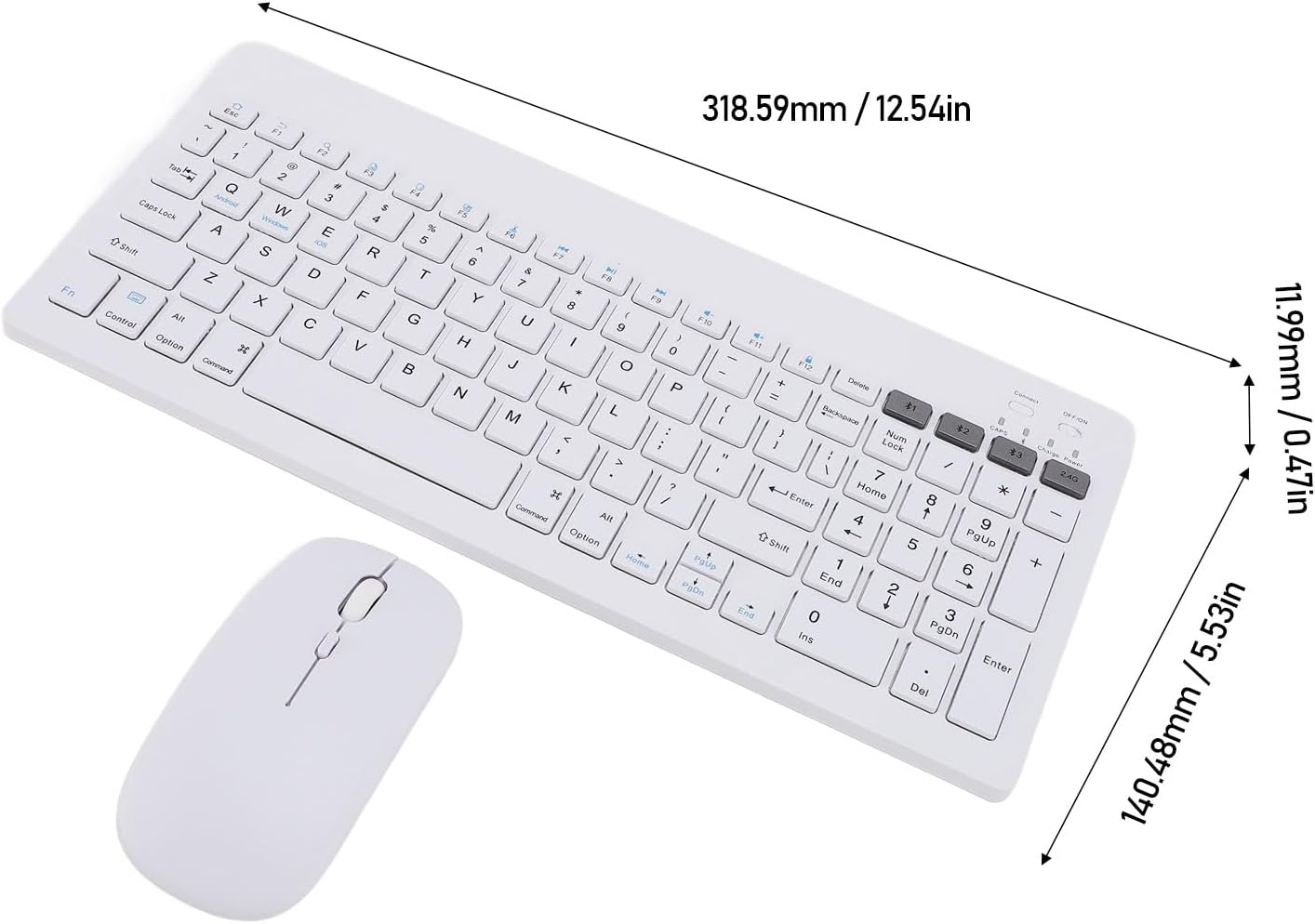
The Vikye Wireless Keyboard and Mouse Set is designed for optimal user experience. Below are key components and features:


Setup
1. Charging the Devices
Before first use, ensure both the keyboard and mouse are fully charged. Use the provided Type-C charging cable to connect the devices to a USB power source (e.g., computer USB port, USB wall adapter).
- The charging interface for the keyboard is a Type-C port.
- An indicator light on the keyboard will show charging status.
2. Connecting via 2.4G Wireless Mode
This mode uses the shared USB receiver for a stable connection.
- Locate the USB receiver, typically stored in a compartment on the underside of the mouse.
- Plug the USB receiver into an available USB port on your computer or device.
- Turn on the keyboard and mouse using their respective power switches.
- On the keyboard, press the dedicated 2.4G key (often labeled with a wireless icon or '3' for BT3/2.4G). The keyboard should automatically connect.
- The mouse will connect automatically once the receiver is plugged in and the mouse is powered on.
3. Connecting via Bluetooth Mode
The set supports Bluetooth 3.0 and 5.0 for dual Bluetooth connections.
- Ensure the keyboard and mouse are powered on.
- On the keyboard, press and hold either the BT1 (Bluetooth 1) or BT2 (Bluetooth 2) key for 3-5 seconds until the corresponding indicator light flashes, indicating pairing mode.
- On your device (PC, Android, iOS), go to Bluetooth settings and search for new devices.
- Select the keyboard (e.g., "Vikye Keyboard") from the list of available devices to pair.
- For the mouse, press and hold the Bluetooth pairing button on its underside until its indicator light flashes. Then, select "Vikye Mouse" from your device's Bluetooth list.
- Once paired, the indicator light will stop flashing and remain solid.
Operating Instructions
1. Switching Operating Systems
The keyboard is compatible with Android, Windows, and iOS. Use the dedicated keys to optimize keyboard functions for your specific OS:
- Press Fn + Q for Android OS.
- Press Fn + W for Windows OS.
- Press Fn + E for iOS OS.
2. Ergonomic Design
The keyboard and mouse are designed with an optimal ergonomic angle to ensure a comfortable experience, even during extended periods of use. This design aims to reduce strain and prevent discomfort, allowing for longer, more productive work sessions.

3. Quiet Noise Reduction
Both the keyboard and mouse are engineered with a considerate quiet mode, minimizing operational noise. This feature makes the set suitable for environments where noise reduction is important, such as late-night work or shared spaces, promoting a peaceful and focused atmosphere.
4. Energy Efficiency
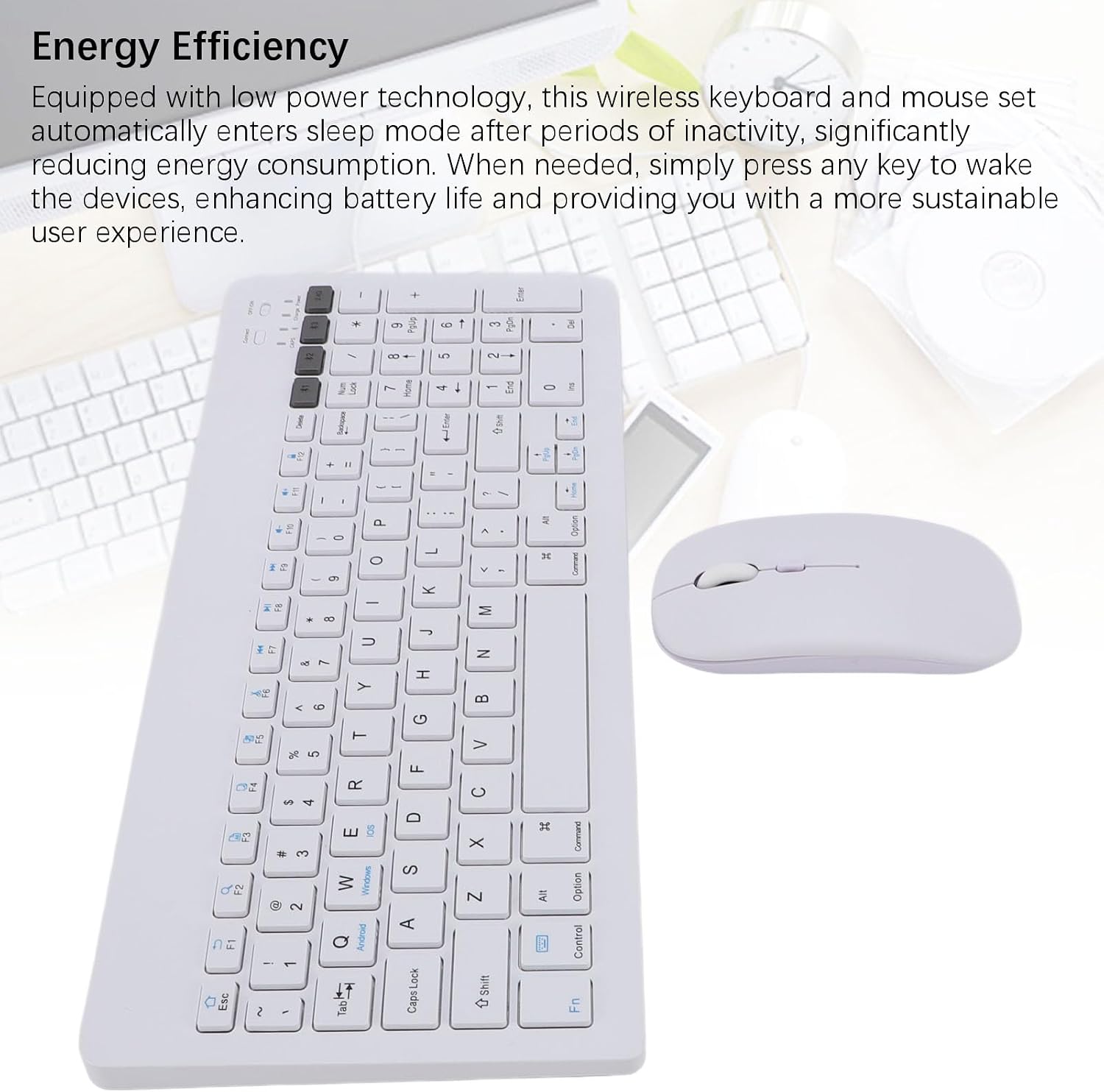
To conserve battery life, the wireless keyboard and mouse set is equipped with low power technology. After periods of inactivity, the devices will automatically enter a sleep mode. To wake them up, simply press any key on the keyboard or click a button on the mouse. This feature enhances battery life and provides a more sustainable user experience.

Maintenance
- Cleaning: Use a soft, dry cloth to clean the surface of the keyboard and mouse. For stubborn dirt, slightly dampen the cloth with water or a mild cleaning solution. Avoid using harsh chemicals or abrasive materials.
- Storage: When not in use for extended periods, turn off the devices to conserve battery. Store them in a cool, dry place away from direct sunlight and extreme temperatures.
- Battery Care: Recharge the devices when the low battery indicator appears. Avoid fully draining the battery frequently to prolong its lifespan.
Troubleshooting
Keyboard/Mouse Not Responding:
- Check Power: Ensure both the keyboard and mouse are turned on and have sufficient battery charge. Recharge if necessary.
- Re-establish Connection (2.4G): Unplug the USB receiver from your device and plug it back into a different USB port. Ensure the keyboard is set to 2.4G mode.
- Re-establish Connection (Bluetooth): Go to your device's Bluetooth settings, forget the keyboard/mouse, and then re-pair them following the Bluetooth connection steps in the Setup section.
- Interference: Move the devices closer to the receiver/device. Avoid using them near strong electromagnetic interference sources (e.g., Wi-Fi routers, other wireless devices).
Lag or Disconnections:
- Ensure the USB receiver is not obstructed and is in line of sight with the devices if possible.
- Reduce the distance between the devices and your computer.
- Check for other wireless devices operating on the same frequency (2.4GHz) that might cause interference.
Keys Not Working Correctly:
- Ensure the correct operating system mode (Android, Windows, iOS) is selected on the keyboard.
- Clean around the keys to ensure no debris is causing sticking.
Specifications
| Feature | Detail |
|---|---|
| Brand | Vikye |
| Model Number | Vikye9gtqe3f40u-11 |
| Connectivity | 2.4G Wireless, Bluetooth 3.0, Bluetooth 5.0 |
| Keyboard Key Number | 99 Keys |
| Working Distance | >10m / 32.8ft |
| Transfer Mode | Full Duplex |
| Charging Interface | Type-C Interface |
| Color | White |
| Item Weight | 15.3 ounces |
| Package Dimensions | 15.75 x 5.91 x 1.18 inches |
| Country of Origin | China |
Warranty and Support
This product is subject to a 30-day return policy. For any issues or support inquiries, please refer to the seller's contact information on the platform where the product was purchased. Please retain your proof of purchase for warranty claims.