
Yottamaster YM5
Yottamaster YM5 1TB External SSD User Manual
Model: YM5
1. Product Overview
The Yottamaster YM5 is a portable 1TB External Solid State Drive designed for high-speed data transfer and reliable storage. Its compact and lightweight design makes it suitable for various applications, including recording 4K ProRes video directly from compatible devices.

Image: The Yottamaster YM5 External SSD, featuring its compact design, included 2-in-1 USB-C cable, and lanyard.
2. What's in the Box
Verify that all items are present in the package:
- 1TB Portable Solid State Drive (PSSD) ×1
- 2-in-1 Data Cable (USB-C to USB-C with USB-A adapter) ×1
- Strap ×1
- User Manual ×1
Video: An unboxing demonstration of the Yottamaster YM5 External SSD, showcasing the contents of the package including the SSD unit, the 2-in-1 data cable, and the user manual.
3. Features
- High-Speed Data Transfer: Achieves read speeds of up to 460MB/s, facilitating quick transfer of large files and high-resolution videos.
- Compact and Portable Design: Palm-sized dimensions (3.15×1.67×0.49 inches) and a weight of only 135g, making it easy to carry. Includes a strap for secure attachment to bags or other items.
- 4K ProRes Video Recording Support: Capable of recording 4K ProRes video directly from compatible iPhone models (e.g., iPhone 16 Pro/Pro Max, iPhone 17 Pro/Pro Max), eliminating the need to switch storage during recording.
- Versatile Connectivity: Comes with a 2-in-1 data cable compatible with both USB-C and USB-A ports, ensuring broad compatibility with various devices.
- Multiple Capacity Options: Available in 512GB, 1TB, and 2TB capacities to suit diverse storage requirements.
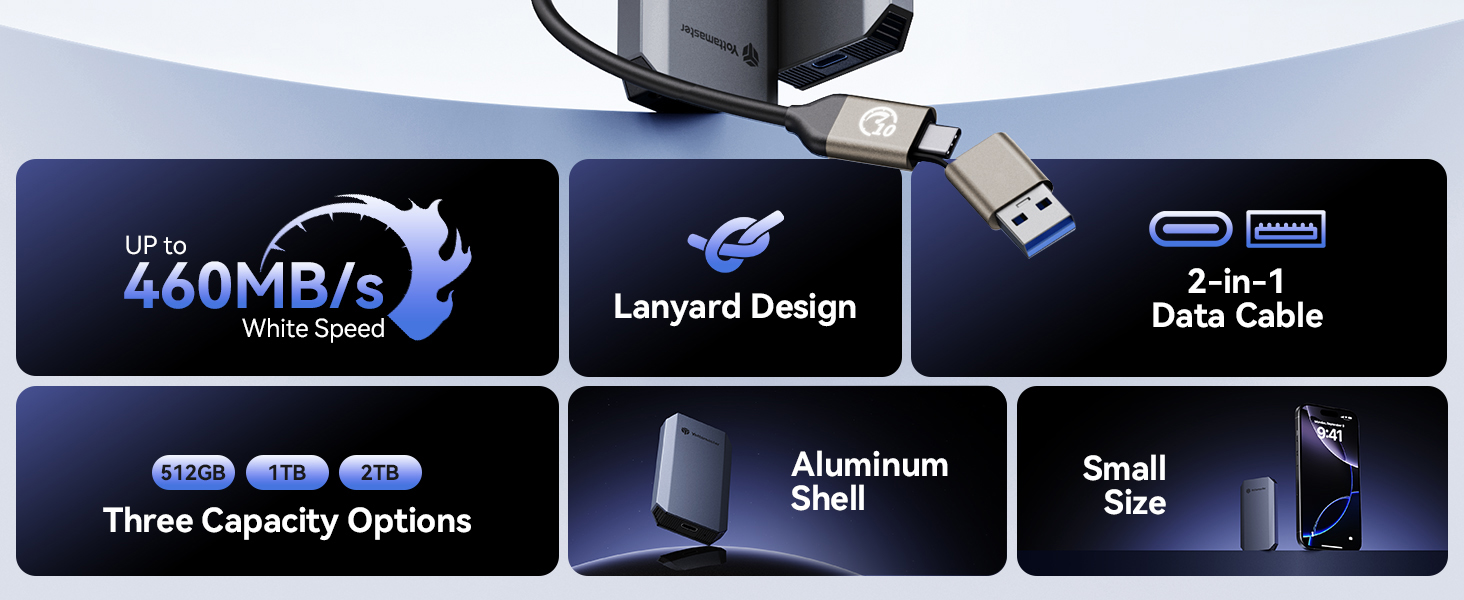
Image: A visual summary of the Yottamaster YM5's key features, including its high-speed performance, lanyard design, 2-in-1 data cable, available storage capacities, durable aluminum shell, and compact size.
4. Setup and Connection
- Unpack the Device: Carefully remove the Yottamaster YM5 SSD, the 2-in-1 data cable, and the strap from the packaging.
- Attach the Lanyard (Optional): If desired, attach the included strap to the designated loop on the SSD for enhanced portability and security.
- Connect to Your Device:
- For USB-C devices (e.g., modern smartphones, tablets, laptops): Use the USB-C end of the 2-in-1 cable to connect the SSD to your device's USB-C port.
- For USB-A devices (e.g., older laptops, desktop computers): Use the USB-A adapter on the 2-in-1 cable to connect the SSD to your device's USB-A port.
- Device Recognition: Your operating system should automatically detect the SSD. It may appear as a new drive in 'My Computer' (Windows) or 'Finder' (macOS).
- Initial Formatting (If Needed): The SSD comes pre-formatted, typically as exFAT, for broad compatibility. If you wish to use a different file system (e.g., NTFS for Windows, APFS for macOS), you will need to format the drive using your operating system's disk utility. Warning: Formatting will erase all data on the drive.
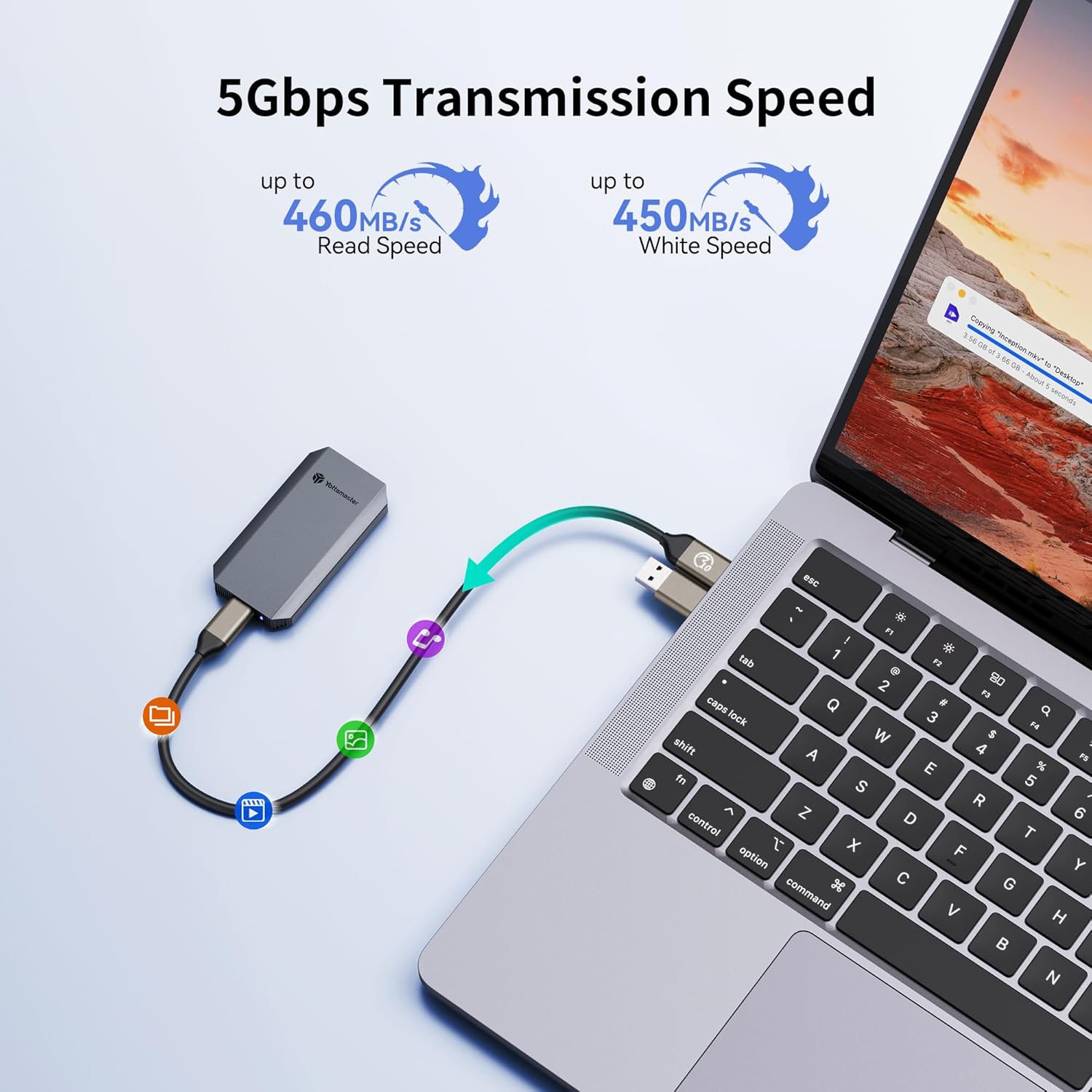
Image: The Yottamaster YM5 External SSD connected to a laptop, demonstrating its use for data transfer with an arrow indicating the flow of data.
5. Operating Instructions
5.1. Data Transfer
Once connected, the Yottamaster YM5 SSD functions like any other external storage device. You can drag and drop files, copy and paste, or use your system's backup software to transfer data.
- To copy files to the SSD: Select the desired files on your computer/device and drag them to the Yottamaster SSD drive icon or folder.
- To copy files from the SSD: Select the desired files on the Yottamaster SSD and drag them to a location on your computer/device.
5.2. 4K ProRes Video Recording (for compatible iPhones)
For iPhone 16 Pro/Pro Max, iPhone 17 Pro/Pro Max, and other compatible devices, the Yottamaster YM5 SSD supports direct 4K ProRes video recording.
- Connect the Yottamaster YM5 SSD to your compatible iPhone using the USB-C cable.
- Open the Camera app on your iPhone.
- Ensure that ProRes recording is enabled in your iPhone's camera settings and that the external SSD is recognized as the recording destination.
- Begin recording. Video data will be saved directly to the Yottamaster YM5 SSD.

Image: The Yottamaster YM5 External SSD connected to an iPhone, demonstrating its capability to record 4K ProRes video directly to the drive.
5.3. Safe Removal
Always safely eject the SSD from your operating system before physically disconnecting it to prevent data corruption.
- Windows: Right-click the drive icon in 'This PC' or the taskbar's 'Safely Remove Hardware' icon, then select 'Eject'.
- macOS: Drag the drive icon from the desktop to the Trash, or click the 'Eject' button next to the drive in Finder.
- Mobile Devices: Follow your device's specific instructions for safely disconnecting external storage.
6. Compatibility
The Yottamaster YM5 External SSD offers broad compatibility with various devices and operating systems due to its USB connectivity and 2-in-1 cable design.
Compatible Devices:
- Laptops (Windows, macOS, Linux)
- Smartphones (Android, iPhone 16 Pro Max, iPhone 17 Pro Max, and other USB-C enabled models)
- Tablets (iPad Pro, Android tablets, and other USB-C enabled models)
- Gaming Consoles (e.g., PS5, Nintendo Switch)

Image: A visual representation of the Yottamaster YM5's universal compatibility, showcasing its connection to a laptop, tablet, and smartphone, alongside icons for various compatible devices.
7. Specifications
| Feature | Specification |
|---|---|
| Model Number | YM5 |
| Storage Capacity | 1 TB (also available in 512GB, 2TB) |
| Hard Drive Type | Solid State Drive (SSD) |
| Interface | USB 3.0 (compatible with USB-C and USB-A via included cable) |
| Read Speed | Up to 460MB/s |
| Item Weight | 3.52 ounces (approx. 100g) |
| Package Dimensions | 5.87 x 4.29 x 0.75 inches |
| Special Features | Hot Swappable, LED Light Indicator, Portable Design |
| Compatible Devices | Laptop, Smartphone, Tablet, iPhone 16 Pro Max, iPhone 17 Pro Max |
8. Troubleshooting
8.1. SSD Not Detected
- Check Cable Connection: Ensure the 2-in-1 data cable is securely connected to both the SSD and your device's USB port. Try a different USB port if available.
- Try a Different Cable/Device: Test the SSD with another compatible USB cable or on a different computer/device to rule out cable or port issues.
- Check Disk Management (Windows) / Disk Utility (macOS): The drive might be uninitialized or unformatted. Access your operating system's disk management tool to check if the SSD is visible and requires initialization or formatting.
- Driver Issues: Ensure your operating system has the latest USB drivers installed.
8.2. Slow Transfer Speeds
- USB Port Type: Ensure you are connected to a USB 3.0 (or higher) port on your device. Older USB 2.0 ports will significantly limit transfer speeds.
- File System Overhead: The file system (e.g., exFAT, NTFS, APFS) can impact performance.
- Other USB Devices: Disconnect other high-bandwidth USB devices to reduce potential interference.
- System Resources: Close unnecessary applications on your computer/device that might be consuming system resources.
8.3. Data Corruption / Unstable Connection
- Safely Eject: Always safely eject the SSD before disconnecting it.
- Cable Integrity: Inspect the data cable for any signs of damage. A faulty cable can lead to intermittent connections.
- Power Supply: While bus-powered, ensure your host device can provide sufficient power to the SSD.
9. Warranty and Support
Yottamaster products are covered by a limited warranty. For specific warranty terms, duration, and support procedures, please refer to the warranty card included with your product or visit the official Yottamaster website.
If you encounter any issues not covered in this manual or require further assistance, please contact Yottamaster customer support through their official channels. When contacting support, please have your product model (YM5) and purchase information ready.
Online Resources:
- Official Yottamaster Website: www.yottamaster.com
- Product Support Page: (Refer to official website for specific product support links)
Related documentsYM5


Ask a question about this manual
Ask about setup, troubleshooting, compatibility, parts, safety, or missing instructions. Manuals+ will review the question and use this page’s manual context to help answer it.