

1. Setup Instructions
1.1 Package Contents
Before beginning, ensure all components are present:
- 1 x Wireless Keyboard
- 1 x Wireless Mouse
- 1 x USB Receiver (located in the mouse battery compartment)
- 1 x Type-C Charging Cable
- 1 x User Manual
1.2 Connecting the Device
The CHONCHOW G220 keyboard and mouse combo utilizes a single 2.4G USB receiver for wireless connectivity. No additional drivers are required for most operating systems.
- Locate the USB receiver: The small USB receiver is stored in a compartment on the underside of the wireless mouse. Gently open the battery cover to retrieve it.
- Insert the USB receiver: Plug the USB receiver into an available USB port on your computer, laptop, PS3, PS4, PS5, or Xbox.
- Power on the devices: Ensure both the keyboard and mouse are powered on using their respective power switches. The devices should automatically connect to the receiver.

Image: A visual representation of the 2.4G USB receiver plugged into a laptop, demonstrating the wireless connection range of up to 10 meters (33 feet) for the keyboard and mouse.
1.3 Compatibility
The CHONCHOW G220 is compatible with a wide range of operating systems and devices:
- Operating Systems: Windows 2000/2003/XP/Vista/Win7/Win8/Win10/Win11, Mac OS
- Devices: PC, Laptops, PS3, PS4, PS5, Xbox
Image: Icons representing Windows, Apple, and Linux operating systems, indicating broad compatibility for the keyboard and mouse combo.
2. Operating Instructions
2.1 Keyboard Backlight Control
The keyboard features rainbow LED backlighting with multiple modes and adjustable settings.
- Toggle Backlight: Press FN + Scroll Lock (SL) to turn the backlight on/off or cycle through three rainbow backlight modes.
- Breathing Mode: Press FN + Home to activate the breathing light mode.
- Adjust Brightness: Press FN + Page Up (PG UP) to increase brightness and FN + Page Down (PG DN) to decrease brightness (4 levels).
- Adjust Speed: Press FN + '+' to increase light speed and FN + '-' to decrease light speed.
Note: The keyboard backlight cannot be set to a single color.

Image: A diagram illustrating the key combinations for controlling the keyboard's rainbow backlight, including turning it on/off, activating breathing mode, and adjusting brightness and speed.
Video: A demonstration of the CHONCHOW G220 keyboard's various backlight modes and effects, including color transitions and breathing patterns.
2.2 Multimedia Keys and Anti-Ghosting
The keyboard includes 12 multimedia keys and supports 19 anti-conflict keys for enhanced functionality.
- Multimedia Functions: Access functions like volume control, media playback, and web browser shortcuts using the FN key in combination with the F1-F12 keys.
- WIN Lock: Press FN + Win key to lock the Windows key, preventing accidental presses during gaming.
- WASD and Arrow Key Exchange: Press FN + W to swap the functionality of the WASD keys with the arrow keys.
Image: A close-up of the keyboard highlighting the multimedia function keys (F1-F12) and the key combinations for WIN lock and WASD/arrow key exchange.
2.3 Mouse DPI Adjustment
The mouse offers adjustable DPI (Dots Per Inch) settings to customize cursor sensitivity.
- DPI Levels: Cycle through 4 adjustable DPI levels: 1000, 1600, 2400, and 3200 DPI.
- Adjust DPI: Press the DPI button located on the top of the mouse (usually behind the scroll wheel) to switch between DPI settings. The mouse's LED lighting may change to indicate the current DPI level.

Image: A detailed view of the CHONCHOW G220 mouse, pointing out the DPI button and illustrating the different DPI levels available (1000-3200 DPI).
3. Maintenance and Charging
3.1 Charging the Devices
The keyboard and mouse are rechargeable and designed for long battery life.
- Keyboard Battery: The keyboard has a 2500 mAh battery, providing months of continuous use on a single full charge.
- Charging: Use the provided Type-C charging cable to charge the keyboard and mouse. Connect the Type-C end to the device and the USB-A end to a power source (e.g., computer USB port, USB wall adapter).
- Charging Indicator: Refer to the device's indicator lights for charging status.

Image: A close-up showing the Type-C charging port on the keyboard and mouse, indicating the quick charge capability and long standby time.
3.2 Smart Energy Saving Mode
To conserve battery life, both the keyboard and mouse feature an automatic sleep function.
- Auto-Sleep: The keyboard backlight will turn off after 120 seconds of inactivity, and the mouse backlight after 90 seconds. The keyboard enters sleep mode after 30 minutes, and the mouse after 1.5 minutes.
- Wake-up: Press any key on the keyboard or move/click the mouse to wake the devices from sleep mode.
- Power Switch: Both devices have a separate power switch for manual power off when not in use for extended periods.
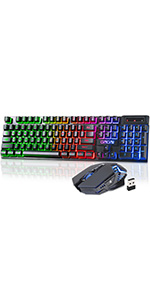
Image: A graphic illustrating the smart energy-saving features, showing the backlight turn-off times and sleep durations for both the keyboard and mouse.
4. Troubleshooting
If you encounter issues with your CHONCHOW G220 combo, please refer to the following common solutions:
- Devices not responding or indicator light flashing:
- Check the USB receiver connection: Ensure the 2.4G USB receiver is securely plugged into a functional USB port. Try a different USB port if necessary.
- Charge the devices: The indicator light flashing often signifies low battery. Connect the keyboard and mouse to a power source using the Type-C charging cable.
- Power cycle: Turn off both the keyboard and mouse using their power switches, then turn them back on.
- Intermittent connection or lag:
- Reduce distance: Ensure the keyboard and mouse are within the effective 10-meter (33 feet) range of the USB receiver.
- Minimize interference: Move away from other wireless devices (e.g., Wi-Fi routers, cordless phones) that might cause interference.
- Re-pair devices (if applicable): While typically plug-and-play, some wireless devices may benefit from re-pairing. Consult the manufacturer's website for specific re-pairing instructions if issues persist.
- Keys not registering or ghosting:
- Clean the keyboard: Dust or debris under the keys can affect performance. Use compressed air to clean around the keycaps.
- Check for physical damage: Inspect the keyboard for any visible damage that might affect key functionality.
5. Specifications
| Feature | Detail |
|---|---|
| Brand | CHONCHOW |
| Model Number | G220 |
| Connectivity Technology | 2.4G Wireless, USB |
| Keyboard Layout | 104 keys |
| Keyboard Battery | 2500 mAh (Rechargeable) |
| Mouse DPI Levels | 1000-1600-2400-3200 DPI (Adjustable) |
| Special Features | Backlit (Rainbow LED), Gaming, Rechargeable, Spill-proof, Anti-ghosting (19 keys), Multimedia Keys (12) |
| Compatible Devices | Laptop, Personal Computer, PS3, PS4, PS5, Xbox |
| Operating System Support | Windows 2000/2003/XP/Vista/Win7/Win8/Win10/Win11, Mac OS |
| Wireless Range | Up to 10 meters (33 feet) |
| Item Weight | 2.05 pounds |
| Package Dimensions | 17.63 x 8.23 x 1.97 inches |
6. Warranty Information
For detailed warranty information regarding your CHONCHOW G220 Wireless Keyboard and Mouse Combo, please refer to the product packaging or visit the official CHONCHOW website. Warranty terms and conditions may vary by region and retailer.
7. Customer Support
If you require technical assistance, have questions about product functionality, or need to report an issue, please contact CHONCHOW customer service through their official website or the contact information provided on your product packaging.
For online support, visit: CHONCHOW Store on Amazon


