1. Introduction
This manual provides detailed instructions for the proper use and care of your WIKICO WX02-6K 6K Digital Camera. Please read this manual thoroughly before operating the camera to ensure optimal performance and longevity. This camera is designed for both photography and video recording, featuring 6K video resolution, 64MP photos, a 180° flip screen, and various advanced functions.
2. Package Contents
Verify that all items listed below are included in your package. If any items are missing or damaged, please contact customer support.
- WIKICO WX02-6K 6K Digital Camera (x1)
- 1500mAh Rechargeable Batteries (x2)
- Dual Battery Charger (x1)
- Wrist Strap (x1)
- 32GB TF Card (x1)
- Wide-Angle Lens (x1)
- Macro Lens (x1)
- USB Cable (x1)
- Power Adapter (x1)
- Instruction Manual (x1)
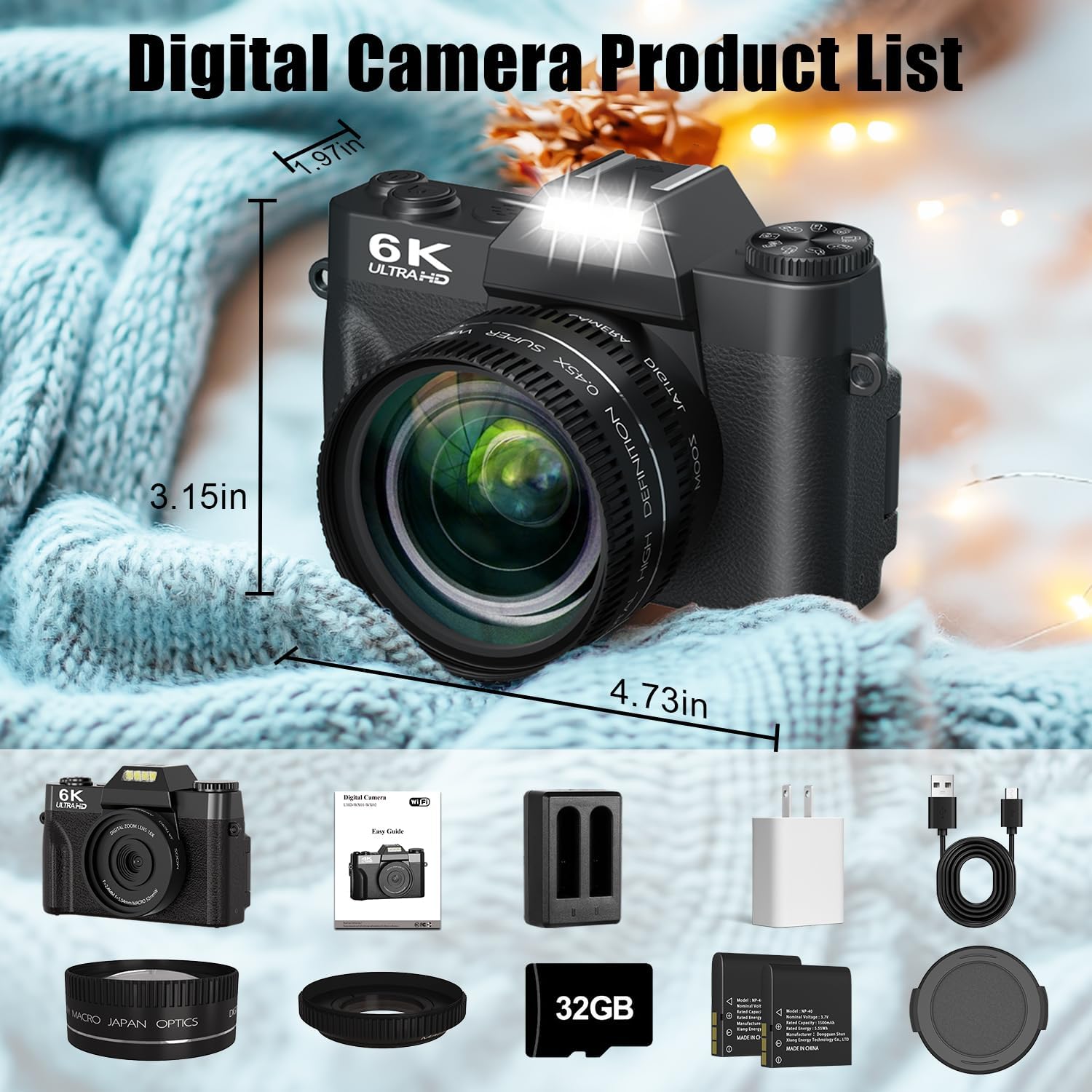
Image: The WIKICO WX02-6K Digital Camera shown with all its included accessories, including the camera body, wide-angle lens, macro lens, two batteries, dual charger, USB cable, power adapter, wrist strap, and 32GB TF card.
3. Camera Overview
Familiarize yourself with the camera's components and controls.

Image: A detailed diagram illustrating the various buttons, dials, and ports on the WIKICO WX02-6K camera, including the mode dial, hot shoe, power button, photo button, battery compartment, digital zoom controls, navigation buttons, menu button, playback button, tripod hole, memory card slot, external MIC interface, Type-C USB interface, and HDMI output interface.
3.1 Front View
- Lens: Main optical component for capturing images.
- Built-in Flash/Fill Light: Provides illumination in low-light conditions.
3.2 Top View
- Mode Dial: Selects shooting modes (Photo, Video, Time-lapse, etc.).
- Hot Shoe: For attaching external accessories like microphones or flashes.
- Power Button: Turns the camera on/off.
- Shutter Button: Press halfway to focus, fully to capture a photo or start/stop video.
3.3 Rear View
- 3-inch 180° Flip Screen: Displays live view, menus, and playback. Can be flipped for self-recording.
- Navigation Buttons (Up, Down, Left, Right, OK): For menu navigation and quick settings.
- Digital Zoom In/Out Buttons: Adjusts digital zoom level.
- Menu Button: Accesses camera settings.
- Playback Button: Reviews captured photos and videos.
3.4 Side Views
- Battery Compartment: Houses the rechargeable battery.
- Memory Card Slot: For inserting the TF (MicroSD) card.
- Tripod Hole: For mounting the camera on a tripod.
- External MIC Interface: For connecting an external microphone.
- Type-C USB Interface: For charging, data transfer, and webcam function.
- HDMI Output Interface: For connecting to an external display.
4. Setup
4.1 Charging and Installing the Battery
- Insert the provided 1500mAh batteries into the dual battery charger.
- Connect the charger to a power source using the USB cable and power adapter. The indicator light will show charging status.
- Once fully charged, open the battery compartment on the camera and insert a charged battery, ensuring correct orientation. Close the compartment securely.

Image: The WIKICO WX02-6K camera with an external dual battery charger connected to a power bank, illustrating the multiple fast charging options available for the camera's batteries.
4.2 Inserting the TF Card
- Locate the memory card slot on the side of the camera.
- Insert the provided 32GB TF card (MicroSD card) into the slot with the gold contacts facing the correct direction (refer to the diagram near the slot). Push until it clicks into place.
- To remove, gently push the card in again until it clicks and ejects.
Note: The camera supports TF cards up to 128GB. Ensure the card is formatted in the camera before first use for optimal performance.
4.3 Attaching the Lenses
The camera comes with a detachable wide-angle lens and a macro lens.
- To attach the wide-angle lens, align it with the camera's main lens and gently twist clockwise until it is secure.
- The macro lens is typically integrated with the wide-angle lens. To use only the macro lens, unscrew the wide-angle portion from the macro lens.
- To remove any lens, twist counter-clockwise.

Image: The WIKICO WX02-6K Digital Camera with its detachable wide-angle and macro lenses, demonstrating how they can be attached to the camera's main lens.
5. Operating Instructions
5.1 Powering On/Off
Press and hold the Power Button on the top of the camera to turn it on or off.
5.2 Selecting a Mode
Rotate the Mode Dial on the top of the camera to select your desired shooting mode:
- Photo Mode: For capturing still images.
- Video Mode: For recording video footage.
- Time-lapse: For creating time-lapse videos.
- Slow Motion: For recording slow-motion video.
- Continuous Shooting: For capturing a rapid sequence of photos.
- Self-Timer: For delayed photo capture (3s, 5s, 10s).
- Loop Recording: For continuous video recording that overwrites old footage.

Image: A graphic illustrating the WIKICO WX02-6K camera's mode dial with various functions such as video mode, slow motion, time-lapse, loop recording, photo mode, automatic shooting, timer shooting, and continuous shooting.
5.3 Capturing Photos and Videos
- Focusing: In Photo or Video mode, press the Shutter Button halfway down. The camera will autofocus, and the focus indicator will confirm.
- Taking a Photo: In Photo mode, press the Shutter Button fully down to capture an image.
- Recording Video: In Video mode, press the Shutter Button fully down to start recording. Press it again to stop.

Image: A visual demonstration of the WIKICO WX02-6K camera's 64MP autofocus feature, showing a clear, focused image on the left and a blurred, unfocused image on the right, highlighting the camera's ability to achieve sharp focus.
5.4 Digital Zoom
Use the Digital Zoom In/Out Buttons on the rear of the camera to adjust the 16X digital zoom. This allows you to magnify distant subjects.

Image: A comparison showing the effect of the WIKICO WX02-6K camera's 16x digital zoom, with images at 4x, 8x, and 16x magnification of a red panda, demonstrating the ability to capture distant details.
5.5 Using the Flip Screen
The 3-inch screen can be flipped 180° forward, making it ideal for vlogging and selfies. Adjust the screen to your preferred angle for easy viewing.
5.6 Built-in Filters and Beauty Mode
Enhance your photos and videos with the camera's built-in filters and beauty mode. Access these options through the camera's menu system.
- Filters: Choose from various artistic filters to add flair to your content.
- Beauty Mode: Automatically enhances facial features for refined portraits.

Image: A side-by-side comparison demonstrating the effect of the WIKICO WX02-6K camera's Smart Beauty Mode, showing a 'pre-facialisation' image on the left and an 'after beautifying' image on the right, highlighting skin texture and facial proportion enhancements.
5.7 Webcam Function
Connect the camera to your computer via the USB Type-C cable and select 'Webcam Mode' from the camera's menu (if prompted). This allows you to use the camera for live streaming, video calls, or online meetings.

Image: The WIKICO WX02-6K camera mounted on a tripod, connected to a laptop and displaying a live video feed, illustrating its use as a webcam for YouTube, self-vlogging, or live streaming.
5.8 Wi-Fi Function
The camera features built-in Wi-Fi for easy transfer of photos and videos to your smartphone or tablet. Refer to the camera's on-screen instructions or a dedicated app (if available) for connecting and transferring files.

Image: The WIKICO WX02-6K camera connected to a laptop via USB cable and also showing a Wi-Fi signal icon, demonstrating its dual connectivity options for transferring photos and videos.
6. Maintenance
6.1 Cleaning the Camera
- Camera Body: Use a soft, dry cloth to wipe the camera body. For stubborn dirt, slightly dampen the cloth with water.
- Lens: Use a lens brush or a soft, lint-free microfiber cloth specifically designed for camera lenses. Avoid touching the lens surface with your fingers.
- Screen: Gently wipe the screen with a soft, dry microfiber cloth.
Caution: Do not use organic solvents or strong chemicals to clean the camera.
6.2 Storage
- When not in use for extended periods, remove the battery from the camera.
- Store the camera in a cool, dry, and well-ventilated place, away from direct sunlight, high temperatures, and humidity.
- Protect the camera from dust and dirt by storing it in a camera bag or case.
7. Troubleshooting
If you encounter issues with your camera, refer to the following common problems and solutions:
| Problem | Possible Cause | Solution |
|---|---|---|
| Camera does not power on. | Battery is depleted or incorrectly inserted. | Charge the battery fully and ensure it is inserted correctly. |
| Cannot take photos/record videos. | TF card is full, not inserted, or corrupted. | Insert a TF card, ensure it has free space, or format the card (this will erase all data). |
| Images are blurry. | Lens is dirty, camera shake, or focus issue. | Clean the lens. Hold the camera steady or use a tripod. Ensure autofocus locks before capturing. |
| Wi-Fi connection fails. | Incorrect password, out of range, or app issue. | Ensure correct Wi-Fi password. Move closer to the connected device. Restart camera and device. |
| Camera freezes or becomes unresponsive. | Software glitch or battery issue. | Remove and reinsert the battery to reset the camera. If issue persists, ensure battery is charged. |
If the problem persists after trying these solutions, please contact WIKICO customer support.
8. Specifications
Detailed technical specifications for the WIKICO WX02-6K Digital Camera.
| Feature | Specification |
|---|---|
| Model Name | WX02-6K |
| Effective Still Resolution | 64 MP |
| Video Resolution | 5760x3240 (6K) |
| Photo Sensor Technology | CMOS |
| Image Stabilization | Digital |
| Optical Zoom | 1x |
| Digital Zoom | 16x |
| Screen Size | 3 Inches (180° Flip Screen) |
| Supported File Format | JPEG, MP4 |
| Connectivity Technology | Wi-Fi, USB Type-C, HDMI |
| Autofocus | Yes (Contrast Detection, 49 points) |
| Battery Type | Lithium Ion (1500mAh, x2 included) |
| Storage Media | TF Card (32GB included, supports up to 128GB) |
| Lens Type | Fixed lens with detachable Wide Angle and Macro lenses |
| Special Features | Webcam function, Built-in Fill Light, Filters, Beauty Mode, Loop Recording, Pause Function |
| Item Weight | 611 Grams |
| Dimensions | Approximately 4.73 x 3.15 x 1.97 inches |
9. Warranty and Support
WIKICO products are designed for reliability and performance. For any questions, technical assistance, or warranty claims, please contact WIKICO customer support through the retailer where the product was purchased or visit the official WIKICO website for contact information.
Please retain your proof of purchase for warranty purposes.


