
1. Product Overview
The UNIWA F41 is a rugged 4G Android mobile phone designed with walkie-talkie capabilities, featuring a durable build, long-lasting battery, and support for various communication applications like Zello. It combines smartphone functionality with push-to-talk (PTT) features, making it suitable for professional and outdoor use.

Figure 1: Front and rear view of the UNIWA F41 device, showing the display, keypad, PTT button, and rear clip.
Key Features:
- Operating System: Android 8.1
- Processor: MT6739 Quad Core
- Memory: 1GB RAM + 8GB ROM (expandable up to 64GB with Micro SD)
- Display: 2.4-inch IPS capacitive touch screen (320x240 resolution)
- Battery: Removable 4600mAh Li-Polymer battery with 10W fast charging
- Durability: IP54 waterproof, drop, and shockproof
- Connectivity: 2G/3G/4G global network bands, Wi-Fi (2.4GHz/5GHz), Bluetooth 4.2, GPS/BeiDou/GLONASS
- Cameras: 5MP front, 8MP rear
- Audio: Front Φ36/3 Watt BOX Speaker
- Special Features: Zello intercom, Smart PTT, Posctar support, NFC for patrolling, SOS button, Dual SIM
2. Package Contents
Verify that all items are present in the package:
- UNIWA F41 Talkie Walkie Smartphone (x1)
- Power Adapter (5V/2A) (x1)
- USB Cable (x1)
- Clip (x1)
- Antenna (x1)
- User Manual (x1)

Figure 2: Contents of the UNIWA F41 retail package.
3. Setup
3.1. Battery Installation and Initial Charge
- Remove the back cover of the device.
- Insert the 4600mAh Li-Polymer battery into the battery compartment, ensuring the contacts align.
- Replace the back cover securely.
- Connect the provided USB cable to the device's USB Type-C port and the power adapter.
- Plug the power adapter into a wall outlet.
- Charge the device for at least 1 hour before initial use. The charging indicator will show progress.

Figure 3: The UNIWA F41 device with its high-capacity 4600mAh removable battery.
3.2. SIM Card and Micro SD Card Installation
The device supports dual SIM cards and one TF (Micro SD) card.
- With the device powered off, remove the back cover and battery.
- Locate the SIM card slots (SIM Card Slot *2) and TF Card Slot *1.
- Carefully insert your SIM card(s) into the designated slots with the gold contacts facing down.
- Insert your Micro SD card (up to 64GB) into the TF card slot.
- Reinstall the battery and back cover.
3.3. Antenna Attachment
Screw the provided antenna onto the top of the device until it is finger-tight. Ensure it is securely attached for optimal signal reception.
4. Operating Instructions
4.1. Power On/Off
- Power On: Press and hold the Power button (usually on the side) until the screen lights up.
- Power Off: Press and hold the Power button, then select "Power off" from the options on the screen.
4.2. Basic Navigation
The UNIWA F41 features a 2.4-inch IPS capacitive touch screen and a T9 keypad for navigation.
- Touch Screen: Tap to select, swipe to scroll.
- Keypad: Use the directional keys for menu navigation and the central button to confirm selections.
- Back Button: Returns to the previous screen.
- Home Button: Returns to the home screen.

Figure 4: The 2.4-inch IPS capacitive touch screen of the UNIWA F41, displaying various application icons.
4.3. Using Walkie-Talkie (Zello/PTT) Functionality
The UNIWA F41 is pre-adapted for popular PTT applications like Zello, Real PTT, and Pocstar.
- Ensure you have an active internet connection (Wi-Fi or 4G).
- Open your preferred PTT application (e.g., Zello).
- Log in or create an account.
- Join a channel or contact.
- Press and hold the dedicated PTT Intercom Button (located on the side) to transmit your voice. Release to listen.
- Use the Group Switching Knob (if available on your model) to quickly switch between talk groups.

Figure 5: The UNIWA F41 showcasing its integration with Zello and other PTT applications, highlighting the ergonomic PTT button.
4.4. Network Connectivity (4G, Wi-Fi, Bluetooth)
- 4G Network: Ensure your SIM card supports the device's network bands (2G: GSM850/900/1800/1900MHz; 3G: WCDMA B1/B2/B5/B8, TD-SCDMA B34/B39; 4G: FDD-LTE:B1/B3/B7/B8/B20; TDD-LTE:B38/B39/B40/B41). The device will automatically connect to available cellular networks.
- Wi-Fi: Go to Settings > Network & Internet > Wi-Fi to connect to available Wi-Fi networks.
- Bluetooth: Go to Settings > Connected devices > Bluetooth to pair with Bluetooth accessories.

Figure 6: The UNIWA F41's capability to support global 2G/3G/4G network bands for seamless communication.
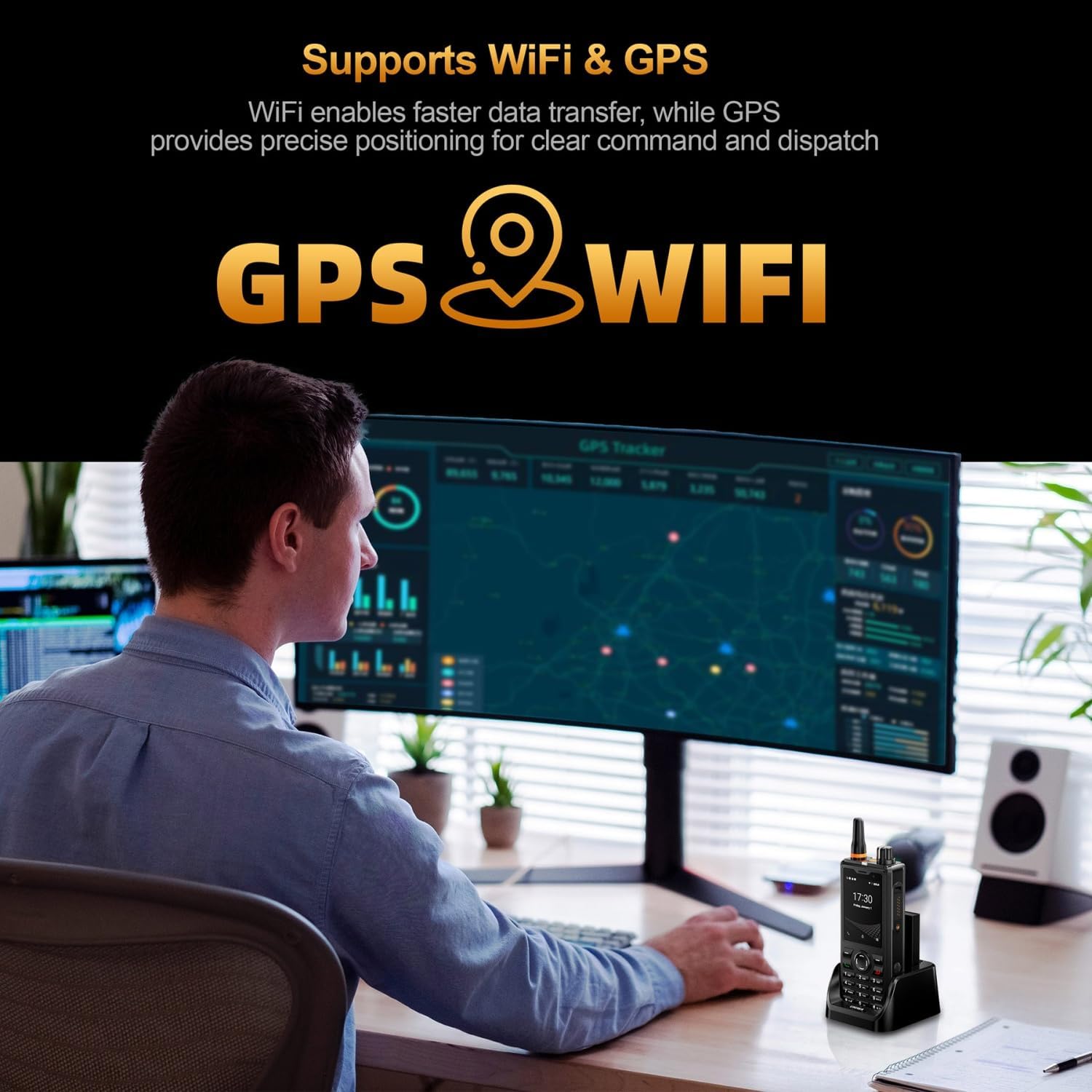
Figure 7: Illustration of the UNIWA F41's integrated WiFi for faster data and GPS for precise positioning.
4.5. Camera Usage
The device features a 5MP front camera and an 8MP rear camera.
- Open the Camera application from the home screen or app drawer.
- Tap the shutter button to take a photo.
- Switch between front and rear cameras using the camera toggle icon.
- Select video mode to record videos.
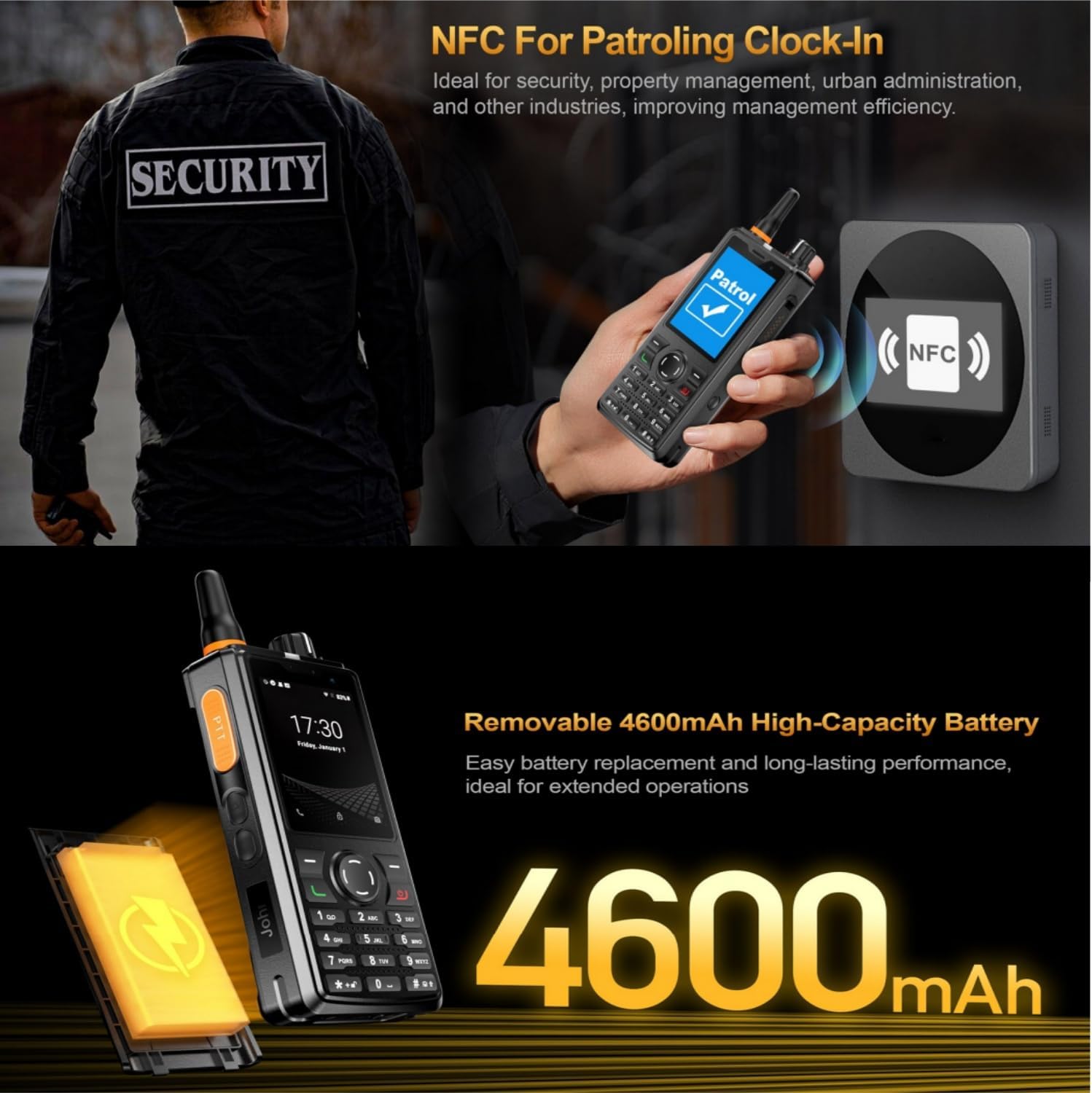
Figure 8: The UNIWA F41's dual camera system, featuring a 5MP front camera and an 8MP rear camera for high-definition capture.
4.6. NFC Functionality
The built-in NFC can be used for applications such as patrolling clock-in.
- Ensure NFC is enabled in Settings.
- Open the relevant NFC-enabled application.
- Tap the device near an NFC tag or reader to perform the desired action (e.g., clock-in).

Figure 9: The UNIWA F41 utilizing its NFC feature for applications like patrolling clock-in, ideal for various industries.
4.7. SOS Emergency Call
The device includes a dedicated SOS button for emergency situations.
- Configure emergency contacts in the device settings.
- In an emergency, press the SOS Button (usually on the side) to initiate an emergency call or send an SOS message to pre-set contacts.
5. Maintenance
5.1. Cleaning the Device
- Use a soft, lint-free cloth to wipe the screen and body of the device.
- For stubborn dirt, slightly dampen the cloth with water or a mild screen cleaner.
- Avoid using harsh chemicals, abrasive cleaners, or aerosols.
- Ensure all ports are dry before charging or connecting accessories.
5.2. Battery Care
- Charge the battery fully before first use.
- Avoid extreme temperatures, as they can degrade battery performance.
- Do not puncture, disassemble, or short-circuit the battery.
- If the device will not be used for an extended period, charge it to about 50% and store it in a cool, dry place.
5.3. Software Updates
Important Note: Currently, the F41 only supports Android 8.1. Do not upgrade the Android version, otherwise the phone will not work.
Regularly check for official software updates from UNIWA to ensure optimal performance and security. Follow the instructions provided by the update notification or check in Settings > System > System update.
6. Troubleshooting
| Problem | Possible Cause | Solution |
|---|---|---|
| Device does not power on. | Low battery; Battery not installed correctly; Software issue. | Charge the device for at least 1 hour. Reinstall the battery. Perform a force restart (refer to device specific instructions if available). |
| No network signal. | SIM card not inserted correctly; Out of network coverage; Incorrect network settings. | Reinsert SIM card. Move to an area with better coverage. Check APN settings in Network & Internet settings. Ensure antenna is securely attached. |
| PTT function not working. | No internet connection; PTT app not configured; App permissions. | Verify Wi-Fi or 4G connection. Ensure PTT app is logged in and configured correctly. Check app permissions for microphone and network access. |
| Battery drains quickly. | High screen brightness; Many apps running in background; Poor network signal. | Reduce screen brightness. Close unused apps. Disable Wi-Fi/Bluetooth when not in use. Use power-saving mode. |
| Device is slow or unresponsive. | Too many apps open; Low storage; Software glitch. | Close background apps. Clear cache. Free up storage space. Restart the device. |
| Cannot upgrade Android version. | Device limitation. | The UNIWA F41 is designed to operate on Android 8.1. Attempting to upgrade may cause the device to malfunction. Do not upgrade the Android version. |
| Speaker volume is low or distorted. | Volume settings; Speaker obstruction; Software issue. | Increase volume using the volume buttons. Ensure speaker is not blocked. Restart the device. |
| GPS not accurate. | Poor satellite signal; GPS settings. | Ensure you are in an open area with clear sky view. Check location settings and ensure GPS is enabled. |
| NFC not working. | NFC disabled; Incorrect positioning. | Enable NFC in settings. Ensure the device's NFC area is close to the tag/reader. |
7. Specifications
| Feature | Detail |
|---|---|
| Brand | UNIWA |
| Model | F41 |
| Operating System | Android 8.1 |
| CPU | MT6739 Quad Core |
| Memory (RAM) | 1GB |
| Storage (ROM) | 8GB |
| Expandable Storage | Up to 64GB (Micro SD) |
| SIM Card Support | Dual SIM |
| Display Size | 2.4 inches |
| Display Type | IPS Capacitive Touch Screen |
| Display Resolution | 320x240 |
| Rear Camera | 8MP |
| Front Camera | 5MP |
| Battery Capacity | 4600mAh Li-Polymer (Removable) |
| Charging | 10W Fast Charging, USB Type-C, Dock charging connectors |
| Dimensions | 135.6 x 60.5 x 26.0 mm |
| Weight | 265g (including battery and clip) |
| Water/Dust Resistance | IP54 Waterproof, Drop and Shockproof |
| Network Bands | 2G: GSM850/900/1800/1900MHz; 3G: WCDMA B1/B2/B5/B8, TD-SCDMA B34/B39; 4G: FDD-LTE:B1/B3/B7/B8/B20; TDD-LTE:B38/B39/B40/B41 |
| Wi-Fi | 2.4GHz / 5GHz |
| Bluetooth | BT4.2 |
| GNSS | GPS/BeiDou/GLONASS |
| NFC | Yes |
| Speaker | Front Φ36/3 Watt BOX Speaker |
| Buttons | PTT Intercom Button, Volume +/-, SOS Button, Customize Button, T9 Keypad |
| Headphone Jack | M6 Headphone Jack |
| Operating Temperature | -20℃ to +60℃ |
8. Safety Information
- Read all instructions carefully before using the device.
- Do not expose the device to extreme temperatures, direct sunlight, or excessive moisture.
- Use only manufacturer-approved accessories (battery, charger, antenna).
- Do not attempt to disassemble, repair, or modify the device yourself. Refer to qualified service personnel.
- Dispose of the device and battery responsibly according to local regulations.
- Avoid using the device while driving or operating heavy machinery.
- Maintain a safe distance from medical implants (e.g., pacemakers) when using the device.
- The device is IP54 rated for water and dust resistance, but it is not fully submersible. Avoid prolonged exposure to water.
9. Warranty and Support
For warranty information, please refer to the warranty card included with your product or contact UNIWA customer support. Keep your purchase receipt as proof of purchase.
For technical support or service inquiries, please contact your retailer or visit the official UNIWA website for contact details.