1. Introduction
Thank you for choosing the vretti PB821 Portable Thermal Printer. This compact and versatile printer is designed for convenient, inkless printing from various devices, including smartphones, tablets, and laptops. Its portable design makes it ideal for business, office, home, and travel use. This manual provides detailed instructions to help you set up, operate, and maintain your printer for optimal performance.

The vretti PB821 printer is suitable for a wide range of environments, including office, home, travel, and school, demonstrating its versatility.
2. Product Overview
2.1 Package Contents
Please check the package contents upon unboxing:
- vretti PB821 Portable Thermal Printer
- USB-C Charging Cable
- User Manual
- Sample Thermal Paper
2.2 Key Features
- Wireless Bluetooth Printing: Connects seamlessly with phones and tablets via the "XLifePro" app (available on App Store and Google Play). Supports various file formats including TXT, PDF, Excel, and Word.
- Portable and Compact: Lightweight design for easy transport, fitting into backpacks for business trips, family travel, or study.
- Cost-effective Inkless Printing: Utilizes advanced thermal printing technology, eliminating the need for ink, toner, or ribbons. Only thermal paper is required.
- High-Quality Printing: Delivers clear prints with a resolution of 203DPI.
- Long Battery Life: Built-in 1500mAh rechargeable battery supports printing up to 223 A4 sheets on a full charge.
- Versatile Paper Support: Compatible with various thermal paper sizes, including A5, A4, US Letter, and 2-4 inch labels.

The vretti PB821 printer supports multiple paper sizes, including standard US Letter and A4, for diverse printing needs.

The printer features a 1500mAh battery, offering extended printing capability and convenient USB-C charging.

Experience high print clarity with the vretti PB821, ensuring sharp and readable documents.
3. Setup
3.1 Initial Charging
Before first use, fully charge the printer. Connect the supplied USB-C cable to the printer's charging port and a compatible USB power adapter (not included). The charging indicator light will show the charging status.
3.2 App Download (for Bluetooth Printing)
For wireless printing via Bluetooth, download the "XLifePro" app:
- Search for "XLifePro" on the Apple App Store (for iOS devices) or Google Play Store (for Android devices).
- Download and install the app on your smartphone or tablet.
3.3 Driver Installation (for USB Printing)
For printing via USB from a laptop or desktop computer, you may need to install drivers:
- Visit the official vretti support website: vrettitech.com/pages/p83-support.
- Download the appropriate driver for your operating system (Windows, Mac OS, Linux, Chromebook).
- Follow the on-screen instructions to complete the driver installation.
4. Operating Instructions
4.1 Connecting via Bluetooth
To print wirelessly from your mobile device:
- Ensure the printer is powered on and fully charged.
- Open the "XLifePro" app on your smartphone or tablet.
- Navigate to the device connection section within the app.
- Enable Bluetooth on your mobile device and search for available devices.
- Select "PB821" from the list of found devices to establish a connection.

Follow these steps to connect your vretti PB821 printer via Bluetooth using the XLifePro app.
4.2 Connecting via USB
To print from your computer:
- Ensure the printer drivers are installed on your computer (refer to Section 3.3).
- Connect the vretti PB821 printer to your laptop or desktop computer using the supplied USB-C cable.
- The computer should recognize the printer automatically.
- You can now print documents or webpages directly from your computer's applications.

Connect your vretti PB821 printer to your computer via USB for direct printing after driver installation.
4.3 Loading Thermal Paper
The vretti PB821 supports various types and sizes of thermal paper. Ensure you use thermal paper as the printer does not require ink.
- Open the paper compartment cover on the printer.
- Insert the thermal paper, ensuring the printable side (usually the smoother, slightly glossy side) is facing the print head. For folding thermal paper with a black mark, ensure the black mark is facing down.
- Adjust the paper guides to fit the width of your paper snugly.
- Close the paper compartment cover securely.
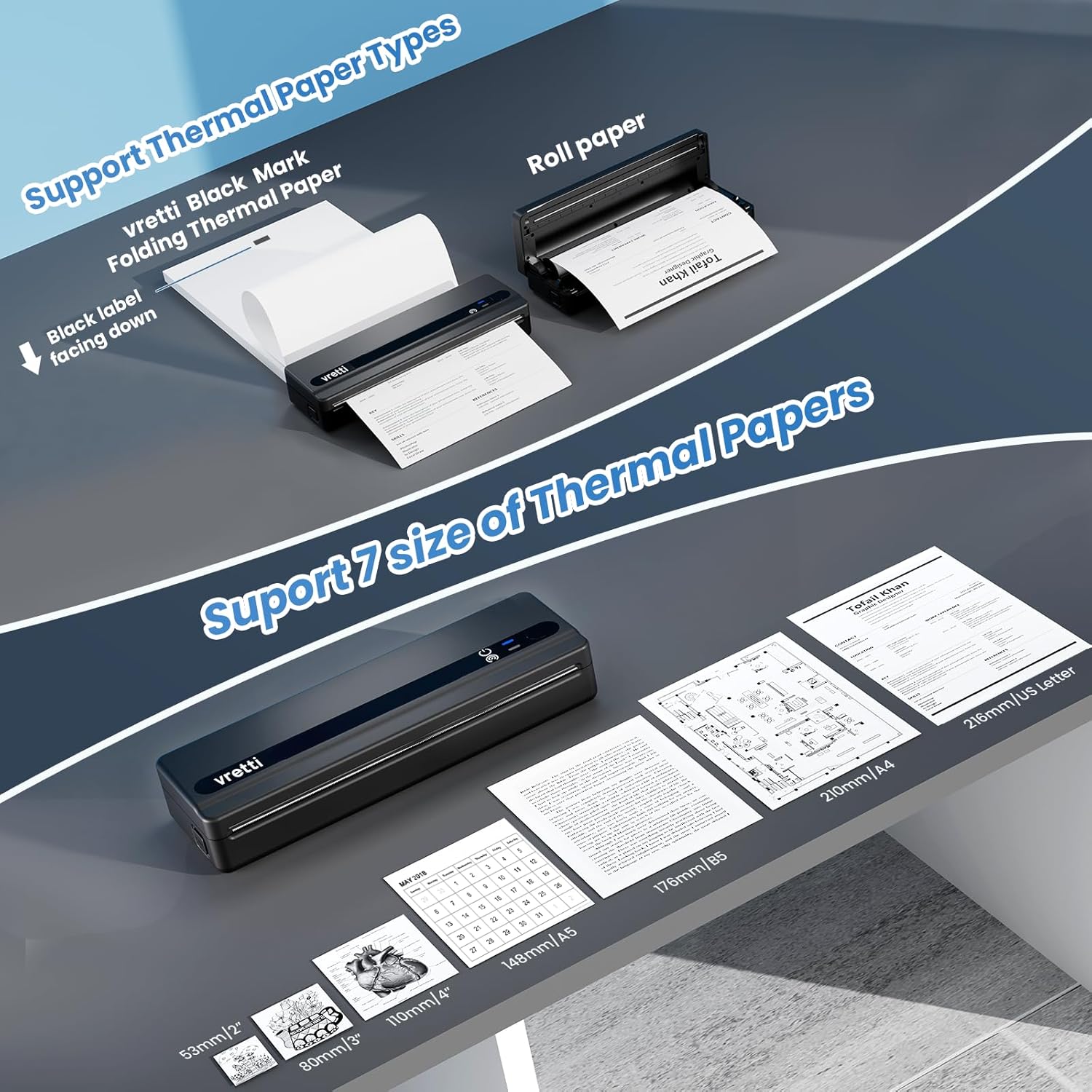
Properly load thermal paper, including folding and roll types, ensuring correct orientation for optimal printing.

The vretti PB821 supports a wide range of paper sizes, from small labels to standard A4 and US Letter documents.
4.4 Printing Documents
Once connected and paper is loaded:
- From App: Select the document or image you wish to print within the "XLifePro" app. Adjust print settings (e.g., density, rotation) as needed, then tap the print button.
- From Computer: Open the document or file in your preferred application (e.g., Word, PDF viewer, web browser). Select "Print" from the file menu, choose the vretti PB821 as your printer, adjust settings, and click "Print".
5. Maintenance
The vretti PB821 thermal printer requires minimal maintenance due to its inkless design. However, regular cleaning can ensure consistent print quality and extend the printer's lifespan.
- Cleaning the Print Head: If print quality degrades (e.g., faint lines, streaks), gently wipe the print head with a lint-free cloth dampened with isopropyl alcohol. Ensure the printer is off and cool before cleaning.
- Cleaning the Exterior: Use a soft, dry cloth to wipe down the exterior of the printer. Avoid abrasive cleaners or solvents.
- Storage: Store the printer in a cool, dry place away from direct sunlight and extreme temperatures.
6. Troubleshooting
If you encounter issues with your vretti PB821 printer, please refer to the following common problems and solutions:
| Problem | Possible Cause | Solution |
|---|---|---|
| Printer not turning on | Low battery; Power button not pressed correctly | Charge the printer fully; Press and hold the power button for a few seconds. |
| Cannot connect via Bluetooth | Bluetooth off; Printer not discoverable; App issue | Ensure Bluetooth is enabled on both devices; Restart printer and app; Re-pair the device in app settings. |
| Poor print quality (faint, streaks) | Low battery; Dirty print head; Incorrect paper loading | Charge the printer; Clean the print head (see Section 5); Ensure thermal paper is loaded correctly. |
| Paper not feeding | Paper jammed; Paper not inserted correctly; Empty paper compartment | Clear any jammed paper; Re-insert paper, ensuring it's straight and aligned; Load new thermal paper. |
| Printer not recognized by computer | Drivers not installed; Loose USB connection | Install drivers (Section 3.3); Check USB cable connection; Try a different USB port. |
If the problem persists after trying these solutions, please contact vretti customer support for further assistance.
7. Specifications
| Feature | Detail |
|---|---|
| Model | PB821 |
| Printing Technology | Thermal |
| Connectivity | Bluetooth, USB |
| Print Resolution | 203 DPI |
| Max Print Speed (Monochrome) | 30 mm/s |
| Battery Capacity | 1500mAh |
| Paper Compatibility | Thermal paper (plain, folding, roll, sticker) |
| Supported Paper Sizes | 2'', 3'', 4'', A4, 8.5''x 11'' US Letter, A5, B5 |
| Product Dimensions | 25.7 x 7 x 4.7 cm |
| Item Weight | 920 g |
| Color | Black |
| Included Components | Printer, USB-C Cable, Sample Paper |
8. Warranty and Support
vretti products are designed for reliability and performance. For warranty information and customer support, please refer to the documentation included with your purchase or visit the official vretti website. You can typically find support resources, FAQs, and contact information on the manufacturer's website.
For the latest information and support, please visit: vrettitech.com


