
1. Introduction
Thank you for choosing the MUNBYN RW403B Thermal Label Printer. This device is designed to streamline your labeling tasks with its advanced features, including Bluetooth connectivity, high-precision DAC technology, and quiet operation. This manual will guide you through the installation, operation, and maintenance of your printer to ensure optimal performance.
Video: Overview of the MUNBYN RW403B Thermal Label Printer, demonstrating its features and ease of use for various labeling needs.
2. Package Contents
Please verify that all items are present in the package:
- MUNBYN RW403B Thermal Label Printer
- Power Adapter
- USB Cable
- Quick Start Guide
- Sample Labels
3. Printer Overview
Familiarize yourself with the main components of your printer:
- Power Button: Turns the printer on/off.
- Status Indicator Light: Displays printer status (e.g., power on, error, printing).
- Label Exit Slot: Where printed labels emerge.
- Label Roll Compartment: Holds the label roll.
- USB Port: For wired connection to computers.
- Power Port: For connecting the power adapter.

Image: The MUNBYN RW403B printer in operation, demonstrating its compact design and label output.
4. Setup
4.1 Unpacking and Placement
- Remove the printer and all accessories from the packaging.
- Place the printer on a stable, flat surface.
4.2 Power Connection
- Connect the power adapter to the printer's power port.
- Plug the power adapter into a wall outlet.
- Press the power button to turn on the printer. The status indicator light will illuminate.
4.3 Loading Labels
- Open the printer cover.
- Place the label roll into the label compartment, ensuring the labels feed smoothly from the bottom.
- Adjust the label guides to fit the width of your labels snugly.
- Close the printer cover. The printer will automatically detect and calibrate the label size.

Image: The printer demonstrating its adjustable label guides, supporting label widths from 1.57 to 4.25 inches.
4.4 Software Installation and Connectivity
The MUNBYN RW403B supports both Bluetooth and USB connectivity across various operating systems.
- For Mobile Devices (iOS/Android): Download the "Munbyn Print" app from your device's app store. Follow the in-app instructions to connect via Bluetooth.
- For Desktop (Mac/Windows): For Bluetooth connectivity, ensure your computer's Bluetooth is enabled and pair with the printer. For USB connection, simply connect the printer to your computer using the provided USB cable. No driver installation is typically required for major shipping platforms.
- For Chrome OS: Utilize the "Munbyn Editor" web application for label design and printing.

Image: Illustration of the printer's versatile connectivity, supporting both wireless Bluetooth and wired USB connections for various devices.
5. Operating Instructions
5.1 Printing Shipping Labels
The RW403B printer is compatible with major shipping platforms such as FedEx, UPS, USPS, Amazon, Shopify, Etsy, and eBay.
- Generate your shipping label from your preferred platform.
- Ensure the label size in your software settings matches the physical labels loaded in the printer (e.g., 4x6 inches).
- Select the MUNBYN RW403B as your printer and initiate the print command.

Image: Demonstrates the one-click wireless printing feature, allowing users to print shipping labels directly from their mobile devices or computers.
5.2 Designing and Printing Custom Labels
Utilize the "Munbyn Print" app (mobile) or "Munbyn Editor" (Chrome web application) to create custom labels.
- Open the Munbyn Print app or Munbyn Editor.
- Choose from over 2,000 templates and 3,500 pre-made design elements, or start from scratch.
- Customize your label with text (over 80 fonts available), images, OCR/voice recognition, and more.
- Preview your design and send it to the printer.
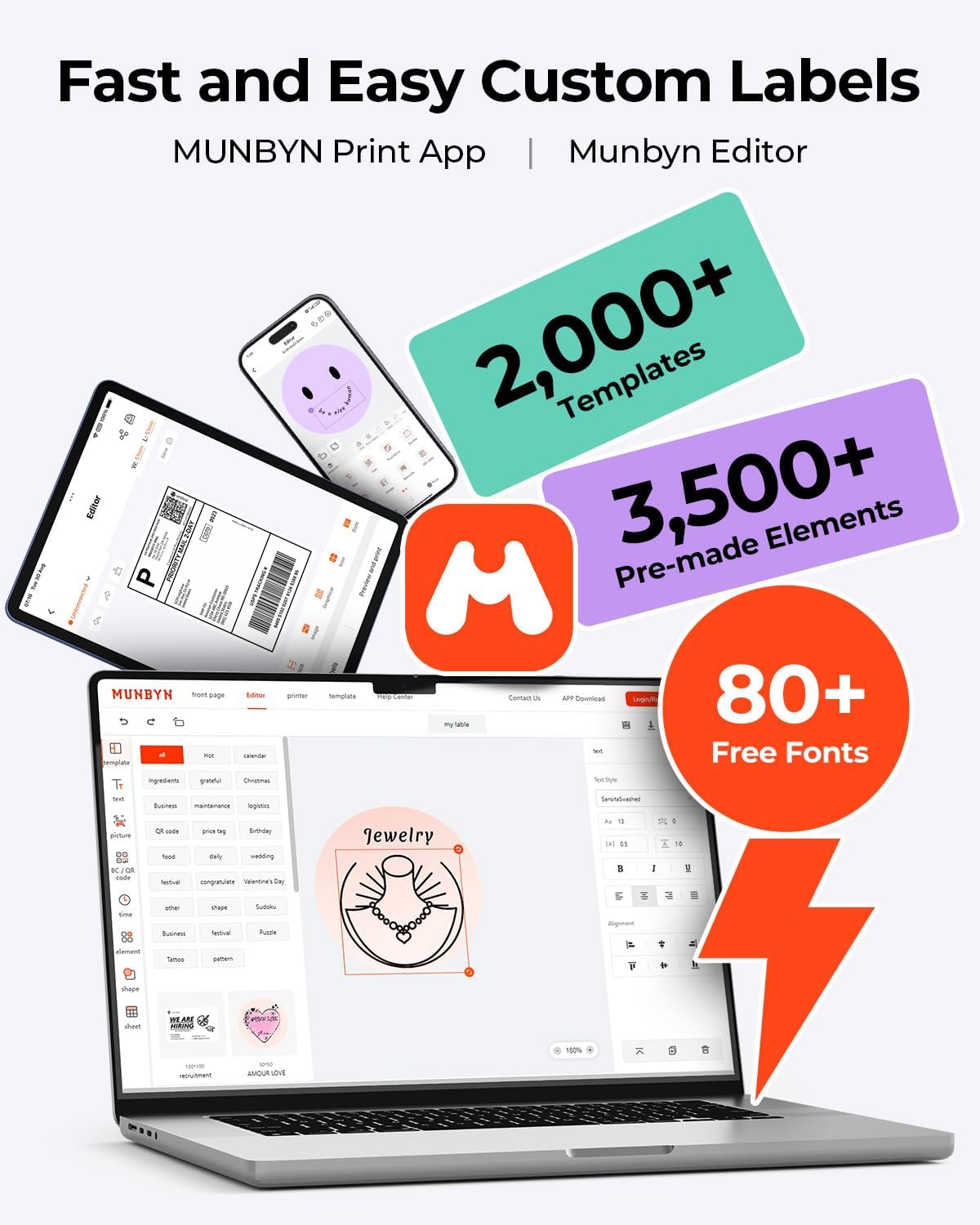
Image: The Munbyn Print App and Editor provide extensive tools for fast and easy custom label design, including templates, elements, and fonts.
6. Key Features
- Advanced DAC Technology: The RW403B features a 4-inch DAC chip that automatically calibrates, eliminating 99.8% of label alignment defects and ensuring military-grade precision for flawless labels.
- Enhanced Print Clarity: Designed for professional-grade output, this printer ensures 0.1mm font readability, producing crisp monochrome labels for return slips, inventory, organization, and branding.
- Quiet Operation: Operating at only 60 dB, the printer is quieter than typing, allowing for focused work in home offices, libraries, or shared workspaces.
- Exceptional Durability: Engineered for longevity, the RW403B can print up to 970,000 labels, significantly outlasting many standard devices. Its professional-grade design minimizes paper jams to less than 0.01%.
- Versatile Label Support: The printer supports a printable width of 1.57 to 4.25 inches, accommodating a wide range of label types and sizes for various applications.
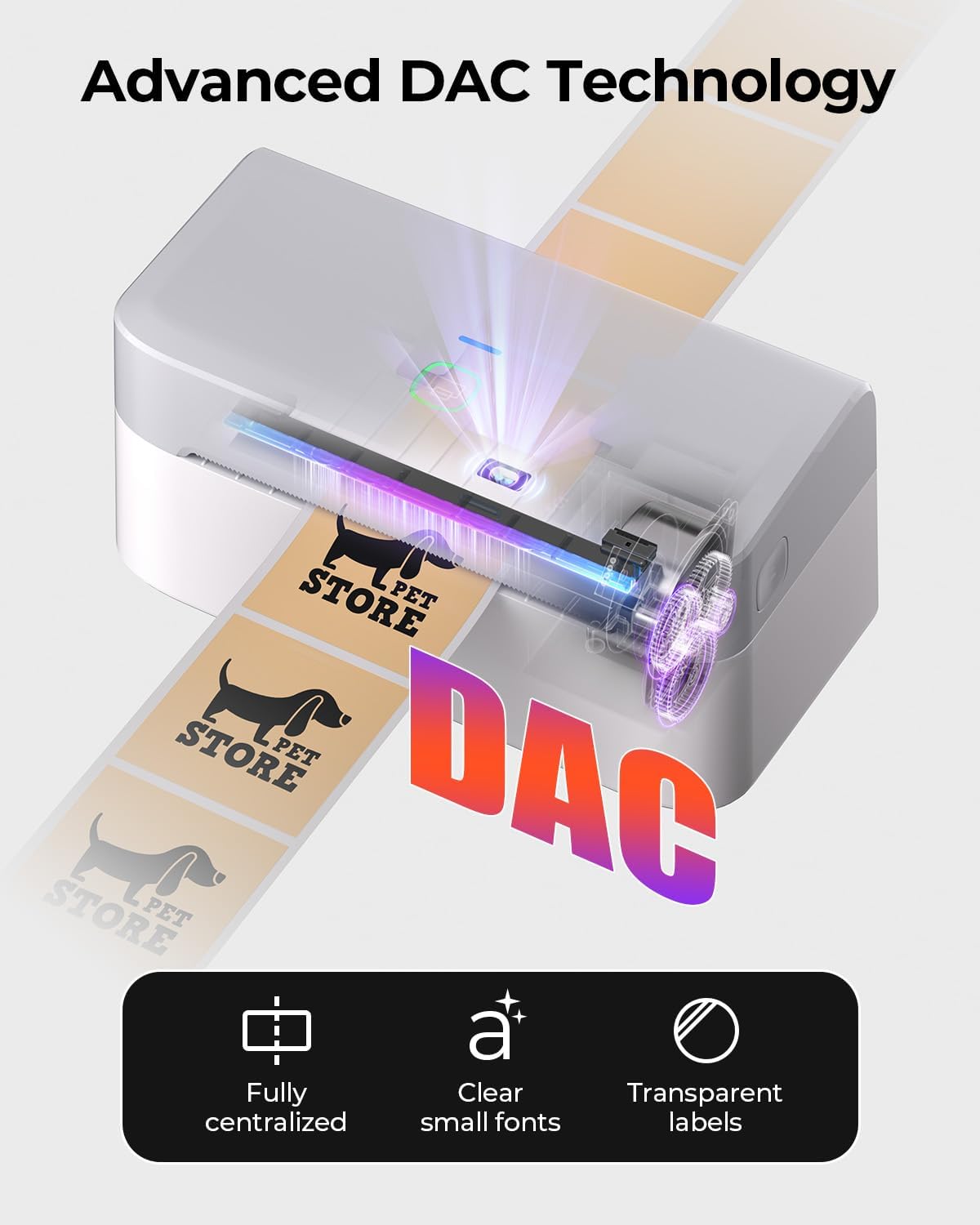
Image: Visual representation of the printer's DAC technology, ensuring precise alignment and clear printing on various label types.
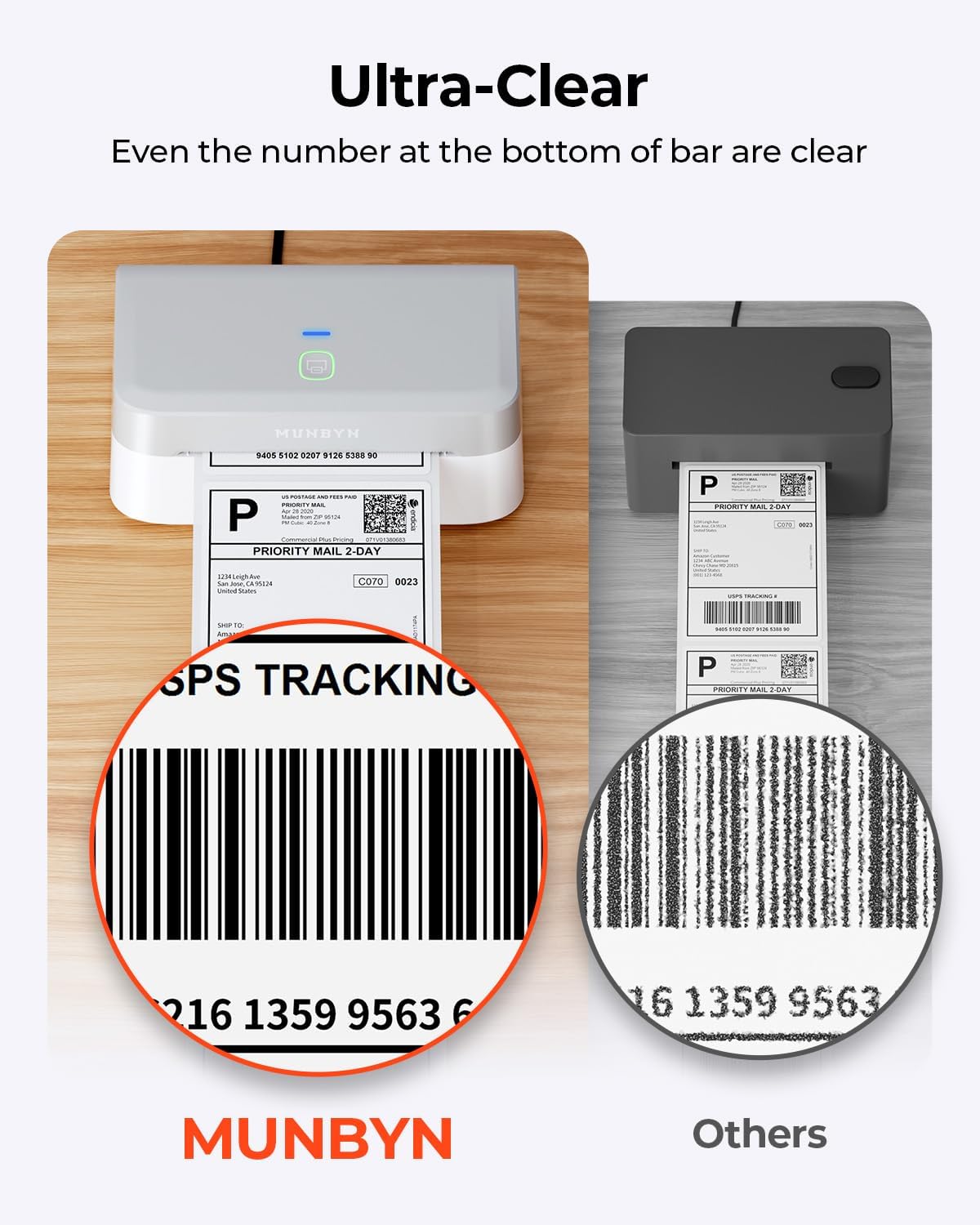
Image: A close-up comparison highlighting the superior clarity of labels printed with the MUNBYN RW403B, even for small details like barcode numbers.

Image: An illustration comparing the impressive lifespan of the MUNBYN RW403B, capable of printing up to 970,000 labels, six times more than typical printers.
7. Maintenance
7.1 Cleaning the Print Head
To maintain print quality, regularly clean the print head:
- Turn off the printer and unplug the power cord.
- Open the printer cover.
- Gently wipe the print head with an alcohol swab or a soft, lint-free cloth dampened with isopropyl alcohol.
- Allow the print head to dry completely before closing the cover and turning the printer back on.
7.2 General Care
- Keep the printer free from dust and debris.
- Avoid exposing the printer to extreme temperatures or direct sunlight.
- Use only high-quality thermal labels to prevent damage to the print head and ensure optimal print results.
8. Troubleshooting
If you encounter issues with your MUNBYN RW403B printer, refer to the following common problems and solutions:
| Problem | Possible Cause | Solution |
|---|---|---|
| Printer not responding | No power, incorrect connection, software issue. | Check power cable, verify USB/Bluetooth connection, restart printer and computer/app. |
| Poor print quality | Dirty print head, low-quality labels, incorrect print density. | Clean the print head (Section 7.1), use recommended labels, adjust print density in software settings. |
| Labels not feeding correctly | Improperly loaded labels, label guides not adjusted. | Reload labels correctly, adjust label guides to fit snugly. |
| Bluetooth connection issues | Bluetooth not enabled, pairing failed, interference. | Ensure Bluetooth is on for both devices, re-pair the printer, move closer to the printer, avoid other wireless devices. |
9. Specifications
Detailed technical specifications for the MUNBYN RW403B Thermal Label Printer:
- Model Number: RW403B
- Printing Technology: Thermal
- Connectivity: Bluetooth, USB
- Maximum Media Size: 4 x 6 inches (10.16 cm)
- Print Resolution: 203 dpi
- Maximum Print Speed (Monochrome): 72 pages per minute (labels per minute)
- Compatible Devices: Android, Mac, PC, iOS
- Item Weight: 1.3 Kilograms
- Product Dimensions: 31P x 7.5l x 10H centimeters
- Special Features: Automatic Document Feeder, Energy Star, Portable
10. Warranty and Support
MUNBYN provides comprehensive support for your RW403B Thermal Label Printer:
- Warranty: Limited Warranty (details available upon product registration or contacting support).
- Technical Support: Enjoy 24 months of technical assistance. For support, please visit the official MUNBYN website or contact their customer service directly.


