
Introduction
This manual provides detailed instructions for the setup, operation, and maintenance of your T'nB KBWERGO Ergonomic Wireless Rechargeable Bluetooth Keyboard. This keyboard features an ergonomic wave design, integrated wrist rest, adjustable feet, and dual connectivity modes (Bluetooth and 2.4 GHz USB-A dongle) for compatibility with both PC and Mac systems. It is designed to enhance comfort and reduce wrist strain during extended use.
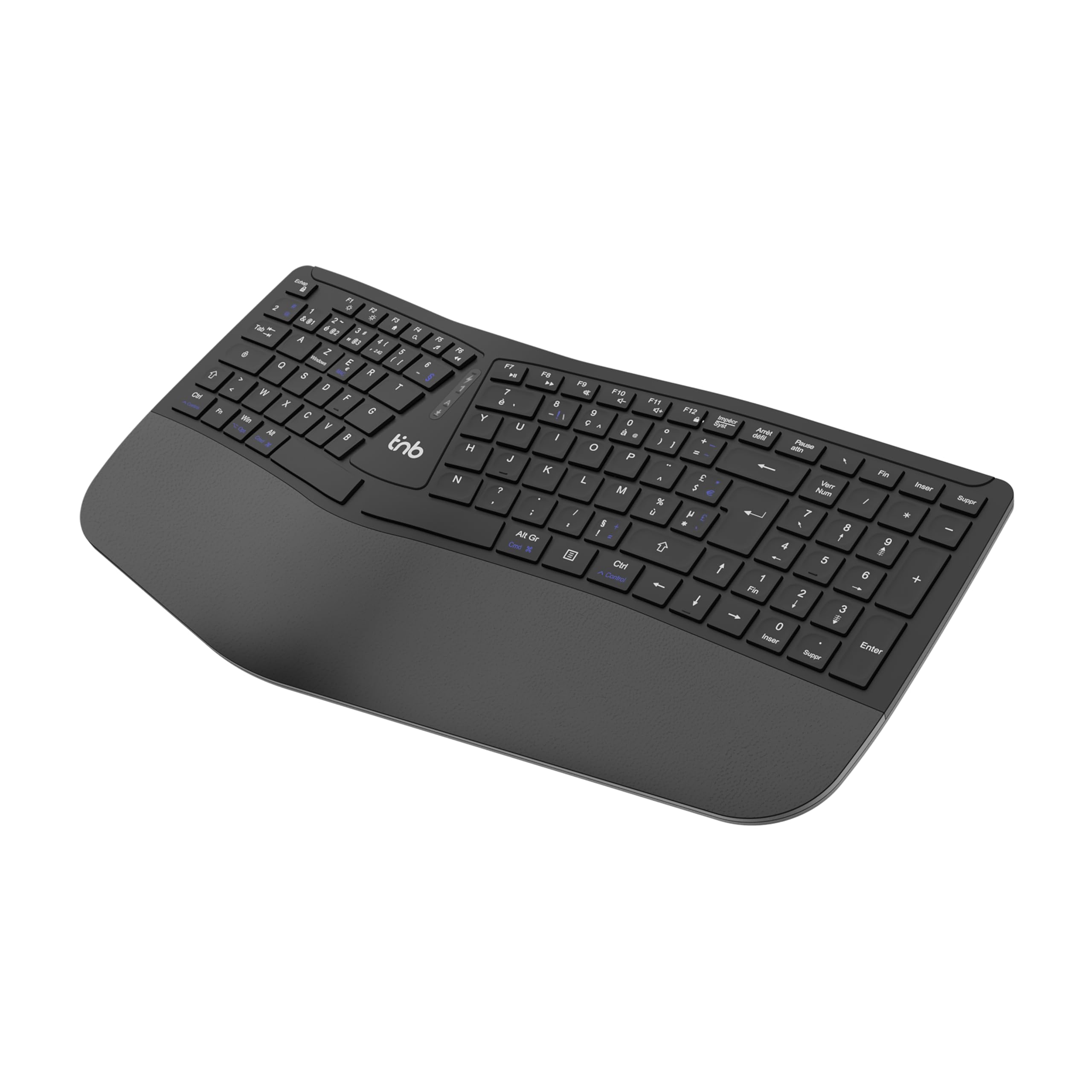
Figure 1: Top view of the T'nB KBWERGO Ergonomic Wireless Keyboard.
Package Contents
Please ensure all items are present in the package:
- T'nB KBWERGO Ergonomic Wireless Keyboard
- USB-A 2.4 GHz Wireless Dongle (typically stored in the keyboard's battery compartment)
- USB-C Charging Cable
- User Manual (this document)
Setup
1. Charging the Keyboard
The keyboard is equipped with a rechargeable Lithium-Ion battery. Before first use, it is recommended to fully charge the keyboard.
- Locate the USB-C charging port on the keyboard.
- Connect one end of the provided USB-C cable to the keyboard's charging port.
- Connect the other end of the USB-C cable to a USB-A power source (e.g., computer USB port, USB wall adapter).
- The charging indicator light will illuminate. Once fully charged, the indicator light may change color or turn off.
2. Connecting the Keyboard
The keyboard supports dual-mode connectivity: 2.4 GHz wireless via USB-A dongle and Bluetooth (up to 3 profiles).
2.1. 2.4 GHz Wireless Connection (USB-A Dongle)
- Locate the USB-A wireless dongle, usually stored in a compartment on the underside of the keyboard.
- Insert the USB-A dongle into an available USB-A port on your computer.
- Turn on the keyboard using the power switch (location may vary, typically on the back or side).
- The keyboard should automatically connect to your computer. No additional drivers are typically required.
2.2. Bluetooth Connection (Up to 3 Devices)
The keyboard can be paired with up to three Bluetooth-enabled devices.
- Ensure the keyboard is powered on.
- Press and hold one of the Bluetooth pairing keys (e.g., BT1, BT2, BT3, or a dedicated Bluetooth button) for a few seconds until the corresponding indicator light flashes, indicating pairing mode.
- On your device (PC, Mac, tablet, smartphone), go to Bluetooth settings and search for new devices.
- Select "T'nB KBWERGO" or a similar name from the list of available devices.
- Follow any on-screen prompts to complete the pairing process. The indicator light will stop flashing once successfully paired.
- To switch between paired Bluetooth devices, simply press the corresponding Bluetooth key (BT1, BT2, or BT3).
3. Adjusting Keyboard Tilt
The keyboard features 4 adjustable pads, allowing for two different tilt heights to optimize your typing posture.
- Flip the keyboard over to access the underside.
- Locate the adjustable feet at the front and back of the keyboard.
- Extend the smaller feet for a slight tilt, or extend both the smaller and larger feet for a higher tilt.
- Ensure all four feet are set to the same height for stability.

Figure 2: Underside view of the keyboard, highlighting the adjustable feet.

Figure 3: Diagram illustrating the ergonomic design and adjustable tilt options.
Operating the Keyboard
Ergonomic Design Benefits
The T'nB KBWERGO keyboard features a wave-shaped ergonomic design and an integrated synthetic leather wrist rest. This design aims to:
- Minimize wrist movement and effort to reach all keys.
- Alleviate wrist strain during prolonged typing sessions.
- Provide a natural and comfortable hand position.
- Reduce muscle tension in the arms and shoulders.

Figure 4: Side view illustrating the ergonomic wave design.
Function Keys and Shortcuts
The keyboard includes 12 direct access keys (function keys) for common tasks. These keys are typically located along the top row of the keyboard (F1-F12) and may require pressing the Fn key simultaneously for their secondary functions. Refer to the keycap legends for specific functions such as media control, volume adjustment, and application shortcuts.
The keyboard also features a full numeric keypad for efficient data entry.
Compatibility
The T'nB KBWERGO keyboard is compatible with both PC (Windows operating systems) and Mac (macOS) systems, offering versatile use across different computing environments.
Maintenance
Cleaning
To maintain the keyboard's appearance and functionality:
- Ensure the keyboard is turned off before cleaning.
- Use a soft, lint-free cloth slightly dampened with water or a mild cleaning solution.
- Avoid harsh chemicals, abrasive cleaners, or spraying liquids directly onto the keyboard.
- For dust and debris between keys, use compressed air.
- Wipe the synthetic leather wrist rest gently.
Battery Care
The integrated Lithium-Ion battery requires proper care for longevity:
- Avoid fully discharging the battery frequently.
- Charge the keyboard regularly, especially if it will be stored for an extended period.
- Do not expose the keyboard to extreme temperatures.
- Use only the provided USB-C cable or a certified equivalent for charging.
Troubleshooting
Keyboard Not Responding
- Check Power: Ensure the keyboard is turned on and has sufficient battery charge. Recharge if necessary.
- 2.4 GHz Connection:
- Verify the USB-A dongle is securely plugged into a working USB port on your computer.
- Try plugging the dongle into a different USB port.
- Bluetooth Connection:
- Ensure Bluetooth is enabled on your device.
- Confirm the keyboard is selected as the active Bluetooth device (e.g., by pressing the correct BT1/BT2/BT3 key).
- If connection issues persist, try unpairing and re-pairing the keyboard with your device.
- Interference: Move the keyboard closer to your device and away from other wireless devices that might cause interference.
- Restart: Restart your computer and the keyboard.
Charging Issues
- Cable Check: Ensure the USB-C charging cable is securely connected to both the keyboard and the power source.
- Power Source: Try a different USB power source or wall adapter.
- Cable Damage: Inspect the charging cable for any signs of damage. Use a different USB-C cable if available.
Specifications
| Feature | Detail |
|---|---|
| Model Name | KBWERGO |
| Brand | T'nB |
| Connectivity Technology | Bluetooth, 2.4 GHz USB-A |
| Number of Bluetooth Profiles | 3 |
| Power Source | Rechargeable Lithium-Ion Battery |
| Charging Port | USB-C |
| Keyboard Layout | QWERTY (Spanish layout implied by source, but general QWERTY for instructions) |
| Number of Keys | 104 |
| Special Feature | Ergonomic design, Integrated Wrist Rest, Adjustable Tilt |
| Compatible Devices | Personal Computer, Laptop |
| Compatible Operating Systems | Windows, macOS |
| Dimensions (L x W x H) | 43 x 21 x 2 cm (16.9 x 8.3 x 0.8 inches) |
| Weight | 1.16 kg (2.56 lbs) |
| Material | Plastic |
| Color | Black |
Warranty and Support
For warranty information or technical support, please refer to the documentation included with your purchase or contact T'nB customer service through their official website or the retailer where the product was purchased. Keep your proof of purchase for warranty claims.
A safety information PDF is available: Safety Information (PDF)
