
1. Introduction
The Roborock Q7 M5+ is an advanced robotic vacuum and mop designed to provide efficient and hands-free cleaning for your home. Featuring powerful suction, intelligent navigation, and a self-emptying dock, it simplifies your cleaning routine. This manual provides essential information for setting up, operating, maintaining, and troubleshooting your device.

Figure 1: Roborock Q7 M5+ Robot Vacuum and Mop with Auto-Empty Dock and Smartphone App.
2. What's in the Box
- Robot (1)
- Auto-Empty Dock (1)
- Power Cord (1)
- Mop Module (1)
- Mop (1)
- Moisture-Proof Mat (1)
- Quick Start Guide (1)
- User Manual (1)
3. Setup
3.1 Unpacking and Placement
Carefully remove all components from the packaging. Place the Auto-Empty Dock on a hard, flat surface against a wall, ensuring there is at least 0.5 meters (1.6 feet) of clear space on both sides and 1.5 meters (4.9 feet) in front. Connect the power cord to the dock and plug it into a power outlet.
3.2 Initial Charging
Place the robot onto the charging dock. The robot will automatically power on and begin charging. Ensure the robot is fully charged before its first use for optimal performance.
3.3 App Installation and Connection
- Download the Roborock App from your mobile device's app store (iOS or Android).
- Open the app and create an account or log in.
- Follow the in-app instructions to add your Roborock Q7 M5+ device. Ensure your Wi-Fi network is 2.4GHz, as the app supports this frequency only.
- The app will guide you through connecting the robot to your home Wi-Fi network.
3.4 Initial Mapping
After connecting to the app, initiate a Quick Mapping run. The robot will use its PreciSense LiDAR Navigation System to scan your home and create a detailed map. This map is crucial for efficient cleaning paths and setting up features like no-go zones.

Figure 2: PreciSense LiDAR Navigation for precise mapping.
4. Operating Your Roborock Q7 M5+
4.1 Starting and Stopping Cleaning
- Via App: Open the Roborock App and tap 'Clean' to start a full cleaning cycle. You can also select specific rooms or zones to clean.
- Via Robot Buttons: Press the Power button on the robot to start or pause cleaning. Press the Home button to send the robot back to its dock.
4.2 Cleaning Modes and Settings
The Roborock Q7 M5+ offers versatile cleaning options:
- Vacuuming: Utilizes 10000Pa HyperForce Suction Power for deep cleaning.
- Mopping: Electronically controlled water flow with three adjustable levels for different floor types. Attach the mop module before mopping.
- Vacuum and Mop in One Go: Simultaneously vacuums and mops for comprehensive cleaning.

Figure 3: 10000Pa HyperForce Suction Power for thorough cleaning.

Figure 4: Vacuum and Mop in One Go capability.
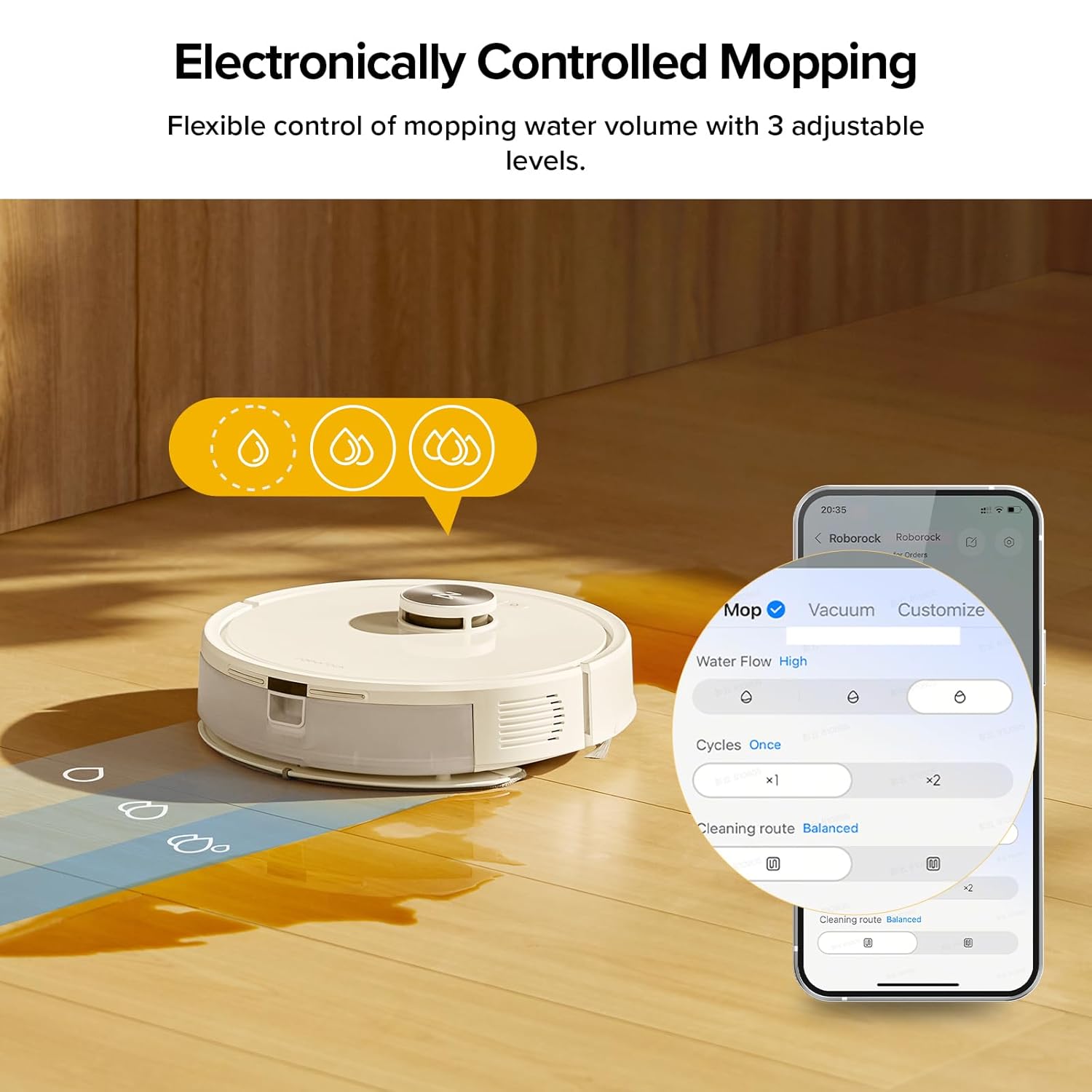
Figure 5: Electronically Controlled Mopping with adjustable water levels.
4.3 Smart Features via App Control
The Roborock App provides extensive control over your robot:
- Scheduled Cleaning: Set specific times for the robot to clean automatically.
- No-Go Zones & Invisible Walls: Define areas the robot should avoid.
- Multi-Level Mapping: Supports mapping up to 3 different floor plans.
- Carpet Handling Options: Adjust behavior on carpets (e.g., Carpet Boost for increased suction).
- Child Lock: Prevents accidental operation by children or pets.
- Off-Peak Charging: Schedule charging during off-peak hours to save energy costs.
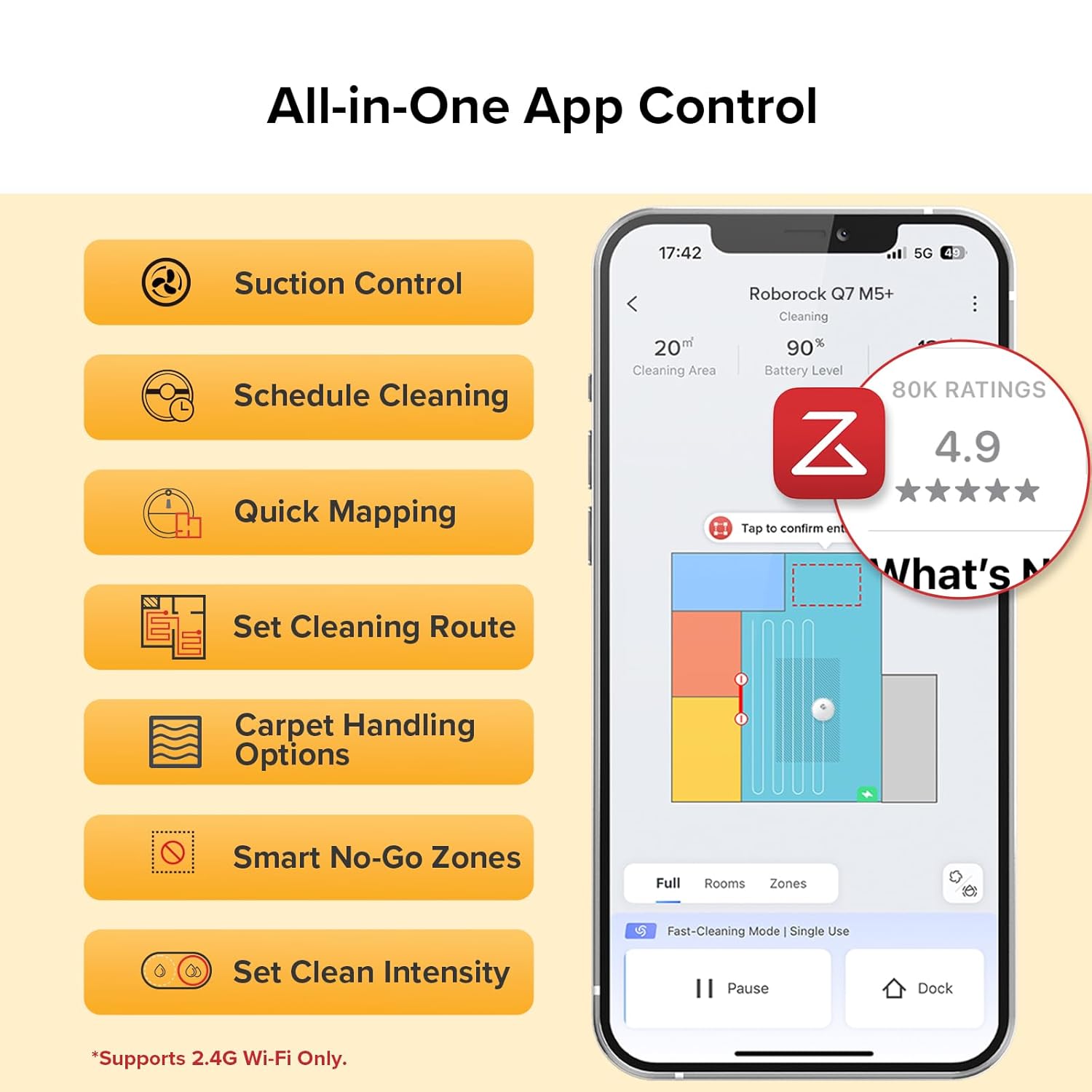
Figure 6: All-in-One App Control for comprehensive management.
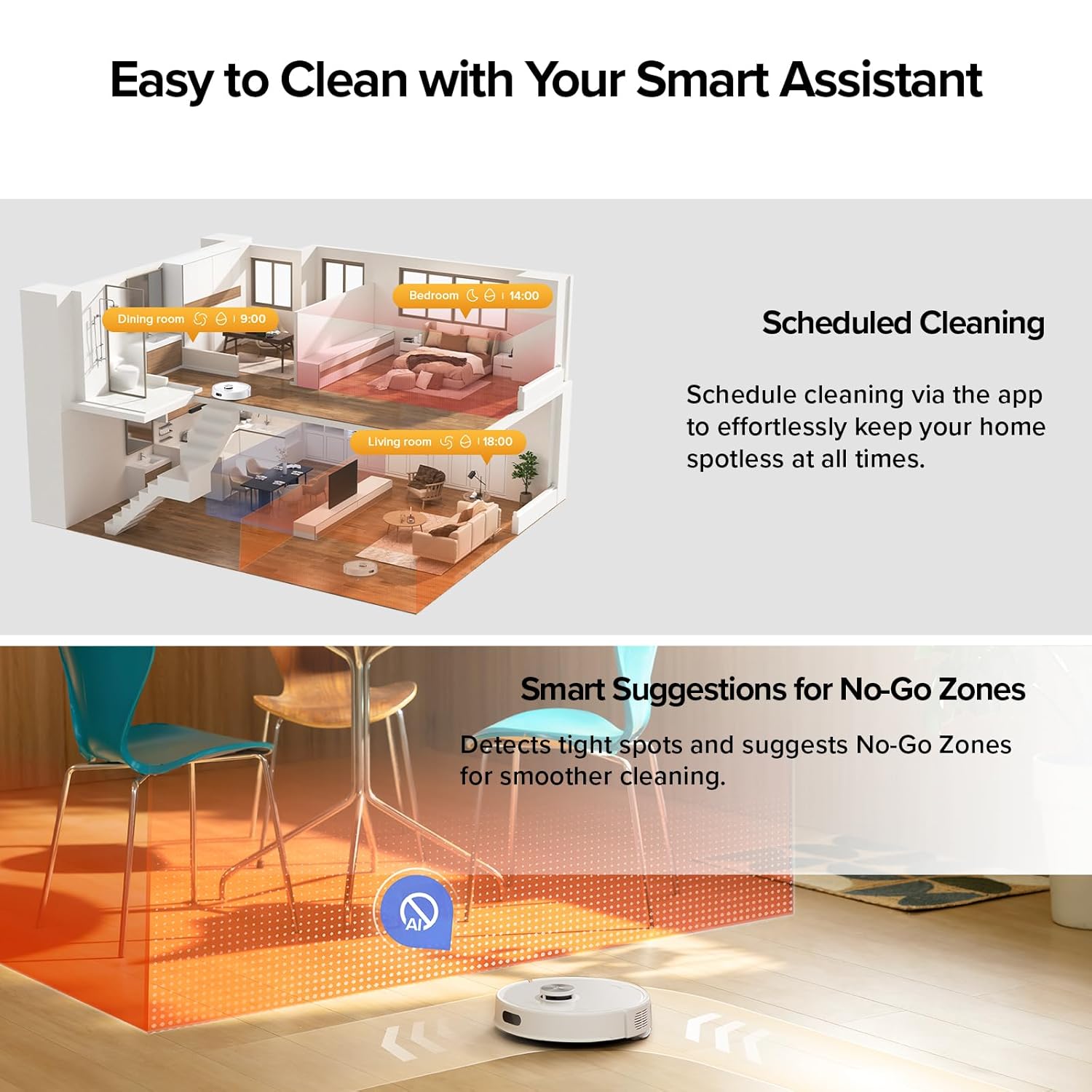
Figure 7: Scheduled Cleaning and Smart Suggestions for No-Go Zones.
5. Maintenance
Regular maintenance ensures optimal performance and extends the lifespan of your Roborock Q7 M5+.
5.1 Auto-Empty Dock and Dust Bag
The RockDock Plus features a 2.7L sealed dust bag, allowing for up to 7 weeks of hands-free cleaning. Replace the dust bag when indicated by the app or when full.

Figure 8: The 2.7L dust bag in the Auto-Empty Dock provides 7 weeks of hands-free cleaning.
5.2 Brushes and Filters
- Main Brush: The Dual Anti-Tangle System with JawScrapers main brush reduces hair tangles. Regularly remove the main brush and clean any entangled hair or debris.
- Side Brush: The 0% hair-tangling side brush also requires occasional inspection and cleaning to remove any accumulated debris.
- Filters: Clean the air filter in the robot's dustbin regularly. Tap out dust or rinse with water if applicable (refer to specific filter instructions). Ensure it is completely dry before reinserting.

Figure 9: Dual Anti-Tangle Design for reduced hair wrap.
5.3 Mopping Pad
After each mopping session, remove the mopping pad from the mop module and clean it thoroughly. It can be hand-washed or machine-washed according to care instructions.
5.4 Sensors and Charging Contacts
Wipe the robot's sensors (cliff sensors, wall sensor, etc.) and the charging contacts on both the robot and the dock with a clean, dry cloth periodically to ensure proper function.
6. Troubleshooting
If you encounter issues with your Roborock Q7 M5+, refer to the following common problems and solutions:
| Problem | Possible Cause | Solution |
|---|---|---|
| Robot does not start or respond. | Low battery; Power button not pressed; Robot stuck. | Charge the robot; Press and hold the Power button; Clear any obstructions. |
| Poor cleaning performance. | Full dustbin; Clogged filter; Worn brushes. | Empty dustbin/replace dust bag; Clean/replace filter; Clean/replace brushes. |
| Robot cannot return to dock. | Dock is obstructed; Robot is too far from dock; Dirty charging contacts. | Clear area around dock; Manually place robot near dock; Clean charging contacts. |
| App connectivity issues. | Incorrect Wi-Fi password; Router issues; 5GHz Wi-Fi network. | Verify password; Restart router; Ensure 2.4GHz Wi-Fi is used. |
| Robot gets stuck frequently. | Obstacles; No-go zones not set; Robot attempting to climb obstacles. | Clear small obstacles; Set No-Go Zones in app; Relocate bouncers/items that cause it to get stuck. |
For more detailed troubleshooting, please refer to the official User Manual PDF available for download or contact Roborock customer support.
7. Specifications
| Feature | Specification |
|---|---|
| Model Name | Roborock Q7 M5+ |
| Product Dimensions | 19.57"L x 12.8"W x 10.24"H |
| Item Weight | 10.58 Pounds |
| Suction Power | 10000Pa HyperForce |
| Dust Bag Capacity | 2.7L (up to 7 weeks hands-free) |
| Navigation System | PreciSense LiDAR |
| App Control | Yes (2.4GHz Wi-Fi only) |
| Battery Type | 4 AA batteries (included) |
| Color | White |
8. Warranty and Support
Roborock products are designed for durability and performance. For specific warranty information, please refer to the warranty card included with your product or visit the official Roborock website. You may also consider purchasing extended protection plans for additional coverage.
For customer support, technical assistance, or to purchase accessories, please visit the Roborock Store on Amazon or consult the full User Manual PDF: Roborock Q7 M5+ User Manual PDF.


