
Introduction
This manual provides detailed instructions for the Ejoyous 12-Button Programmable Wireless Macro Keypad. This versatile device is designed to enhance efficiency in various applications, including office tasks, gaming, and media control, through customizable key functions and quick commands.
Featuring 12 mechanical keys with red switches and two rotary encoders, it offers sensitive feedback and precise control. Please read this manual thoroughly before using the product to ensure proper setup, operation, and maintenance.
Product Overview
Key Features
- 12 Programmable Keys and 2 Rotary Encoders: Customize all key functions and quick commands to optimize workflow and gaming performance.
- Mechanical Red Switches: Provides sensitive feedback and quick reaction for precise input.
- Multi-functional Use: Ideal for office tasks (copy, paste, volume control), gaming macros, and media management.
- Wide Compatibility: Supports Windows (Vista, 7, 8, 10, 11), Linux, and OS X operating systems.
- Durable Construction: Made from robust ABS material with mechanical keys designed for extended lifespan.
- Wireless Connectivity: Supports Bluetooth (BT) and USB wired connection. Includes an inbuilt battery for wireless use.
Package Contents
- 1 x Ejoyous 12-Button Programmable Macro Keypad
- 1 x USB Cable
Product Diagram
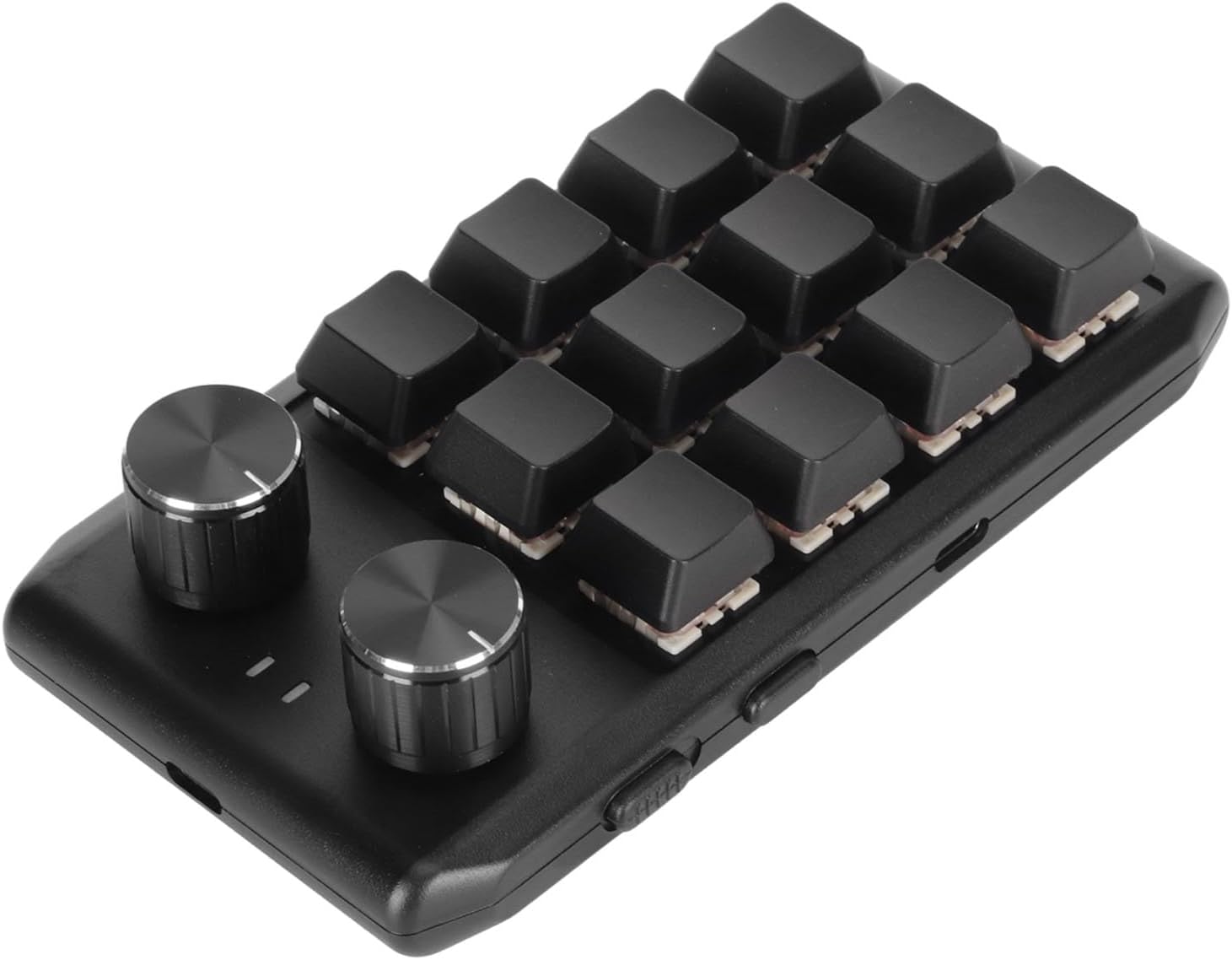
Figure 1: Top-down view of the keypad, highlighting the 12 programmable keys and two rotary encoders.

Figure 2: Angled view of the keypad, illustrating the side controls and connectivity port.
Setup
1. Wired USB Connection
- Connect the provided USB cable to the USB port on the macro keypad.
- Plug the other end of the USB cable into an available USB port on your computer.
- The keypad will be automatically recognized by your operating system.
2. Wireless Bluetooth (BT) Connection
- Ensure the keypad is charged. Connect it via USB if the battery is low.
- Locate the power switch on the side of the keypad and slide it to the "ON" position.
- Activate Bluetooth on your computer or device.
- On your computer, go to Bluetooth settings and search for new devices.
- Select "Ejoyous Macro Keypad" (or similar name) from the list of available devices to pair.
- Once paired, the keypad is ready for wireless use.
Note: For initial setup or if experiencing connectivity issues, a wired USB connection is recommended.
Operating Instructions
Key Programming
The Ejoyous Macro Keypad requires dedicated software for programming its 12 keys and 2 rotary encoders. This software allows you to assign custom functions, macros, and shortcuts to each input.
- Obtain Programming Software: The programming software is typically provided by the manufacturer. Please refer to the product packaging, manufacturer's website, or contact customer support for download instructions and the software link.
- Install Software: Follow the on-screen instructions to install the programming software on your computer.
- Connect Keypad: Ensure your keypad is connected to the computer via USB for programming.
- Launch Software: Open the installed programming software.
- Assign Functions:
- Select a key or rotary encoder from the software interface.
- Choose the desired function (e.g., single key press, key combination, macro, multimedia control, mouse function).
- For rotary encoders, you can typically assign functions for clockwise rotation, counter-clockwise rotation, and pressing the encoder. Common functions include volume up/down, scroll up/down, zoom in/out.
- Save your settings to the keypad's onboard memory.
- Test Functions: After saving, test the programmed keys and encoders to ensure they perform the assigned actions correctly.
Important: The specific steps and interface of the programming software may vary. Always refer to the software's built-in help or documentation for detailed instructions.

Figure 3: Keypad in use with a laptop, illustrating its application in various tasks.
Maintenance
Cleaning
- Disconnect the keypad from your computer before cleaning.
- Use a soft, dry cloth to wipe the surface of the keypad.
- For stubborn dirt, slightly dampen the cloth with water or a mild, non-abrasive cleaner. Avoid excessive moisture.
- Do not use harsh chemicals, solvents, or abrasive materials, as these can damage the keypad's finish.
- Use compressed air to remove dust and debris from between the keys.
Battery Care (for Wireless BT model)
- Charge the keypad regularly, especially if it will not be used for an extended period.
- Avoid fully discharging the battery frequently, as this can reduce its lifespan.
- Store the keypad in a cool, dry place when not in use.
Troubleshooting
| Problem | Possible Cause | Solution |
|---|---|---|
| Keypad not responding (Wired) | Loose USB connection, faulty USB port, driver issue. |
|
| Keypad not responding (Wireless BT) | Bluetooth not enabled, keypad not paired, low battery, interference. |
|
| Programmed keys not working | Incorrect programming, settings not saved, software conflict. |
|
Specifications
| Model Number | Ejoyousa2oznh7ymw-12 |
| Number of Keys | 12 |
| Rotary Encoders | 2 |
| Switch Type | Mechanical Red Switch |
| Connectivity | USB Wired, Bluetooth Wireless |
| Material | ABS |
| Supported OS | Windows (Vista, 7, 8, 10, 11), Linux, OS X |
| Package Dimensions | 6.3 x 3.94 x 1.97 inches |
| Item Weight | 6.7 ounces |
Warranty and Support
For warranty information and technical support, please refer to the documentation included with your product or visit the official Ejoyous website. You may also contact Ejoyous customer service directly for assistance with product inquiries, troubleshooting, or warranty claims.
Manufacturer: Ejoyous
Online Support: Refer to the Ejoyous brand store on Amazon or the manufacturer's official website for support resources.