
1. Introduction
The NOYAFA NF-8506 is a multi-functional network cable tester designed for diagnosing and maintaining local area networks (LANs). It integrates various testing capabilities including IP scanning, Power over Ethernet (PoE) testing, anti-interference RJ11/RJ45/CAT5/CAT6 cable testing, continuity testing, Ping network speed testing, port flashing, sensitivity adjustment, and cable length measurement. This manual provides detailed instructions to help users effectively operate and maintain the device.
2. Product Overview
2.1 Package Contents
- 1x NF-8506 Main Unit (Transmitter)
- 1x NF-8506 Receiver
- 1x USB Charging Cable
- 1x Test Pen Set (Alligator Clips)
- 1x RJ45 Adapter Cable
- 1x Earphone
- 1x Cloth Bag
- 1x User Manual
2.2 Device Components
The NF-8506 consists of a main unit (transmitter) with a color screen and a receiver unit. Key components include RJ45 and RJ11 ports, power buttons, navigation buttons, and a rotary switch on the receiver for different scan modes.

Figure 1: NOYAFA NF-8506 Network Cable Tester and Accessories.

Figure 2: Transmitter and Receiver Component Diagram.
3. Setup and Basic Operation
3.1 Charging the Device
Connect the main unit and receiver to a power source using the provided USB charging cable. The battery indicator on the screen will show charging status. Ensure both units are fully charged before initial use for optimal performance.
3.2 Power On/Off
Press and hold the power button on the main unit to turn it on or off. The receiver unit typically powers on when the rotary switch is moved from the 'Off' position.
3.3 Language Settings
Navigate to the 'Set' menu on the main unit's screen using the navigation buttons. Select 'Language' to choose your preferred language (e.g., English).
Video 1: Overview of NOYAFA NF-8506 features including cable continuity, digital/analog mode, language settings, Ping scan, IP scan, Port Flash, and Length Test.
4. Operating Instructions
4.1 Cable Continuity Test
This function verifies the integrity and connectivity of network cables, identifying breaks, open circuits, short circuits, or crossovers.
- Connect one end of the network cable to the RJ45 port on the main unit.
- Connect the other end of the cable to the RJ45 port on the receiver unit.
- Select 'Cont' (Continuity) from the main unit's menu.
- The screen will display the wiring sequence and any detected faults (e.g., Short Circuit, Cable Open, Cable Cross).

Figure 3: Cable Continuity Test Results.

Figure 4: Performing a Continuity Test.
4.2 Cable Length Measurement
This function measures the length of a connected cable using Time Domain Reflectometry (TDR) technology.
- Connect one end of the cable to the RJ45 port on the main unit. The other end should be disconnected.
- Select 'Length' from the main unit's menu.
- The device will display the cable length. The measurement range is typically 2.5m to 200m.
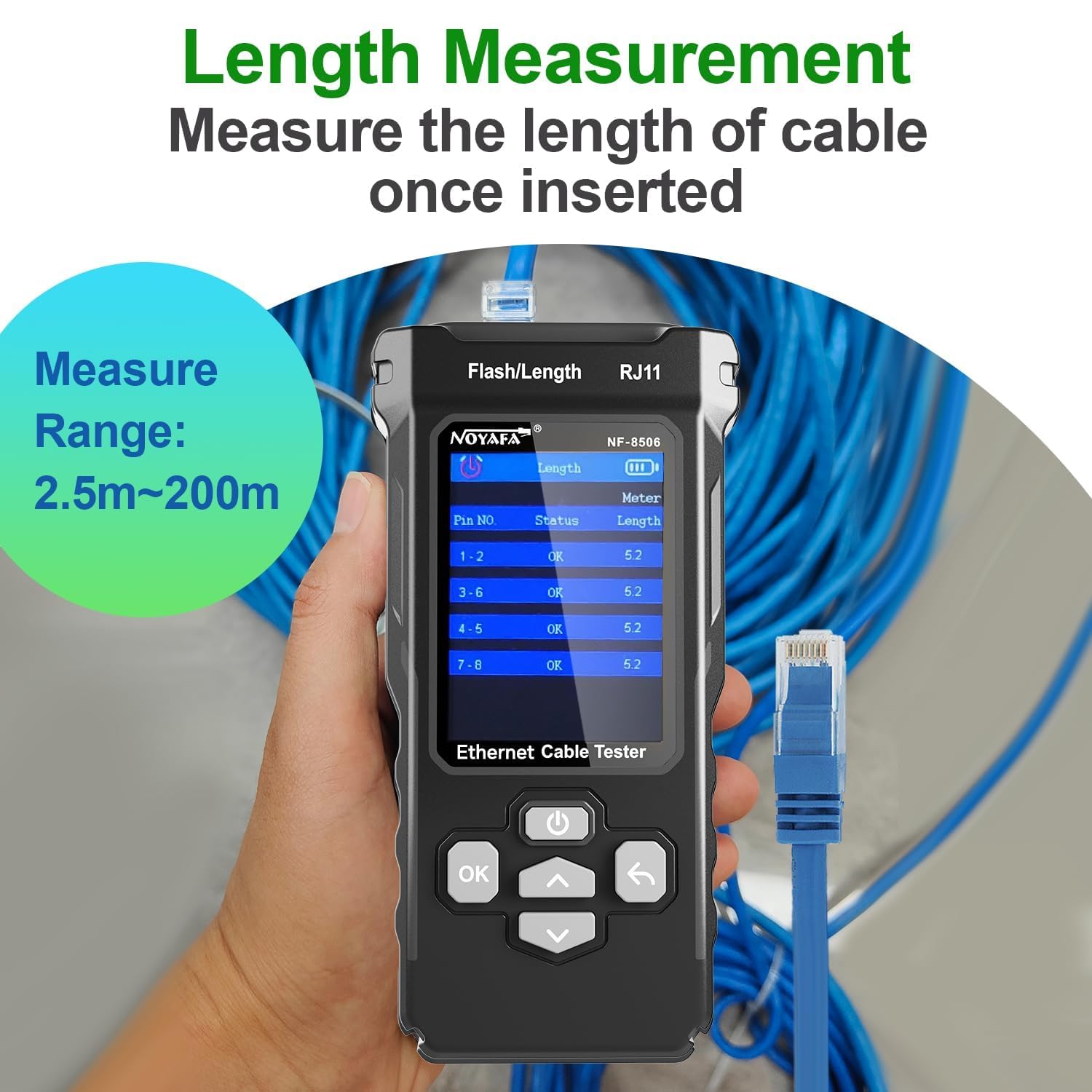
Figure 5: Cable Length Measurement in progress.
4.3 Digital/Analog Cable Scan (Hunting)
This feature helps locate specific cables among a bundle, offering both digital and analog modes for different environments.
- Connect one end of the target cable to the main unit.
- Select 'Scan' from the main unit's menu and choose either 'Digital Mode' or 'Analog Mode'.
- Use the receiver unit to trace the cable. The receiver will emit an audible tone when it detects the signal from the main unit.
- Digital Mode is suitable for anti-jamming and high sensitivity in noisy environments. Analog Mode is for quick cable location.
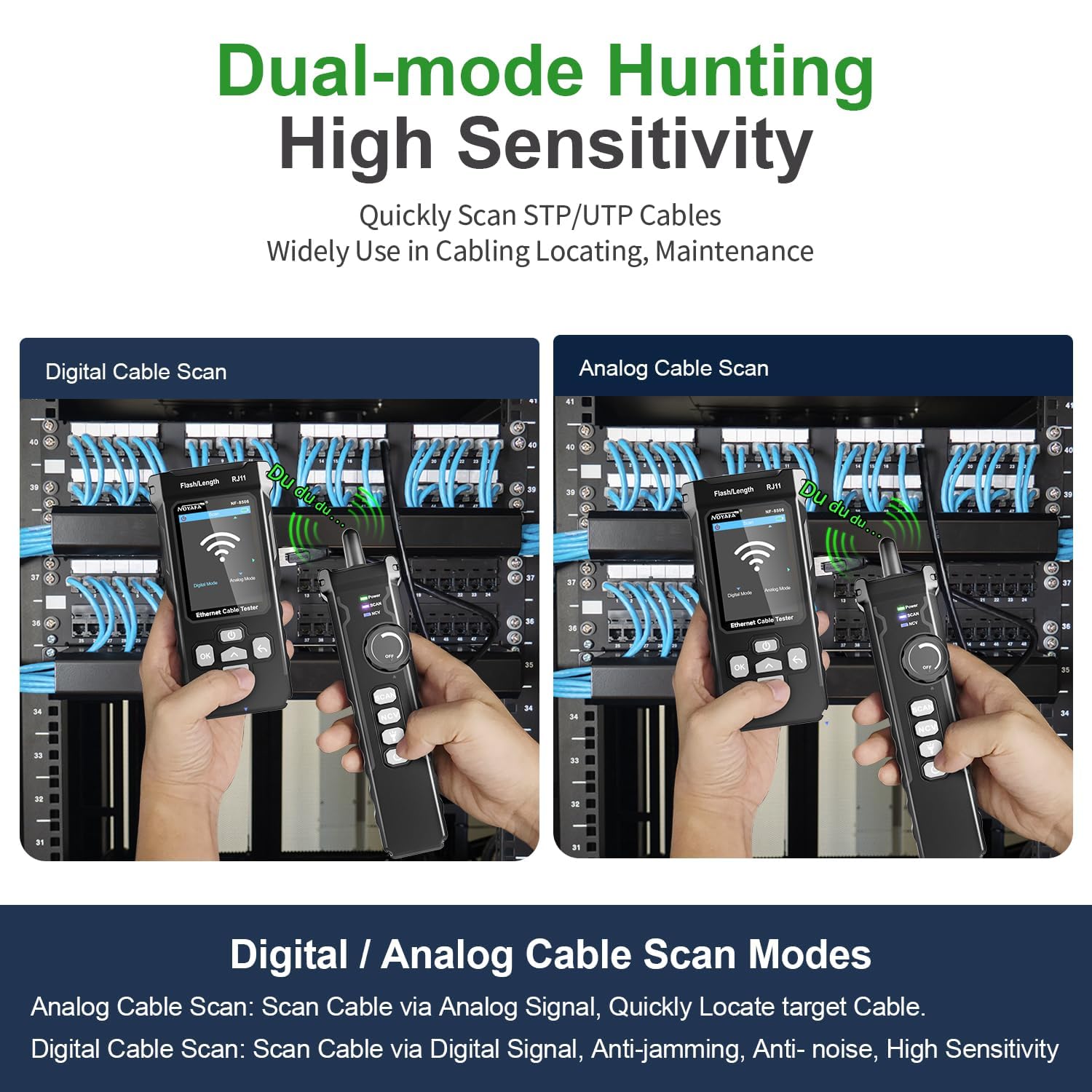
Figure 6: Digital and Analog Cable Scan Modes.
4.4 PoE Test
The PoE test identifies Power over Ethernet devices and their power supply characteristics.
- Connect the network cable from the PoE source (e.g., PoE switch) to the RJ45 port on the main unit.
- Select 'PoE' from the main unit's menu.
- The device will display information such as PoE standard (e.g., IEEE 802.3AF, IEEE 802.3AT), voltage, and power supply method (end-span/mid-span/8-core).

Figure 7: PoE Test Functionality.
4.5 Ping Test & IP Scan
These functions help diagnose network connectivity and identify IP addresses within a network.
- Connect the main unit to the network via its RJ45 port.
- Ping Test: Select 'Ping' from the menu. You can enter a destination IP address to test connectivity and measure round-trip times, indicating network traffic load and response speeds.
- IP Scan: Select 'IP Scan' from the menu. The device will scan the network to discover active IP addresses. You can set a range for the IP scan.

Figure 8: Ping Test Screen.

Figure 9: IP Scan Function in use.
4.6 Port Flashing & Network Rate Test
These features help identify connected ports and assess network speed.
- Connect the main unit to a network port.
- Port Flashing: Select 'Port Flash' from the menu. The indicator lights on the connected switch port will blink, allowing for quick identification of the physical port.
- Network Rate Test: Select 'Speed' or 'Network Rate Test' from the menu. The device will display the operating rate (e.g., 10/100/1000Mbps) and duplex mode (Full/Half Duplex) of the connected port.

Figure 10: PoE Test and Network Rate Test Interface.
5. Maintenance
- Cleaning: Use a soft, dry cloth to clean the device. Do not use abrasive cleaners or solvents.
- Storage: Store the device in a cool, dry place away from direct sunlight and extreme temperatures.
- Battery Care: Recharge the device regularly, even if not in use, to maintain battery health. Avoid fully discharging the battery for extended periods.
- Port Protection: Always use the provided caps or covers for the RJ45/RJ11 ports when not in use to prevent dust and damage.
6. Troubleshooting
- Device not powering on: Ensure the battery is charged. Connect to a power source using the USB cable and try again.
- Inaccurate cable length measurement: Ensure the cable is disconnected from all other devices at the far end. Verify the cable type settings if applicable.
- No signal during cable scan: Check that the cable is properly connected to the main unit. Ensure the receiver is in the correct scan mode (Digital/Analog) and its sensitivity is adjusted.
- PoE test not detecting power: Verify that the connected port is indeed a PoE-enabled port and that the PoE source is active.
- Screen unresponsive: Try restarting the device. If the issue persists, contact customer support.
7. Specifications
| Feature | Specification |
|---|---|
| Model Number | NF-8506 |
| Brand | NOYAFA |
| Power Source | Battery Powered (Rechargeable) |
| Cable Test Types | RJ11, RJ45, CAT5, CAT6 |
| Cable Length Measurement Range | 2.5m ~ 200m |
| PoE Standards Supported | IEEE 802.3AF, IEEE 802.3AT |
| Network Rate Test | 10/100/1000Mbps |
| Color | Black |
| Certifications | CE, RoHS, TIA |
8. Warranty and Support
For warranty information and technical support, please refer to the official NOYAFA website or contact your local distributor. Keep your purchase receipt as proof of purchase for warranty claims.


