
1. Introduction
The Kwikset HomeConnect 620 is a Z-Wave enabled keypad smart lock designed for convenient keyless entry and enhanced security. This manual provides detailed instructions for installation, setup, operation, and maintenance of your smart lock. It features S2 security encryption, SmartStart technology for easy integration with compatible Z-Wave hubs, and Z-Wave 700 Long Range for extended coverage.

Image: Overview of Kwikset HomeConnect 620 Smart Lock features.
2. Safety Information
- Read all instructions completely before installing and operating the lock.
- Familiarize yourself with all warning and caution statements.
- Protect your user codes and master code.
- Dispose of used batteries according to local laws and regulations.
- Do not attempt to disassemble or modify the lock beyond the instructions provided.
3. Package Contents
Verify that all components are present before beginning installation:
- Exterior Deadbolt
- Interior Deadbolt
- Latch
- Strike Plate
- Mounting Plate
- Installation Hardware (screws)
- 2 Kwikset Keys
- 4 AA Alkaline Batteries
- Installation Guide

Image: Contents of the Kwikset HomeConnect 620 product box.
4. Installation
Installation typically requires only a Phillips head screwdriver. Follow the detailed steps in the included Installation Guide for proper setup. Ensure your door preparation meets the specified dimensions for optimal performance.
4.1 Door Preparation
Verify your door's dimensions are compatible with the lock. The Kwikset HomeConnect 620 is designed to fit standard doors with a door prep of 2-1/8" diameter bore hole and a door thickness of 1-3/8" to 2-1/4". The adjustable latch backset supports both 2-3/8" and 2-3/4" settings.

Image: Dimensional specifications for the Kwikset HomeConnect 620 lock.
4.2 Mounting the Lock
- Install the latch into the door edge.
- Install the exterior keypad assembly.
- Install the interior mounting plate.
- Connect the cable and install the interior assembly.
- Perform the door handing process as instructed in the guide.
5. Setup
5.1 Z-Wave Pairing and SmartStart
The Kwikset HomeConnect 620 utilizes Z-Wave 700 Long Range technology for extended connectivity with your Z-Wave compatible hub. It supports SmartStart for simplified integration and S2 encryption for enhanced security.
- Ensure your Z-Wave hub is in inclusion mode.
- For SmartStart, scan the QR code located on the lock or in the installation guide using your Z-Wave hub's app.
- Alternatively, follow your hub's instructions for manual Z-Wave inclusion.

Image: Z-Wave 700 Long Range coverage illustration.

Image: Z-Wave SmartStart and S2 security features.
5.2 Ring Alarm Compatibility
The Kwikset HomeConnect 620 is compatible with Ring Alarm systems. A Ring Alarm smart hub is required for integration. Once paired, you can control and check the status of your lock directly through the Ring Alarm app.

Image: Ring Alarm compatibility with Kwikset HomeConnect 620.
5.3 User Code Management
You can customize up to 250 user codes and 1 programming code. The programming code allows you to add, edit, or delete user codes as needed.
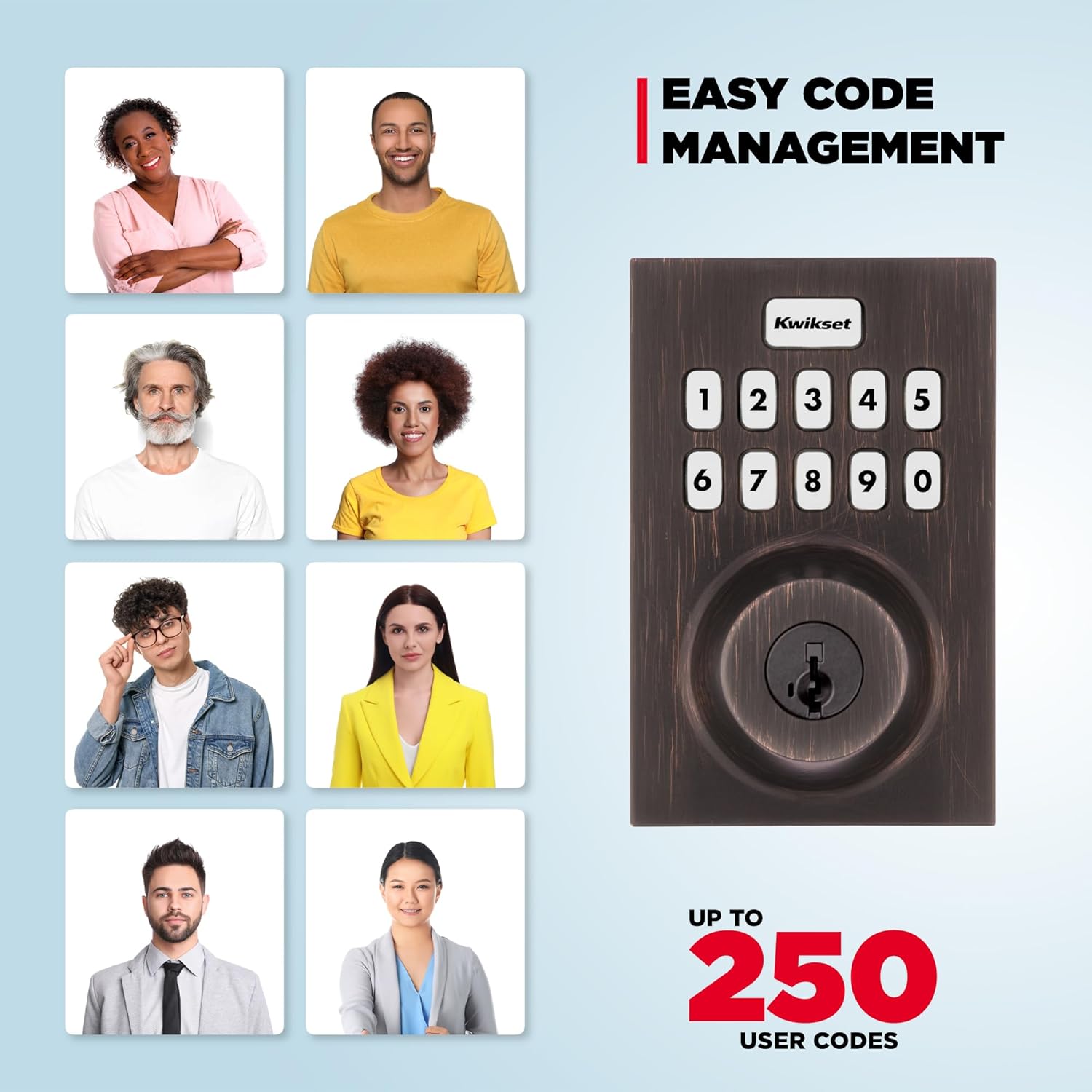
Image: Easy user code management for the Kwikset lock.
5.4 Auto-Lock Feature
The auto-lock feature provides peace of mind by automatically locking your door after a set period. You can customize the auto-lock duration to 30 seconds, 1 minute, 3 minutes, 5 minutes, or 10 minutes.

Image: Auto-lock feature customization options.
6. Operating Instructions
6.1 Keyless Entry
To unlock the door using a user code:
- Enter your 4-8 digit user code on the keypad.
- The deadbolt will retract, allowing you to open the door.

Image: Keyless entry using the keypad.
6.2 Locking the Door
To lock the door from the exterior, press the Lock button on the keypad. From the interior, turn the thumb-turn to the locked position.
7. Maintenance
7.1 Battery Replacement
The lock operates on 4 AA alkaline batteries, providing approximately 12 months of battery life. Replace batteries when the low battery indicator appears or when the lock's operation becomes sluggish.
- Remove the battery cover on the interior assembly.
- Remove the old batteries and insert new AA alkaline batteries, ensuring correct polarity.
- Replace the battery cover.
7.2 Cleaning
Clean the lock's exterior with a soft, damp cloth. Avoid abrasive cleaners or solvents that could damage the finish or electronic components.
8. Troubleshooting
- Lock Not Responding: Check battery levels and replace if necessary. Ensure the lock is properly installed and aligned.
- Keypad Not Lighting Up: Replace batteries. If the issue persists, contact support.
- Z-Wave Connectivity Issues: Ensure your Z-Wave hub is within range and functioning correctly. Try re-pairing the lock with the hub. Obstructions like thick walls can affect Z-Wave Long Range signal strength.
- User Code Not Working: Verify the code is correct and active. Ensure the programming code has not been compromised.
- Auto-Lock Not Engaging: Check the auto-lock settings in your Z-Wave hub's application to ensure it is enabled and configured correctly.
9. Specifications
| Feature | Detail |
|---|---|
| Brand | Kwikset |
| Model Number | 98695-005 |
| Lock Type | Deadbolt, Keypad |
| Material | Metal |
| Color | Venetian Bronze |
| Item Dimensions (L x W x H) | 4.25 x 5.38 x 9.81 inches |
| Item Weight | 1.7 Kilograms |
| Connectivity Protocol | Z-Wave 700 Long Range |
| Special Features | Auto-Lock, Back-Lit Keypad, Battery Indicator, One-Touch Lock, Passcode Unlock, S2 Encryption, SmartStart |
| Power Source | 4 AA Alkaline Batteries (included) |
| Battery Life | Approximately 12 months |
| User Codes | Up to 250 |
10. Warranty and Support
For warranty information, technical support, or further assistance, please refer to the official Kwikset website or contact Kwikset customer service. Keep your purchase receipt for warranty claims.
Online Support: www.kwikset.com/support


