
1. Introduction
Thank you for choosing the PRUVEEO Waterproof Rear Camera. This manual provides essential information for the proper installation, operation, and maintenance of your new rear camera. Please read this manual thoroughly before use to ensure optimal performance and longevity of the product.
2. Package Contents
Verify that all items listed below are present in your package. If any items are missing or damaged, please contact PRUVEEO customer support.
- 1x PRUVEEO Rear Camera (1080P)
- 1x Extension Cable
- Installation Tools (screws)

Figure 2.1: Package contents including the rear camera, extension cable, and installation tools.
3. Compatibility
This PRUVEEO Rear Camera is specifically designed for use with the following PRUVEEO Dash Camera models:
- PRUVEEO D90-4CH
- PRUVEEO A6
- PRUVEEO D88
It features a Type-C port for connection to the compatible dash camera. Ensure your dash camera model is listed above for proper functionality.
4. Key Features
- 1080P Resolution: Provides clear and detailed video recording.
- Waterproof Design: Engineered to withstand various weather conditions.
- Wide Angle Lens: Offers an expansive field of view for comprehensive rear coverage.
- Type-C Port: Ensures secure and reliable connection to compatible dash cameras.
- Easy Installation: Designed for straightforward setup with included tools and extension cable.

Figure 4.1: The rear camera demonstrating its waterproof feature.

Figure 4.2: Visual representation of the camera's key features: waterproof, high resolution, car rear view, and wide angle.
5. Setup and Installation
Proper installation is crucial for optimal performance. It is recommended to have this camera installed by a professional if you are unfamiliar with vehicle wiring.
5.1 Choosing an Installation Location
The rear camera is typically mounted on the rear license plate area or near the rear window. Choose a location that provides a clear, unobstructed view of the road behind your vehicle. Ensure the camera is centered for the best perspective.
5.2 Mounting the Camera
- Clean the chosen mounting surface thoroughly to ensure proper adhesion or secure screw placement.
- Attach the camera bracket to the vehicle using the provided screws. Ensure it is securely fastened and angled correctly.
- Adjust the camera angle to achieve the desired rear view.
5.3 Wiring Connection
- Connect the rear camera's cable to the provided extension cable.
- Carefully route the extension cable from the rear of the vehicle to the location of your PRUVEEO dash camera. Ensure the cable is tucked away safely to avoid interference with vehicle operations and to protect it from damage.
- Connect the Type-C end of the extension cable to the designated rear camera input port on your compatible PRUVEEO dash camera (D90-4CH, A6, or D88).
- Once connected, power on your dash camera to verify the rear camera feed is displayed correctly.
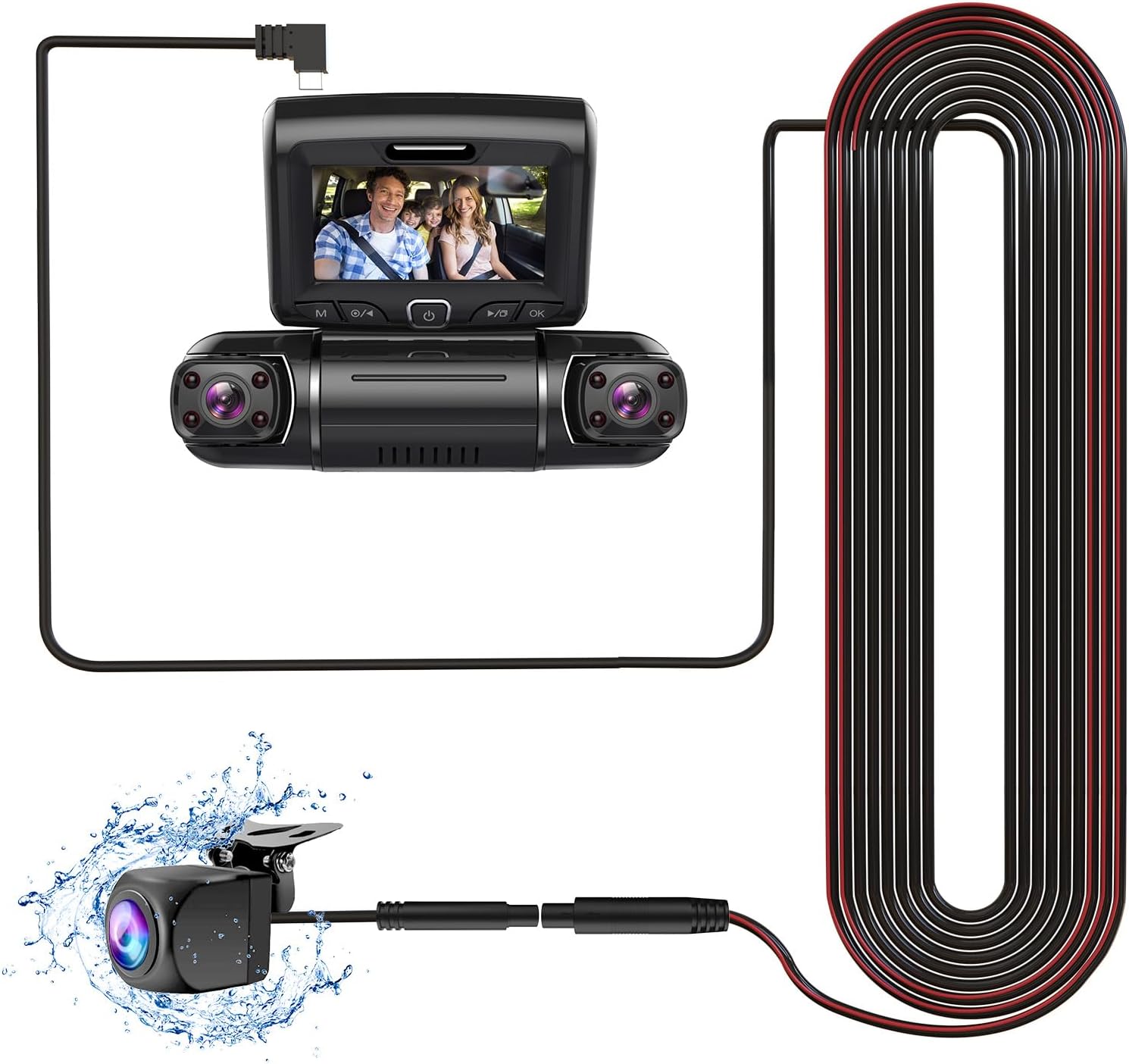
Figure 5.1: Connection diagram of the rear camera to a compatible dash camera.

Figure 5.2: The PRUVEEO Rear Camera and its extension cable.
6. Operation
Once properly installed and connected to a compatible PRUVEEO dash camera, the rear camera operates in conjunction with the dash camera system.
- Automatic Recording: The rear camera will automatically begin recording when the dash camera is powered on, typically when the vehicle's ignition is turned on.
- Display Modes: Refer to your specific PRUVEEO dash camera's manual for instructions on how to switch between front camera view, rear camera view, or picture-in-picture display modes.
- Parking Monitor (if supported by dash cam): If your dash camera supports a parking monitor feature, the rear camera will also record events when the vehicle is parked, depending on the dash camera's settings.
For detailed operational instructions, please consult the user manual of your PRUVEEO D90-4CH, A6, or D88 dash camera.
7. Maintenance
Regular maintenance ensures the longevity and optimal performance of your rear camera.
- Lens Cleaning: Periodically clean the camera lens with a soft, damp cloth to remove dirt, dust, or water spots that may obstruct the view. Avoid abrasive materials or harsh chemicals.
- Cable Inspection: Regularly check the connection cable for any signs of wear, damage, or loose connections. Ensure it remains securely tucked away.
- Mounting Check: Verify that the camera remains securely mounted and its angle has not shifted due to vibrations or impacts.
- Software Updates: Ensure your main dash camera firmware is up-to-date, as this may affect the performance of connected accessories like the rear camera.
8. Troubleshooting
If you encounter issues with your PRUVEEO Rear Camera, refer to the following common problems and solutions.
| Problem | Possible Cause | Solution |
|---|---|---|
| No image from rear camera |
|
|
| Image is blurry or unclear |
|
|
| Intermittent connection |
|
|
If the problem persists after attempting these solutions, please contact PRUVEEO customer support for further assistance.
9. Specifications
| Feature | Detail |
|---|---|
| Model Compatibility | PRUVEEO D90-4CH, A6, D88 Dash Cameras |
| Resolution | 1080P |
| Waterproof Rating | Yes (Specific IP rating not provided, but described as "Waterproof") |
| Connector Type | Type-C (USB) |
| Optical Sensor Technology | CMOS |
| Lens Type | Wide Angle |
| Optical Sensor Size | 1/4 inch |
| Product Dimensions | 11.02"L x 5.7"W x 1.95"H (Packaging dimensions, actual camera dimensions not specified, using packaging for reference) |
| Item Weight | 10.6 ounces (Packaging weight, actual camera weight not specified, using packaging for reference) |
10. Warranty and Support
For information regarding warranty coverage, technical support, or to purchase replacement parts, please contact PRUVEEO customer service.
Please refer to the official PRUVEEO website or your purchase documentation for the most up-to-date contact information and warranty details.
