
1. Important Safety Information
Please read all safety instructions carefully before operating your television. Keep this manual for future reference.
- Electrical Safety: Do not expose the TV to rain or moisture to prevent fire or electric shock. Ensure the power cord is securely plugged into a grounded outlet.
- Ventilation: Maintain adequate ventilation around the TV. Do not block ventilation openings.
- Placement: Place the TV on a stable, level surface. Avoid placing it in direct sunlight or near heat sources.
- Cleaning: Unplug the TV before cleaning. Use a soft, dry cloth. Do not use liquid cleaners or aerosol cleaners.
- Servicing: Do not attempt to service this product yourself. Refer all servicing to qualified service personnel.
2. What's in the Box
Verify that all components are present in the packaging:
- TCL TV with Google TV
- TV Stands
- Power Cable
- TV Remote + Batteries
- Quick Start Guide
- User Manual (this document)
- Warranty Card

3. Setup
3.1 Unpacking
Carefully remove the TV from its packaging. It is recommended to have at least two people for handling the 85-inch television due to its size and weight.
3.2 Attaching the Stand
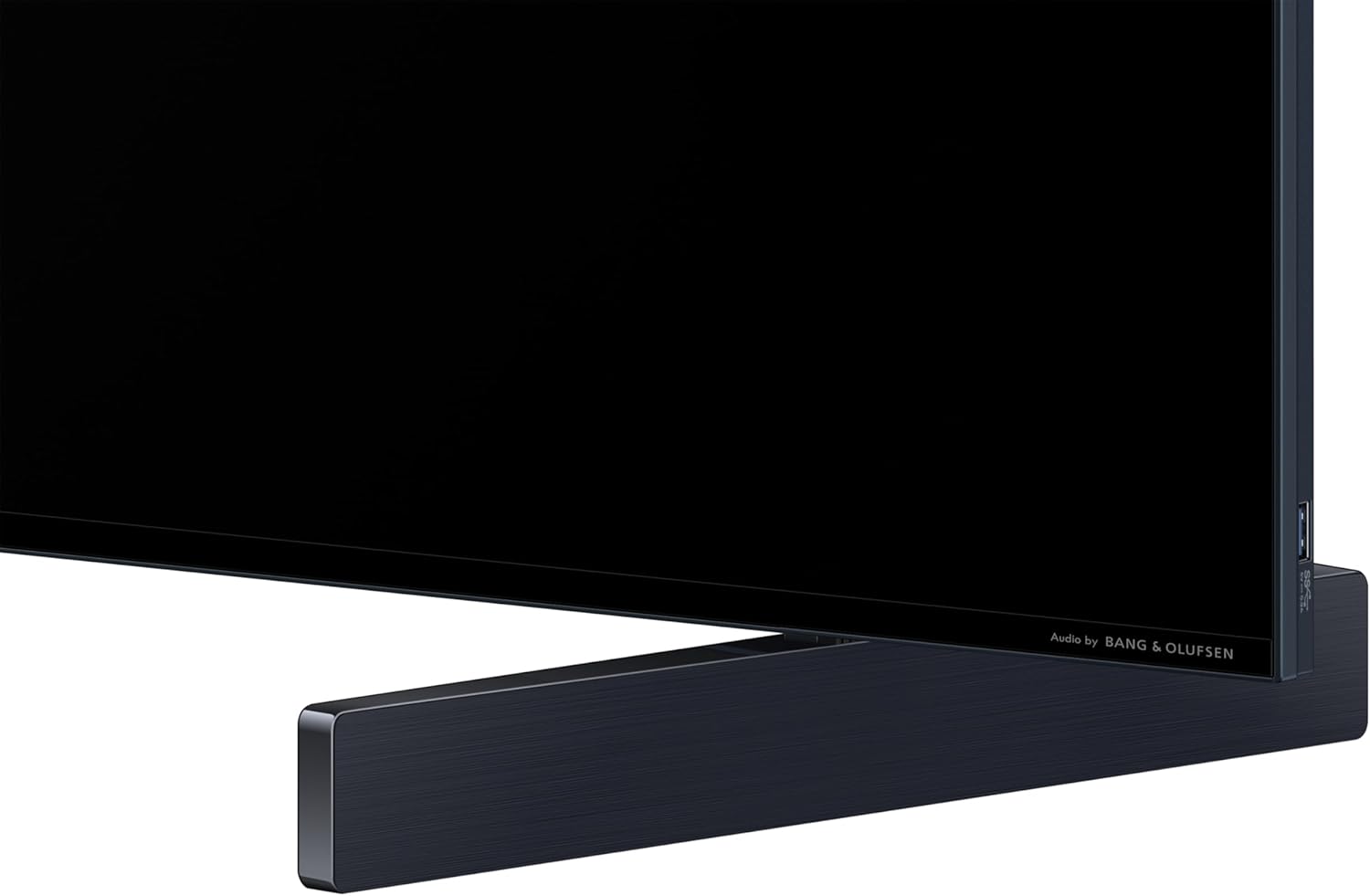
If you are not wall-mounting the TV, attach the included stands:
- Place the TV face down on a soft, clean surface to prevent screen damage.
- Align each stand with the corresponding slots on the bottom of the TV.
- Secure the stands using the provided screws. Ensure they are tightened firmly.
3.3 Wall Mounting
If you choose to wall-mount your TV, ensure you use a VESA-compatible wall mount kit (sold separately) that supports the TV's weight and size. Follow the instructions provided with your wall mount.

3.4 Connecting Peripherals
Connect your external devices to the TV's ports:
- HDMI: For Blu-ray players, game consoles, soundbars, etc.
- USB: For external storage devices.
- RF: For antenna or cable connection.
- Power Cable: Connect the power cable to the TV and then to a wall outlet.

3.5 Initial Power On and Google TV Setup
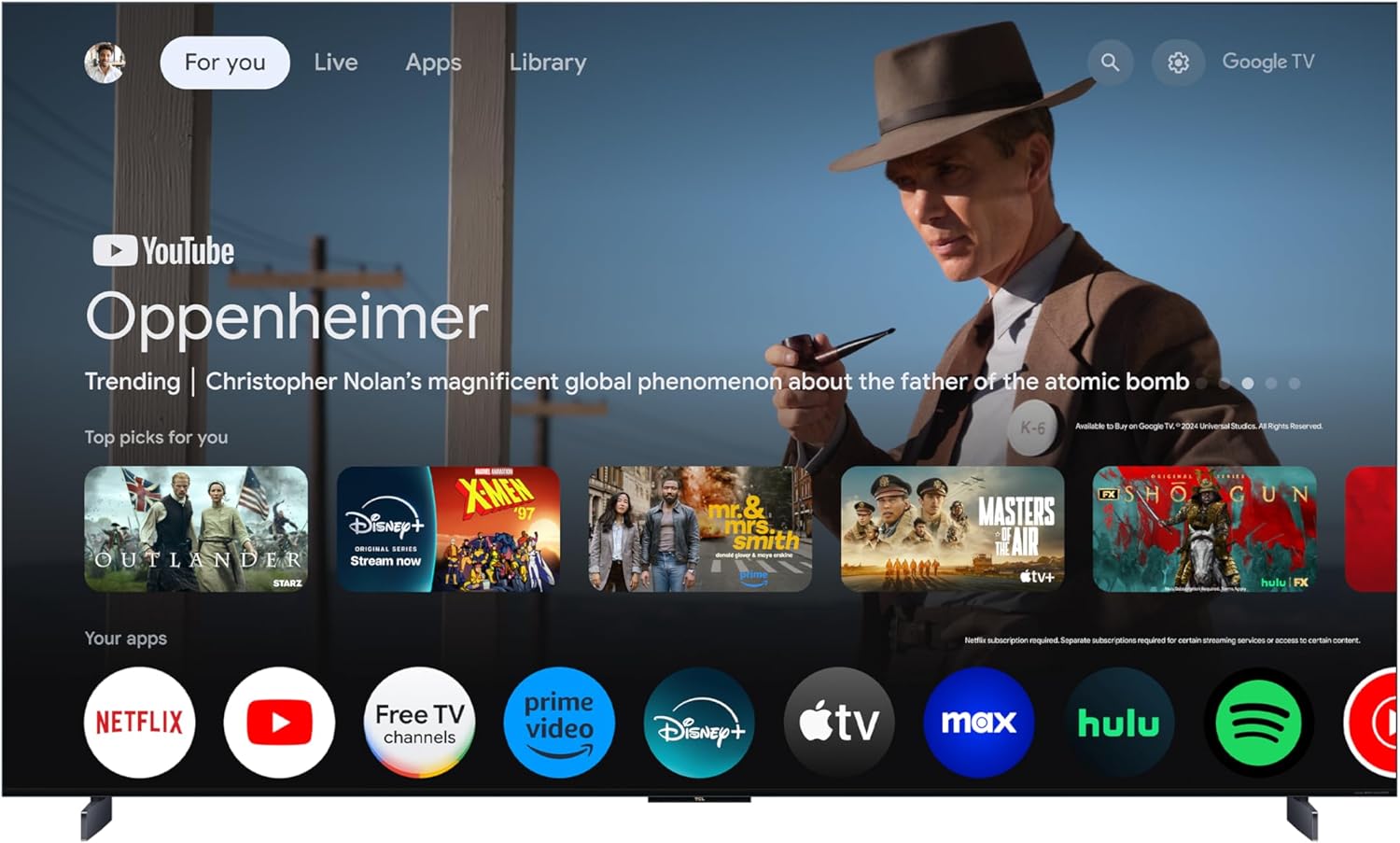
After connecting all cables, plug in the TV and press the power button on the remote control. Follow the on-screen instructions to set up Google TV, connect to Wi-Fi, and sign in to your Google account.
4. Operating Instructions
4.1 Remote Control
The included remote control allows you to navigate the TV's features. Insert the provided batteries into the remote. Key functions include power, volume, channel selection, input source, Google Assistant button, and navigation pad.
4.2 Google TV Interface
Google TV organizes movies, shows, live TV, and more from your subscriptions and apps into one central interface. Use the remote's navigation buttons to browse content, access apps, and manage settings.

4.3 Picture Settings
Your TCL X11K TV features advanced picture technologies for optimal viewing. Access the picture settings menu to adjust brightness, contrast, color, and other display options.
- QD-Mini LED: Combines QLED and Mini LED technologies for precise lighting control.
- Halo Control System: An advanced suite of technologies including Super High Energy LED Microchip, Super Condensed Micro Lens, Micro-OD, HVA Panel, Enhanced QLED, Zero Delay Transient Response, Bi-direction 16-bit Backlight Controller, and Dynamic Light Algorithm for improved image quality.
- HDR 6500 Nits: Provides high peak brightness for enhanced HDR content.
- CrystGlow HVA Panel: An anti-reflective panel designed to maintain image clarity in bright environments.
- 144Hz Native Refresh Rate: Delivers smooth motion for fast-paced content and gaming.
- AiPQ Pro Processor: Utilizes AI to optimize picture clarity, contrast, color, motion, and upscaling.


4.4 Audio Settings
The TV features integrated Bang & Olufsen audio and supports Dolby Atmos for an immersive sound experience. Adjust audio modes and settings through the TV menu.
- Bang & Olufsen Audio: Integrated premium sound system.
- Dolby Atmos: Provides multi-dimensional sound.
- DTS Virtual:X: Advanced audio post-processing for immersive 3D sound from TV speakers.

4.5 Gaming Features
The TCL X11K is equipped with features to enhance your gaming experience:
- 144Hz Native Refresh Rate: Reduces motion blur for smoother gameplay.
- Game Accelerator 288: Designed for responsive gameplay with minimal lag.
- Auto Game Mode (ALLM) with AMD FreeSync Premium Pro: Automatically optimizes settings for low input lag and tear-free gaming.


4.6 Voice Control
Utilize the built-in Google Assistant for hands-free voice control. Press the Google Assistant button on your remote or use the 'Hey Google' command (if enabled) to search for content, control smart home devices, and more.
5. Maintenance
5.1 Cleaning the Screen
To clean the screen, first unplug the TV. Gently wipe the screen with a soft, lint-free cloth. For stubborn marks, lightly dampen the cloth with water or a specialized screen cleaner (ensure it's safe for TV screens) and wipe carefully. Avoid excessive pressure.
5.2 Cleaning the TV Body
Wipe the TV's frame and stand with a soft, dry cloth. Do not use abrasive cleaners, waxes, or solvents as they can damage the finish.
5.3 Software Updates
Your TV may receive automatic software updates to improve performance and add new features. Ensure your TV is connected to the internet to receive these updates. You can also manually check for updates in the TV's settings menu.
6. Troubleshooting
If you encounter issues with your TV, refer to the following common solutions:
| Problem | Possible Solution |
|---|---|
| No Power | Check if the power cable is securely plugged into the TV and the wall outlet. Try a different outlet. |
| No Picture, but Sound is Present | Ensure the correct input source is selected. Check cable connections to external devices. |
| No Sound, but Picture is Present | Check volume level and mute status. Verify audio output settings (e.g., internal speakers vs. external sound system). |
| Remote Control Not Working | Replace batteries. Ensure there are no obstructions between the remote and the TV. Re-pair the remote if necessary. |
| Network Connection Issues | Restart your router and modem. Check Wi-Fi password. Try connecting via Ethernet cable if available. |
| Picture Quality Issues (e.g., 'Halo' effect) | Ensure the TV's firmware is up to date. Adjust picture settings. The Halo Control System is designed to minimize halo effects. |
If problems persist, perform a factory reset (refer to the TV's settings menu) or contact TCL customer support.
7. Specifications
Key technical specifications for the TCL 85X11K TV:
| Feature | Specification |
|---|---|
| Brand | TCL |
| Model Number | 85X11K |
| Screen Size | 85 Inches (84.6" diagonal) |
| Display Technology | 4K UHD, QD-Mini LED, QLED |
| Resolution | 4K (3840 x 2160) |
| Refresh Rate | 144 Hz |
| HDR Brightness | 6500 Nits (Peak) |
| Dimming Zones | Up to LD14000 Precise Dimming Series |
| Audio | Bang & Olufsen Audio, Dolby Atmos, DTS Virtual:X |
| Operating System | Google TV |
| Connectivity | HDMI, RF, USB, Wi-Fi |
| Special Features | AMD FreeSync, Bezel-Less Design, Built-In Speaker, Game Mode, Multiple Voice Assistance, Anti-Reflective Screen |
| Product Dimensions (D x W x H) | 1"D x 74.3"W x 42.6"H (without stand) |
| Item Weight | 107.8 Pounds |
8. Warranty and Support
Your TCL 85-Inch Class X11K Series TV comes with a limited warranty. Please refer to the included Warranty Card for detailed terms and conditions, including coverage period and service procedures.
For technical assistance, troubleshooting, or warranty claims, please visit the official TCL support website or contact their customer service. Contact information can typically be found on the warranty card or TCL's official website.
Online Resources: For the latest support information, FAQs, and software downloads, please visit TCL Support.


