
1. Introduction
This manual provides comprehensive instructions for the safe and effective use of your PDi medTV16 arm-mounted HDTV. Designed specifically for healthcare environments, the medTV16 offers a high-quality viewing experience with robust features and connectivity options. Please read this manual thoroughly before installation and operation, and retain it for future reference.
2. Safety Information
Your PDi medTV16 is UL-listed for use in the USA and Canada, ensuring compliance with stringent safety standards. Adhere to the following safety guidelines:
- Electrical Safety: Ensure the power source matches the TV's requirements. Use only the provided COAX cable for power and signal. Do not overload electrical outlets.
- Ventilation: Do not block ventilation openings. Ensure adequate airflow around the unit to prevent overheating.
- Liquid Exposure: Keep the TV away from liquids. Do not expose it to rain or moisture.
- Cleaning: Disconnect power before cleaning. Use a soft, dry cloth. Avoid abrasive cleaners or solvents.
- Servicing: Do not attempt to service this product yourself. Refer all servicing to qualified service personnel.
- Mounting: Ensure the TV is securely mounted to a compatible PDi arm system according to installation instructions.
3. Product Overview
The PDi medTV16 is a 16-inch arm-mounted HDTV designed for patient viewing in healthcare facilities. It features a 1080p LCD display with a glossy screen surface, providing clear and vibrant visuals. The unit is compact and lightweight, designed for seamless integration with existing PDi arm systems.
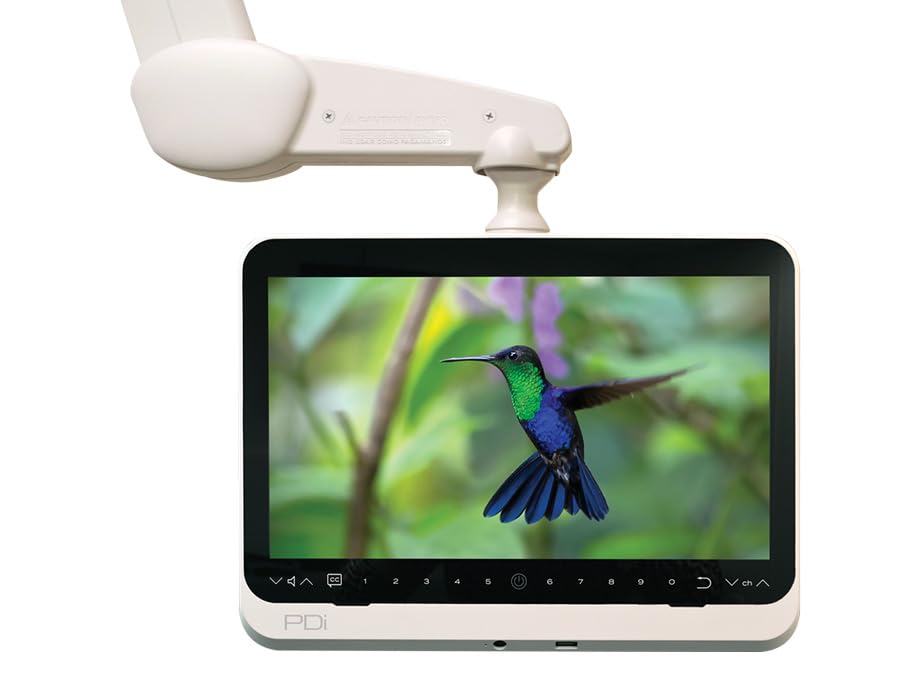
Figure 3.1: PDi medTV16 arm-mounted HDTV. This image shows the cream-colored 16-inch display unit attached to a white articulating arm, suitable for healthcare environments. The screen displays a colorful image of a hummingbird.
Key Features:
- Screen Size: 16-inch display for comfortable viewing.
- Display Technology: 1080p LCD with LED backlight for sharp images and energy efficiency.
- Audio: Two integrated 1.7-Watt RMS speakers for stereo sound.
- Connectivity: Supports HDMI, USB, and RF input.
- Power Configuration: COAX Cable ONLY Power over COAX.
- Design: Sleek, flat design with a depth of 2.5 inches and a weight of 7 pounds.
4. Setup
The medTV16 is designed for integration with PDi arm systems. Professional installation is recommended to ensure proper mounting and connection.
Installation Steps:
- Mounting: Securely attach the medTV16 to the compatible PDi arm system using the provided hardware. Ensure all connections are tight and stable.
- Cable Connection: Connect the COAX cable to the RF input on the TV. This single COAX cable provides both power and signal to the unit.
- Power Source: Ensure the other end of the COAX cable is connected to a compatible COAX power source within the healthcare facility's infrastructure.
- Initial Power On: Once connected, the unit should power on automatically or can be powered on using the power button on the TV's control panel.
5. Operating Instructions
The medTV16 features intuitive controls for ease of use.
Basic Operation:
- Power On/Off: Press the power button (usually indicated by a circle with a vertical line) on the TV's control panel.
- Channel Selection: Use the 'CH+' and 'CH-' buttons to navigate through available channels.
- Volume Control: Use the 'VOL+' and 'VOL-' buttons to adjust the audio level.
- Input Source: Press the 'Input' or 'Source' button to cycle through available input sources (RF, HDMI, USB).
- Display: The 1080p LCD display provides a clear picture with a 16:9 aspect ratio.
6. Connectivity
The medTV16 offers versatile connectivity options to enhance the patient experience.
- HDMI Input: Connect external devices such as laptops, gaming consoles, or media players for high-definition video and audio.
- USB Input: Use the USB port to view photos or play compatible media files from a USB storage device.
- RF Input: This is the primary input for television signals and power via the COAX cable.
7. Maintenance
Regular maintenance ensures the longevity and optimal performance of your medTV16.
- Cleaning the Screen: Gently wipe the glossy screen surface with a soft, lint-free cloth. For stubborn marks, slightly dampen the cloth with water or a screen-safe cleaning solution. Do not spray liquid directly onto the screen.
- General Cleaning: Wipe the exterior of the TV and the arm with a soft, dry cloth. For disinfection, follow your facility's protocols using approved cleaning agents, ensuring they are not abrasive and do not enter openings.
- Cable Inspection: Periodically check the COAX cable and other connections for any signs of wear or damage. Replace damaged cables immediately.
8. Troubleshooting
If you encounter issues with your medTV16, refer to the following common problems and solutions:
| Problem | Possible Cause | Solution |
|---|---|---|
| No Power | COAX cable not properly connected or power issue. | Ensure COAX cable is securely connected at both ends. Verify the power source is active. |
| No Picture | Incorrect input source selected or signal issue. | Press the 'Input' or 'Source' button to select the correct input (RF, HDMI, USB). Check the signal strength for RF input. |
| No Sound | Volume too low or muted. | Increase volume using 'VOL+' button. Ensure the TV is not muted. |
| Poor Picture Quality | Weak signal or incorrect display settings. | Check COAX cable connection. Ensure the input source is providing a high-quality signal. |
If the problem persists after attempting these solutions, please contact PDi Communication Systems support or your facility's technical support.
9. Specifications
Detailed technical specifications for the PDi medTV16:
| Feature | Specification |
|---|---|
| Model Number | medTV16 |
| Screen Size | 16 Inches (41 cm visible diagonal) |
| Display Technology | LCD with LED Backlight |
| Resolution | 1080p |
| Aspect Ratio | 1.77:1 (16:9) |
| Refresh Rate | 60 Hz |
| Speakers | 2 x 1.7-Watt RMS Integrated Speakers |
| Connectivity | HDMI, USB, RF Input (COAX) |
| Power Consumption (On-mode) | 25 Watts |
| Product Dimensions (D x W x H) | 2.5 x 15.2 x 14.8 inches |
| Item Weight | 7 Pounds |
| Color | Cream |
10. Warranty and Support
This product includes a user manual in the box. For specific warranty details, service, or technical support, please contact PDi Communication Systems directly or refer to the warranty information provided at the time of purchase. You can typically find support contact information on the manufacturer's official website or through your product supplier.
For further assistance, please visit the official PDi Communication Systems website or contact their customer service department.


