
iRobot Y351240
iRobot ROOMBA 105 Combo Robot Dock AUTOEMPTY User Manual
Model: Y351240
Product Overview
The iRobot ROOMBA 105 Combo Robot Dock AUTOEMPTY is designed to provide comprehensive floor cleaning, handling both dry vacuuming and wet mopping. Its integrated AutoEmpty station allows for up to 75 days of hands-free dirt disposal, ensuring a clean home with minimal effort. Equipped with LiDAR ClearView™ mapping, the robot efficiently navigates and cleans your home with precision.
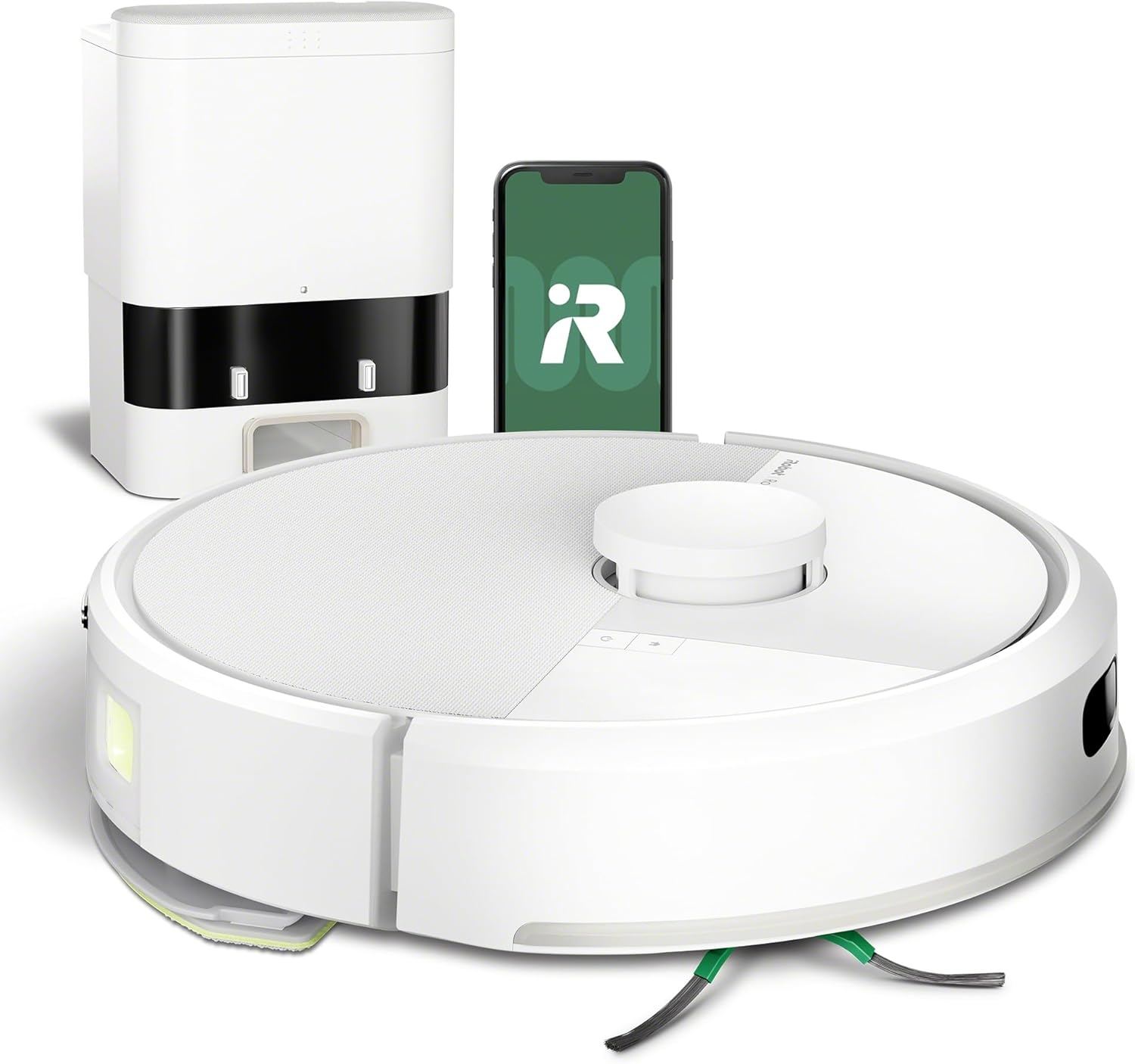
Image: The iRobot Roomba 105 Combo robot vacuum and mop, its AutoEmpty dock, and a smartphone displaying the iRobot Home app interface.
Key Features:
- Autonomous and Easy Cleaning: The AutoEmpty base manages dirt for over 75 days, protecting you from dust.
- Ultra-Intelligent Mapping and Navigation: The LiDAR ClearView system quickly maps your home, avoids obstacles, and cleans in parallel straight lines, even in the dark.
- Powerful Cleaning Performance: Detects, reaches, and eliminates dirt with powerful 7,000 Pa suction, a multi-surface brush, a side brush, and a microfiber mopping pad.
- Adaptive Cleaning Modes: Select vacuuming only, mopping only, or a combination of both. Automatic carpet detection prevents wetting carpets.
- Customized Cleaning: Schedule and target rooms based on your habits, adjust passes, suction power levels, and water flow for mopping.
- User-Friendly Roomba Home App: Easily set custom cleaning tasks, get time estimates, check filter life, or create keep-out zones.
- Convenient Floor Washing: Integrated scrubber with a micro-pump controls water flow for consistent pad moisture. Use water or compatible cleaning solutions. SmartScrub provides 2x more powerful scrubbing.
- Multiple Control Options: Control via the app, robot buttons, or voice assistants (Alexa, Siri, Google Assistant).
- Elegant Design: Modern style with superb finishes and textures that blend easily into your home.
- Wi-Fi Compatible: Uses a 2.4 GHz network for setup and operation.
Setup Guide
- Unpack the Robot and Dock: Carefully remove all components from the packaging. Ensure all protective films and packing materials are removed from the robot and the AutoEmpty dock.
- Place the AutoEmpty Dock: Choose a location for the dock that is against a wall, on a hard, level surface, and has at least 1.5 feet (0.5 meters) of clear space on either side and 4 feet (1.2 meters) in front. Ensure it's near a power outlet and has good Wi-Fi signal.
- Connect Power: Plug the dock's power cord into a wall outlet.
- Charge the Robot: Place the Roomba robot onto the charging contacts of the AutoEmpty dock. The robot will begin charging. Allow it to fully charge before its first use (typically several hours).
- Download the iRobot Home App: Search for "iRobot Home" in your smartphone's app store (iOS or Android) and download the application.
- Connect to Wi-Fi: Open the iRobot Home app and follow the on-screen instructions to connect your robot to your home Wi-Fi network. The robot requires a 2.4 GHz network for initial setup and operation.
- Initial Mapping Run: Once connected, the app will guide you through an initial mapping run. This allows the robot to learn your home's layout and create a smart map for efficient cleaning.

Image: The iRobot Roomba 105 Combo robot positioned next to its AutoEmpty dock, ready for operation.
Operating Instructions
Starting a Cleaning Job:
- Using the iRobot Home App:
- Open the app and select your Roomba 105 Combo.
- Choose your desired cleaning mode: Vacuum Only, Mop Only, or Vacuum & Mop.
- You can select specific rooms or areas to clean, or initiate a full home clean.
- Tap "Clean" to start the job.
- Using the Robot Buttons:
- Press the CLEAN button on the robot to start a general cleaning cycle.
- Press the HOME button to send the robot back to its dock.

Image: Illustration showing the three primary methods of controlling the Roomba 105 Combo: voice commands via a smart assistant, direct interaction with the robot's physical buttons, and through the intuitive iRobot Home mobile application.
Cleaning Modes and Features:
- Vacuuming: The robot uses its powerful 7,000 Pa suction and multi-surface brushes to pick up dirt, dust, and debris.
- Mopping: Attach the mopping pad and fill the water tank. The integrated micro-pump ensures consistent moisture. For tougher stains, use the SmartScrub feature via the app for enhanced scrubbing.
- Carpet Detection: The robot automatically detects carpets and avoids mopping them when in combined or mopping-only modes.
- LiDAR ClearView™ Navigation: The robot uses advanced LiDAR technology to create precise maps of your home, allowing for efficient, straight-line cleaning paths and obstacle avoidance.

Image: The iRobot Roomba 105 Combo robot actively mapping a room with its ClearView LiDAR system, demonstrating its ability to navigate around furniture and obstacles.

Image: The iRobot Roomba 105 Combo robot actively mopping a hard floor, with arrows indicating the scrubbing motion of the SmartScrub feature.
Maintenance
Regular maintenance ensures optimal performance and extends the lifespan of your iRobot Roomba 105 Combo.
AutoEmpty Dock:
- The AutoEmpty dock can hold up to 75 days of dirt and debris in its disposable bag.
- Replace the bag when the indicator light on the dock or the app notifies you. Simply remove the full bag and dispose of it, then insert a new one.

Image: A transparent view of the iRobot Roomba 105 Combo's AutoEmpty dock, illustrating how dirt and debris are collected and stored within the disposable bag.
Robot Components:
- Dust Bin and Filter: Empty the robot's internal dust bin after each cleaning cycle, especially if not using the AutoEmpty dock. Clean or replace the HEPA filter as indicated by the app or every few weeks, depending on usage.
- Brushes: Regularly check and clean the multi-surface brush and side brush. Remove any tangled hair or debris. A cleaning tool is often included for this purpose.
- Mopping Pad: Wash the microfiber mopping pad after each use. It can typically be hand-washed or machine-washed.
- Sensors and Charging Contacts: Wipe the robot's sensors and charging contacts on both the robot and the dock with a clean, dry cloth to ensure proper function and charging.

Image: A detailed diagram highlighting the four key cleaning components of the Roomba 105 Combo: the side brush for edges, powerful suction, the multi-surface brush for deep cleaning, and the mopping pad for wet cleaning.
Troubleshooting
If you encounter issues with your iRobot Roomba 105 Combo, refer to the following common solutions:
| Problem | Possible Cause / Solution |
|---|---|
| Robot not charging | Ensure the dock is plugged in and the robot is properly aligned on the charging contacts. Clean the charging contacts on both the robot and the dock with a dry cloth. |
| Robot not connecting to Wi-Fi | Ensure your router is broadcasting a 2.4 GHz network. Temporarily disable 5 GHz on your router during setup if necessary. Restart your router and the robot. Follow app instructions carefully. |
| Robot getting stuck or lost | Clear obstacles from the cleaning path. Ensure the robot's sensors are clean. Perform an initial mapping run if the map is incomplete or inaccurate. |
| Poor cleaning performance | Empty the dust bin and replace the filter. Clean the main brushes and side brush. Ensure the mopping pad is clean and properly attached. Check for blockages in the suction path. |
| AutoEmpty dock not emptying | Check if the disposable bag is full and needs replacement. Ensure the bag is correctly installed. Check for any blockages in the dock's suction path. |
| App issues (e.g., incorrect room names, robot not starting from app) | Ensure the app is updated to the latest version. Restart the app and the robot. Verify the robot is connected to the same Wi-Fi network as your phone. If issues persist, try reinstalling the app. |
For more detailed troubleshooting, refer to the iRobot Home app or visit the iRobot support website.
Specifications
| Feature | Detail |
|---|---|
| Brand | iRobot |
| Model Number | Y351240 |
| Color | White |
| Product Dimensions (L x W x H) | 54.9 x 33.5 x 29.3 cm (2.9 kg) |
| Number of Speeds | 4 |
| Special Features | DustCompactor™ (up to 60 days dirt collection), Carpet detection (prevents mopping), ClearView™ LiDAR Navigation, Vacuum or Vacuum + Mop modes |
| Filter Type | HEPA |
| Battery Life | 120 minutes |
| Controller Type | App Control |
| Included Components | Charging adapter, Battery, Side brush, Hook cutter, Filter, Instruction guide, Dirt disposal bag, Mop pad, Cleaning solution, Docking station |
Warranty and Support
iRobot is committed to providing reliable robots and excellent customer service. For support, please visit the official iRobot support website or contact their customer service team.
- Customer Service: Expert customer service representatives are available to assist you.
- Data Privacy: iRobot maintains high standards of data encryption to ensure your data remains private and secure.
- Authorized Retailers: iRobot provides warranty claims, service, and replacements only for products purchased from authorized retailers on Amazon.


Image: Visual representations of iRobot's commitment to customer service, data privacy, and warranty policies for products purchased through authorized channels.
Related documentsY351240




Ask a question about this manual
Ask about setup, troubleshooting, compatibility, parts, safety, or missing instructions. Manuals+ will review the question and use this page’s manual context to help answer it.