
1. Introduction
The Anker Prime Docking Station (DL7400) is a versatile 14-port hub designed to enhance your desktop setup. It offers extensive connectivity, powerful charging capabilities, and advanced display options for both macOS and Windows operating systems.
Key features include:
- 14 Powerful Connections: Features a 140W 10Gbps USB-C upstream port, two 100W 10Gbps USB-C ports, one 100W 5Gbps USB-C port, two HDMI ports, one DisplayPort, two 5Gbps USB-A ports, one 480Mbps USB-A port, a 2.5Gbps Ethernet port, a headphone and mic combo jack, plus SD and TF card slots.
- One 8K Output, Triple Display Versatility: Supports up to three external monitors simultaneously, including one at 8K resolution, for enhanced multitasking.
- Each Port Powers and Performs: All USB-C ports support both charging and data transfer. The upstream port delivers up to 140W to your laptop, while front USB-C ports provide 100W high-speed charging.
- Always Cool, Always in Control: A smart display provides real-time updates on charging power, display performance, fan cooling mode, and settings. The built-in fan and ActiveShield 3.0 ensure stable operation.
2. Package Contents
The Anker Prime Docking Station (DL7400) package includes:
- Anker Prime Docking Station (14-in-1, Triple Display, DisplayLink)
- USB-C to USB-C 3.2 Gen 2 cable for upstream port (3.3 ft, 10 Gbps)
- 6ft AC power cord
- Safety sheet with user manual QR code
3. Setup
To begin using your Anker Prime Docking Station, follow these steps:
- Connect Power: Plug the included AC power cord into the docking station and then into a wall outlet.
- Connect to Host Device: Use the included USB-C to USB-C 3.2 Gen 2 cable to connect the docking station's upstream port to your laptop or computer.
- Install DisplayLink Driver: For display output, the latest DisplayLink driver must be installed and launched on your macOS (13.5 or later) or Windows (10/11) device. Follow the on-screen instructions or notes on the product's protective film for installation.
- Connect Peripherals: Connect your monitors, USB devices, Ethernet cable, and audio devices to the appropriate ports on the docking station.

Image: DisplayLink driver installation is required for display output.

Image: Compatibility overview and DisplayLink driver requirement.
Quick Start Guide Video
Video: A quick start guide demonstrating the setup process for the Anker Prime Docking Station.
4. Operating Instructions
4.1 Port Overview
The Anker Prime Docking Station features 14 ports for comprehensive connectivity:
- Front Ports:
- SD and TF Card Slots
- 2x USB-C (100W Max, 10Gbps) - Note: These ports do not support media display.
- 1x USB-C (100W Max, 5Gbps) - Note: This port does not support media display.
- Audio Jack (Headphone and Mic Combo)
- Control Knob
- Rear Ports:
- 1x USB-C Upstream (140W Max, 10Gbps)
- 2x HDMI (4K@60Hz)
- 1x DisplayPort (8K@60Hz)
- 2x USB-A (5Gbps)
- 1x USB-A (480Mbps) - Recommended for mouse/keyboard receivers.
- 1x Ethernet (2.5Gbps)

Image: Detailed diagram of all 14 ports on the docking station.
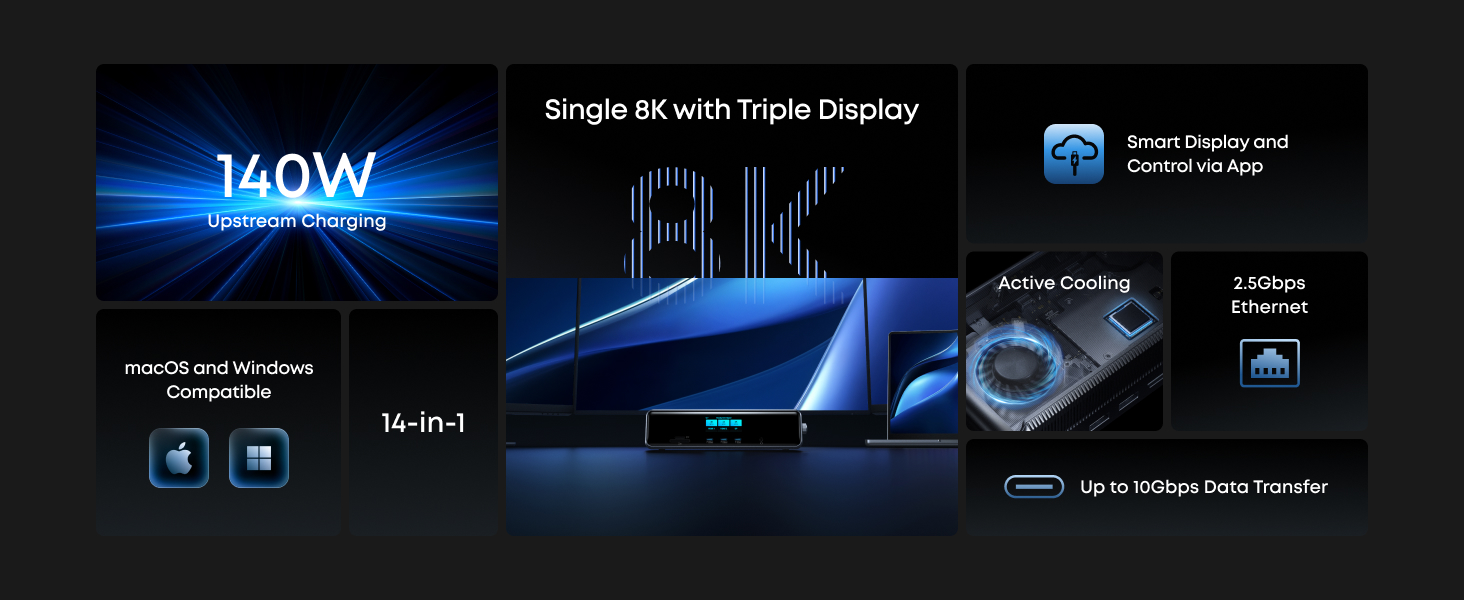
Image: Overview of the 14 powerful connections.
4.2 Display Setup
The docking station supports versatile display configurations:
- Triple Display: Power up to three external monitors simultaneously, with one supporting 8K resolution. This feature is compatible with macOS 13.5 or later and Windows 10/11.
- Optimal Performance: Use the included cable and set all displays to 60Hz for optimal performance.

Image: Triple display setup with one 8K output.

Image: Extended display configurations for macOS and Windows.

Image: Display resolution and refresh rates table.
4.3 Charging Capabilities
The docking station provides robust charging for your devices:
- USB-C Upstream Port: Delivers up to 140W Max to your laptop.
- Front USB-C Ports: Each front USB-C port provides 100W Max single-port output for high-speed charging.
- Total Output: Up to 160W total charging output.

Image: USB-C fast charging capabilities.

Image: Up to 160W total charging output.
4.4 Smart Display and Controls
The integrated smart display provides real-time information and easy control:
- Real-Time Updates: View charging power, display performance, fan cooling mode, and settings directly on the smart display.
- Power and Data Status: Monitor charging power for the host and front USB-C ports, along with real-time data transfer status.
- Display Information: See real-time connection status, resolution, and refresh rate signals for HDMI and DP ports.
- Button Controls: Use the control knob to navigate settings, switch, and confirm selections. Press for 2 seconds to turn off the screen, or 5 seconds to power off the device.
- Clock Function: The screen can also function as a convenient clock when idle, syncing with local time once the DisplayLink driver is launched.

Image: Get real-time updates with AnkerSense Smart Display.

Image: Monitor power and data status.

Image: Monitor display information.
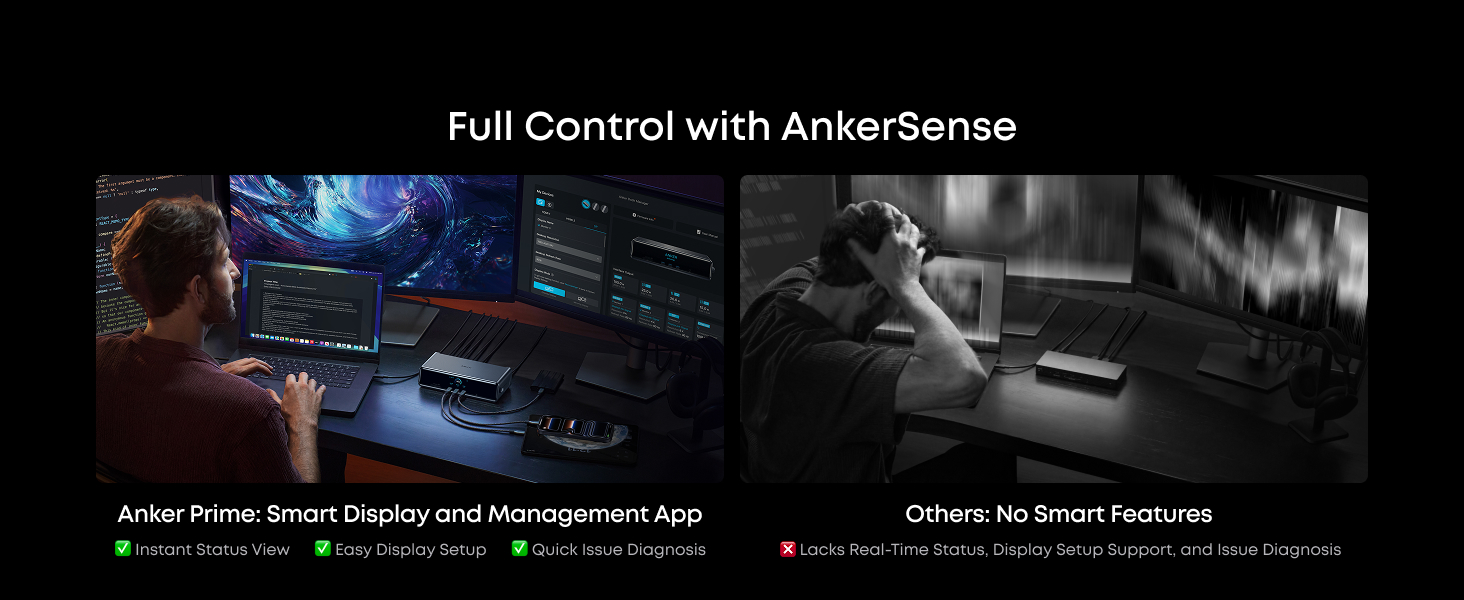
Image: Get to know your button controls.
4.5 Anker Dock Manager
The Anker Dock Manager application provides detailed control and management features:
- Device Data Monitoring: Keep track of connected devices and their performance.
- Display Casting Assistant: Easily manage display settings, including mirroring, extending, resolution, and refresh rates.
- Firmware Upgrades: Ensure your docking station is always up-to-date with the latest features and improvements.
- Fault Diagnosis and Resolution: Troubleshoot and resolve potential issues efficiently.

Image: Take control with Anker Dock Manager.
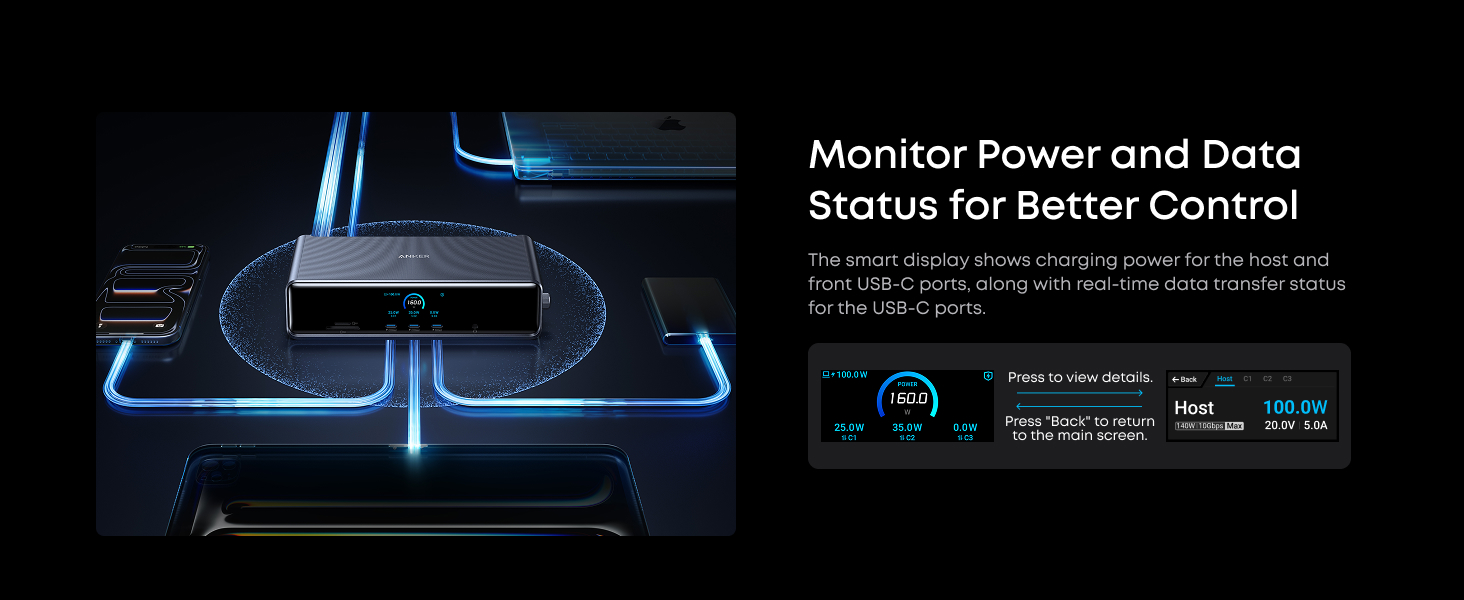
Image: Anker Dock Manager features.
4.6 Active Cooling
The docking station is equipped with ActiveShield 3.0 and a built-in cooling fan to maintain optimal operating temperatures and ensure consistent peak performance across all functions.

Image: Active cooling for top performance.
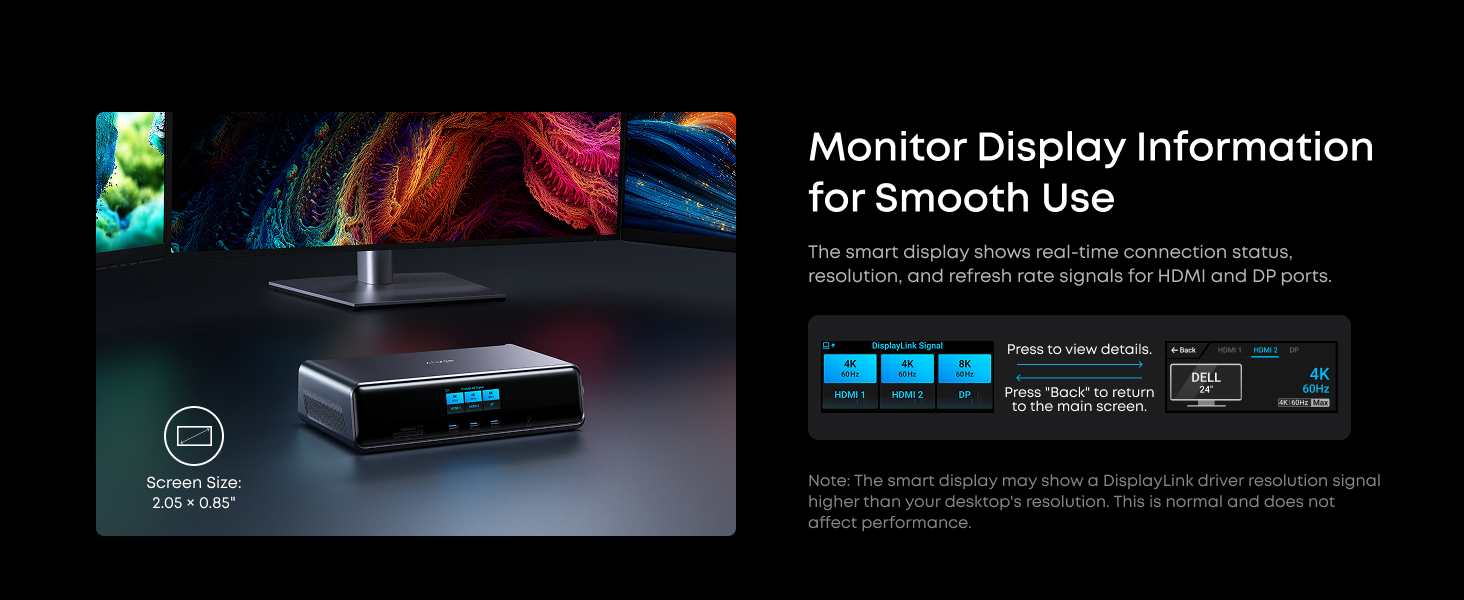
Image: Active cooling for top performance.
5. Compatibility
The Anker Prime Docking Station is universally compatible with USB-C devices, specifically designed for:
- macOS: Version 13.5 or later, including MacBook models with M1, M2, M3, and M4 chips, and MacBook with Intel Processors (All Series).
- Windows: Version 10/11 and later.
Not Compatible With: Linux, ChromeOS, Tablets, Phones.
Ensure your laptop supports USB-C data transfer and Power Delivery (PD 3.1) for full functionality.
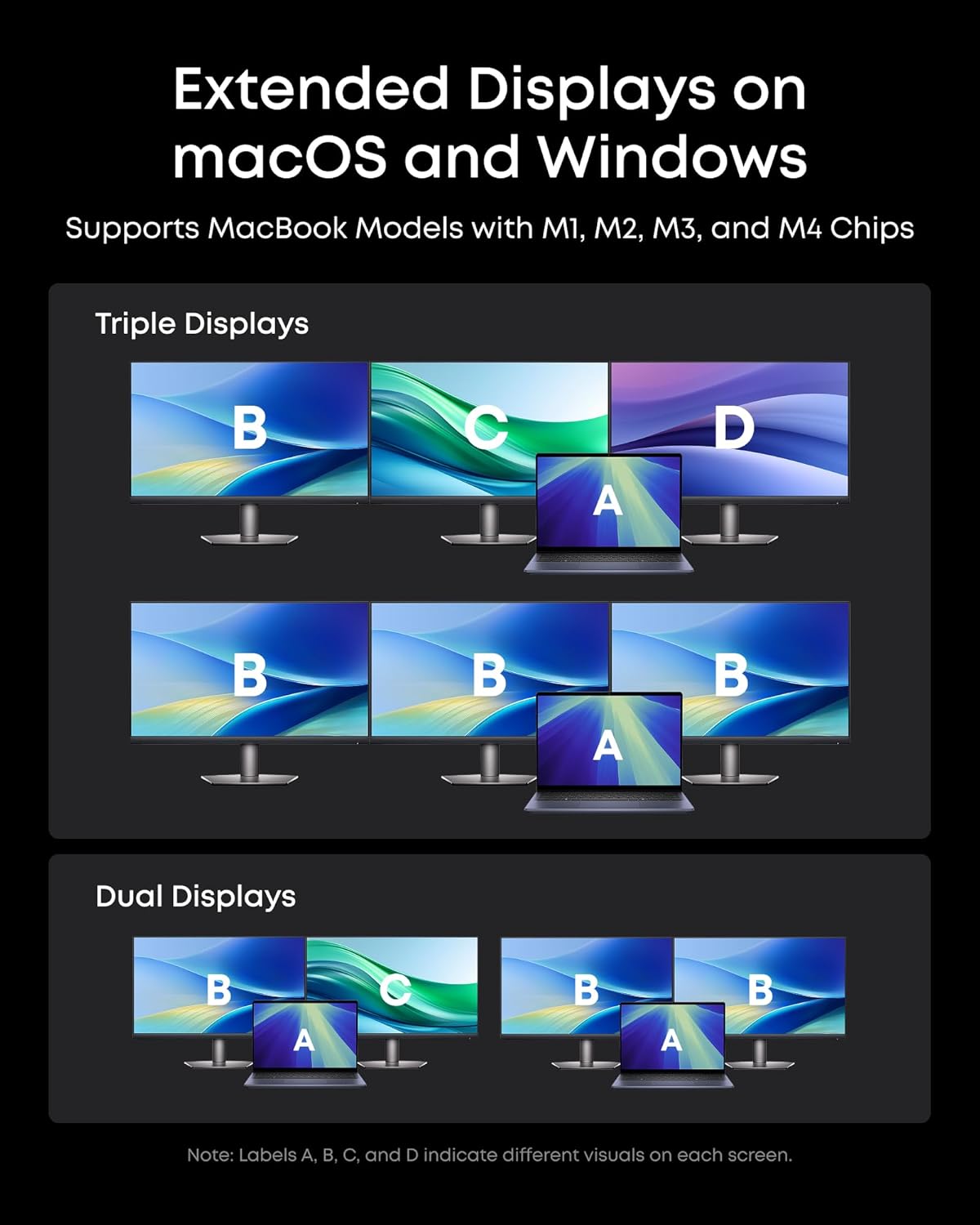
Image: Universal compatibility with USB-C.
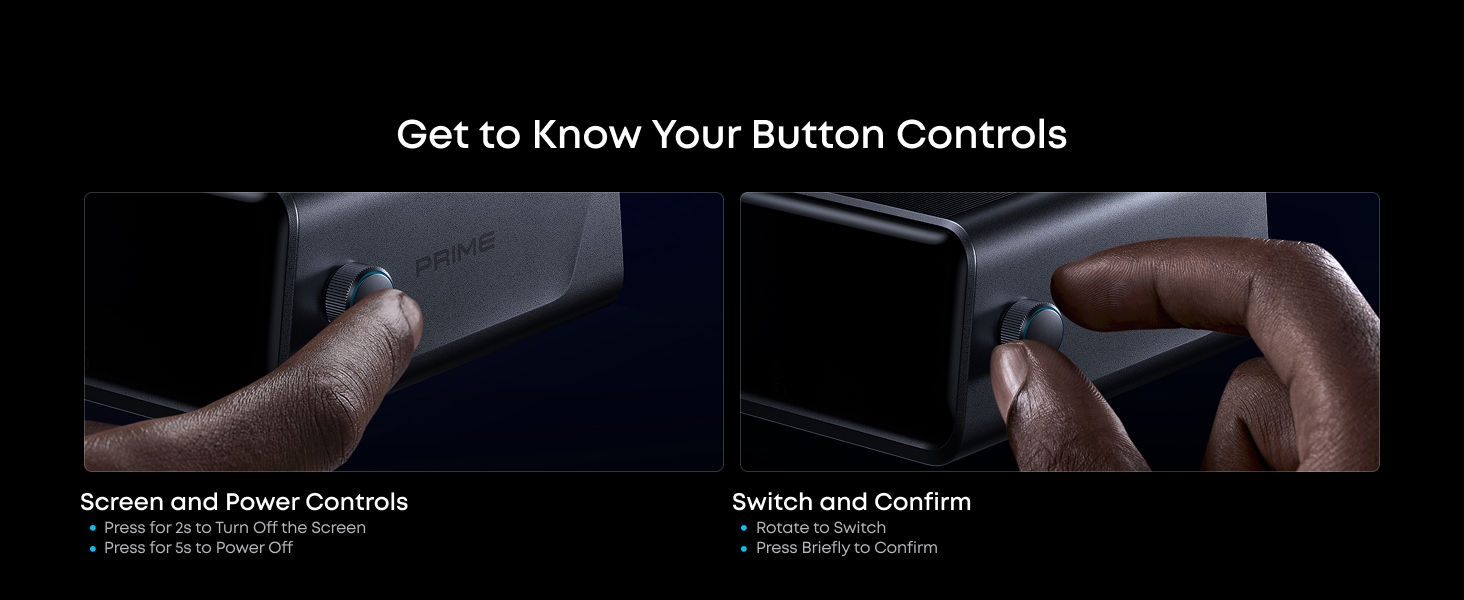
Image: Compatibility notes.
6. Maintenance
To ensure the longevity and optimal performance of your Anker Prime Docking Station, follow these maintenance guidelines:
- Cleaning: Use a soft, dry cloth to clean the exterior of the docking station. Avoid using harsh chemicals or abrasive materials.
- Ventilation: Ensure the ventilation grilles are not obstructed to allow for proper airflow and cooling.
- Storage: Store the device in a cool, dry place away from direct sunlight and extreme temperatures.
- Liquid Contact: Keep the docking station away from liquids to prevent damage.
7. Troubleshooting
If you encounter issues with your Anker Prime Docking Station, consider the following:
- No Display Output: Ensure the DisplayLink driver is correctly installed and launched. Verify all display cables are securely connected. Try toggling the monitor on/off or re-enabling the display in Anker Dock Manager.
- Charging Issues: Confirm your laptop supports PD 3.1 for 140W charging. Disconnect other devices from front USB-C ports if experiencing slow charging. Use the included USB-C 3.2 Gen 2 cable.
- Ethernet Connectivity: Check your network cable and router connection. Ensure drivers are up-to-date.
- Device Not Recognized: Try connecting the device to a different port. Restart your computer and the docking station.

Image: Troubleshooting tip for Mac displays with DisplayLink.
8. Specifications
| Feature | Detail |
|---|---|
| Product Dimensions | 7.67 x 3.62 x 1.89 inches (7.67"L x 3.62"W x 1.89"H) |
| Item Weight | 1.84 pounds (834.1 Grams) |
| Model Number | A83B3 |
| Total USB Ports | 7 |
| Total HDMI Ports | 2 |
| Number of Ports | 14 |
| Wattage | 160W (Total Output) |
| Hardware Interface | 3.5mm Audio, DisplayPort, Ethernet, HDMI, MicroSD, USB |
| Compatible Devices | MacBooks, USB C Windows laptops |
9. Warranty and Support
Anker provides a 24-month warranty for the Prime Docking Station (DL7400). For any inquiries or assistance, please refer to the user manual QR code provided in the package or contact Anker customer service.
Optional protection plans are available for extended coverage:
- 2-Year Protection Plan
- 3-Year Protection Plan
- Complete Protect (monthly plan covering eligible purchases)


