
Introduction
Thank you for choosing Raycon Bone Conduction Headphones. These open-ear Bluetooth sports earbuds are designed to provide a unique listening experience, allowing you to enjoy audio while remaining aware of your surroundings. With IP68 water resistance and a lightweight build, they are ideal for workouts, running, and daily use. This manual provides detailed instructions on how to set up, operate, maintain, and troubleshoot your new headphones.

Raycon Bone Conduction Headphones, Gray model.
What's in the Box
Your Raycon Bone Conduction Headphones package includes the following items:
- Raycon Bone Conduction Headphones
- Magnetic Ping Charging Cable
Product Overview and Features
The Raycon Bone Conduction Headphones are engineered for comfort and performance, featuring an open-ear design that transmits sound through your cheekbones, leaving your ears open to ambient sounds. This design enhances safety during outdoor activities.
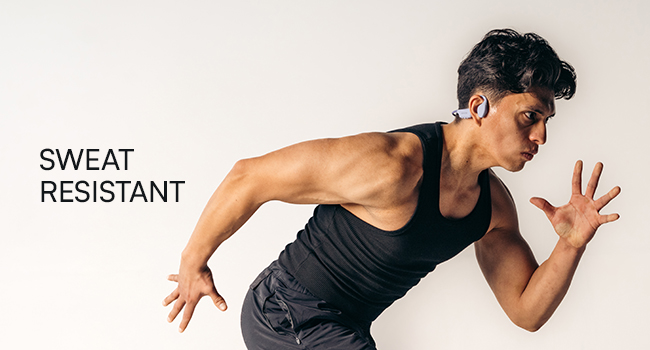
Open-Ear Design: Stay aware of your surroundings and remain connected for a safer, smarter way to listen. The design allows for a 35-degree rotation for optimal fit.

Lightweight Build: Designed for extended wear, these featherlight headphones combine a comfortable frame with an ergonomic design, allowing free movement without discomfort.
IP68 Water-Resistance: Your headphones are built to withstand rain, sweat, storms, and spills, ensuring your music continues without interruption, regardless of weather conditions.
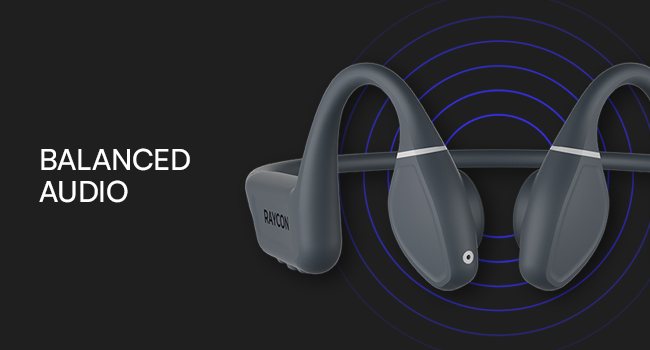
Balanced Tunes: Innovative bone conduction technology delivers clear audio without blocking your ears. The adjustable conduction buds allow you to slide them closer for louder sound or pull them back for more environmental awareness.
Setup
1. Charging the Headphones
Before first use, fully charge your Raycon Bone Conduction Headphones. Use the provided Magnetic Ping Charging Cable. Connect the magnetic end to the charging port on the headphones and the USB end to a compatible power source (e.g., computer USB port, wall adapter).
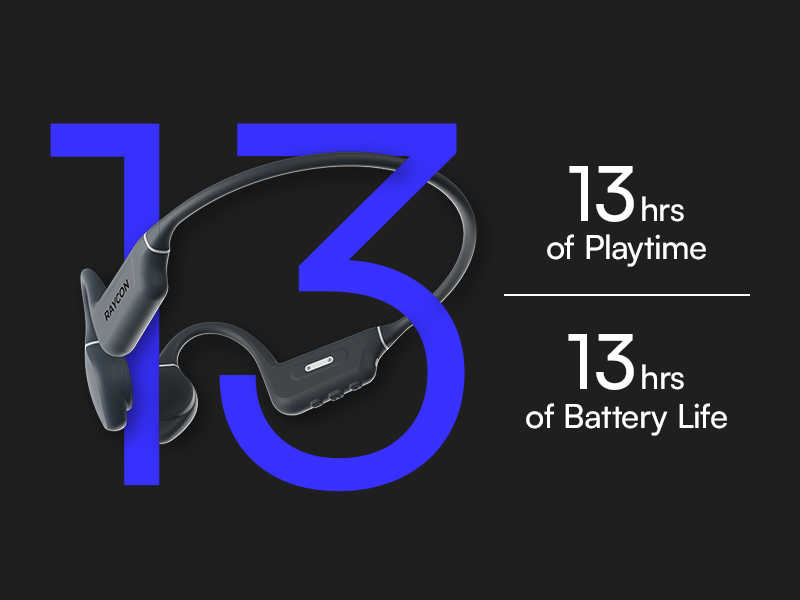
- A full charge provides approximately 13 hours of playtime.
- Ensure charging connections are properly aligned for efficient charging.
2. Bluetooth Pairing
To connect your headphones to a device:
- Ensure the headphones are powered off.
- Press and hold the power button until the LED indicator flashes, indicating pairing mode.
- On your Bluetooth-enabled device (smartphone, tablet, laptop, desktop), go to the Bluetooth settings.
- Select "Raycon Bone Conduction Headphones" from the list of available devices.
- Once connected, the LED indicator will change to a steady light, and you will hear an audible confirmation.
The headphones utilize Bluetooth 5.3 technology, providing a stable connection up to 33 feet (10 meters).
Operating Instructions
Your Raycon Bone Conduction Headphones feature intuitive button and touch controls for easy management of your audio and calls.
Basic Controls
- Power On/Off: Press and hold the power button.
- Play/Pause: Single press the multi-function button.
- Volume Up/Down: Use the dedicated volume buttons.
- Next Track: Double press the multi-function button.
- Previous Track: Triple press the multi-function button.
Call Management
- Answer/End Call: Single press the multi-function button during an incoming call or active call.
- Reject Call: Press and hold the multi-function button during an incoming call.
Adjustable Conduction Buds
The conduction buds can be adjusted to optimize sound and awareness. Slide the buds closer to your ear for a louder, more immersive sound experience, or pull them back slightly to increase your awareness of ambient sounds.
Maintenance
Proper care will extend the life and performance of your headphones.
- Cleaning: Wipe the headphones with a soft, damp cloth. Avoid using harsh chemicals or abrasive materials.
- Water Resistance: The headphones are IP68 water-resistant, meaning they can withstand submersion up to 1.5 meters for 30 minutes. However, it is recommended to dry them thoroughly after exposure to water, sweat, or spills. Do not charge if wet.
- Storage: Store the headphones in a cool, dry place away from extreme temperatures and direct sunlight.
Troubleshooting
If you encounter issues with your Raycon Bone Conduction Headphones, refer to the following common solutions:
| Problem | Possible Cause | Solution |
|---|---|---|
| Headphones not turning on | Low battery | Charge the headphones fully using the provided cable. |
| Cannot pair with device | Headphones not in pairing mode; device Bluetooth off; out of range | Ensure headphones are in pairing mode. Turn Bluetooth off and on on your device. Make sure headphones are within 10 meters (33 feet) of the device. |
| Sound cutting out or poor quality | Low battery; too far from device; interference | Check battery level. Move closer to your device. Avoid environments with strong Wi-Fi or other Bluetooth signals. |
| Charging issues | Cable not properly connected; dirty charging contacts | Ensure the Magnetic Ping Charging Cable is properly aligned and securely connected. Clean the charging contacts on both the cable and headphones. |
| No official product videos found. | No relevant seller-created videos available in product data. | Refer to the text descriptions and images for product information. |
Specifications
Detailed technical specifications for your Raycon Bone Conduction Headphones:
| Feature | Specification |
|---|---|
| Model Name | Bone Conduction Headphones |
| Item Model Number | RBB842-24E-PUR |
| Connectivity Technology | Wireless (Bluetooth) |
| Bluetooth Version | 5.3 |
| Bluetooth Range | 33 Feet (10 meters) |
| Audio Driver Type | Bone Conduction Driver |
| Audio Driver Size | 16 Millimeters |
| Frequency Response | 20 Hz - 20,000 Hz (20 KHz) |
| Sensitivity | 91 dB |
| Impedance | 8 Ohm |
| Battery Life | 13 Hours |
| Water Resistance Level | IP68 Water Resistant |
| Control Type | Button Control, Touch |
| Material | Acrylonitrile Butadiene Styrene (ABS), Silicone |
| Item Weight | 6.4 ounces |
| Color | Gray |
| Ear Placement | Open Ear |
| Manufacturer | Raycon Global |
| UPC | 811162032552 |
Warranty and Support
For warranty information and customer support, please visit the official Raycon website or contact Raycon customer service directly. Keep your proof of purchase for any warranty claims.
Raycon also offers optional protection plans for extended coverage. Details on these plans can typically be found where the product was purchased or on the Raycon website.


