
1. Introduction
Thank you for choosing the eLinkSmart Fingerprint Padlock. This smart padlock offers a secure and convenient way to protect your belongings using advanced fingerprint recognition and smartphone application control. This manual provides detailed instructions for setup, operation, and maintenance to ensure optimal performance and security.
2. Product Overview
2.1 Package Contents
- eLinkSmart Fingerprint Padlock
- USB Charging Cable
- User Manual
2.2 Product Features
- Fingerprint Unlock: Fast 1-second unlock with registered fingerprints. Supports up to 15 different fingerprints (2 administrator, 13 general users).
- App Control: Unlock via the eSmartLock mobile application.
- Remote Authorization: Grant temporary or scheduled access to family, friends, or colleagues via the app.
- Unlock Records: View unlock history, including time, method, and user, through the app.
- Durable Construction: Made from zinc alloy with a stainless steel shackle for superior cut resistance.
- Long Battery Life: 110 mAh rechargeable lithium battery provides up to 6 months standby time or over 2000 unlocks on a single charge.
- USB Rechargeable: Convenient charging via a standard USB cable.
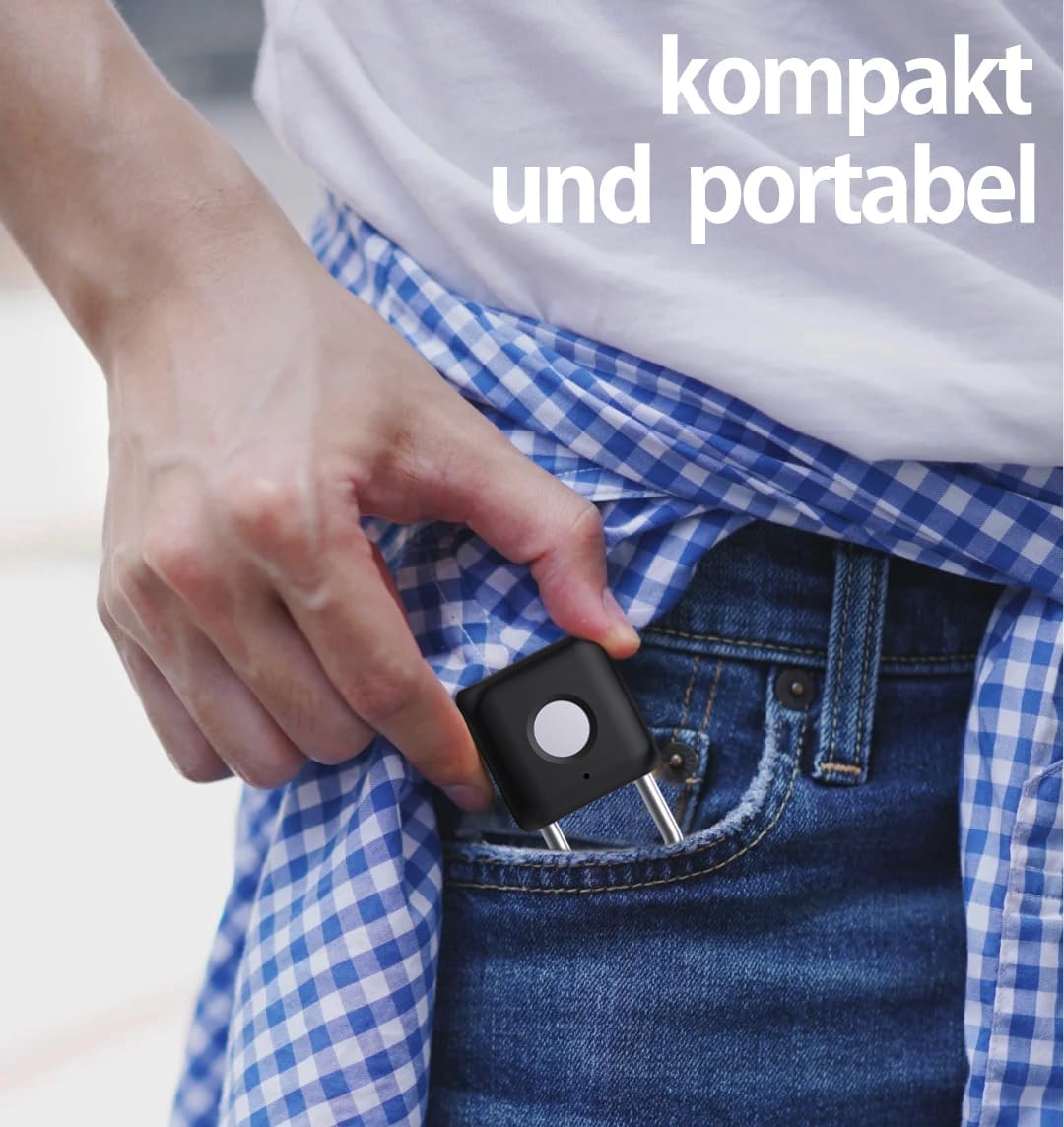
2.3 Product Diagram

3. Setup Instructions
3.1 Initial Charging
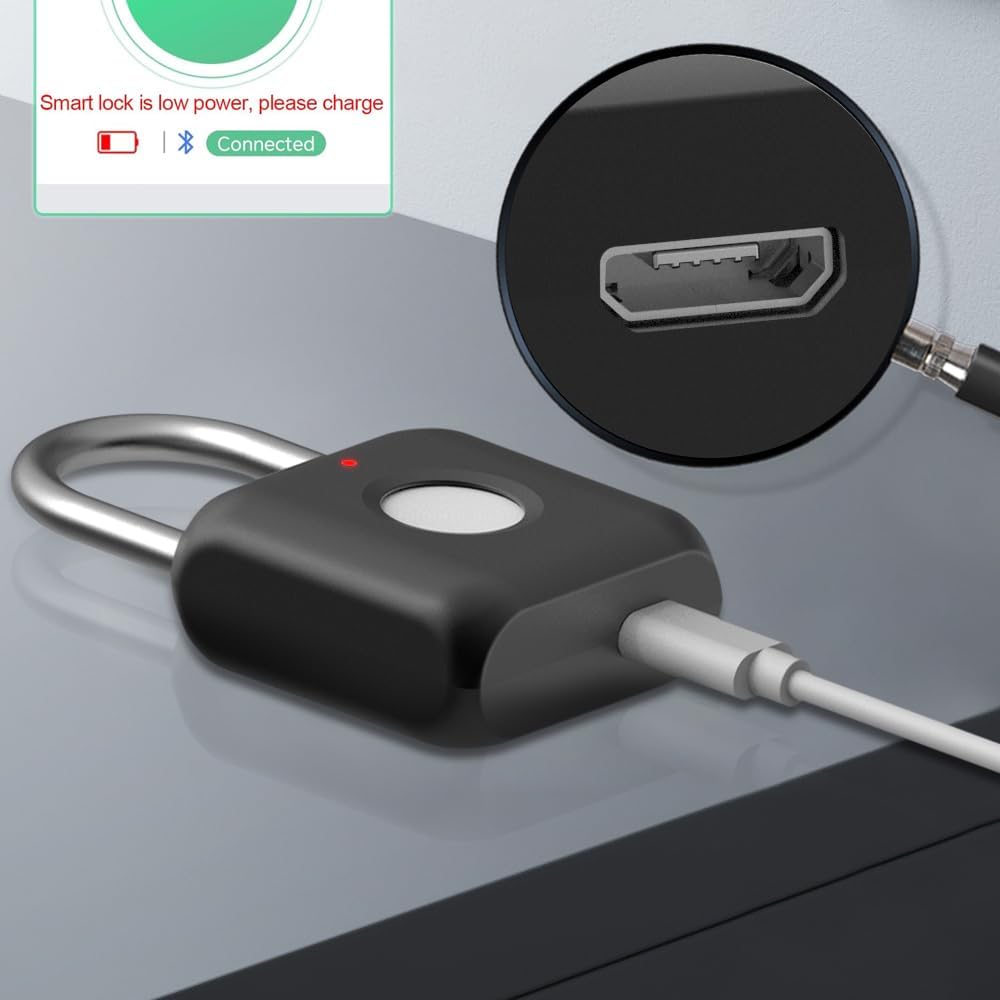
Before first use, fully charge the padlock. Connect the provided USB cable to the charging port on the padlock and a USB power source (e.g., computer, wall adapter). The LED indicator will show charging status.
3.2 App Installation
- Search for "eSmartLock" in your smartphone's app store (iOS App Store or Google Play Store).
- Download and install the application.
- Register for an account or log in if you already have one.
3.3 Pairing the Padlock with the App
- Ensure your phone's Bluetooth is enabled.
- Open the eSmartLock app and follow the on-screen instructions to add a new device.
- The app will search for nearby eLinkSmart devices. Select your padlock from the list.
- Confirm pairing as prompted by the app.
3.4 Administrator Fingerprint Registration
The first two fingerprints registered will automatically be designated as administrator fingerprints, which have special privileges like resetting the lock or managing other fingerprints.
- In the eSmartLock app, navigate to the 'Fingerprint Management' section.
- Select 'Add Fingerprint'.
- Place your finger on the padlock's fingerprint sensor. Lift and repeat several times as instructed by the app until the fingerprint is successfully registered.
- Repeat for a second administrator fingerprint if desired.
3.5 Adding General User Fingerprints
After registering administrator fingerprints, you can add up to 13 additional user fingerprints.
- As an administrator, access the 'Fingerprint Management' section in the app.
- Select 'Add Fingerprint' and follow the prompts for the new user to register their fingerprint.
4. Operating Instructions
4.1 Unlocking with Fingerprint
- Place a registered finger firmly on the fingerprint sensor.
- The LED indicator will flash green, and the padlock will unlock.
4.2 Unlocking with the eSmartLock App
- Ensure your smartphone's Bluetooth is on and within range of the padlock.
- Open the eSmartLock app and select your padlock.
- Tap the 'Unlock' button within the app. The padlock will unlock.

4.3 Remote Authorization
As an administrator, you can grant access to others:
- In the eSmartLock app, go to 'User Management' or 'Authorization'.
- Add a new user and specify their access period (e.g., one-time, recurring, or permanent).
- The authorized user can then unlock the padlock via their own eSmartLock app.
4.4 Viewing Unlock Records
The eSmartLock app allows administrators to review a detailed history of all unlock events.
- Open the eSmartLock app and select your padlock.
- Navigate to the 'History Record' or 'Activity Log' section.
- You can view the unlock time, method (fingerprint/app), and the user who performed the unlock.
5. Maintenance
5.1 Battery Management
- The padlock will indicate low battery status (e.g., red LED flash) when power is critically low.
- Recharge the padlock promptly using the provided USB cable.
- Avoid completely draining the battery for extended periods to prolong its lifespan.
5.2 Cleaning
- Wipe the padlock body and fingerprint sensor with a soft, dry cloth.
- Do not use abrasive cleaners or solvents, as they may damage the finish or electronic components.
5.3 Storage
- Store the padlock in a cool, dry place away from direct sunlight and extreme temperatures.
- If storing for an extended period, ensure the battery is partially charged (around 50%) and recharge every few months to prevent deep discharge.
6. Troubleshooting
- Padlock not unlocking with fingerprint:
- Ensure your finger is clean and dry.
- Try different angles or positions of your registered finger.
- If the issue persists, re-register your fingerprint through the app. - App connectivity issues:
- Ensure Bluetooth is enabled on your smartphone.
- Make sure the padlock is within Bluetooth range.
- Restart the eSmartLock app or your smartphone.
- Check app permissions to ensure Bluetooth access is granted. - Padlock not responding (no LED, no unlock):
- The battery might be completely drained. Connect the padlock to a USB power source for charging.
- If charging does not resolve the issue, contact customer support. - Cannot register new fingerprints:
- Ensure you are using an administrator fingerprint to access the 'Fingerprint Management' section in the app.
- Check if the maximum number of fingerprints (15) has been reached. Delete old fingerprints if necessary. - Padlock needs to be reset:
- Only an administrator can reset the padlock via the eSmartLock app. This will delete all registered fingerprints and user data.
7. Specifications
| Model Name | EU-P8bf-Black |
| Brand | eLinkSmart |
| Dimensions (L x W x H) | 3.2 x 5.8 x 1.4 cm (1.26 x 2.28 x 0.55 inches) |
| Weight | 80 grams (0.18 lbs) |
| Material | Zinc Alloy (body), Stainless Steel (shackle) |
| Battery | 110 mAh Rechargeable Lithium Battery |
| Standby Time | Up to 6 months |
| Unlocks per Charge | Over 2000 times |
| Fingerprint Capacity | Up to 15 (2 Admin, 13 General Users) |
| Control Method | Fingerprint, eSmartLock Mobile Application |
| Special Features | eSmartLock App for iOS/Android, Fingerprint Recognition |
8. Warranty and Support
8.1 Warranty Information
eLinkSmart products typically come with a standard manufacturer's warranty. Please refer to the product packaging or the official eLinkSmart website for specific warranty terms and conditions. Keep your purchase receipt as proof of purchase for warranty claims.
8.2 Customer Support
If you encounter any issues or have questions regarding your eLinkSmart Fingerprint Padlock, please contact the seller or eLinkSmart customer support. You can usually find contact information on the product packaging, the seller's page, or the official eLinkSmart website.