
1. Introduction
The DigiLand R10 PRO is a 10.1-inch Android 14 tablet designed for versatile use, from entertainment to productivity. It features an MTK Helio G80 Octa-Core processor, 12GB RAM, and 128GB internal storage, expandable via TF card. This manual provides essential information to help you get started and make the most of your tablet.
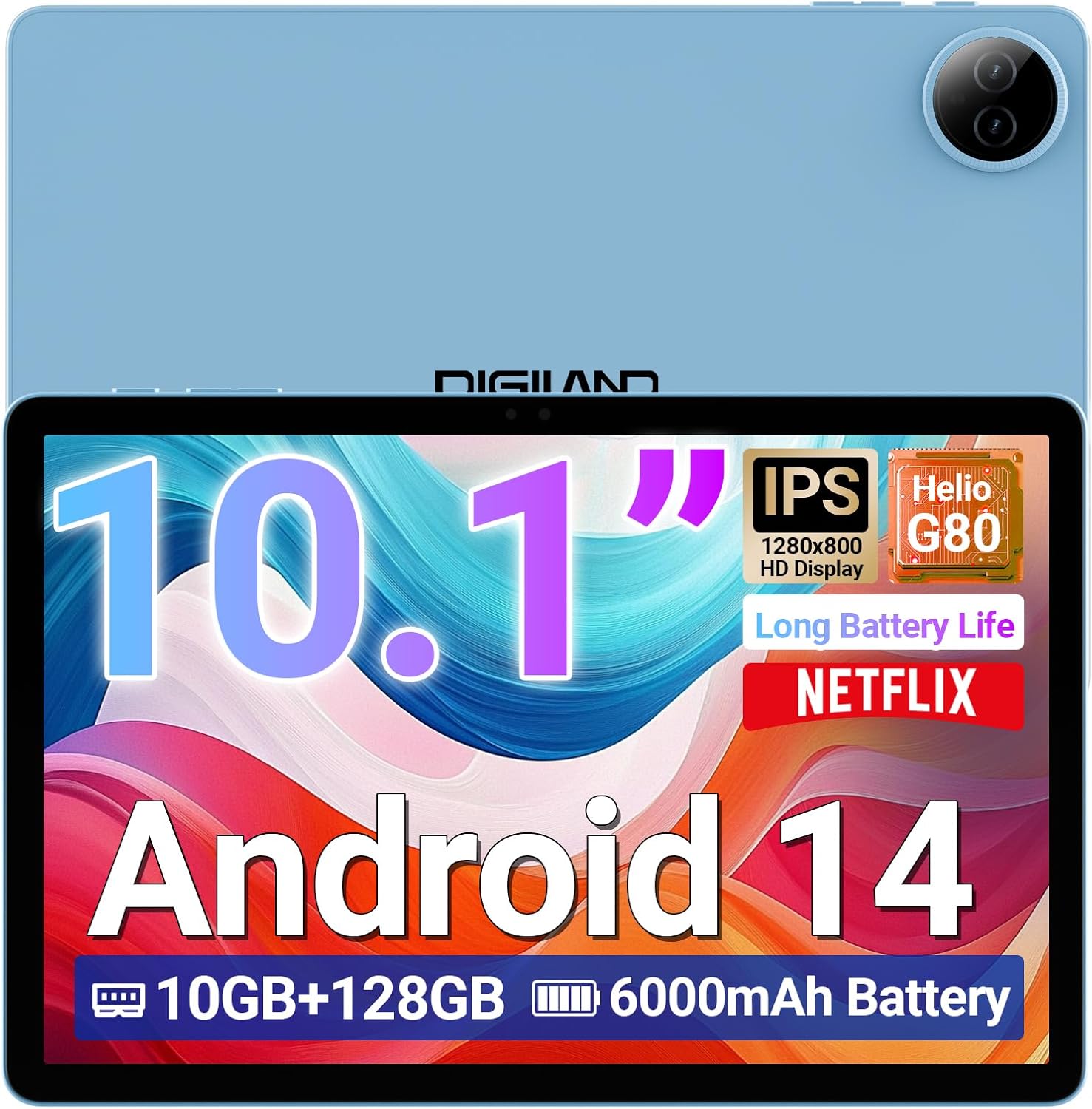
Image 1.1: DigiLand R10 PRO Tablet. This image displays the tablet's front screen, highlighting its 10.1-inch display, Android 14 operating system, 10GB RAM, 128GB ROM, and 6000mAh battery capacity.
2. What's in the Box
Upon unpacking your DigiLand R10 PRO tablet, please verify that all the following items are included:
- R10 PRO Tablet
- R10 PRO Stand Case
- Charger
- Charging Cable (USB Type-C)
- User Manual (this document)

Image 2.1: Box Contents. This image illustrates the tablet, charger, charging cable, stand case, and user manual included in the product packaging.
3. Product Overview
Familiarize yourself with the physical components of your DigiLand R10 PRO tablet.
3.1 Front View
- 10.1-inch HD IPS Touchscreen: Main display for interaction.
- Front Camera (8MP): Located above the screen, used for video calls and selfies.
3.2 Rear View
- Rear Camera (13MP): Located on the back, used for capturing photos and videos.
3.3 Side Views (General Layout)
- Power Button: Used to turn the tablet on/off or put it to sleep/wake it up.
- Volume Buttons: Adjust audio volume.
- USB Type-C Port: For charging and data transfer.
- Speaker Grilles: For audio output.
- MicroSD Card Slot: For expanding storage (supports up to 256GB).

Image 3.1: Tablet Features Overview. This infographic highlights key specifications including screen size, resolution, RAM, ROM, processor, battery, and camera details.
4. Setup
4.1 Initial Charging
Before first use, fully charge your tablet. Connect the provided USB Type-C cable to the tablet's charging port and the other end to the power adapter. Plug the adapter into a wall outlet. The charging indicator will show the charging status.
4.2 Power On/Off
- To Power On: Press and hold the Power button until the DigiLand logo appears on the screen.
- To Power Off: Press and hold the Power button until a power menu appears. Select "Power off" and confirm.
- To Sleep/Wake: Briefly press the Power button.
4.3 Initial Setup Wizard
The first time you power on the tablet, you will be guided through an initial setup process. Follow the on-screen prompts to:
- Select your language.
- Connect to a Wi-Fi network.
- Set up your Google account (optional, but recommended for app downloads and services).
- Set up screen lock (PIN, pattern, or password).
- Review and accept terms and conditions.
4.4 Wi-Fi Connection
To connect to a Wi-Fi network:
- Go to Settings > Network & internet > Internet.
- Toggle Wi-Fi On.
- Select your desired network from the list.
- Enter the password if prompted and tap Connect.
5. Operating the Tablet
5.1 Basic Navigation
- Tap: Select an item or open an app.
- Touch & Hold: Access contextual menus or move items.
- Swipe: Scroll through screens or lists.
- Pinch: Zoom in or out on images and web pages.
5.2 Home Screen
The home screen provides quick access to your favorite apps, widgets, and notifications. You can customize it by adding or removing app icons and widgets.
5.3 Notifications and Quick Settings
Swipe down from the top of the screen to access notifications and quick settings toggles (Wi-Fi, Bluetooth, brightness, etc.).
5.4 Camera Usage
The tablet features an 8MP front camera and a 13MP rear camera. To use the camera:
- Open the Camera app.
- Tap the shutter button to take a photo.
- Switch between front and rear cameras using the camera toggle icon.
- Select video mode to record videos.

Image 5.1: Camera Functionality. This image highlights the 8MP front and 13MP rear cameras, showing examples of photos taken with the tablet.
5.5 Storage Management
Your tablet comes with 128GB of internal storage. You can expand this by inserting a MicroSD card (up to 256GB) into the dedicated slot. To manage storage, go to Settings > Storage.

Image 5.2: Memory and Storage. This image details the 12GB RAM, 128GB ROM, and the option for 256GB expansion via MicroSD card.
5.6 Bluetooth Connectivity
To connect Bluetooth devices:
- Go to Settings > Connected devices > Connection preferences > Bluetooth.
- Toggle Bluetooth On.
- Select Pair new device and choose your device from the list.
- Follow any on-screen pairing instructions.
6. Maintenance
6.1 Battery Care
- Avoid extreme temperatures, which can degrade battery life.
- Do not leave the tablet fully discharged for extended periods.
- Use the provided charger and cable for optimal charging.

Image 6.1: Battery Performance. This image illustrates the 6000mAh battery's estimated usage times for video playback, e-books, music, and gaming.
6.2 Cleaning
Use a soft, lint-free cloth to clean the screen and body of the tablet. Avoid abrasive materials or harsh chemicals.
6.3 Software Updates
Regularly check for and install software updates to ensure your tablet has the latest features and security patches. Go to Settings > System > System update.
6.4 Data Backup
Periodically back up important data to a cloud service or external storage device to prevent data loss.
7. Troubleshooting
7.1 Tablet Not Powering On
- Ensure the battery is charged. Connect the charger and wait a few minutes before attempting to power on.
- Press and hold the Power button for 10-15 seconds to perform a forced restart.
7.2 Wi-Fi Connection Issues
- Restart your Wi-Fi router and the tablet.
- Ensure you are within range of the Wi-Fi signal.
- Verify the Wi-Fi password is correct.
- Forget the network in Wi-Fi settings and reconnect.
7.3 Slow Performance
- Close unused applications running in the background.
- Clear cache data for apps.
- Ensure sufficient storage space is available.
- Restart the tablet.
7.4 Factory Reset
If persistent issues occur, a factory reset may resolve them. Warning: This will erase all data on your tablet. Back up important data before proceeding.
- Go to Settings > System > Reset options.
- Select Erase all data (factory reset).
- Confirm your decision and enter your PIN/pattern/password if prompted.
8. Specifications
Detailed technical specifications for the DigiLand R10 PRO Tablet:
| Feature | Specification |
|---|---|
| Model Number | R10 PRO |
| Operating System | Android 14 |
| Processor | MediaTek Helio G80 Octa-Core (2.0GHz A75 + 1.8GHz A55) |
| RAM | 12 GB |
| Internal Storage | 128 GB |
| Expandable Storage | Up to 256GB via MicroSD card |
| Screen Size | 10.1 Inches |
| Screen Resolution | 1280x800 HD IPS |
| Rear Camera | 13 MP |
| Front Camera | 8 MP |
| Battery Capacity | 6000mAh (Average 12 hours usage) |
| Wireless Connectivity | Wi-Fi 5 (802.11a/b/g/n/ac), Bluetooth 5.0 |
| Ports | USB Type-C |
| Dimensions (LxWxH) | 9.54 x 6.35 x 0.31 inches |
| Item Weight | 1.07 pounds |

Image 8.1: Detailed Specifications. This image provides a visual summary of the tablet's core features, including Android 14, RAM, ROM, screen size, resolution, cameras, processor, and battery.
9. Warranty and Support
DigiLand is committed to providing quality products and customer satisfaction. For any issues or inquiries regarding your R10 PRO tablet, please contact DigiLand customer support.
9.1 Customer Support
If you encounter any problems or have questions not covered in this manual, please reach out to our support team. Contact information can typically be found on the DigiLand official website or through your purchase platform.

Image 9.1: After-Sales Support. This image represents DigiLand's commitment to customer service and support.

