
UGREEN 65381
UGREEN 4K Webcam User Manual
Model: 65381 | Brand: UGREEN
1. Introduction
Thank you for choosing the UGREEN 4K Webcam. This manual provides detailed instructions for setting up, operating, and maintaining your webcam to ensure optimal performance. The UGREEN 4K Webcam is designed to deliver crystal-clear video and audio for streaming, conferencing, and online communication, featuring 4K Ultra HD resolution, PDAF autofocus, dual noise-cancelling microphones, and broad compatibility.

Image: The UGREEN 4K Webcam, showcasing its sleek design, integrated privacy cover, and included USB-A to USB-C adapter.
2. Package Contents
Please verify that all items are present in your package:
- UGREEN 4K Webcam
- Privacy Cover (pre-installed or separate)
- USB-A to USB-C Adapter
- User Manual (this document)
3. Product Features
3.1 4K 30FPS Ultra HD Video
Equipped with an 8MP CMOS sensor, the UGREEN 4K Webcam delivers stunning 4K video at 30 frames per second, ensuring exceptional clarity for all your video needs. It also features enhanced low-light sensitivity for clear visuals in various lighting conditions. If 4K 30FPS is not supported by your device's hardware or software, the webcam will automatically switch to 1080P 60FPS.
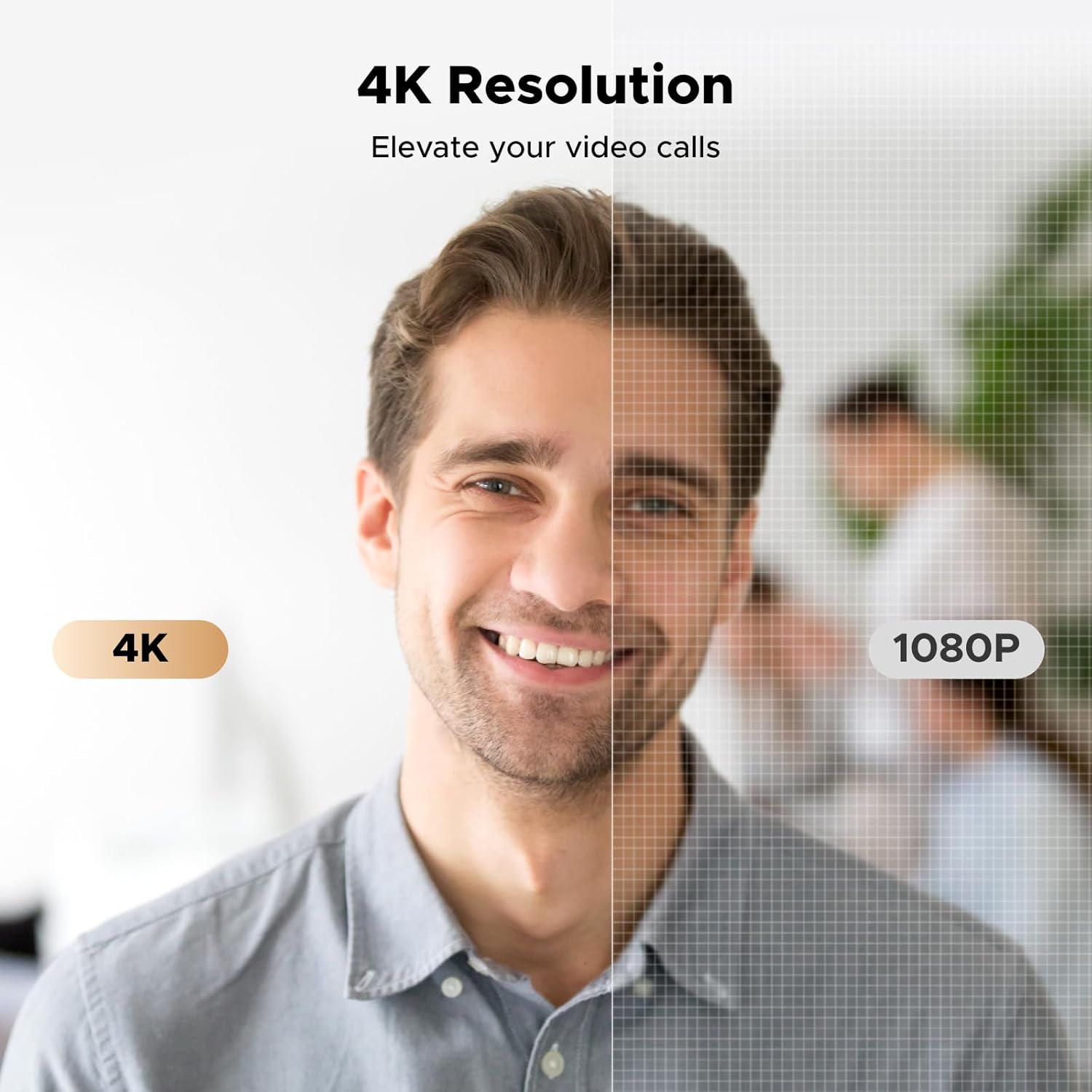
Image: Visual comparison demonstrating the superior detail and clarity of 4K resolution compared to 1080P.
3.2 PDAF Autofocus & Automatic Light Correction
The webcam features Phase Detection Autofocus (PDAF) to keep subjects sharp and blur-free within a range of 0.33 to 16.4 feet. Additionally, Auto Exposure technology intelligently adjusts color temperature and corrects for low light, providing studio-quality imaging even in dim environments.
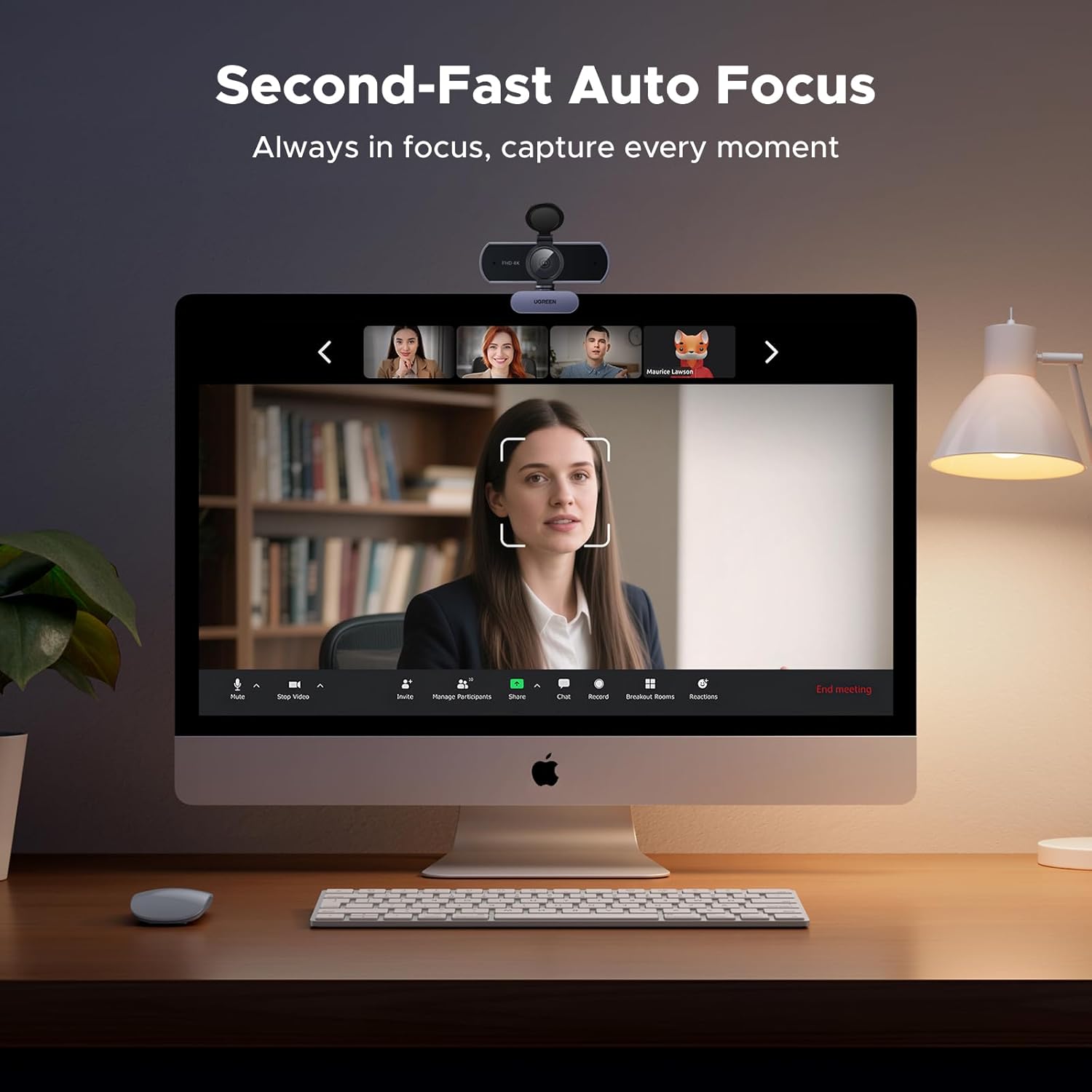
Image: A monitor displaying a video call with the webcam's autofocus actively tracking a person's face, ensuring constant clarity.

Image: A side-by-side comparison showing how UGREEN's automatic light correction improves image quality in challenging lighting conditions versus a standard webcam.
3.3 Built-in Dual Noise-Cancelling Microphones
Integrated dual microphones capture crystal-clear audio from up to 16.4 feet away, ensuring your voice is heard distinctly during video calls. This feature enhances communication effectiveness, making it ideal for conference rooms and group streaming.

Image: A visual representation of the webcam's dual noise-cancelling microphones effectively capturing sound and reducing background noise during a video conference.
3.4 Privacy Cover
The built-in privacy cover allows you to physically block the lens when the webcam is not in use, providing immediate privacy and peace of mind.
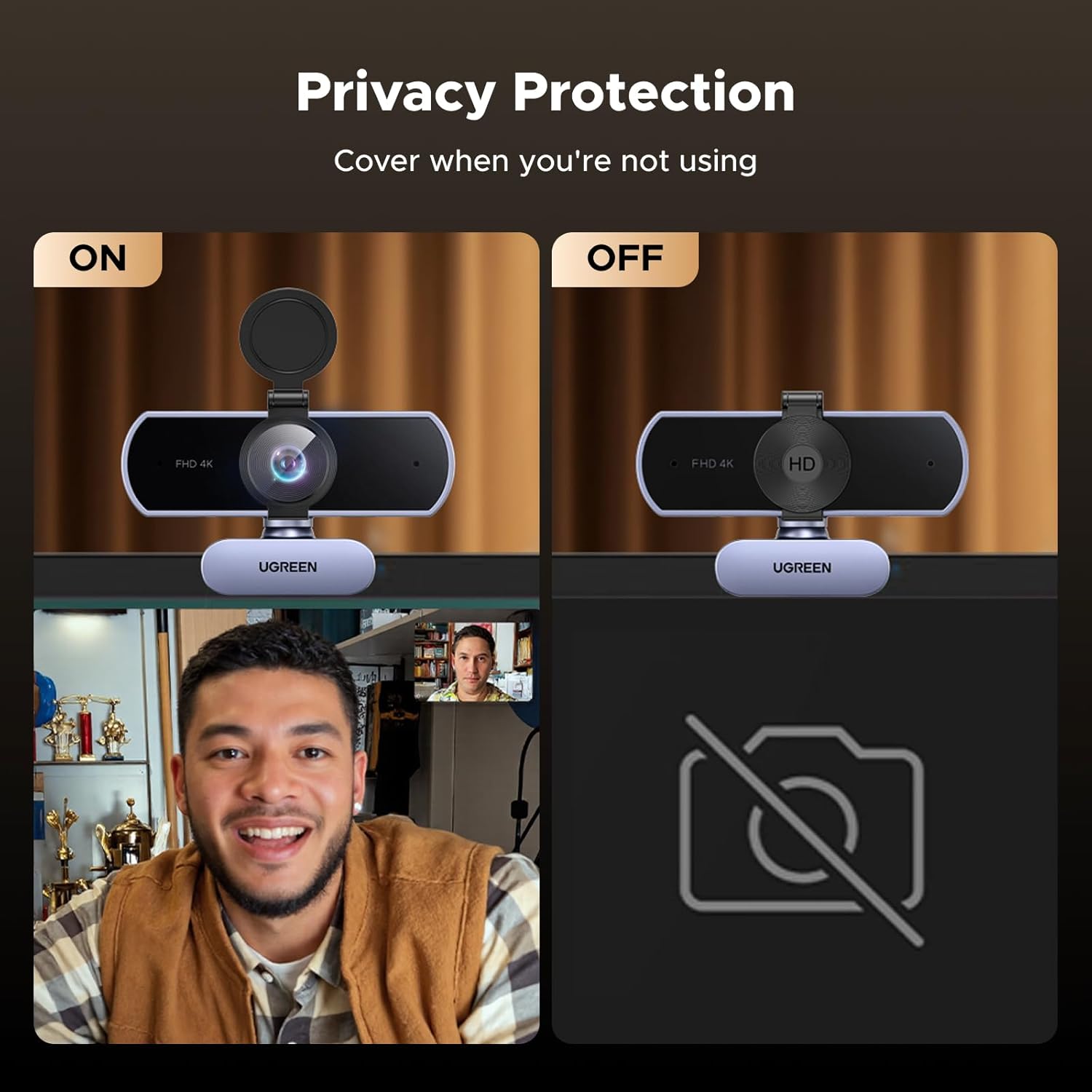
Image: A split image showing the webcam with its privacy cover in the open (ON) and closed (OFF) positions, demonstrating its privacy function.
3.5 Universal Compatibility & Plug and Play
The webcam offers driver-free installation and plug-and-play functionality, making it easy to use with various devices. It is compatible with Windows 7/8/10 and above, Mac OS 10.6, Linux, Android, and other systems. It also includes a USB-A to USB-C adapter for broader compatibility with both USB-A and USB-C devices.
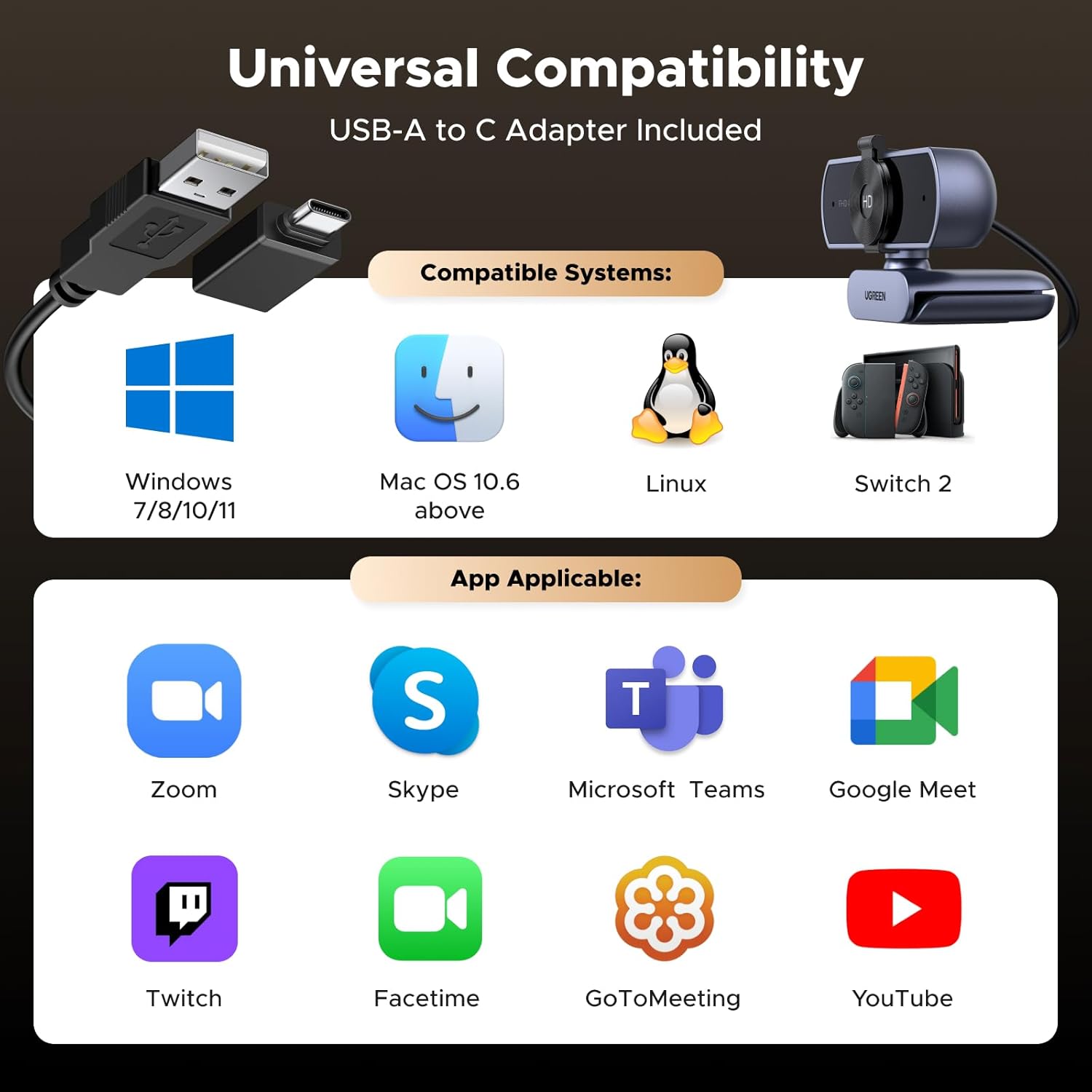
Image: A graphic illustrating the webcam's universal compatibility with Windows, Mac, Linux, and various communication platforms like Zoom, Skype, and Microsoft Teams.
4. Setup
4.1 Placement
The UGREEN 4K Webcam can be easily placed on various surfaces:
- On a Monitor/Laptop Screen: Unfold the clip base and rest it on top of your monitor or laptop screen. Adjust the angle to ensure the webcam is stable and facing you.
- On a Desk: Fold the clip base to form a stand and place the webcam on a flat surface.
- On a Tripod: The webcam features a 1/4-inch tripod thread on its base, allowing it to be mounted on a standard tripod (not included) for more flexible positioning.

Image: Demonstrates the webcam's versatile installation options, including mounting on a laptop, a desktop monitor, and a tripod.
4.2 Connection
Connect the webcam to your computer or device:
- Locate an available USB-A port on your computer.
- Plug the webcam's USB-A connector directly into the USB-A port.
- If your device only has USB-C ports, use the included USB-A to USB-C adapter. Connect the webcam's USB-A connector to the adapter, then plug the adapter into your device's USB-C port.
- The webcam is plug-and-play and does not require additional drivers for most operating systems. Your system should automatically detect and install the necessary components.

Image: A close-up showing the USB-A connector and the included USB-A to USB-C adapter, highlighting the webcam's broad compatibility.
5. Operating Instructions
5.1 Using the Webcam
Once connected, the webcam is ready for use with your preferred video conferencing or streaming application (e.g., Zoom, Skype, Microsoft Teams, YouTube, Twitch, Facetime, Google Meet, GoToMeeting).
- Open your desired application.
- In the application's settings (usually under "Video" or "Audio" settings), select "UGREEN 4K Webcam" as your camera and microphone input.
- Ensure the privacy cover is open before starting your video session.
Video: An official UGREEN video demonstrating the features and usage of the 4K Webcam, including its privacy cover, adjustable angles, 70-degree field of view, 4K resolution, automatic light correction, and omnidirectional dual microphones.
5.2 Adjusting the Angle
The webcam offers flexible adjustments for optimal viewing angles:
- The webcam head can rotate 360 degrees horizontally.
- The webcam can be tilted vertically by approximately ±15 degrees.
- The base allows for 180-degree rotation to accommodate various mounting positions.

Image: A diagram illustrating the webcam's adjustable features, including 180-degree base rotation, ±15-degree vertical tilt, and 360-degree horizontal rotation for finding the perfect angle.
6. Maintenance
To ensure the longevity and optimal performance of your UGREEN 4K Webcam, follow these maintenance guidelines:
- Cleaning the Lens: Gently wipe the lens with a soft, lint-free cloth. For stubborn smudges, use a lens cleaning solution specifically designed for optical surfaces. Avoid abrasive materials or harsh chemicals.
- Cleaning the Body: Use a dry, soft cloth to clean the webcam's body. Do not use liquid cleaners directly on the device.
- Storage: When not in use, especially for extended periods, close the privacy cover to protect the lens from dust and scratches. Store the webcam in a cool, dry place.
- Avoid Extreme Conditions: Do not expose the webcam to extreme temperatures, high humidity, or direct sunlight.
7. Troubleshooting
| Problem | Possible Cause | Solution |
|---|---|---|
| Webcam not detected. | Loose connection, incorrect USB port, driver issue. | Ensure the USB cable is securely plugged into a working USB port. Try a different USB port or a different computer. Restart your computer. Check device manager for driver status. |
| No video or black screen. | Privacy cover closed, incorrect camera selection in software, low light. | Open the privacy cover. Ensure the UGREEN 4K Webcam is selected as the video input in your application settings. Ensure adequate lighting in your environment. |
| No audio or poor audio quality. | Incorrect microphone selection, microphone muted, background noise. | Ensure the UGREEN 4K Webcam is selected as the microphone input in your application settings. Check if the microphone is muted in your system or application. Reduce background noise. |
| Video is blurry or out of focus. | Subject too close/far, dirty lens. | Ensure the subject is within the autofocus range (0.33-16.4 ft). Clean the webcam lens with a soft cloth. |
8. Specifications
| Feature | Detail |
|---|---|
| Brand | UGREEN |
| Model Number | 65381 |
| Video Capture Resolution | 4K (3840x2160) at 30FPS, 1080P at 60FPS (auto-switch) |
| Photo Sensor Technology | 8MP CMOS Sensor |
| Autofocus | Phase Detection Autofocus (PDAF), 0.33-16.4 ft range |
| Microphone | Built-in Dual Noise-Cancelling Microphones (up to 16.4 ft pickup) |
| Field of View (FOV) | 70° |
| Connectivity Technology | USB-A, USB-C (with included adapter) |
| Compatibility | Windows 7/8/10+, Mac OS 10.6+, Linux, Android |
| Special Features | Auto Focus, Driver-free, Lightweight, Microphone Input, Privacy Cover |
| Item Weight | 6.3 ounces |
| Color | Grey |
9. Warranty and Support
UGREEN products come with a standard manufacturer's warranty. For specific warranty terms and conditions, please refer to the warranty card included with your product or visit the official UGREEN website. If you encounter any issues or have questions regarding your UGREEN 4K Webcam, please contact UGREEN customer support through their official channels for assistance.
You can find more information and support at the UGREEN Store on Amazon.
Related documents65381


Ask a question about this manual
Ask about setup, troubleshooting, compatibility, parts, safety, or missing instructions. Manuals+ will review the question and use this page’s manual context to help answer it.