
1. Introduction
This manual provides instructions for the setup, operation, and maintenance of your Blackview R50Pro Smartwatch. Please read this manual thoroughly before using the device to ensure proper function and safety.
2. What's in the Box
- 1 x Blackview R50Pro Smartwatch
- 1 x Silicone Strap
- 1 x Nylon Braided Strap
- 1 x Charging Cable
- 1 x Instruction Manual

Image: Contents of the Blackview R50Pro Smartwatch packaging.
3. Setup and Pairing
3.1 Initial Charge
Before first use, fully charge the smartwatch using the provided charging cable. Connect the magnetic end of the cable to the charging points on the back of the watch and the USB end to a compatible power source (e.g., computer USB port, USB wall adapter).
3.2 App Download and Pairing
The Blackview R50Pro Smartwatch uses the "Da Fit" application for full functionality. Follow these steps to download and pair your device:
- Download the "Da Fit" app from your smartphone's app store (iOS App Store or Google Play Store).
- Ensure Bluetooth is enabled on your smartphone.
- Open the "Da Fit" app and follow the on-screen instructions to add a new device.
- The app may prompt you to scan a QR code displayed on the watch screen for quick pairing.
- Grant necessary permissions (e.g., notifications, location) to the app for optimal performance.

Image: Connecting the Blackview R50Pro Smartwatch to the Da Fit app.
Video: An overview of the Blackview R50Pro Smartwatch features and unboxing, demonstrating its design and basic functionalities.
4. Operating the Smartwatch
4.1 Basic Navigation
The Blackview R50Pro features a 1.85-inch HD touchscreen for navigation. Swipe left, right, up, or down to access different menus and functions. The physical button on the side typically serves as a power button or a return-to-home function.
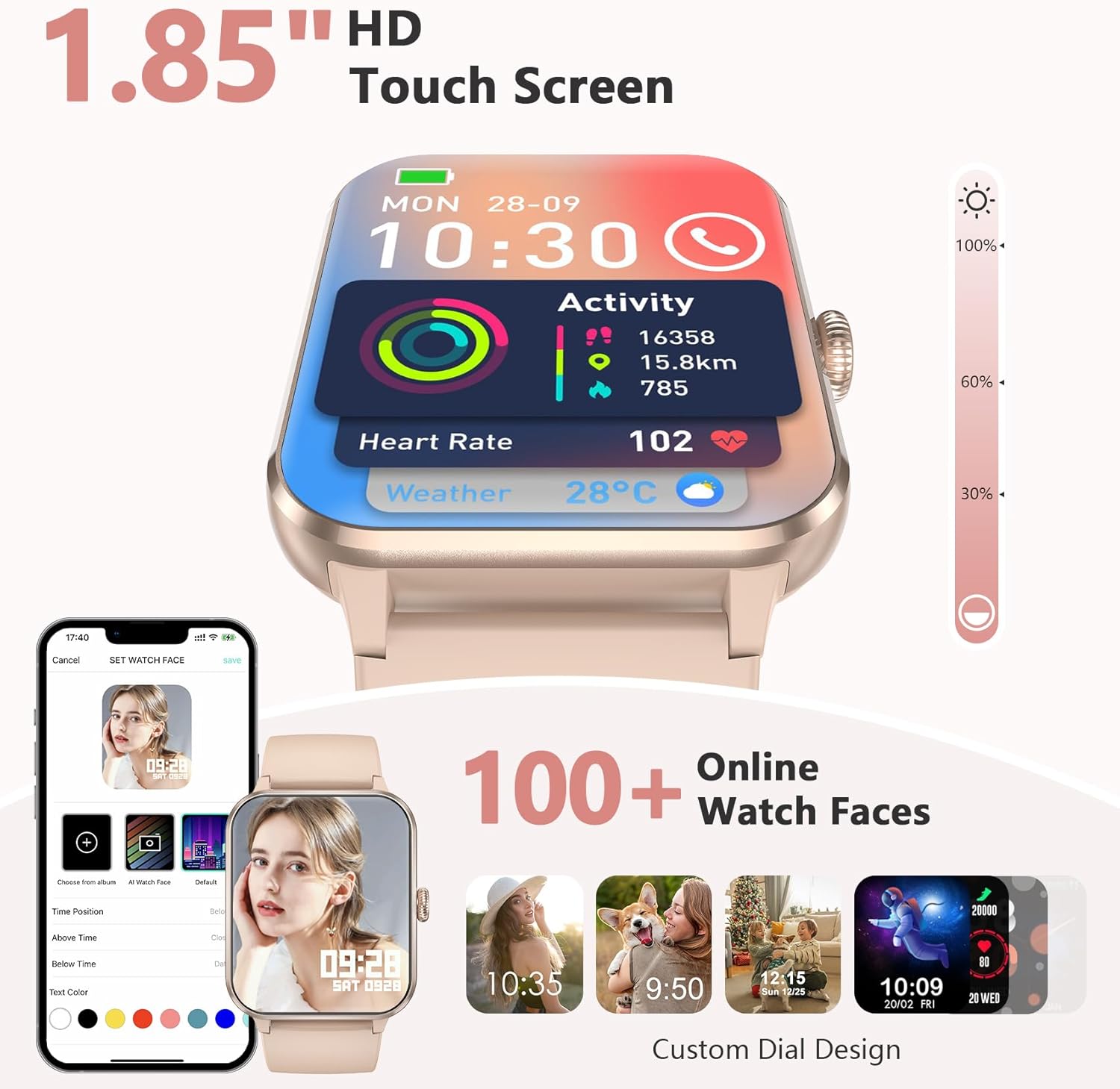
Image: 1.85-inch HD Touch Screen and Watch Face Customization.
4.2 Call Functionality
The smartwatch allows you to answer and make calls directly via Bluetooth. The "Da Fit" app can store multiple contacts and provides real-time notifications for incoming calls and messages.

Image: Make/Answer Calls Feature.
4.3 Notifications
Receive smart notifications for incoming calls, messages, and alerts from various social media applications directly on your wrist.

Image: Smart Message Reminders.
4.4 AI Voice Assistant
Utilize the built-in AI voice assistant for quick help with tasks such as weather forecasts and setting alarms.

Image: AI Voice Assistant and Bluetooth Call.
5. Health Monitoring
The Blackview R50Pro Smartwatch uses high-performance optical sensors to provide comprehensive health monitoring.
5.1 Heart Rate Monitoring
Monitor your dynamic heart rate in real-time. Continuous 24-hour heart rate measurement data is stored in the "Da Fit" app for review.

Image: Heartbeat Monitoring.
5.2 Blood Oxygen (SpO2) Monitoring
Intelligent SpO2 saturation monitoring allows you to check the last 7 measurement values on the smartwatch to protect your health.

Image: Blood Oxygen Control.
5.3 Sleep Monitoring
Track your sleep quality and stress levels. The monitoring provides suggestions for improvement to help adjust your work and rest schedule.

Image: Sleep Monitoring Display.

Image: Sleep Tracker in use.
5.4 Stress Monitoring
Perform stress tests to see if your stress is above average and allow your body to relax properly.

Image: Stress Test Feature.
6. Sports Modes
Track your daily activity with over 100 sports modes, including running, cycling, yoga, and football. Connect to GPS through the "Da Fit" app to record your training routes and fitness progress.
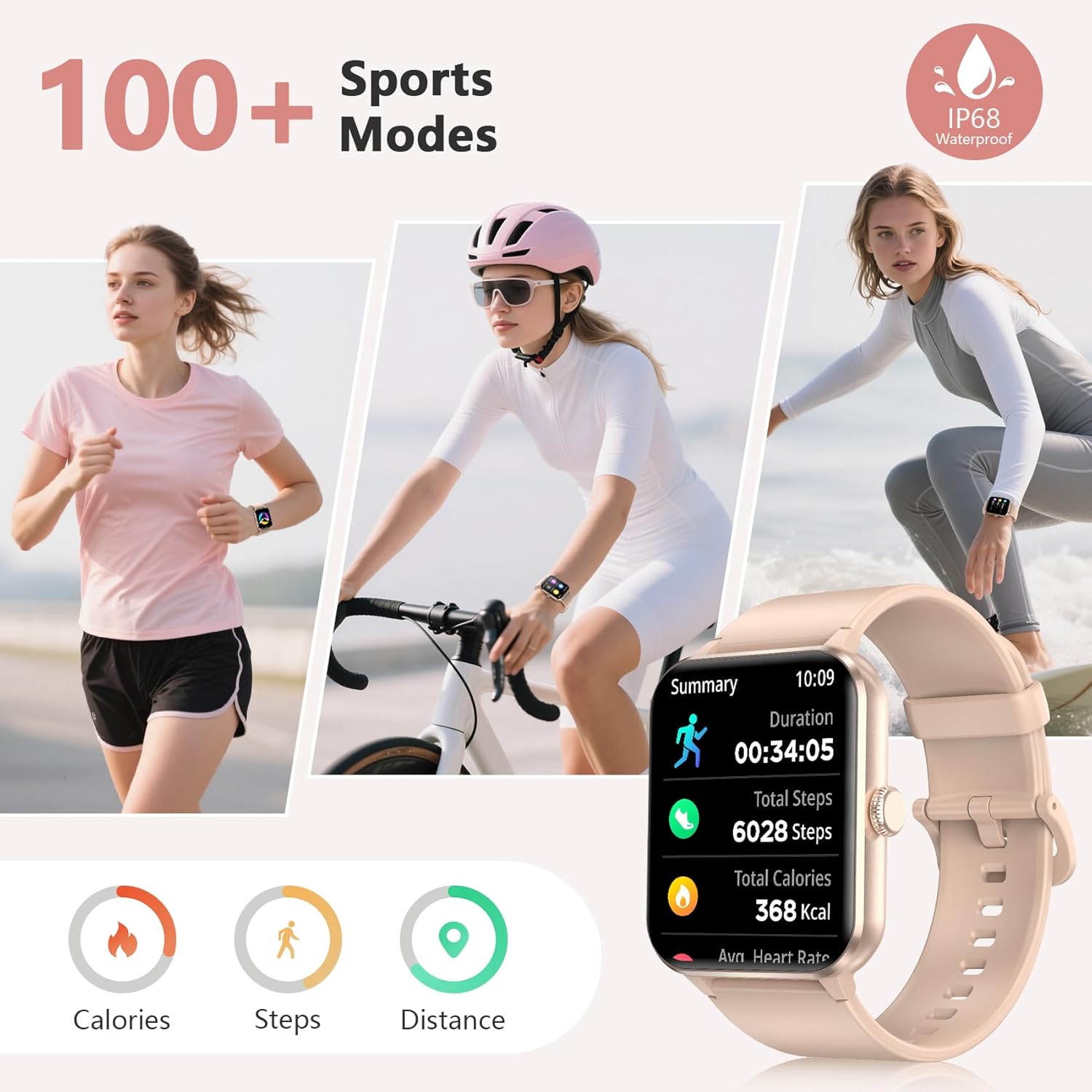
Image: 100+ Sports Modes and IP68 Waterproof.

Image: Diverse Sports Modes.
7. Customization
7.1 Watch Faces
Personalize your watch face with your favorite photos or choose from over 100 watch face options available through the "Da Fit" app.

Image: Over 100 Watch Faces.
7.2 Interchangeable Straps
The smartwatch comes with two types of interchangeable watch straps: Nylon and Silicone, allowing for versatility in style and comfort.
8. Additional Smart Tools
The Blackview R50Pro includes various daily functions for added convenience:
- Music Control
- Remote Camera Control
- Weather Forecast
- Sedentary Reminders
- Alarm Clock
- Timer & Stopwatch
- Calculator
- Games
- Menstrual Cycle Tracker
- Drink Water Reminder

Image: More Features to Discover.
9. Specifications
| Feature | Detail |
|---|---|
| Model Name | R50Pro |
| Brand | Blackview |
| Operating System | iOS, Android |
| Screen Size | 1.85 Inches |
| Display Type | LCD |
| Connectivity Technology | Bluetooth 5.3 |
| Battery Capacity | 350 Milliamp Hours |
| Battery Charge Time | 2 Hours |
| Typical Use Battery Life | Up to 7 days |
| Standby Time | Approximately 30 days |
| Water Resistance Level | IP68 Waterproof (up to 10 meters) |
| Band Material Type | Nylon, Silicone |
| Human Interface Input | Microphone, Touchscreen |
| GPS | GPS Via Smartphone |
| Memory Storage Capacity | 128 MB |
10. Maintenance
10.1 Cleaning
Regularly clean your smartwatch and straps to prevent skin irritation and maintain device hygiene. Use a soft, damp cloth to wipe the screen and body. For straps, follow the manufacturer's recommendations for cleaning based on material (silicone or nylon).
10.2 Storage
Store the smartwatch in a cool, dry place away from direct sunlight and extreme temperatures when not in use for extended periods.
10.3 Water Resistance
The device is IP68 waterproof, meaning it can withstand immersion in water up to 10 meters. However, it is not recommended for hot water activities, saunas, or deep diving, as steam and high pressure can compromise the seals.
11. Troubleshooting
If you encounter issues with your Blackview R50Pro Smartwatch, try the following general troubleshooting steps:
- Device Not Turning On: Ensure the watch is fully charged. Connect it to the charging cable and allow it to charge for at least 30 minutes before attempting to power it on.
- Pairing Issues: Make sure Bluetooth is enabled on your smartphone and the watch is within range. Restart both your phone and the smartwatch. Try unpairing and re-pairing the device through the "Da Fit" app.
- Inaccurate Health Data: Ensure the watch is worn snugly on your wrist, not too tight or too loose. Clean the sensors on the back of the watch. Environmental factors and individual physiology can affect readings.
- Notifications Not Appearing: Check the notification settings within the "Da Fit" app and your smartphone's system settings to ensure all necessary permissions are granted. Ensure the app is running in the background.
- Short Battery Life: Reduce screen brightness, disable unnecessary notifications, and limit continuous heart rate monitoring if not required. Ensure the watch is fully charged each time.
For persistent issues, refer to the "Da Fit" app's help section or contact customer support.
12. Warranty and Support
Blackview provides a 2-year warranty for the R50Pro Smartwatch. For technical support or warranty claims, please contact Blackview customer service. Details can typically be found on the official Blackview website or through the "Da Fit" app.


