
ESR ESR Rebound Magnetic Keyboard Case for iPad Air 13-inch (M3/M2 2025/2024) and iPad Pro 12.9-inch (6th/5th/4th/3rd Gen) (
ESR Rebound Magnetic Keyboard Case User Manual
Model: For iPad Air 13-inch (M3/M2 2025/2024) and iPad Pro 12.9-inch (6th/5th/4th/3rd Gen)
Important Compatibility Information
This ESR Rebound Magnetic Keyboard Case is designed for specific iPad models. Please verify your iPad model number to ensure compatibility before use.
- Compatible with: iPad Air 13-inch (M3/M2 2025/2024), iPad Pro 12.9-inch (6th/5th/4th/3rd Gen).
- Compatible Model Numbers: A2764, A2437, A2436, A2378, A2379, A2461, A2462, A2229, A2069, A2232, A2233, A1876, A2014, A1895, A1983.
- NOT Compatible with: iPad Pro 13-inch (M4) 2024 (Models: A2925, A2926, A3007) and iPad Pro 13-inch (M5) 2025 (Models: A3360, A3361, A3362).
To verify your iPad model, go to Settings > General > About on your device, or find the model number on the back of your iPad.

Figure 1: Compatibility warning indicating the keyboard case is not for iPad Pro 13-inch (M4) 2024.

Figure 2: Visual guide for compatible iPad models and how to locate your iPad's model number for verification.
Package Contents
Ensure all items are present in the package:
- ESR Rebound Magnetic Keyboard Case
- USB-A to C Charging Cable
- User Manual
Video 1: Unboxing and overview of the ESR Rebound Magnetic Keyboard Case for iPad Air 13 & iPad Pro 12.9. This video demonstrates the contents of the package and initial setup.
Setup Instructions
1. Attaching Your iPad
- Open the keyboard case.
- Align your iPad with the magnetic back of the case. The iPad will securely snap into place.
- Adjust the floating cantilever stand to your desired viewing angle.

Figure 3: Quick-set magnetic stand in use, showing an iPad securely attached and adjusted to an optimal angle.

Figure 4: Demonstration of the strong magnetic hold, securing the iPad to the case with 1,500g of holding force.
2. Powering On and Bluetooth Pairing
- Long press the power button on the keyboard for 2 seconds to turn it on. The Bluetooth status indicator will flash.
- On your iPad, go to Settings > Bluetooth and ensure Bluetooth is enabled.
- Select "ESR Keyboard" from the list of available devices.
- Confirm the pairing request on your iPad. The Bluetooth indicator on the keyboard will turn solid blue once connected.
Video 2: Detailed instructions on how to power on the keyboard and pair it via Bluetooth with your iPad.
Operating Instructions
Keyboard Usage
The keyboard features well-spaced, responsive keys for comfortable and accurate typing. It includes a dedicated function row for quick access to common iPad functions.
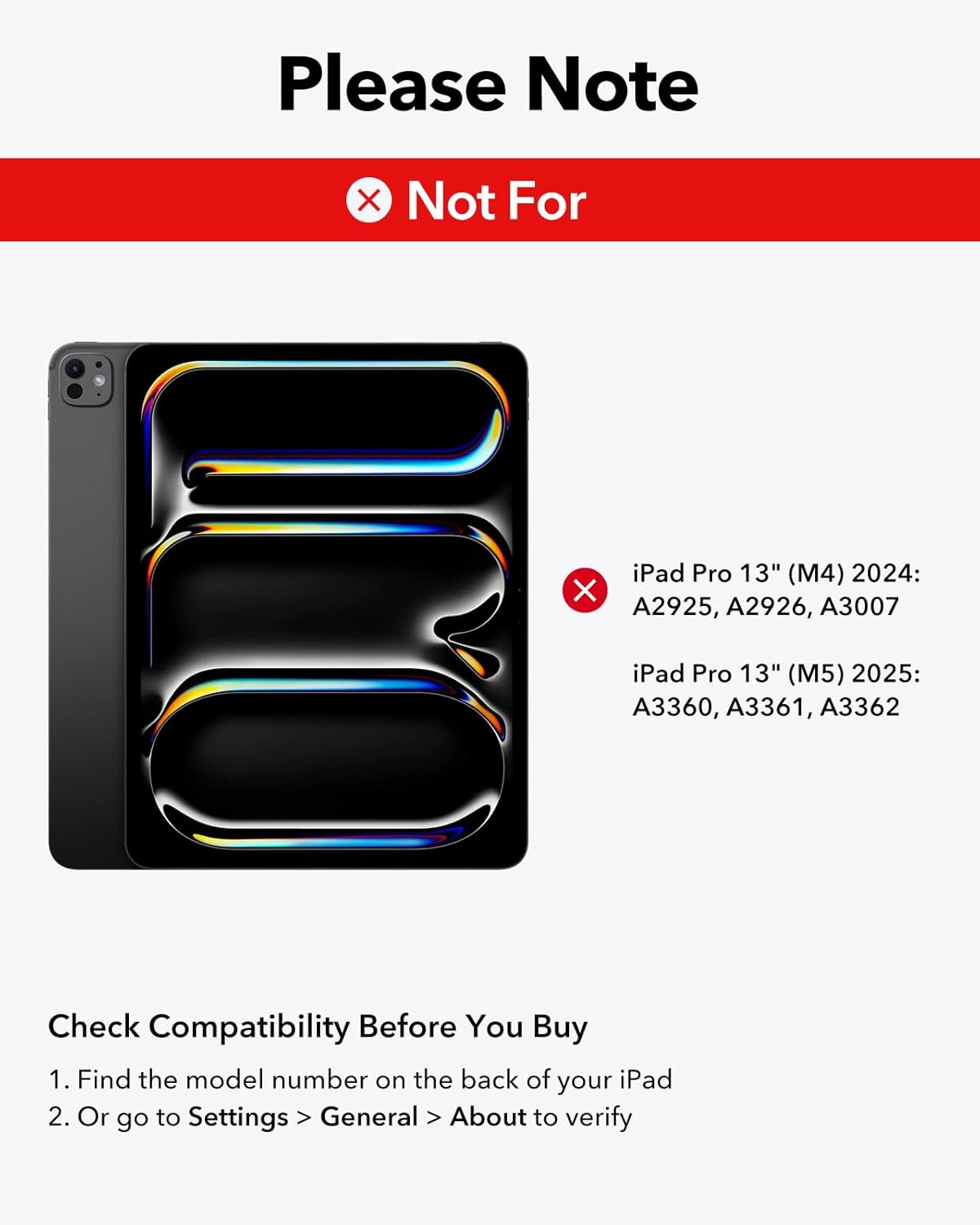
Figure 5: Close-up of hands typing on the keyboard, highlighting the laptop-style keys and their comfortable feel.
Backlit Keys
The keyboard features adjustable 7-color backlighting with 3 brightness levels. Use the dedicated backlight key (often represented by a sun icon) to cycle through colors and adjust brightness.

Figure 6: The keyboard's backlit keys, demonstrating 12 color modes and 3 brightness levels for enhanced visibility in various lighting conditions.
Trackpad Usage
The precision multi-touch trackpad supports full iPadOS gestures, allowing for efficient navigation and interaction with your iPad. Multi-touch gestures require iPadOS 14.5 or higher.
- Click: Single tap or press down on the trackpad.
- Scroll: Use two fingers to scroll up or down.
- Zoom: Pinch with two fingers to zoom in or out.
- Go Home: Swipe up with three fingers to return to the home screen.

Figure 7: A hand demonstrating multi-touch gestures on the precision trackpad, enabling responsive navigation.

Figure 8: Visual guide to common multi-touch trackpad gestures, including click, scroll, zoom, and returning to the home screen.
Floating Cantilever Stand
The floating cantilever design allows your iPad to be positioned at various angles for optimal viewing and typing comfort. Simply open the case and adjust the iPad's position to achieve the perfect angle.

Figure 9: The floating cantilever stand in action, providing an adjustable and stable platform for the iPad.
Magnetic Clasp and Pencil Holder
The case features a secure magnetic clasp that not only keeps the case closed but also provides a dedicated holder for your Apple Pencil or other styluses, ensuring they are safely stored and charged (if compatible).

Figure 10: The secure magnetic clasp with an integrated pencil holder, designed to keep your Apple Pencil or other styluses safely attached.
Maintenance
- Cleaning: Use a soft, damp cloth to wipe down the exterior of the case and keyboard. Avoid harsh chemicals.
- Storage: When not in use, keep the keyboard case closed to protect both the iPad and the keyboard.
- Charging: Charge the keyboard using the provided USB-A to C charging cable. The iPad cannot be charged through the keyboard case.
Troubleshooting
Keyboard Not Responding / Touchscreen Unresponsive
If the keyboard is not responding or the iPad touchscreen becomes unresponsive after double-clicking the trackpad, follow these steps:
- Go to Settings > Accessibility > Touch.
- Turn off "AssistiveTouch".
- Ensure the keyboard is sufficiently charged. Low battery can affect performance.
Video 3: Troubleshooting guide for issues related to incorrect size, fit, or wrong purchase. This video also addresses touchscreen unresponsiveness after trackpad use.
Connectivity Issues
- Ensure the keyboard is fully charged.
- Re-pair the keyboard with your iPad by following the "Powering On and Bluetooth Pairing" steps.
- Restart both your iPad and the keyboard.
Specifications
| Brand | ESR |
| Compatible Devices | iPad Air 13-inch (M3/M2 2025/2024), iPad Pro 12.9-inch (6th/5th/4th/3rd Gen) |
| Connectivity Technology | Bluetooth |
| Keyboard Description | Magnetic |
| Keyboard Layout | QWERTY |
| Special Feature | Ergonomic, Floating Cantilever Stand, Multi-Touch Trackpad, Backlit Keys |
| Material | Plastic |
| Color | Purple |
| Power Source | Battery Powered |
| Item Weight | 2.64 pounds |
| Package Dimensions | 12.91 x 9.53 x 1.06 inches |
Warranty and Support
ESR provides comprehensive customer support for this product:
- Warranty: This product includes a comprehensive 12-month warranty.
- Support: Lifetime support and personalized help are available.
- Resources: Detailed setup videos and FAQs can be found on the ESR support website.
For further assistance, please visit the official ESR support website or contact customer service through your purchase platform.
Related documentsESR Rebound Magnetic Keyboard Case for iPad Air 13-inch (M3/M2 2025/2024) and iPad Pro 12.9-inch (6th/5th/4th/3rd Gen) (


Ask a question about this manual
Ask about setup, troubleshooting, compatibility, parts, safety, or missing instructions. Manuals+ will review the question and use this page’s manual context to help answer it.