1. Introduction
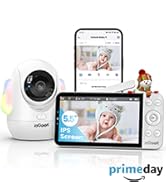
This manual provides comprehensive instructions for the setup, operation, and maintenance of your ieGeek 5.5'' Split-Screen Baby Monitor. This device is designed to offer reliable monitoring of your baby with advanced features for peace of mind.
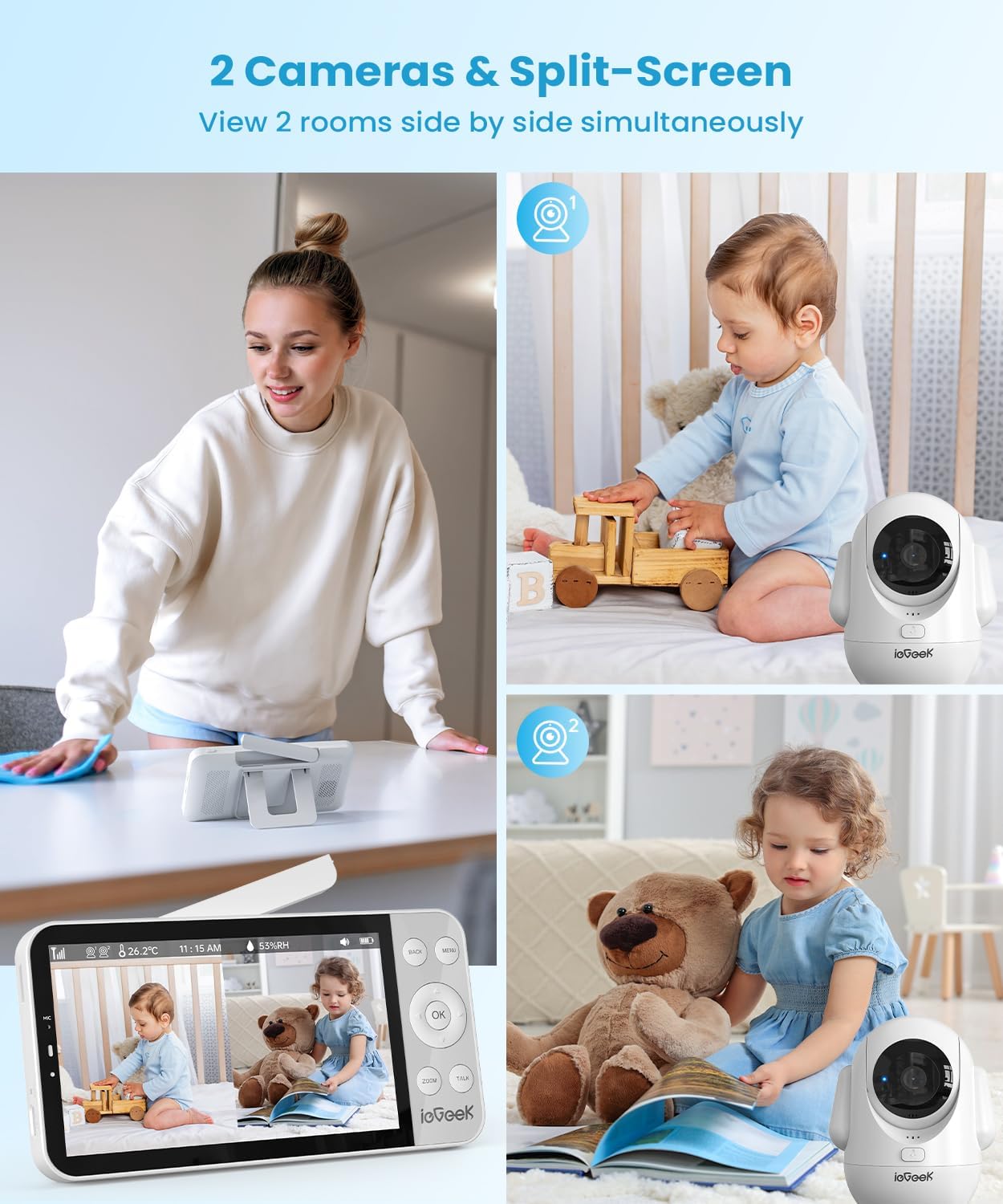
Key features include a 5.5-inch 2.5K UHD display, dual camera support with split-screen viewing, two-way audio communication, night vision, and intelligent AI detection for prone sleeping, face covering, and crying.
2. Safety Information
- Strangulation Hazard: Keep all cords and cables out of reach of children. Ensure the camera is mounted at least 3 feet (1 meter) away from the crib.
- Choking Hazard: Small parts may be present. Keep all components and packaging materials away from infants and children.
- Electrical Safety: Use only the provided power adapters. Do not expose the device to water or moisture. Discontinue use if any damage occurs.
- Battery Safety: The monitor unit contains a rechargeable battery. Do not attempt to replace the battery yourself. Dispose of batteries according to local regulations.
- Heat Exposure: Do not place the monitor or cameras near heat sources or in direct sunlight.
3. Package Contents
Verify that all items listed below are included in your package:
- ieGeek 5.5'' Monitor Unit
- ieGeek 2.5K UHD Camera Unit (x2)
- Power Adapters (x3)
- USB Charging Cables (x3)
- Wall Mounting Kits (x2)
- User Manual

4. Product Overview
4.1 Monitor Unit
- 5.5-inch 2.5K UHD LCD Screen
- Control Buttons (Menu, OK, Back, Zoom, Talk)
- Built-in Microphone and Speaker
- Antenna for enhanced signal range
- Integrated kickstand
4.2 Camera Unit
- 2.5K UHD Camera Lens
- Pan (355°) and Tilt (100°) functionality
- Infrared LEDs for Night Vision
- Built-in Microphone and Speaker for Two-Way Talk
- Night Light with adjustable colors
- Reset Button

5. Setup
5.1 Initial Setup
- Charge the Monitor: Connect the monitor unit to a power outlet using the provided USB cable and power adapter. Fully charge the monitor before first use.
- Power On Cameras: Connect each camera unit to a power outlet using their respective USB cables and power adapters. The cameras will power on automatically.
- Power On Monitor: Press and hold the power button on the monitor unit until the screen illuminates.
5.2 Camera Placement
Position the camera(s) in a location that provides a clear view of your baby. Ensure the camera is placed at a safe distance from the crib to prevent accidental contact or entanglement with cables.
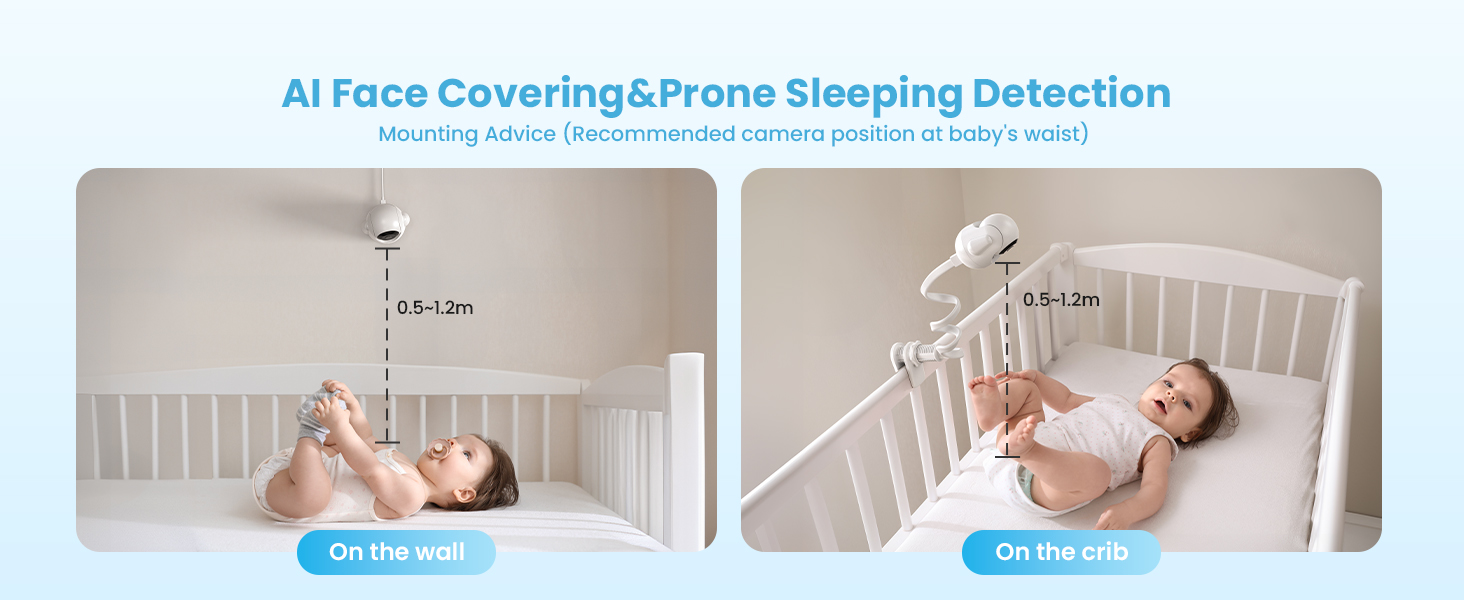
- For optimal AI detection (Face Covering & Prone Sleeping), the recommended camera position is at the baby's waist level, approximately 0.5-1.2 meters (1.6-4 feet) from the crib.
- The camera can be placed on a flat surface, mounted on a wall, or attached to the crib using the provided mounting kits.

5.3 App Installation and Pairing
The ieGeek baby monitor supports both Bluetooth and Wi-Fi connections for smartphone app control. Follow the steps below to connect your camera(s) to the app.
Bluetooth Connection (Recommended)
- Connect the camera to a power source.
- Long press the 'Reset' button on the camera until you hear a 'BOOGU' beep.
- After 20-30 seconds, the camera will automatically rotate once. Connection starts after another beep and the red light flashes.
- On your smartphone, ensure Bluetooth, Wi-Fi (2.4GHz or 5GHz), and GPS location are enabled.
- Open the ieGeek app, click the '+' icon, and select the 'baby 5' device from the automatically popped-up list.
- Enter your Wi-Fi password and click 'Next'.
- Wait for the Wi-Fi connection to complete. Device addition is successful.
- To connect a second camera, repeat steps 1-7.
Wi-Fi Connection
- Open the ieGeek app, click the '+' icon, and select 'Baby Monitor (2.4G or 5G Wi-Fi)'.
- Connect the camera to a power source and click 'Next' in the app.
- Long press the 'Reset' button on the camera until you hear a 'BOOGU' beep. After 20-30 seconds, the camera will automatically rotate once. Connection starts after another beep and the red light flashes. Click 'Next' in the app.
- Enter your Wi-Fi password and click 'Next'.
- Scan the QR code displayed on your phone with the camera lens (distance 5-8 inches). A tone will be heard when successfully scanned. Click 'Next'.
- Wait for the Wi-Fi connection to complete. Device addition is successful.
- To connect a second camera, repeat steps 1-6.
6. Operating Instructions
6.1 Monitor Functions
- Split-Screen Viewing: When two cameras are connected, the monitor can display both camera feeds simultaneously on a single screen.
- Pan & Tilt: Use the directional buttons on the monitor to remotely adjust the camera's 355° horizontal pan and 100° vertical tilt.
- Digital Zoom: Press the 'ZOOM' button to digitally zoom in up to 4 times for a closer view of your baby.
- Two-Way Talk: Press and hold the 'TALK' button on the monitor to speak to your baby through the camera's speaker. Release the button to listen.
- Night Light & Lullabies: Access the menu to control the camera's integrated night light (with various colors) and play soothing lullabies to help your baby sleep.


6.2 AI Detection Features
The ieGeek baby monitor incorporates advanced AI functions to provide smart care and alerts.
- Face Covering Detection: The monitor can detect if your baby's face is covered while sleeping and send an alert.
- Prone Sleeping Detection: Alerts you if your baby rolls into a prone (face-down) sleeping position.
- Cry & Sound Detection: Notifies you when your baby cries or makes significant sounds.
- Motion Tracking: The camera can automatically track movement within its field of view.
- Temperature & Humidity Detection: Monitors the nursery's temperature and humidity levels, providing alerts if they fall outside a set range.
- Danger Zone Detection: Allows you to define specific areas in the room as 'danger zones' and receive alerts if your baby enters them.

7. Maintenance
7.1 Cleaning
- Wipe the monitor and camera surfaces with a soft, dry cloth.
- Do not use abrasive cleaners or solvents.
- Ensure devices are unplugged before cleaning.
7.2 Battery Care
- The monitor unit has a 4000mAh battery, providing 11-15 hours in bright mode and up to 7.5 days in sleep mode.
- To prolong battery life, avoid extreme temperatures and fully charge the device regularly.

8. Troubleshooting
- No Image/Sound: Ensure both the camera and monitor are powered on and within range. Check power connections.
- Poor Signal: Reposition the camera and monitor closer to each other. Ensure no large obstructions (e.g., thick walls) are between them. Extend the monitor's antenna.
- App Connection Issues: Verify your smartphone's Bluetooth, Wi-Fi, and GPS are enabled. Ensure you are connected to a 2.4GHz or 5GHz Wi-Fi network. Try resetting the camera and re-pairing.
- AI Detection Not Working: Ensure the camera is positioned correctly according to the mounting advice (Figure 5.1). Check app settings to confirm detection features are enabled.
- Monitor Not Charging: Use the original power adapter and cable. Check for any damage to the cable or charging port.
9. Specifications
| Feature | Specification |
|---|---|
| Model Number | baby 5 |
| Screen Size | 5.5 inches |
| Video Capture Resolution | 1920p (2.5K UHD) |
| Camera Pan Angle | 355 Degrees |
| Camera Tilt Angle | 100 Degrees |
| Optical Zoom | 4x Digital Zoom |
| Night Vision Range | 32.81 Feet |
| Connectivity Technology | 2.4G & 5G Wireless, FHSS |
| Monitor Battery Capacity | 4000mAh |
| Compatible Devices | iOS/Android |
| Item Dimensions (L x W x H) | 2.56 x 2.56 x 5.12 inches |
| Item Weight | 1.54 pounds |
10. Warranty and Support
ieGeek is committed to providing high-quality products and customer service.
- Warranty: This product comes with a 2-year warranty.
- Returns: Enjoy a 90-day free return policy.
- Quality Issues: Replacements are available for quality-related issues.
Contact Support:
- Phone: +1(202)656-9955 (Mon-Fri 9:00 am-6:00 pm ET)
- Email: service@iegeek.com