
WONLINK WL-NE3502
WONLINK WL-NE3502 WiFi Range Extender User Manual
Model: WL-NE3502
Introduction
Thank you for choosing the WONLINK WL-NE3502 WiFi Range Extender. This device is designed to expand your existing WiFi network coverage, eliminate dead zones, and provide a stable, high-speed internet connection throughout your home or office. With dual-band support (2.4GHz and 5GHz) and speeds up to 1200Mbps, it is ideal for 4K streaming, online gaming, and connecting multiple devices. This manual provides detailed instructions for setup, operation, maintenance, and troubleshooting to ensure optimal performance.

Image: The WONLINK WL-NE3502 WiFi Range Extender, a black device with four external antennas and LED indicators, designed to boost WiFi signals.
Safety Information
- Do not expose the device to water, fire, humidity, or hot environments.
- Do not attempt to disassemble, repair, or modify the device.
- Use only the power adapter provided or recommended by the manufacturer.
- Ensure proper ventilation around the device to prevent overheating.
- Keep the device away from strong electromagnetic fields.
- This device is for indoor use only.
Package Contents
Please check the package contents carefully. If any item is missing or damaged, contact your retailer.
- 1 x WONLINK WL-NE3502 WiFi Range Extender
- 1 x Ethernet Cable
- 1 x Quick Installation Guide
- 1 x Warranty Card
Product Overview
The WL-NE3502 features a compact design with multiple antennas for enhanced signal transmission and reception. It includes LED indicators for power, WiFi signal strength, and connection status, providing clear visual feedback on its operational state.
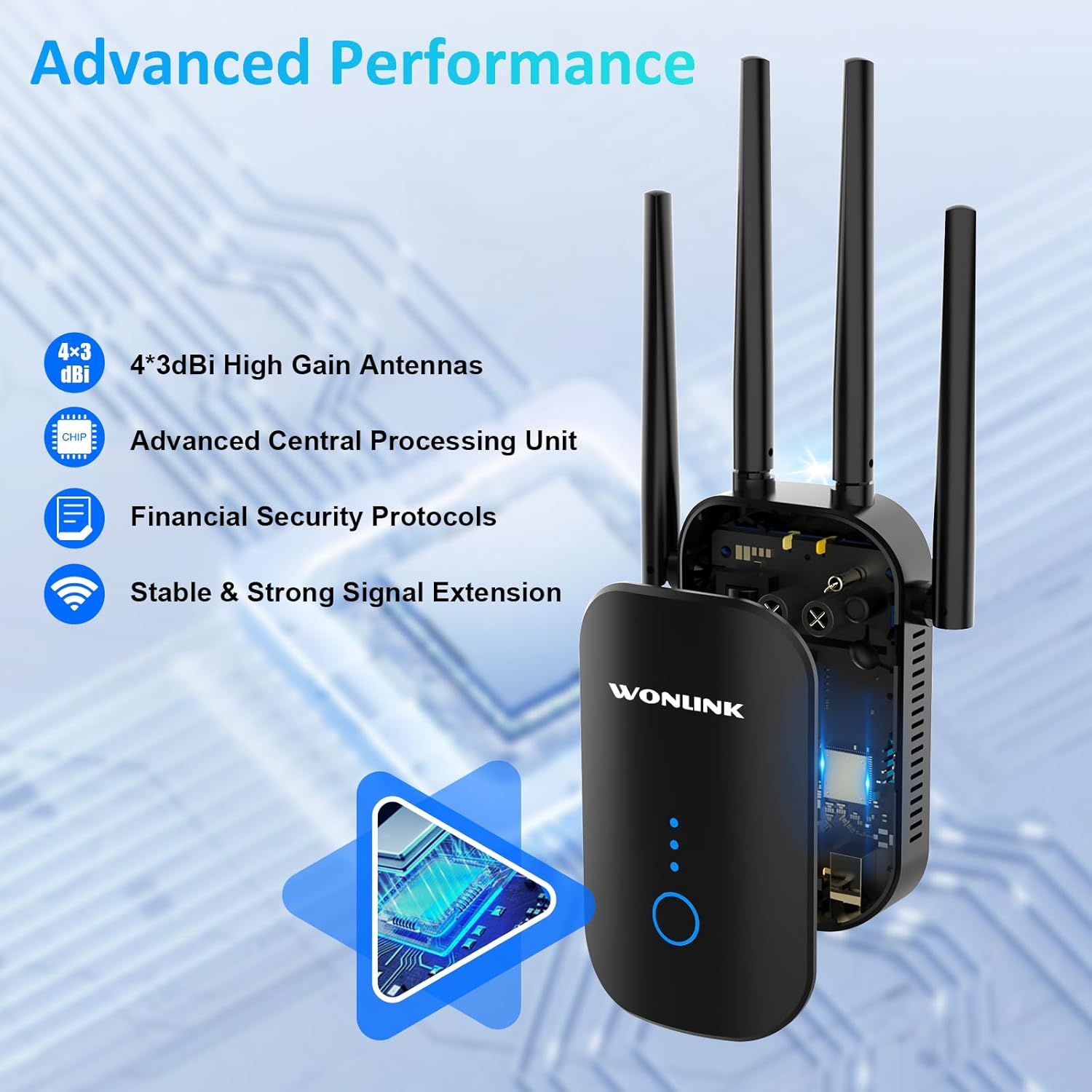
Image: An illustration highlighting the advanced performance features of the WONLINK WL-NE3502, including 4x3dBi high gain antennas, an advanced CPU, financial security protocols, and stable signal extension.
LED Indicators:
- Power LED: Indicates power status.
- WiFi LED: Indicates WiFi signal status.
- Signal Strength LEDs: Indicate the strength of the extended WiFi signal.
Buttons and Ports:
- WPS/Reset Button: Used for quick setup via WPS or to reset the device to factory settings.
- Ethernet Port: For wired connections to devices or your main router.
Setup
The WONLINK WL-NE3502 can be set up using a web browser or via WPS.
Method 1: Web Browser Setup (Recommended)
- Power On: Plug the extender into a power outlet near your main router. Wait for the Power LED to turn solid.
- Connect to Extender's WiFi: On your computer or mobile device, connect to the WiFi network named "XXXXX-2G" or "XXXXX-5G" (the default SSID of the extender). No password is required for the initial connection.
- Access Web Interface: Open a web browser (e.g., Chrome, Firefox) and type 192.168.10.1 into the address bar, then press Enter.
- Login: Enter "admin" for both the username and password (default credentials). Click "Login".
- Select Mode: Choose your desired operating mode (Repeater, AP, or Router). For extending existing WiFi, select "Repeater Mode".
- Select WiFi Network: The extender will scan for available WiFi networks. Select the WiFi network you wish to extend from the list.
- Enter Password: Enter the password for your main WiFi network.
- Configure Extended Network: You can choose to keep the same SSID as your main network or create a new one for the extended network.
- Apply Settings: Click "Apply" or "Save". The extender will restart.
- Relocate Extender: Once restarted, unplug the extender and move it to a location halfway between your router and the WiFi dead zone. Ensure the Signal Strength LEDs indicate a good connection.
- Connect to Extended WiFi: Reconnect your devices to the newly configured extended WiFi network.

Image: A visual guide demonstrating the web-based setup process for the WONLINK WL-NE3502, showing connection to the extender's WiFi, accessing the web interface, and selecting the network to extend.

Image: Screenshots illustrating the easy setup process for the WONLINK WL-NE3502 using a smartphone, detailing steps to connect to the extender's WiFi, access the web interface, and select the WiFi signal to extend.
Method 2: WPS Setup (If your router supports WPS)
- Power On: Plug the extender into a power outlet near your main router. Wait for the Power LED to turn solid.
- Press WPS on Extender: Press the WPS button on the WONLINK WL-NE3502 extender. The WiFi LED will start blinking.
- Press WPS on Router: Within two minutes, press the WPS button on your main router.
- Wait for Connection: The extender will automatically connect to your router. The Signal Strength LEDs on the extender will light up, indicating a successful connection.
- Relocate Extender: Once connected, unplug the extender and move it to a location halfway between your router and the WiFi dead zone. Ensure the Signal Strength LEDs indicate a good connection.
Operating Modes
The WONLINK WL-NE3502 supports multiple operating modes to suit various networking needs:
- Repeater Mode: Extends the coverage of an existing wireless network. This is the most common mode for eliminating WiFi dead zones.
- Access Point (AP) Mode: Converts a wired network connection into a wireless one. Ideal for creating a new WiFi hotspot from an Ethernet port.
- Router Mode: Functions as a basic router, creating a new private network. This mode is less common for an extender but can be useful in specific scenarios.
Operating Instructions
Once set up, the WL-NE3502 operates automatically to provide extended WiFi coverage. Here are some key aspects of its operation:
Optimal Placement:
For best performance, place the extender in a location where it can receive a strong signal from your main router and also effectively transmit to the areas needing coverage. A good indicator is when the Signal Strength LEDs show at least two or three bars.

Image: Illustrations showing optimal placement of the WONLINK WL-NE3502 WiFi extender in various rooms of a home, including the living room, kitchen, bedroom, and bathroom, to ensure comprehensive coverage.

Image: A cross-section diagram of a multi-story house illustrating how the WONLINK WL-NE3502 WiFi extender eliminates dead zones by extending the WiFi signal from the main router to all areas, including basements and courtyards.
Dual-Band Connectivity:
The WL-NE3502 supports both 2.4GHz and 5GHz WiFi bands. The 2.4GHz band offers wider coverage, while the 5GHz band provides faster speeds for demanding applications like 4K streaming and online gaming.

Image: A graphic illustrating the 1200Mbps ultra-speed internet capability of the WONLINK WL-NE3502, showing 5.8GHz band at 867Mbps and 2.4GHz band at 300Mbps, suitable for HD streaming, gaming, and video calls.

Image: A comparison graphic showing the high-speed performance of the WONLINK WL-NE3502, highlighting 802.11ac standard with 867Mbps on 5.8GHz and 300Mbps on 2.4GHz, improving speed by 35% over 802.11n.
Connecting Devices:
Once the extender is set up, your devices (smartphones, tablets, laptops, smart TVs, gaming consoles, etc.) can connect to the extended WiFi network just as they would to any other WiFi network. Look for the SSID you configured during setup.

Image: A collage showing various WiFi-enabled devices, including mobile phones, desktops, gaming consoles, smart TVs, and security cameras, enjoying a lag-free connection provided by the WONLINK WL-NE3502 extender.

Image: A diagram illustrating MU-MIMO technology, showing how the WONLINK WL-NE3502 improves network utilization by allowing simultaneous communication with multiple wireless terminals, unlike older technology.
Maintenance
To ensure the longevity and optimal performance of your WONLINK WL-NE3502, follow these maintenance guidelines:
- Cleaning: Gently wipe the device with a soft, dry cloth. Do not use liquid cleaners or aerosols.
- Ventilation: Ensure the ventilation holes are not blocked. Avoid placing the device in enclosed spaces.
- Firmware Updates: Periodically check the WONLINK official website for firmware updates. Updating firmware can improve performance, add new features, and fix bugs.
- Restarting: If you experience network issues, try restarting the extender by unplugging it for 10 seconds and then plugging it back in.
Troubleshooting
If you encounter issues with your WONLINK WL-NE3502, refer to the following common problems and solutions:
| Problem | Possible Cause / Solution |
|---|---|
| No Power LED | Ensure the extender is properly plugged into a working power outlet. Try a different outlet. |
| Cannot access web management page (192.168.10.1) |
|
| Poor signal strength from extender |
|
| Extended network not visible or no internet |
|
| Slow speeds on extended network |
|
Specifications
| Feature | Detail |
|---|---|
| Model Number | WL-NE3502 |
| Brand | WONLINK |
| Data Transfer Rate | Up to 1200 Mbps (867 Mbps on 5GHz, 300 Mbps on 2.4GHz) |
| Frequency Bands | 2.4 GHz and 5 GHz (Dual-Band) |
| Wireless Standards | IEEE 802.11ac/a/b/g/n |
| Antennas | 4 x 3dBi High Gain Antennas |
| Security Protocols | WPA3, WPA2-PSK, WPA-PSK, WEP (64/128-bit) |
| Ports | 1 x 10/100 Mbps Ethernet Port |
| Operating Modes | Repeater, AP, Router |
| Compatible Devices | Smartphones, Tablets, Computers, WiFi-enabled Devices |
| Dimensions | 8.15 x 3.82 x 3.03 inches (approx.) |
| Item Weight | 7 ounces (approx.) |
Warranty and Support
WONLINK products come with a standard manufacturer's warranty. Please refer to the warranty card included in your package for specific terms and conditions. For technical support, product inquiries, or warranty claims, please contact WONLINK customer service.
- Online Support: Visit the official WONLINK website for FAQs, drivers, and firmware updates.
- Email Support: Refer to your warranty card or the quick installation guide for the support email address.
- 24H Technical Support: WONLINK offers online technical support.

Image: A graphic highlighting key features: wide compatibility with 99% of routers, advanced security with 64/128bit WEP, WPA/WPA2 encryption, and 24-hour online technical support.
Related documentsWL-NE3502


Ask a question about this manual
Ask about setup, troubleshooting, compatibility, parts, safety, or missing instructions. Manuals+ will review the question and use this page’s manual context to help answer it.