
1. Introduction
Thank you for choosing the SEUNKWANG EWEADN TK100 Wired Mechanical Keyboard. This keyboard combines a retro typewriter aesthetic with modern mechanical performance, designed for both office and gaming use. It features 104 keys, white backlighting, anti-ghosting technology, and durable blue mechanical switches for a tactile and clicky typing experience.

Image: The SEUNKWANG EWEADN TK100 keyboard showcasing its punk typewriter mechanical design and backlighting.
2. Safety Information
- Keep the keyboard away from liquids and excessive moisture to prevent damage.
- Avoid exposing the keyboard to extreme temperatures or direct sunlight.
- Do not attempt to disassemble or modify the keyboard, as this may void the warranty and cause damage.
- Use only the provided USB cable for connection.
3. Package Contents
- SEUNKWANG EWEADN TK100 Wired Mechanical Keyboard
- USB-A Connection Cable
- User Manual (this document)
4. Setup
4.1 Connecting the Keyboard
- Locate an available USB-A port on your computer (PC, Mac, laptop, tablet, or desktop).
- Plug the USB-A connector of the keyboard cable into the USB-A port on your device.
- The keyboard is plug-and-play and does not require additional drivers or software installation. It should be recognized automatically by your operating system.
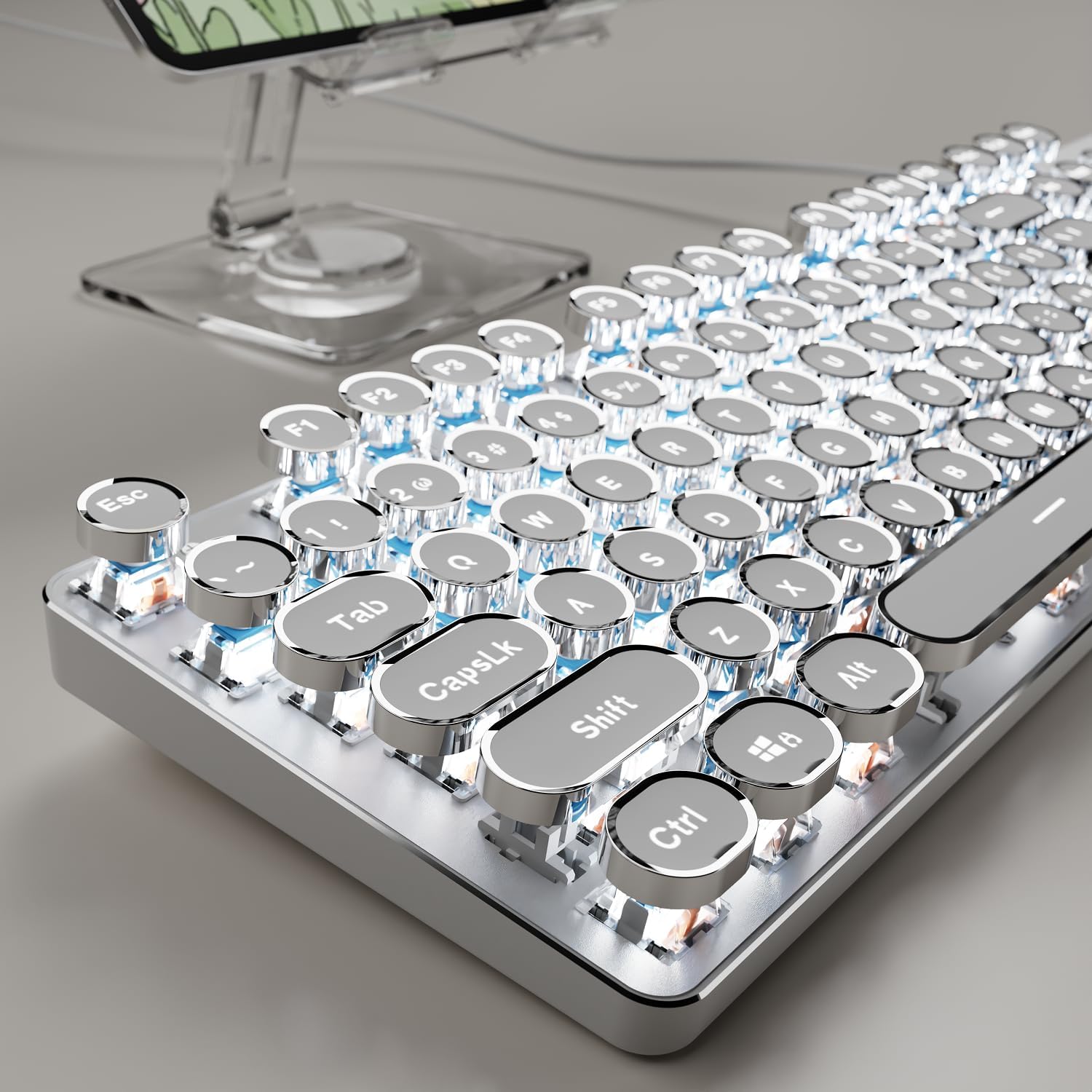
Image: The TK100 keyboard ready for use, highlighting its wired connection for reliable performance.
4.2 Adjusting Ergonomic Foot Support
The keyboard features adjustable feet on the underside to customize the typing angle for improved comfort and reduced fatigue during long sessions.

Image: The TK100 keyboard's two-level adjustable feet, designed for ergonomic typing.
Video: Demonstrates the ergonomic foot support of the TK100 keyboard, showing how it can be adjusted for a more comfortable typing experience.
5. Operating Instructions
5.1 Backlight Control
The TK100 keyboard features a unique white backlight with 19 preset light effects and 5 brightness levels. You can also adjust the breathing speed of the backlight.
- Change Light Effects: Press FN + INS to cycle through 19 basic lighting effects.
- Game Lighting Effects: Press FN + 6/7/8/9/0 to activate 4 specific game lighting effects.
- Adjust Brightness/Speed: Press FN + Up/Down Arrow Keys to adjust the backlight brightness (5 levels) or breathing speed.
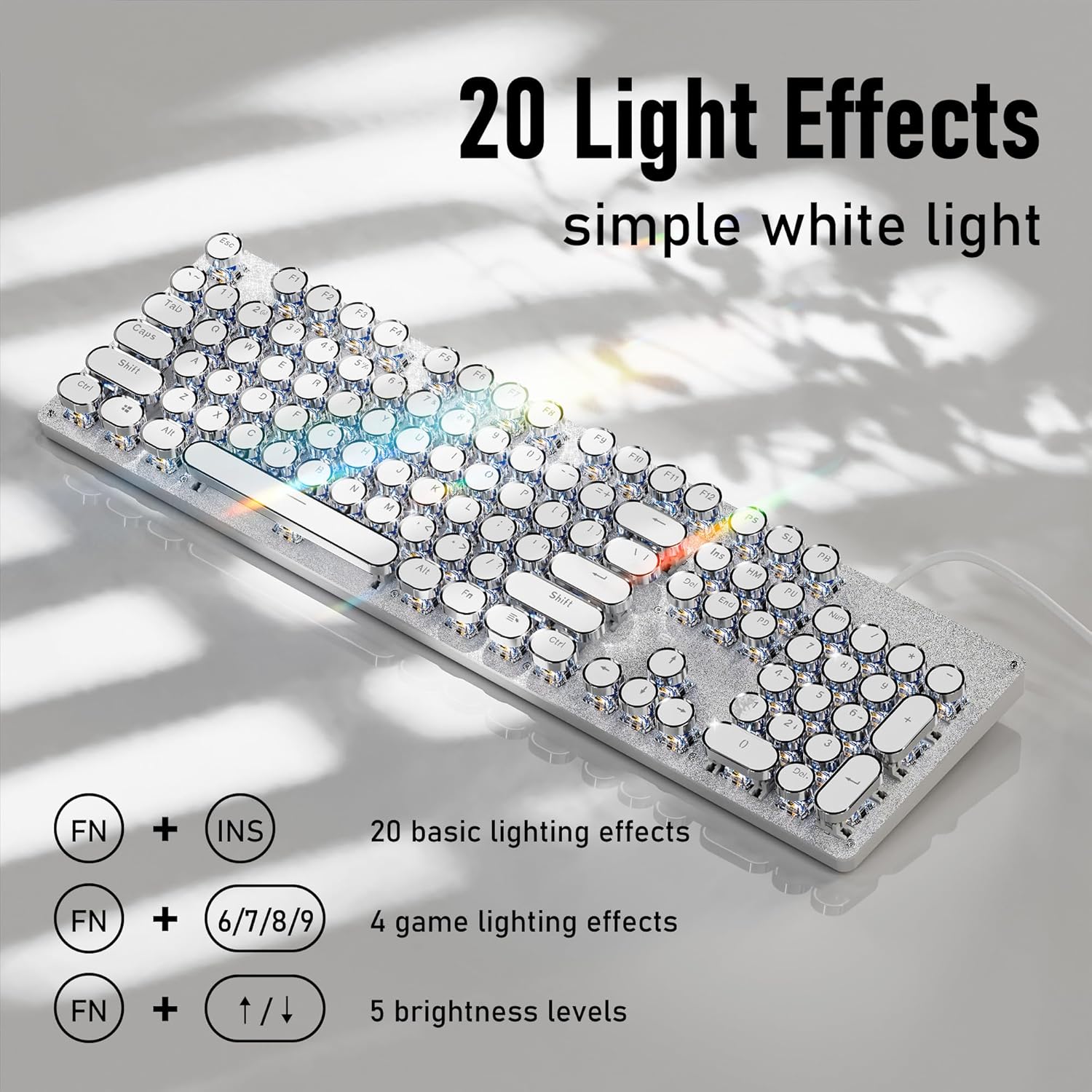
Image: Visual guide for controlling the 20 light effects, brightness, and speed of the white backlight.
Video: Shows the TK100 keyboard's metal panel and various white backlight effects in action.
5.2 Multimedia & Anti-Ghosting Features
The TK100 keyboard includes dedicated quick-access buttons for media control and features anti-ghosting technology for precise input.
- Multimedia Control: Use the dedicated buttons for volume adjustment, play/pause, and track switching.
- 104-Key Anti-Ghosting: Every keystroke is accurately registered, even during high-speed, multi-key commands, making it ideal for gaming and fast typing.

Image: The keyboard highlighting its full key rollover feature, ensuring smooth and conflict-free simultaneous key presses.
Video: Illustrates the 104-key anti-ghosting feature of the TK100 keyboard, ensuring all key presses are registered accurately.
6. Maintenance
- Cleaning: Use a soft, dry cloth to wipe the keyboard surface. For deeper cleaning, use a can of compressed air to remove dust and debris from between the keys.
- Keycap Removal: The retro round keycaps are designed for durability. If necessary, they can be carefully removed for cleaning or replacement using a keycap puller (not included).
- Storage: Store the keyboard in a cool, dry place when not in use.
7. Troubleshooting
- Keyboard Not Responding: Ensure the USB cable is securely plugged into both the keyboard and the computer. Try plugging it into a different USB port.
- Backlight Not Working/Changing: Verify that the backlight is turned on using the FN key combinations. If issues persist, refer to the backlight control section or contact support.
- Keys Not Registering: Check for any physical obstructions under the keycaps. If the issue is with specific keys, contact customer support.
8. Specifications
| Feature | Detail |
|---|---|
| Model Number | TK100 |
| Key Layout | 104 Keys |
| Switch Type | Blue Mechanical Switches |
| Keycap Style | Retro Typewriter Style Round Keycaps (Double-shot injection) |
| Backlight | White Backlit (19 preset effects, 5 brightness levels, adjustable breathing speed) |
| Anti-Ghosting | Full 104-Key Anti-Ghosting |
| Connectivity | Wired USB-A |
| Panel Material | High-quality Aluminum Alloy |
| Ergonomics | Ergonomic Foot Support |
| Dimensions | 17.91 x 6.38 x 1.81 inches |
| Item Weight | 1.85 pounds |

Image: Detailed specifications of the blue mechanical switches, including operating force, trigger travel, and key strokes durability.
9. Warranty and Support
The SEUNKWANG EWEADN TK100 keyboard comes with 48-month brand support. For any inquiries, technical assistance, or warranty claims, please contact our expert team via email:

Image: Overview of available after-sales support services.