
LOFREE DOT Foundation
LOFREE DOT Foundation Keyboard, Numpad, Mouse & Palm Rest User Manual
Model: DOT Foundation
Introduction
This manual provides instructions for the LOFREE DOT Foundation Keyboard, Numpad, Milk Tea Mouse, and Jelly Palm Rest. This comprehensive set offers a versatile and comfortable computing experience with multiple connectivity options and ergonomic design.
Key features include a 75% hot-swappable keyboard with GATERON Baby Racoon Switches, a 4-layer gasket design for enhanced typing feel, 7 white backlight effects, a wireless numpad, a mouse with 5 adjustable DPI levels and multi-gesture support, and a semi-transparent Jelly Palm Rest.
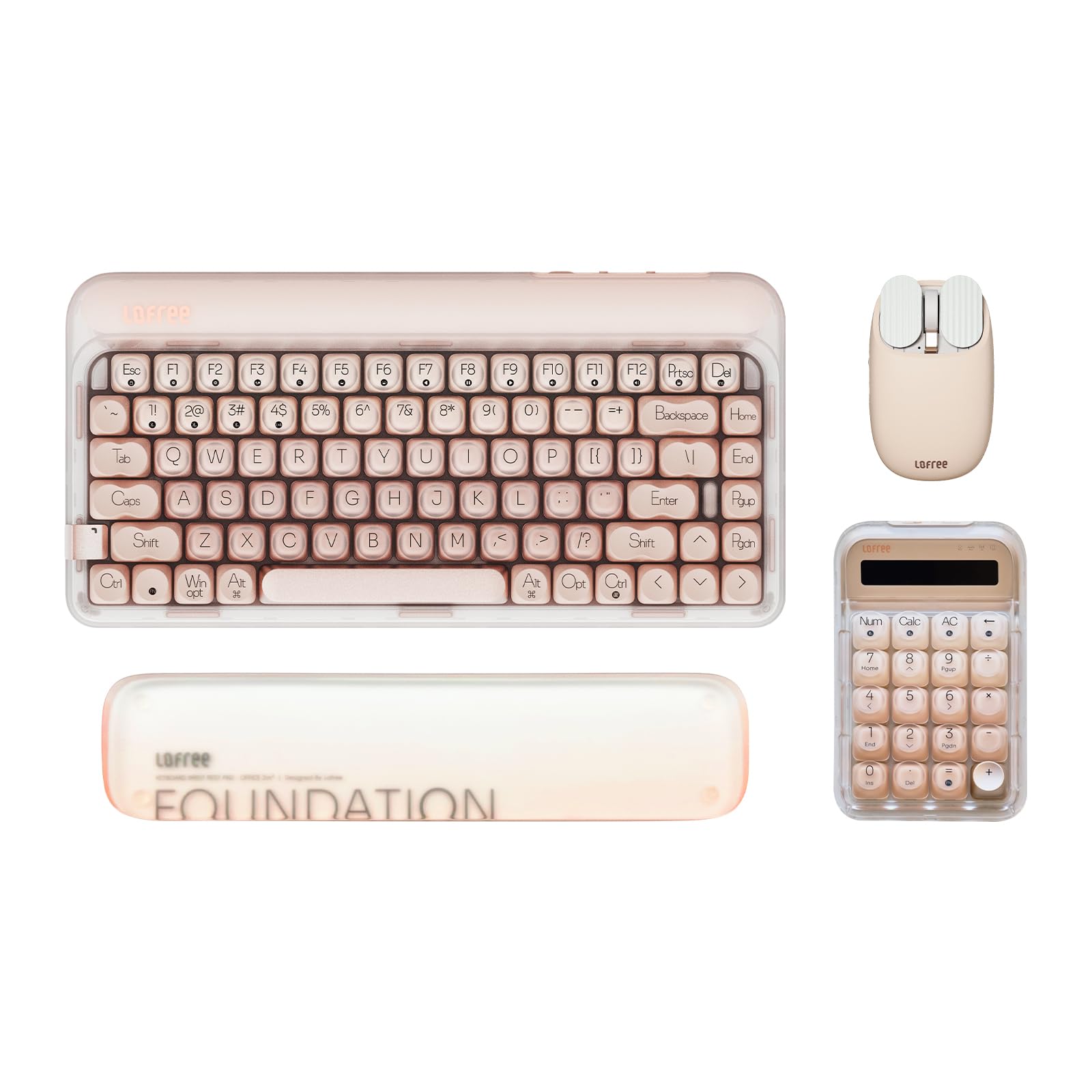
Image: The LOFREE DOT Foundation Keyboard, Numpad, Milk Tea Mouse, and Jelly Palm Rest set.
Setup
1. Package Contents
Before proceeding, ensure all components are present:
- LOFREE DOT Foundation Keyboard
- LOFREE Numpad
- LOFREE Milk Tea Mouse
- LOFREE Jelly Palm Rest
- USB-C Cable
- 2.4GHz Wireless Receiver
2. Charging
The keyboard and mouse are equipped with rechargeable batteries. Connect the provided USB-C cable to the charging port on the devices and to a power source (e.g., computer USB port or wall adapter). The charging indicator will show the charging status.
3. Connectivity Options
The LOFREE DOT Foundation Keyboard and Mouse support three connection methods: Wired (USB-C), 2.4GHz Wireless, and Bluetooth 5.3.

Image: The LOFREE keyboard highlighting its three connectivity options: 2.4G wireless, Bluetooth 5.3, and wired USB-C.
3.1. Wired Connection (USB-C)
Connect the USB-C cable from the device to an available USB port on your computer. The device will be recognized automatically.
3.2. 2.4GHz Wireless Connection
- Locate the 2.4GHz wireless receiver.
- Plug the receiver into an available USB port on your computer.
- Turn on the keyboard/mouse. The device should connect automatically.
3.3. Bluetooth 5.3 Connection
The keyboard and mouse can connect to up to three Bluetooth devices simultaneously.
- Turn on the keyboard/mouse and switch to Bluetooth mode (refer to device-specific switch if available).
- On your computer or device, go to Bluetooth settings and enable Bluetooth.
- Select the LOFREE device from the list of available devices to pair.
- Repeat for additional devices, switching Bluetooth channels on the LOFREE device as needed (e.g., Fn+1, Fn+2, Fn+3 for keyboard).
4. Palm Rest Placement
Position the Jelly Palm Rest in front of your keyboard to provide ergonomic support for your wrists during typing. The non-slip mats on the bottom ensure stability.

Image: The LOFREE Jelly Palm Rest positioned for ergonomic typing, showing its 19mm height.
Operating Instructions
1. Keyboard Usage
1.1. Basic Typing
The LOFREE DOT Foundation Keyboard features a 75% layout with GATERON Baby Racoon Switches, providing a tactile and responsive typing experience. It is compatible with Windows and macOS operating systems.
1.2. Backlight Control
The keyboard offers 7 white backlight effects. Use specific key combinations (e.g., Fn + arrow keys or other designated keys) to adjust the backlight mode, frequency, and brightness. Refer to the quick start guide or on-device markings for exact key combinations.

Image: A close-up view of the LOFREE keyboard keys, demonstrating the 7-light backlight effect.
1.3. Hot-swappable Switches
The keyboard features hot-swappable switches, allowing users to change the GATERON Baby Racoon Switches without soldering. This enables customization of the typing feel.
2. Numpad Usage
The included numpad provides dedicated numeric input for data entry and calculations. It connects wirelessly to your computer, enhancing productivity.

Image: The LOFREE Numpad, featuring calculator functions and a clear display.
3. Mouse Usage
3.1. DPI Adjustment
The Milk Tea Mouse offers 5 adjustable DPI levels. Use the dedicated DPI button (usually located near the scroll wheel or on the bottom) to cycle through the sensitivity settings to match your preference.
3.2. Multi-Gesture Use
The mouse is equipped with a thumb wheel and button designed for multi-gesture use, allowing for enhanced navigation and control within compatible applications. Refer to your operating system's mouse settings for customization options.

Image: The LOFREE Milk Tea Mouse, highlighting its thumb wheel and button for multi-gesture functionality.
3.3. Device Switching
The mouse can connect to 2 devices simultaneously via Bluetooth. Use the designated switch or button on the mouse to toggle between connected devices.
3.4. Battery Life
The mouse provides approximately 50 days of battery life on a single charge, depending on usage. Recharge using the USB-C cable when the battery is low.
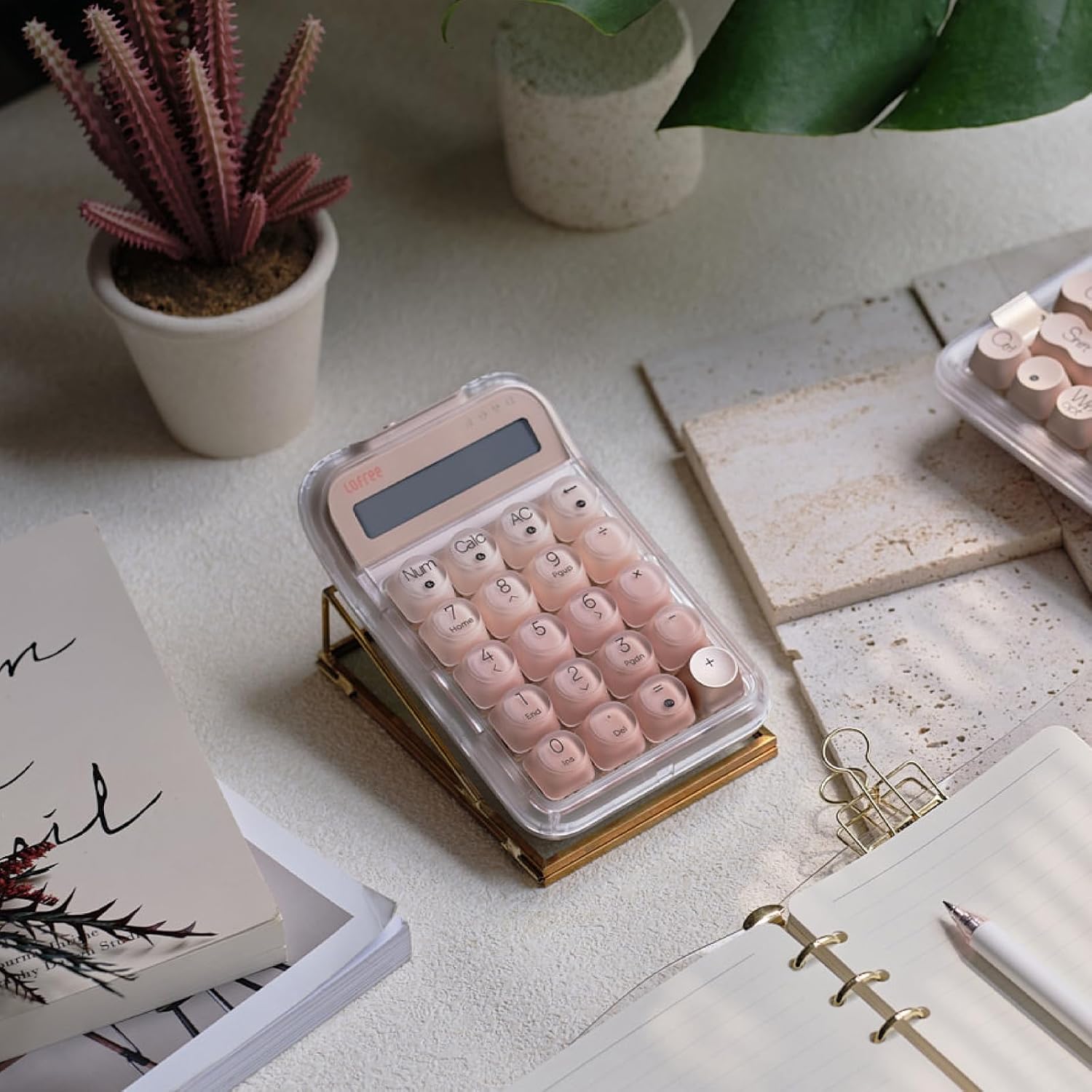
Image: The LOFREE Milk Tea Mouse held in a hand, emphasizing its 50-day battery life.
Maintenance
1. Cleaning
- Keyboard & Numpad: Use a soft, dry, lint-free cloth to wipe the surfaces. For deeper cleaning, gently remove keycaps (if applicable and with proper tools) and use compressed air to clear debris.
- Mouse: Wipe the exterior with a soft, damp cloth. Avoid getting moisture into openings.
- Palm Rest: The acrylic Jelly Palm Rest can be cleaned with a damp cloth. Its material is designed to be sweat-proof and fingerprint-proof.
Caution: Do not use harsh chemicals, abrasive cleaners, or excessive moisture on any components.
2. Storage
When not in use for extended periods, store the devices in a cool, dry place away from direct sunlight and extreme temperatures. Ensure devices are turned off to conserve battery life.
Troubleshooting
1. Connectivity Issues
- Device Not Connecting:
- Ensure the device is powered on and fully charged.
- For 2.4GHz, ensure the wireless receiver is securely plugged into a USB port.
- For Bluetooth, ensure Bluetooth is enabled on your computer/device and the LOFREE device is in pairing mode or selected on the correct channel.
- Try restarting your computer and the LOFREE device.
- Intermittent Connection:
- Move the device closer to the receiver/computer.
- Avoid interference from other wireless devices.
- Ensure the battery is not low.
2. Backlight Not Working
- Ensure the keyboard is powered on.
- Check if the backlight brightness is set to minimum. Adjust using the designated key combinations.
- If the battery is low, the backlight may dim or turn off to conserve power. Charge the keyboard.
3. Charging Issues
- Ensure the USB-C cable is securely connected to both the device and the power source.
- Try a different USB port or power adapter.
- Verify the USB-C cable is not damaged.
4. Mouse Responsiveness
- Adjust the DPI settings to your preferred sensitivity.
- Ensure the mouse sensor is clean and free from obstructions.
- Check the mouse battery level.
Specifications
| Feature | Detail |
|---|---|
| Brand | LOFREE |
| Model | DOT Foundation |
| Color | Pink |
| Connectivity Technology | Bluetooth 5.3, 2.4GHz Wireless, USB-C Wired |
| Keyboard Special Features | Rechargeable, Hot-swappable GATERON Baby Racoon Switches, 4-Layer Gasket Design, 7 White Backlight Effects |
| Mouse Special Features | Rechargeable, 5 Adjustable DPI Levels, Thumb Wheel & Button for Multi-Gesture Use, 50-day Battery Life |
| Palm Rest Special Features | Semi-transparent Frosted, Non-slip Mats, High Temperature Resistance, Sweat-proof, Fingerprint-proof |
| Compatible Devices | Personal Computer, Smartphone, Tablet |
| Power Source | Battery Powered (Rechargeable) |
| Keyboard Layout | QWERTY (75% layout) |
| Operating System Compatibility | Windows (Windows 11), macOS (Mac OS 14 Sonoma), iOS, Android |
| Unit Count | 1.0 Count (refers to the set) |
| ASIN | B0DSV6W7VX |
Warranty and Support
1. Warranty Information
For detailed warranty information, please refer to the official LOFREE website or the warranty card included with your product. Warranty terms typically cover manufacturing defects for a specified period from the date of purchase.
2. Customer Support
If you encounter any issues not covered in this manual or require further assistance, please contact LOFREE customer support. You can usually find contact information on the official LOFREE website or through your retailer.
Online Resources: Visit the LOFREE Store on Amazon for additional product information and support.
Related documentsDOT Foundation


Ask a question about this manual
Ask about setup, troubleshooting, compatibility, parts, safety, or missing instructions. Manuals+ will review the question and use this page’s manual context to help answer it.