
1. Introduction
This manual provides detailed instructions for the Keychron Q6 HE QMK Wireless Custom Mechanical Keyboard. The Q6 HE is a full-size layout keyboard featuring Hall Effect Gateron 2.0 magnetic switches, offering dynamic rapid triggering and adjustable actuation points. It supports 2.4 GHz wireless, Bluetooth 5.1, and wired connections, and is fully programmable via the Keychron Launcher web app.
The keyboard is constructed with a durable 6063 aluminum body and features south-facing RGB LED lights and hot-swappable magnetic switches for a customizable typing experience.

Image: The Keychron Q6 HE QMK Wireless Custom Mechanical Keyboard in Carbon Black, showcasing its full 100% layout with white and black keycaps and red accent keys.
2. Setup
2.1 Package Contents
- Keyboard PCB
- Case
- Aluminum Plate
- Mac & Windows Keycaps
- USB-C Cable (not explicitly listed but implied for wired connection/charging)
2.2 Initial Connection
The Keychron Q6 HE supports three connection modes: 2.4 GHz wireless, Bluetooth 5.1, and wired USB-C. Select your preferred mode using the switch located on the keyboard's rear or side.
- Wired Connection: Connect the provided USB-C cable from the keyboard to your computer's USB port. The keyboard will be recognized automatically.
- 2.4 GHz Wireless Connection: Plug the 2.4 GHz receiver (dongle) into an available USB port on your computer. Switch the keyboard to 2.4 GHz mode. The keyboard should connect automatically. This mode offers a 1000 Hz polling rate for optimal gaming performance.
- Bluetooth Connection: Switch the keyboard to Bluetooth mode. On your device (computer, phone, tablet), search for Bluetooth devices and select "Keychron Q6 HE". The keyboard can connect to up to three devices simultaneously. Use the Fn + 1/2/3 keys to switch between paired devices.
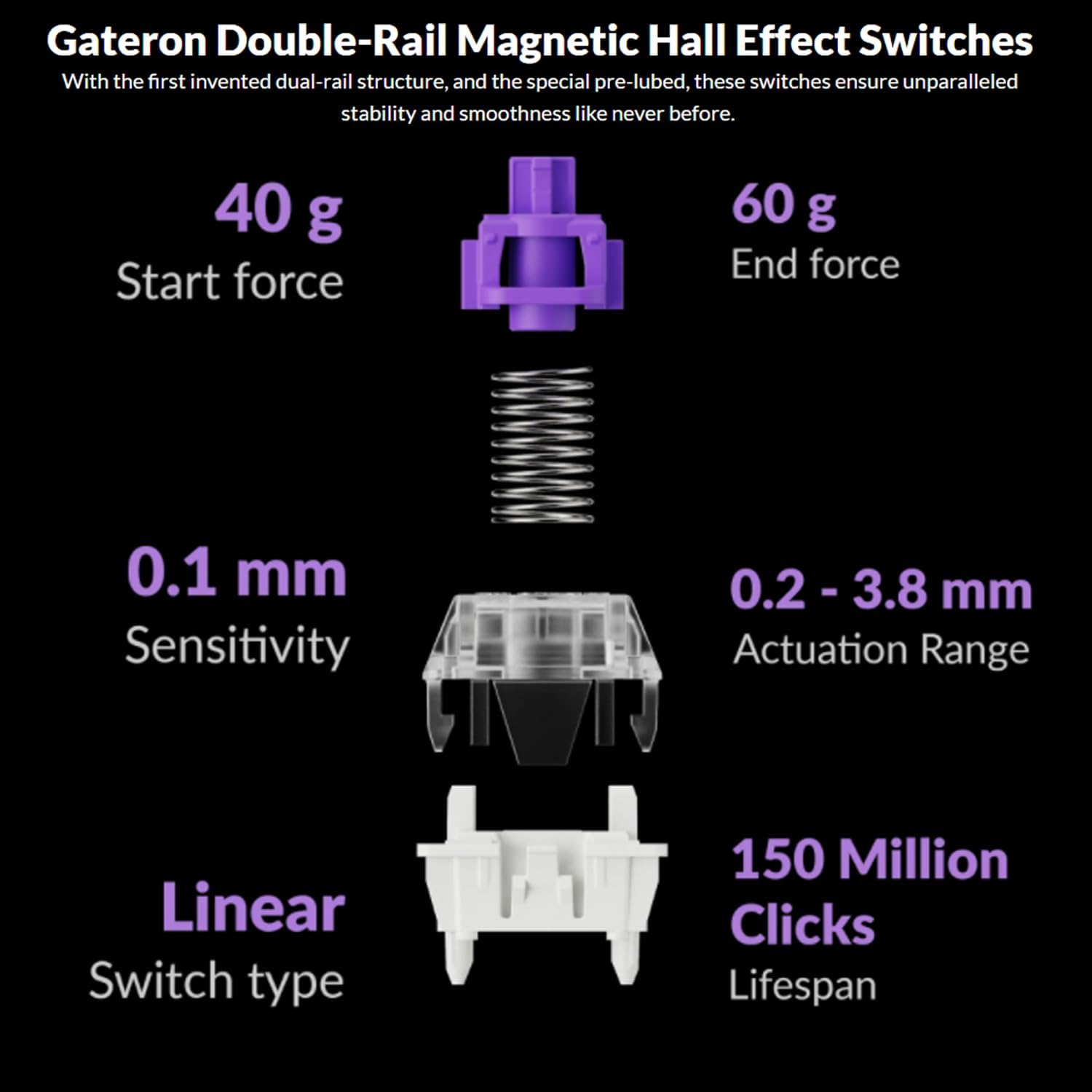
Image: The Keychron Q6 HE keyboard positioned on a desk, illustrating its capability to connect to multiple devices for seamless multitasking.
2.3 Software Installation (Keychron Launcher)
For advanced customization, including key remapping, macro creation, and actuation point adjustment, download the Keychron Launcher web app from the official Keychron website. This software allows full utilization of the keyboard's QMK/VIA compatibility.
3. Operating Instructions
3.1 Adjustable Magnetic Switches
The Keychron Q6 HE features Gateron Hall Effect 2.0 magnetic switches, which allow for adjustable actuation points from 0.5mm to 3.8mm. This enables users to customize the sensitivity of each key. The switches also support dynamic rapid triggering, allowing for multiple key presses without full reset, ideal for gaming.

Image: A close-up view of the Keychron Q6 HE's adjustable magnetic switches, illustrating the actuation point range from 0.5mm to 3.8mm and the reset/active states.
These switches feature a double-rail structure for enhanced stability and smoothness, with a lifespan of 150 million clicks. They have a start force of 40g and an end force of 60g, with a sensitivity of 0.1mm.

Image: Detailed breakdown of the Gateron Double-Rail Magnetic Hall Effect Switches, showing their linear type, start/end force, sensitivity, actuation range, and lifespan.
3.2 Programmable Knob and QMK/VIA Customization
The integrated knob is programmable and can be customized for various functions such as volume control, zoom, or scrolling. Using the Keychron Launcher web app, you can remap any key, create complex macro commands, shortcuts, and key combinations. The open-source QMK firmware provides extensive customization possibilities.

Image: Screenshot of the Keychron Launcher web app interface, demonstrating options for key remapping, actuation distance adjustment, and macro creation for the Q6 HE keyboard.
3.3 RGB Backlighting
The Q6 HE features south-facing RGB LED lights, designed to provide optimal illumination from the typist's perspective, especially with non-shine-through PBT keycaps. This orientation also prevents interference when using Cherry-profile keycaps.
Various lighting effects and brightness levels can be adjusted directly on the keyboard using function key combinations or through the Keychron Launcher software.
3.4 Hot-Swappable Switches
The keyboard's hot-swappable design allows for easy replacement of magnetic switches without soldering. This enables users to experiment with different switch types or replace faulty switches effortlessly.

Image: A dynamic shot showing keycaps and magnetic switches being removed from the Keychron Q6 HE keyboard, highlighting its hot-swappable feature.
4. Maintenance
4.1 Cleaning the Keyboard
- Disconnect the keyboard from all power sources before cleaning.
- Use a soft, lint-free cloth slightly dampened with water or a mild cleaning solution to wipe down the keycaps and case. Avoid excessive moisture.
- For dust and debris between keycaps, use compressed air or a small brush.
- Do not use harsh chemicals, abrasives, or solvents, as these can damage the finish.
4.2 Replacing Keycaps and Switches
- To remove keycaps, use a keycap puller. Gently pull upwards until the keycap detaches.
- To remove magnetic switches, use the provided switch puller. Align the prongs with the clips on the switch and gently pull upwards.
- When inserting new switches, ensure the pins are straight and align correctly with the sockets on the PCB. Press down gently until the switch clicks into place.
- When inserting new keycaps, align them with the switch stem and press down firmly until they are seated.
5. Troubleshooting
5.1 Connectivity Issues
- Keyboard not connecting (2.4 GHz/Bluetooth): Ensure the keyboard is in the correct mode (2.4G/BT) and fully charged. For Bluetooth, ensure your device's Bluetooth is enabled and the keyboard is in pairing mode. Try re-pairing the device. For 2.4 GHz, ensure the dongle is securely plugged in.
- Intermittent connection: Move the keyboard closer to the receiver/device. Avoid sources of interference (e.g., other wireless devices, large metal objects).
- Wired connection not working: Try a different USB-C cable or a different USB port on your computer. Ensure the cable is fully inserted.
5.2 Key Functionality Issues
- Key not responding: If a specific key is not working, try removing and re-inserting its magnetic switch. Ensure the switch is fully seated. If the issue persists, the switch may need replacement.
- Incorrect key output: Check your keyboard layout settings on your operating system. If using Keychron Launcher, verify key assignments.
5.3 Backlight Issues
- RGB lights not working: Ensure the backlight is enabled (check function key combinations). Adjust brightness levels.
- Inconsistent lighting: This could indicate a software issue; try resetting the keyboard or updating firmware via Keychron Launcher.
5.4 Battery Life
The Q6 HE has a 4000 mAh battery, providing up to 100 hours of usage at the lowest brightness setting. If battery life is significantly shorter, ensure the keyboard is fully charged. High brightness settings and constant wireless usage will consume more power.
5.5 Firmware Update
Regularly check the Keychron website for firmware updates. Firmware updates can resolve bugs, improve performance, and add new features. Follow the instructions provided with the firmware update package carefully.
6. Specifications
| Brand | Keychron |
| Model Name | Q6H-M1 |
| ASIN | B0DSP1JFS5 |
| Color | Carbon Black |
| Keyboard Description | Ergonomic |
| Number of Keys | 104 |
| Switch Type | Mechanical (Gateron Magnetic Hall Effect) |
| Keyboard Layout | QWERTY |
| Connectivity | 2.4 GHz Wireless, Bluetooth 5.1, Wired (USB-C) |
| Compatible Devices | PC, Gaming Console, Tablet, Smartphone |
| Power Source | Battery Powered (1 Lithium Ion battery included) |
| Battery Capacity | 4000 mAh |
| Item Weight | 6.49 pounds |
| Package Dimensions | 18.86 x 8.27 x 2.87 inches |
| Country of Origin | China |
| Date First Available | January 10, 2025 |
7. Warranty and Support
For warranty information, technical support, and frequently asked questions, please visit the official Keychron website or contact Keychron customer service directly. Details regarding product registration and warranty claims can typically be found in the support section of the manufacturer's website.
The seller for this product is Keychron 2020. For specific inquiries related to your purchase, you may also refer to your order details on Amazon or contact the seller directly through the Amazon platform.
Keychron's official store on Amazon can be found at: Keychron Amazon Store


