
1. Introduction
This manual provides essential information for the installation, operation, and maintenance of your ENERMAX Revolution III 650W ATX 3.1 Power Supply. Please read this manual thoroughly before installation and keep it for future reference.
1.1 Safety Information
- Always disconnect the power supply from the AC outlet before installation or maintenance.
- Do not open the power supply unit. High voltages are present inside, and it contains no user-serviceable parts.
- Ensure proper grounding to prevent electrical hazards.
- Install the power supply in a well-ventilated area.
- Use only the modular cables provided with this power supply. Using incompatible cables may damage the unit or connected components.
- This product is designed for use in personal computer systems. Do not use it for any other purpose.
1.2 Package Contents
- ENERMAX Revolution III 650W Power Supply
- Modular Cable Set (including 12V-2x6 cable for PCIe 5.1)
- AC Power Cord
- Mounting Screws
- Cable Combs (16 pieces for 650W model)
- User Manual

Image 1.1: The ENERMAX Revolution III 650W power supply, showcasing its compact design and fan grille.
2. Setup and Installation
Follow these steps to properly install your ENERMAX Revolution III 650W power supply into your computer system.
2.1 Pre-Installation Checks
- Ensure your computer case is compatible with ATX form factor power supplies.
- Verify that your motherboard and other components are compatible with the power requirements of a 650W power supply.
- Unpack the power supply and all modular cables.
2.2 Physical Installation
- Mount the power supply into the designated bay in your computer case using the provided screws. Ensure the fan is oriented correctly for optimal airflow (typically facing downwards if there's a bottom vent, or upwards if not).
- Connect the necessary modular cables to the power supply unit. The Revolution III is fully modular, allowing you to connect only the cables you need. Refer to the labels on the power supply for correct port identification.
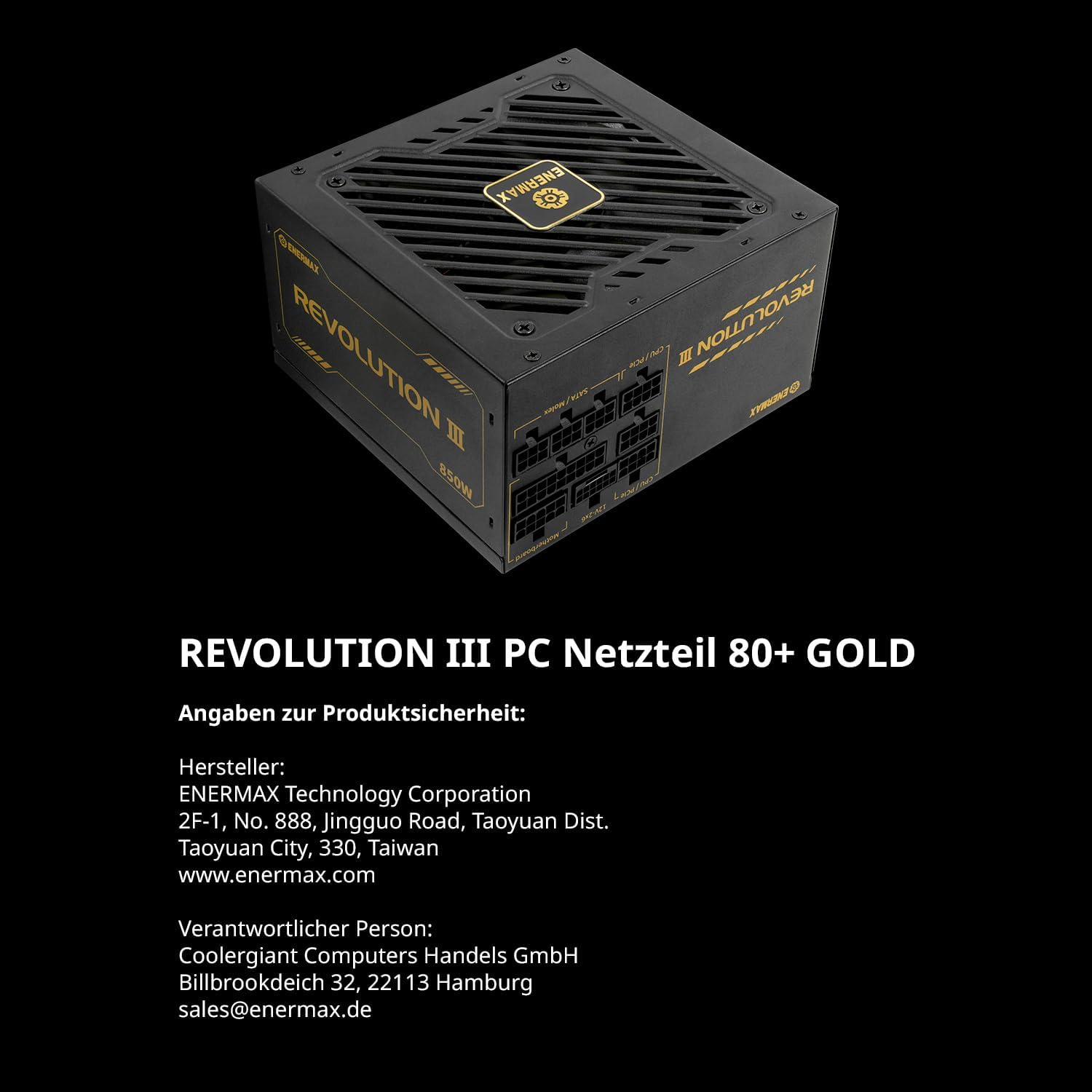
Image 2.1: Rear view of the power supply showing the clearly labeled modular cable ports for motherboard, CPU/PCIe, and SATA/Molex connections.
2.3 Cable Connections
Connect the modular cables from the power supply to your system components:
- Motherboard: Connect the 24-pin ATX cable to your motherboard.
- CPU: Connect the 4+4-pin or 8-pin EPS/CPU cable to your motherboard's CPU power connector.
- Graphics Card (GPU): For modern GPUs, use the dedicated 12V-2x6 cable (PCIe 5.1) for high-power graphics cards. For other GPUs, use the 6+2-pin PCIe cables. The Revolution III supports PCIe 5.1, providing a 450W 12V-2x6 cable for demanding GPUs.
- Storage Devices: Connect SATA power cables to SSDs, HDDs, and optical drives.
- Peripherals: Connect Molex cables for any other peripherals requiring power.

Image 2.2: The power supply highlighting the native PCIe 5.1 12V-2x6 connector, designed for high-performance graphics cards.
2.4 Cable Management
Utilize the included cable combs to organize the premium mesh-sleeved cables for a clean and efficient build. Proper cable management improves airflow and aesthetics within your PC case.

Image 2.3: Modular cables with mesh sleeving and cable combs, demonstrating organized cable routing.
3. Operating Instructions
Once all connections are secure, you can power on your system.
3.1 Powering On
- Ensure the power switch on the back of the power supply is in the 'OFF' (0) position.
- Connect the AC power cord to the power supply and then to a wall outlet.
- Flip the power switch on the power supply to the 'ON' (I) position.
- Press the power button on your computer case to start the system.
3.2 Fan Operation
The Revolution III 650W features a whisper-quiet 120mm FDB (Fluid Dynamic Bearing) fan. This fan is designed for silent operation under typical loads and will adjust its speed based on the power supply's temperature to maintain optimal cooling and noise levels.
3.3 Efficiency
This power supply is 80 PLUS Gold certified, indicating an efficiency of over 90% at standard load conditions. This means less energy is wasted as heat, contributing to lower operating temperatures and reduced energy consumption.
4. Maintenance
Regular maintenance helps ensure the longevity and optimal performance of your power supply.
4.1 Cleaning
- Periodically clean the exterior of the power supply and its fan grille to prevent dust buildup.
- Use compressed air to gently remove dust from the fan and internal components (without opening the unit).
- Ensure the power supply is disconnected from the AC outlet before cleaning.
4.2 Environmental Conditions
Operate the power supply within recommended temperature and humidity ranges. Avoid exposing the unit to extreme temperatures or moisture.
5. Troubleshooting
If you encounter issues with your power supply, refer to the following common troubleshooting steps:
- No Power:
- Check if the AC power cord is securely connected to both the power supply and the wall outlet.
- Ensure the power switch on the back of the power supply is in the 'ON' (I) position.
- Verify that the 24-pin ATX and CPU power cables are correctly seated in the motherboard.
- Test the wall outlet with another device to confirm it has power.
- System Instability/Crashes:
- Ensure all modular cables are fully inserted into both the power supply and the components.
- Verify that your system's power requirements do not exceed the 650W capacity of the power supply.
- The Revolution III features a 6-way protection circuit (OVP, UVP, OPP, SCP, OCP, OTP) to safeguard against various electrical issues. If the system is unstable, these protections might be activating due to an underlying component issue or excessive load.
- Fan Noise:
- While designed for quiet operation, ensure the power supply fan grille is not obstructed.
- Clean any dust buildup from the fan.
If problems persist after following these steps, please contact ENERMAX customer support.
6. Specifications
| Feature | Description |
|---|---|
| Model Name | REVOLUTION III |
| Item Model Number | ERV650G-AHG-MAC |
| Output Wattage | 650 Watts |
| Form Factor | ATX |
| Efficiency Certification | 80 PLUS Gold (over 90% efficiency at standard load) |
| ATX Standard | ATX 3.1 |
| PCIe Connector | Native PCIe 5.1 (12V-2x6 cable) |
| Capacitors | 105°C Japanese Capacitors |
| Cooling Method | Air (120mm FDB fan) |
| Product Dimensions (L x W x H) | 5.51 x 5.91 x 3.39 inches (140 x 150 x 86 mm) |
| Item Weight | 3.41 pounds (1.55 Kilograms) |
| Protection Circuit | 6-way (OVP, UVP, OPP, SCP, OCP, OTP) |
7. Warranty and Support
ENERMAX products are manufactured under strict quality control standards. For warranty information and technical support, please refer to the official ENERMAX website or contact your local distributor.
7.1 Manufacturer Information
Manufacturer: ENERMAX Technology Corporation
2F-1, No. 888, Jingguo Road, Taoyuan Dist.
Taoyuan City, 330, Taiwan
www.enermax.com
Responsible Person (Germany):
Coolergiant Computers Handels GmbH
Billbrookdeich 32, 22113 Hamburg
sales@enermax.de

Image 7.1: Manufacturer and responsible party contact details, as well as 80 PLUS Gold certification information.


