
1. Introduction
Thank you for choosing the blurams Indoor Security Camera. This manual provides essential information for the safe and efficient use of your device. Please read it thoroughly before operation and retain it for future reference.

Figure 1: blurams Indoor Security Camera (Model A31S)
2. What's in the Box
Your blurams Indoor Security Camera package includes the following items:
- Indoor Camera Unit (2 units)
- Type-C Cable
- Mounting Screws
- Power Adapter (5V 1A)
- Instruction Manual

Figure 2: Contents of the blurams Indoor Security Camera package.
3. Setup Guide
Follow these steps to set up your blurams Indoor Security Camera:
- Power On: Connect the camera to a power source using the provided Type-C cable and 5V 1A power adapter. The camera head will rotate for approximately 20 seconds during startup.
- Download the App: Download the official 'blurams' app from the Apple App Store or Google Play.
- Create an Account: Open the app and follow the on-screen instructions to create a new user account.
- Add Camera:
- Log in to your blurams account.
- Tap the '+' icon to add a new device.
- Select 'A31' or 'Dome Flare' from the indoor camera list.
- The app will guide you through the connection process.
- Scan QR Code: When prompted, scan the QR code displayed on your smartphone screen with the camera. Hold your phone 10-15 cm away from the camera lens until you hear a beep sound.
- Wi-Fi Connection: Select your 2.4GHz or 5GHz Wi-Fi network and enter the password. The camera supports both frequencies.
- Completion: Once connected, you can name your camera and select its primary use (e.g., pet monitoring, baby monitor).
Video 1: blurams 3MP Security Camera Connection Method. This video demonstrates the step-by-step process of connecting your blurams camera to the mobile application, including scanning the QR code and Wi-Fi setup.
Video 2: Indoor Baby Monitor and Pet Camera Installation and Connection Settings. This video provides a general guide for installing and connecting blurams indoor cameras, which can be applied to the A31S model.
4. Operating Instructions
4.1 Key Features Overview
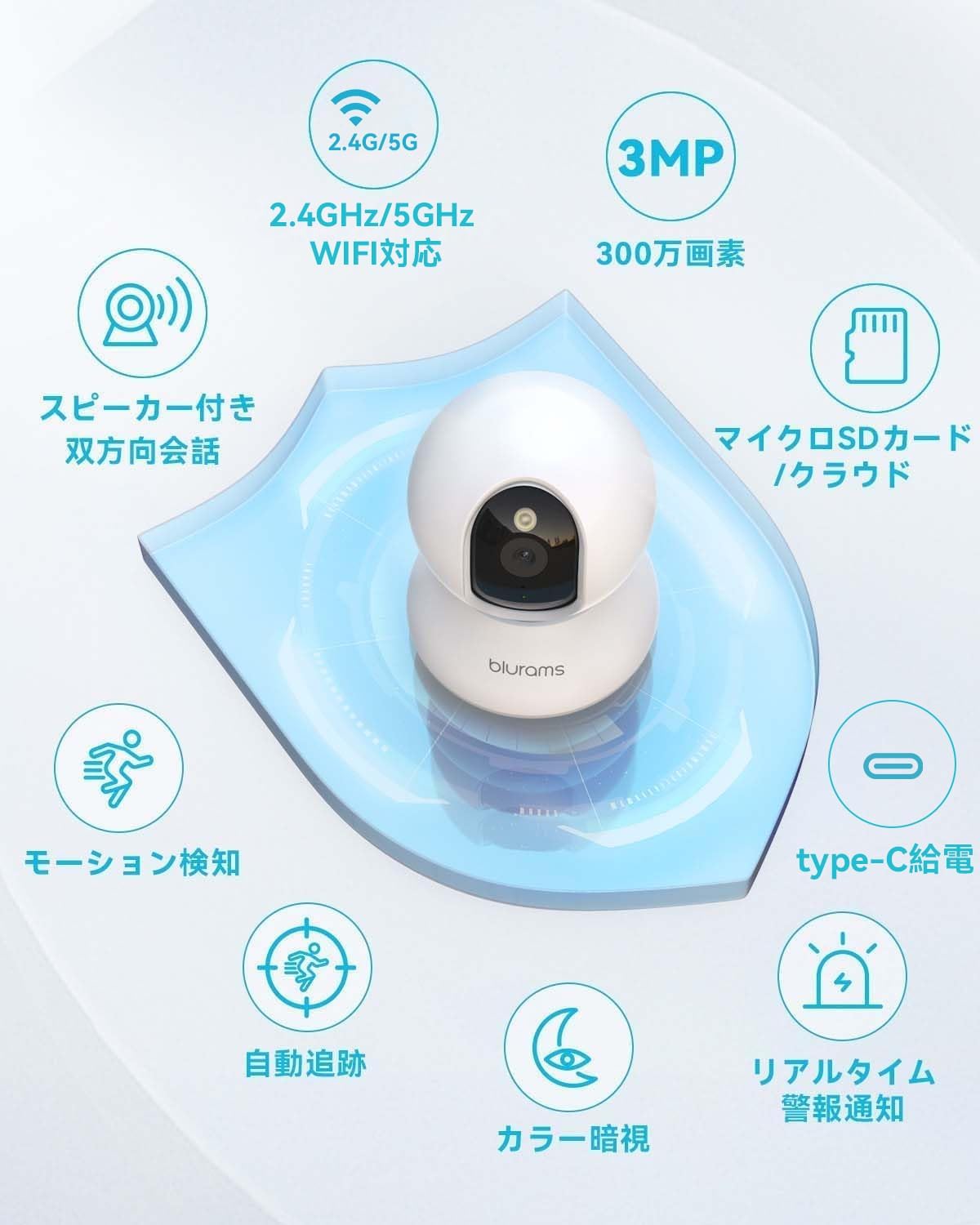
Figure 3: Overview of blurams Indoor Security Camera features, including 2.4G/5G WiFi support, 3MP resolution, microSD/cloud storage, two-way audio, motion detection, auto-tracking, color night vision, real-time alarms, and Type-C power.
4.2 Pan-Tilt-Zoom (PTZ) Control
The camera features 360° horizontal and 110° vertical rotation. Use the blurams app to remotely adjust the camera's viewing angle. It also supports 4x digital zoom to view details.

Figure 4: PTZ functionality with auto-tracking, showing the camera's range of motion and digital zoom capability via the app.
4.3 Two-Way Audio
Engage in real-time two-way conversations through the camera using the app. This feature is ideal for communicating with family members, pets, or visitors.

Figure 5: Demonstrates two-way audio communication with a pet through the camera.
Video 3: Two-Way Talk from Surveillance Camera. This video illustrates the two-way audio feature, allowing users to communicate through the camera.
4.4 Motion, Sound, and Human Detection
The camera is equipped with AI-powered detection capabilities. When motion, sound, or a human figure is detected, you will receive instant notifications on your smartphone via the blurams app. Enable 'Auto-Tracking' in the app for the camera to follow detected movement.
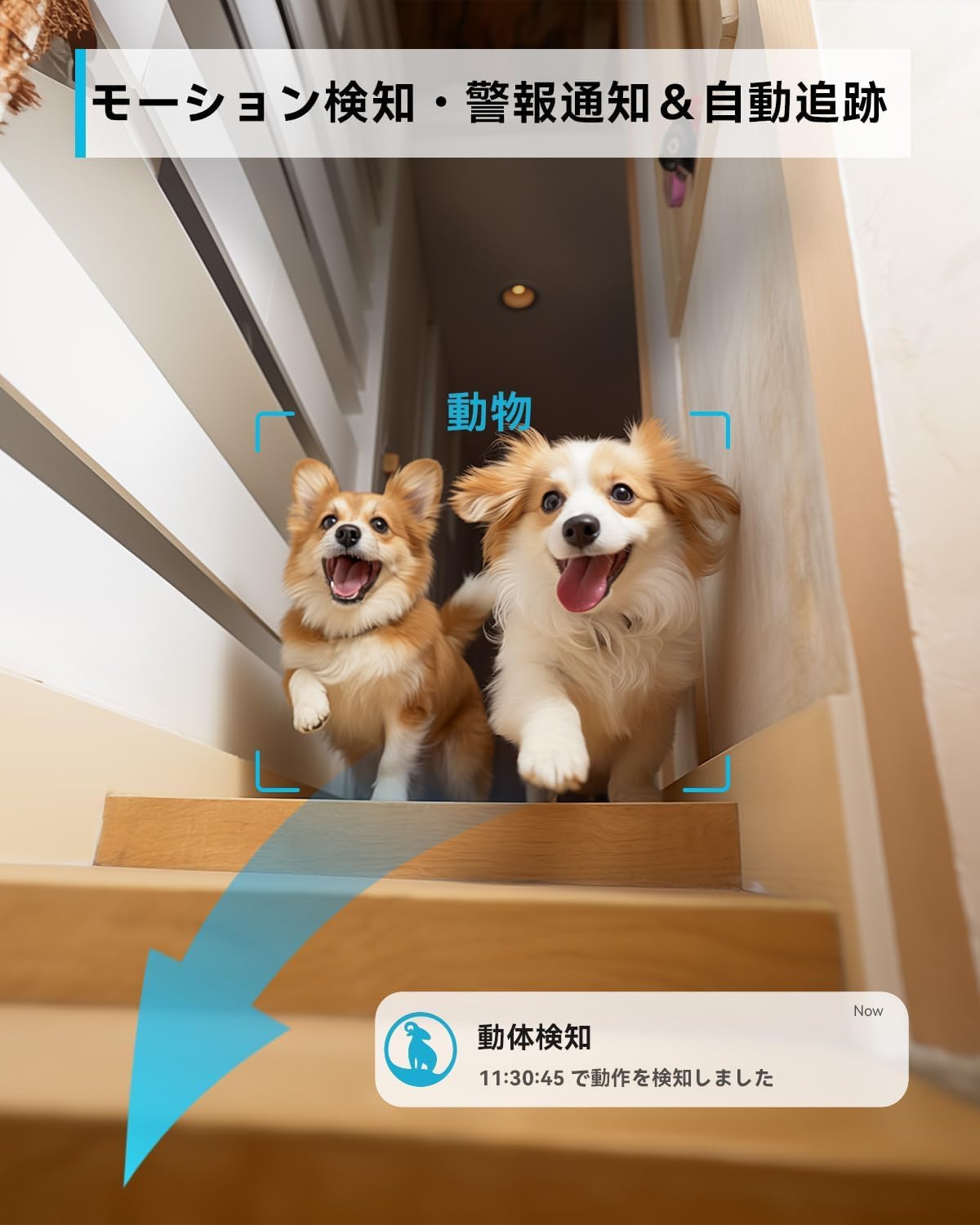
Figure 6: Motion detection and automatic tracking feature, showing the camera identifying and following movement.
4.5 Night Vision
The camera provides 3MP resolution (2304x1296) and features full-color night vision up to 12 meters, ensuring clear images even in low-light conditions. It also supports traditional infrared night vision.
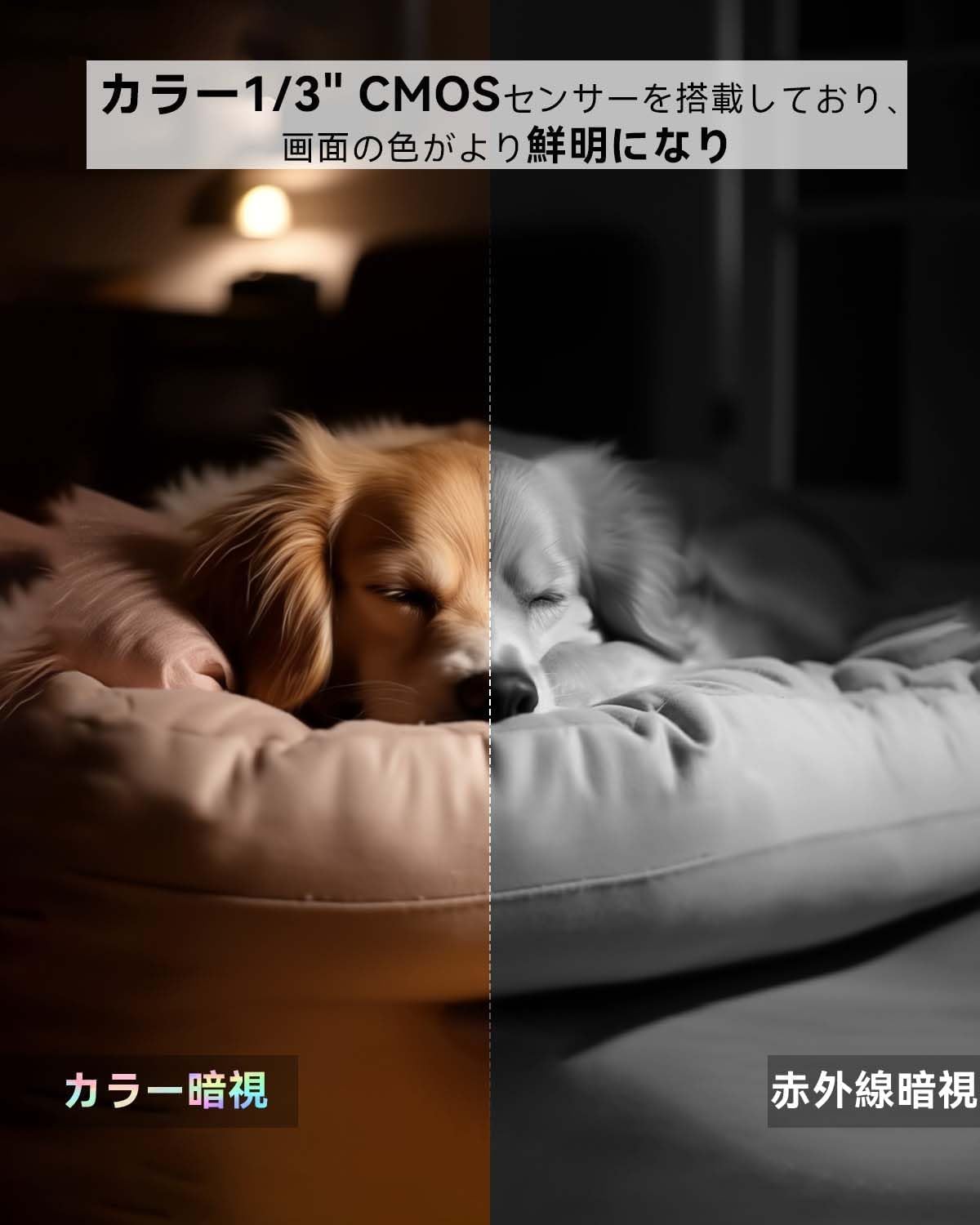
Figure 7: Comparison illustrating the clarity and color retention of full-color night vision versus standard infrared night vision.
4.6 Recording and Storage
The camera offers flexible recording options:
- microSD Card: Supports up to 256GB microSD cards (sold separately) for 24-hour continuous recording.
- Cloud Storage: Optional paid cloud storage service is available, offering a 1-month free trial. This provides secure, encrypted storage for your video footage.

Figure 8: Recording and playback options, including continuous recording to microSD and event-based recording to cloud storage.
4.7 Privacy Mode
For enhanced privacy, you can activate the privacy mode via the app. In this mode, the camera lens will physically slide upwards, blocking the view and exposing the microSD card slot, ensuring no recording or live viewing occurs.

Figure 9: Illustrates the privacy mode where the lens retracts, and various mounting options for the indoor camera.
5. Maintenance
- Cleaning: Use a soft, dry cloth to clean the camera lens and body. Avoid using harsh chemicals or abrasive materials.
- Placement: Place the camera on a stable, flat surface or mount it securely to a wall or ceiling using the provided hardware. Ensure it is within Wi-Fi range.
- Power Supply: Always use the original 5V 1A power adapter to prevent damage to the device.
- Firmware Updates: Regularly check the blurams app for firmware updates to ensure optimal performance and security.
6. Troubleshooting
- Camera Not Connecting to Wi-Fi:
- Ensure your Wi-Fi network is 2.4GHz or 5GHz.
- Verify the Wi-Fi password is correct.
- Place the camera closer to your Wi-Fi router.
- Reset the camera by pressing and holding the reset button until the indicator light changes to green and you hear a prompt.
- QR Code Scanning Issues:
- Ensure the QR code on your phone screen is clear and well-lit.
- Hold the phone 10-15 cm away from the camera lens.
- Clean the camera lens if it's dirty.
- No Notifications:
- Check if 'Notification Permissions' are enabled in the blurams app settings.
- Ensure your smartphone's notification settings allow alerts from the blurams app.
- Video Quality Issues:
- Ensure a stable Wi-Fi connection.
- Check the camera lens for dirt or obstructions.
7. Specifications
| Feature | Detail |
|---|---|
| Model Number | A31S |
| Resolution | 3MP (2304x1296), 1296p |
| Connectivity | Wi-Fi (2.4GHz/5GHz) |
| Pan/Tilt Range | Horizontal 360°, Vertical 110° |
| Night Vision | Full-Color Night Vision, up to 10-12 meters |
| Audio | Two-Way Audio |
| Detection | Motion, Sound, Human Detection, Auto-Tracking |
| Storage Options | microSD Card (max 256GB, not included), Cloud Storage (paid subscription) |
| Power Supply | Corded Electric (5V 1A adapter included) |
| Dimensions (LxWxH) | 8.2 x 8.2 x 11 cm |
| Weight | 600 g |
| Compatibility | iOS 10+, Android 5+, Alexa, Google Assistant, IFTTT |
| Water Resistance | Not Waterproof (Indoor Use Only) |
8. Warranty and Support
Your blurams Indoor Security Camera comes with a 3-year manufacturer's warranty. The product is TELEC certified (TELEC Mark No: 204-B00738), ensuring compliance with technical standards.
For any questions or support requests regarding your product, please contact our support team through your Amazon order history. We are committed to providing excellent after-sales service.

Figure 10: Customer support representatives ready to assist with inquiries.


