
1. Introduction
The Blackview Z20 Kids Smart Watch is designed to provide communication, safety, and entertainment features for children, while offering peace of mind for parents. This manual provides comprehensive instructions for setting up, operating, and maintaining your device.
What's in the Box:
- Blackview Z20 Smartwatch
- Charging Cable
- User Manual
- Additional Watch Band (2pcs straps—silicone and nylon straps)
2. Setup Guide
2.1 SIM Card Installation
The Blackview Z20 supports a 4G network (2G+4G frequency band) and requires a Nano SIM card for full functionality. Ensure the watch is powered off before inserting the SIM card.
- Power off the smartwatch completely.
- Locate the SIM card slot on the side of the watch.
- Carefully insert a Nano SIM card into the slot, ensuring correct orientation.
- Close the SIM card slot cover securely.
- Power on the watch. Wait for the signal icon to appear in the upper left corner of the watch before attempting calls.

Figure 2.1: SIM Card Installation and Watch Components. This image illustrates the correct Nano SIM card type and the location of the SIM slot, camera, menu/back button, speaker, and power/SOS button on the Blackview Z20 smartwatch.
2.2 App Download and Pairing
To manage the watch's features and track your child, download the "Setracker2" application on your smartphone.
- For Android phones: Download "Setracker2" from the Google Play Store.
- For iPhones: Download "Setracker2" from the App Store.
- Alternatively, scan the QR code provided in the watch's physical manual to download the app.
Follow the in-app instructions to register an account and pair your Blackview Z20 smartwatch. This typically involves scanning a QR code displayed on the watch or entering its unique ID.
3. Operating Instructions
3.1 Making and Receiving Calls
Once a SIM card is installed and the watch is connected to the network, your child can make and receive calls.
- Making Calls: Access the "Phone" or "Dial pad" function on the watch. Your child can dial numbers directly or select contacts saved via the "Setracker2" app.
- Receiving Calls: When a call comes in, the watch will ring. Your child can answer or reject the call using the on-screen prompts.
- Video Calls: The watch supports HD video calls. This feature allows face-to-face communication with parents through the app.
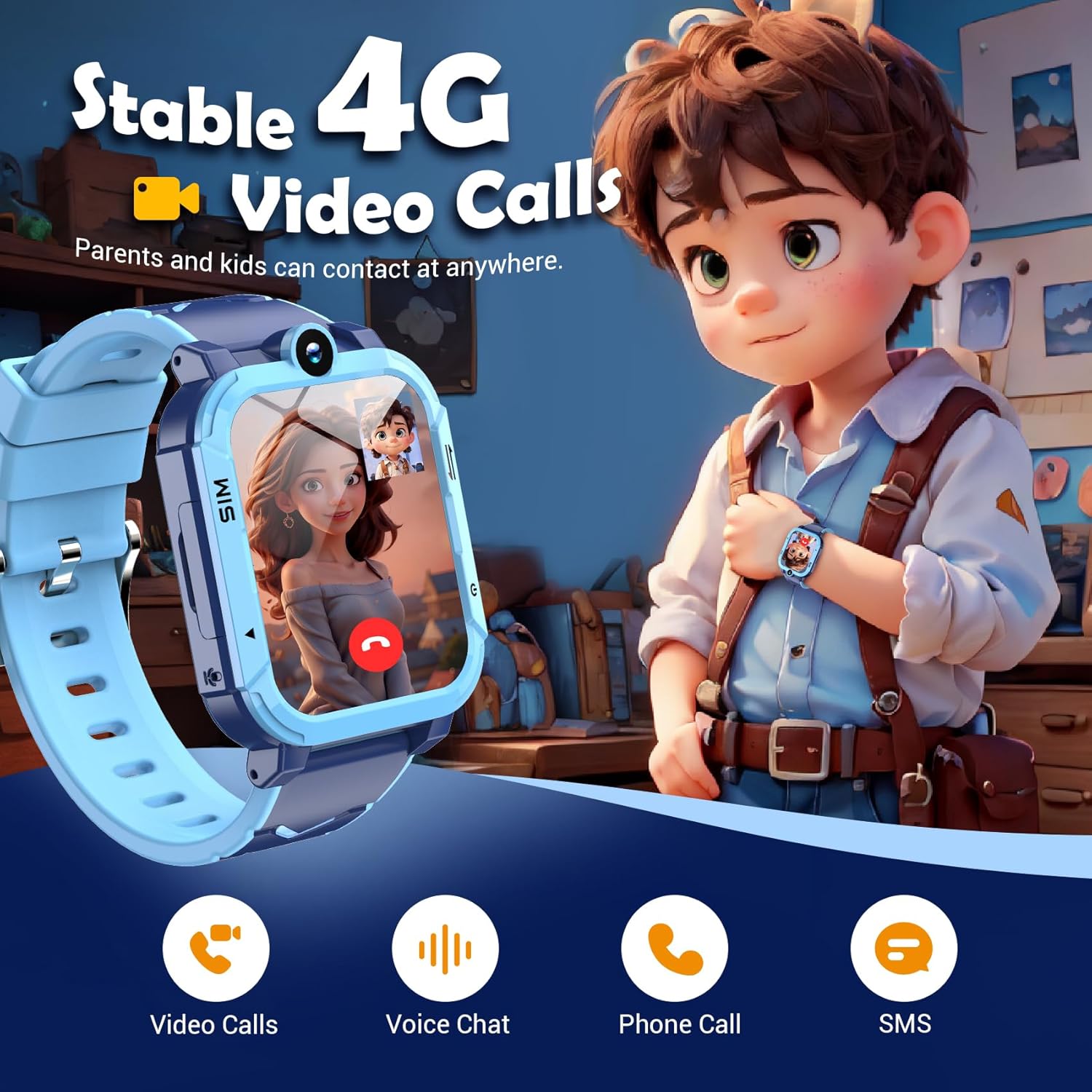
Figure 3.1: Stable 4G Video Calls. This image depicts a child using the smartwatch for a video call, highlighting the device's communication capabilities including video calls, voice chat, phone calls, and SMS.
3.2 SOS Emergency Calls
In an emergency, the SOS function allows your child to quickly contact pre-set emergency numbers.
- Activation: Press and hold the SOS button (typically the Power Button) on the side of the watch for 3 seconds.
- The watch will automatically dial the emergency numbers configured in the "Setracker2" app until one is answered.

Figure 3.2: SOS Emergency Call. This image demonstrates the one-click SOS function, where pressing and holding the power button initiates an emergency call to pre-set contacts.
3.3 Location Tracking (GPS+LBS+WIFI)
The watch utilizes a triple positioning system for accurate location tracking.
- Parents can view the child's real-time location through the "Setracker2" app.
- Safe Zones: Set up virtual boundaries (safe areas) in the app. If the child leaves this area, parents will receive an instant notification.
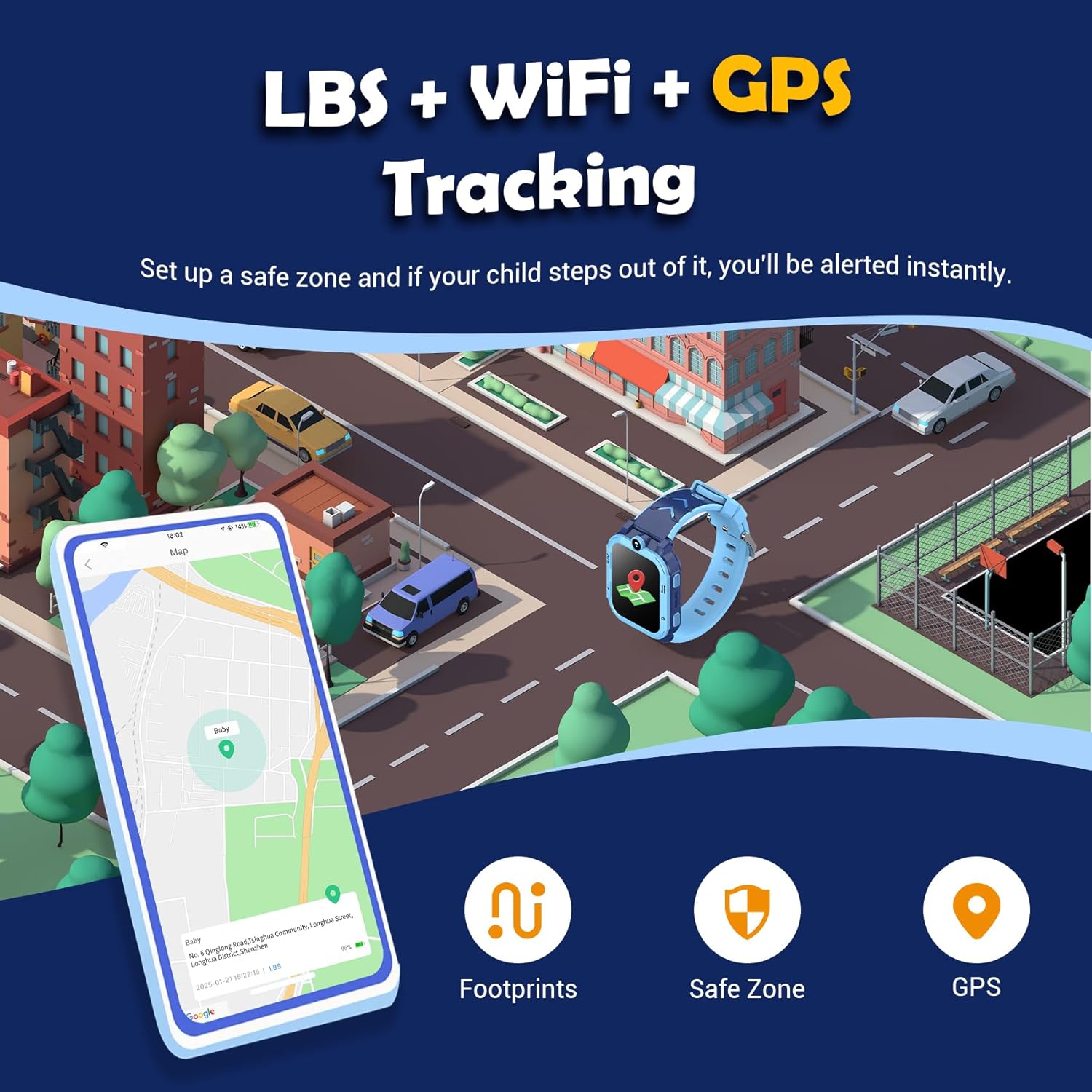
Figure 3.3: GPS+LBS+WIFI Tracking. This image illustrates the triple positioning system, showing how parents can set up safe zones and receive alerts if their child steps out of them, along with features for footprints and GPS tracking.
3.4 Class Mode
To prevent distractions during school hours, parents can activate Class Mode via the "Setracker2" app.
- During the set time period, the watch will block all messages and calls, displaying only the time.
- The SOS call function remains active during Class Mode.
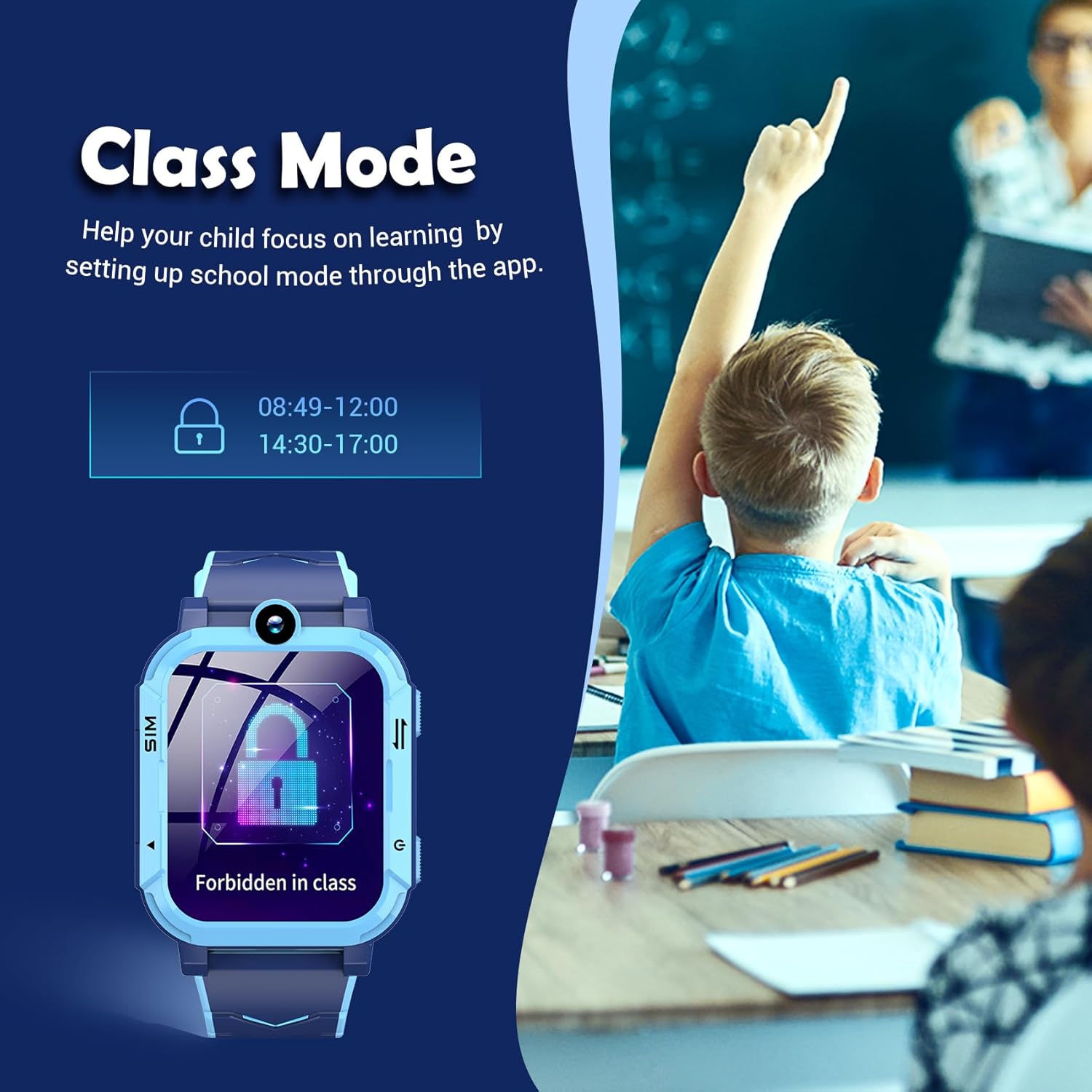
Figure 3.4: Class Mode. This image demonstrates how Class Mode helps children focus on learning by blocking calls and messages during specified school hours, while still allowing SOS calls.
3.5 Other Functions
- Camera & Album: The built-in HD camera allows children to take photos. These photos can be viewed in the album.
- Puzzle Games: The watch includes educational puzzle games designed to spark curiosity and enhance logical thinking.
- Pedometer: Tracks daily steps, encouraging physical activity.
- Sleep Monitor: Monitors sleep patterns.
- Voice Chat/SMS: Children can send and receive voice messages and SMS.
- Alarm Clock, Stopwatch, Calculator: Utility tools for daily use.
- Reject Unknown Calls: Parents can set this feature via the app to prevent calls from unapproved numbers.
- Remote Shutdown/Restart: The watch can be remotely powered off or restarted via the app.
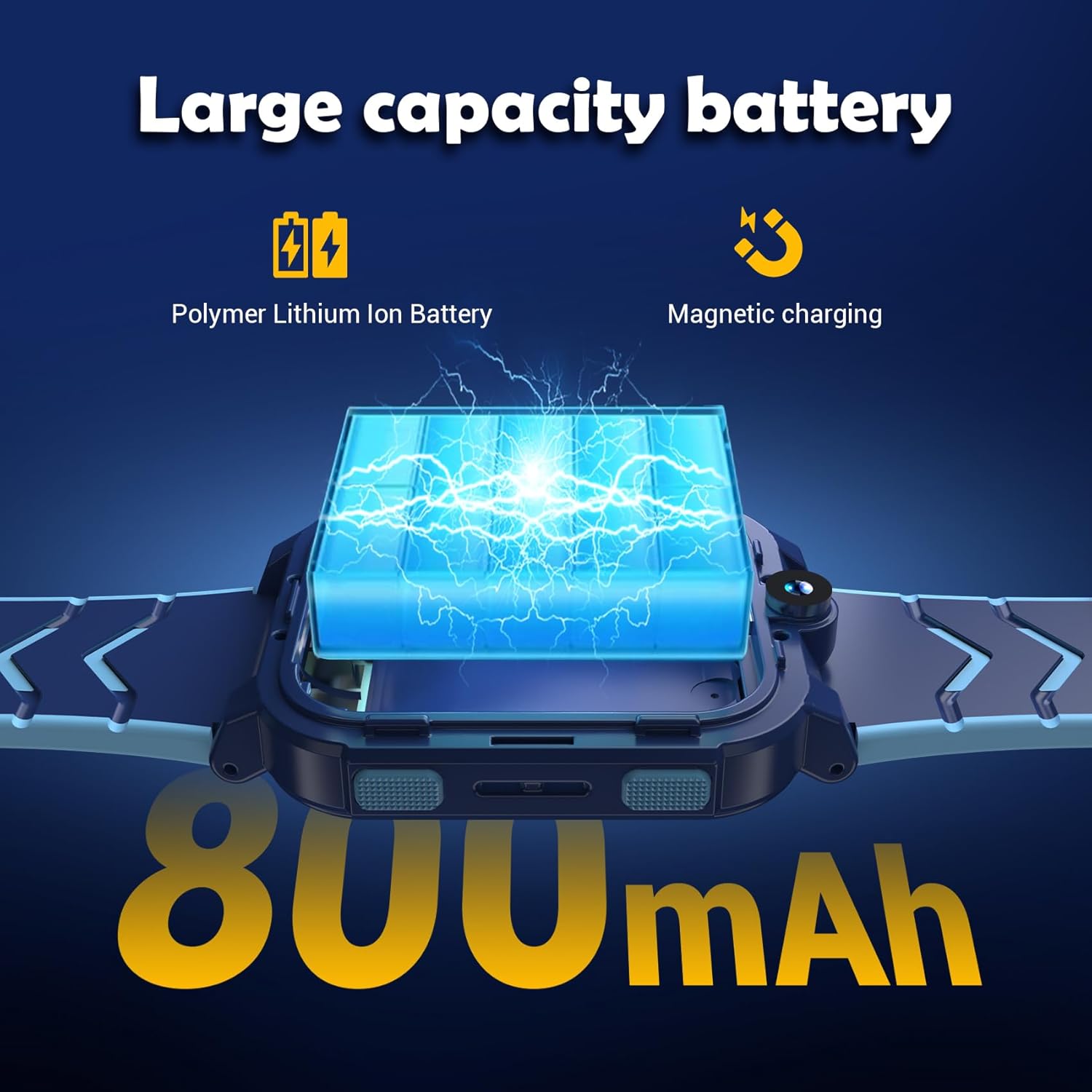
Figure 3.5: Multifunctional Features. This image highlights the wide range of functions available on the Blackview Z20, including video call, alarm, games, sleep time, camera, album, dial pad, pedometer, calculator, SOS calls, family chat, class mode, and stopwatch.
4. Maintenance
4.1 Battery Charging
The Blackview Z20 is equipped with an 800mAh large-capacity battery.
- Use the provided magnetic charging cable to charge the watch.
- A full charge typically takes approximately 5 hours.
- The battery can last for up to 2 days with normal usage.

Figure 4.1: Large Capacity Battery. This image illustrates the 800mAh polymer lithium-ion battery and its magnetic charging capability, emphasizing long battery life.
4.2 Waterproofing
The watch has an IP67 waterproof rating.
- This rating means the watch can withstand splashes, rain, and brief immersion in water up to 1 meter deep for 30 minutes.
- It is suitable for daily activities like hand washing or playing in the rain.
- Caution: Not suitable for swimming, diving, hot water baths, or saunas. Avoid prolonged exposure to water.
4.3 Cleaning and Care
- Wipe the watch regularly with a soft, dry cloth.
- If necessary, use a slightly damp cloth to clean the surface, then dry thoroughly.
- Avoid using harsh chemicals or abrasive cleaners.
- The watch comes with two skin-friendly straps (silicone and nylon) for comfortable wear and easy replacement.
5. Troubleshooting
Common Issues and Solutions:
| Problem | Possible Cause | Solution |
|---|---|---|
| Watch not powering on. | Low battery; power button not pressed long enough. | Charge the watch for at least 30 minutes. Press and hold the power button for 5-10 seconds. |
| No signal/Cannot make calls. | SIM card not inserted correctly; SIM card not activated; no network coverage. | Ensure watch is off before inserting SIM. Check SIM card activation with your carrier. Move to an area with better network coverage. |
| GPS location inaccurate. | Weak GPS signal (indoors/dense areas); LBS/WIFI positioning being used. | For best accuracy, use outdoors with clear sky view. GPS accuracy can vary based on environment. |
| Cannot pair with app. | Incorrect QR code/ID; app not updated; network issue. | Ensure correct QR code/ID is used. Update "Setracker2" app to the latest version. Check watch and phone network connection. |
| Battery drains quickly. | Frequent GPS tracking; high usage of video calls/games; background apps. | Adjust GPS tracking frequency in app. Limit continuous video calls/games. Close unused applications on the watch. |
6. Specifications
| Feature | Detail |
|---|---|
| Model Number | BV-Z20 |
| Screen Size | 1.83 Inches |
| Battery Capacity | 800 mAh (Lithium Metal) |
| Connectivity | 4G Network (2G+4G frequency band), GPS, LBS, WIFI |
| Operating System | Compatible with Android 5.0+ and iOS 9.0+ smartphones |
| Memory Storage | 1 GB |
| Waterproof Rating | IP67 |
| Dimensions (Package) | 17.5 x 8.8 x 2.4 cm |
| Weight (Package) | 150 g |
7. Warranty and Support
For warranty information and customer support, please refer to the specific warranty card included with your product or contact Blackview customer service directly through their official website or the "Setracker2" app support section.
Please retain your proof of purchase for any warranty claims.

