1. Introduction
The ZAIN-Greenpacket 5G CPE E5-250MK is a high-performance 5G Customer Premises Equipment designed to provide ultra-fast internet connectivity. This device supports 5G networks, enabling significantly faster data speeds compared to 4G LTE, making it ideal for demanding applications such as high-definition streaming, online gaming, and large data transfers.
With a maximum speed of up to 3600Mbps and an integrated high-gain antenna, the E5-250MK ensures reliable and stable connections, even in areas with weaker signal strength. It also features a 2.5Gbps Ethernet port, allowing for optimal wired performance when connecting devices like PCs, game consoles, or network storage systems.
This manual provides comprehensive instructions for the setup, operation, maintenance, and troubleshooting of your ZAIN-Greenpacket 5G CPE E5-250MK.

Figure 1: Front view of the ZAIN-Greenpacket 5G CPE E5-250MK, displaying the '5G ZAIN' logo.
2. Package Contents
Before proceeding with the setup, please verify that all the following items are included in your product package:
- ZAIN-Greenpacket 5G CPE E5-250MK Device
- Power Adapter (12V 3.0A)
- Ethernet Cable (may vary by region)
- Quick Start Guide (this manual)
3. Setup Guide
3.1 Physical Placement
Place the CPE in an open area, away from obstructions and other electronic devices that may cause interference. For optimal 5G signal reception, consider placing it near a window or in a central location within your home or office.
3.2 SIM Card Installation
- Ensure the device is powered off before inserting or removing the SIM card.
- Locate the SIM card slot, typically at the bottom or rear of the device.
- Insert a standard 5G-compatible SIM card into the slot until it clicks into place. Ensure the SIM card is oriented correctly according to the diagram near the slot.
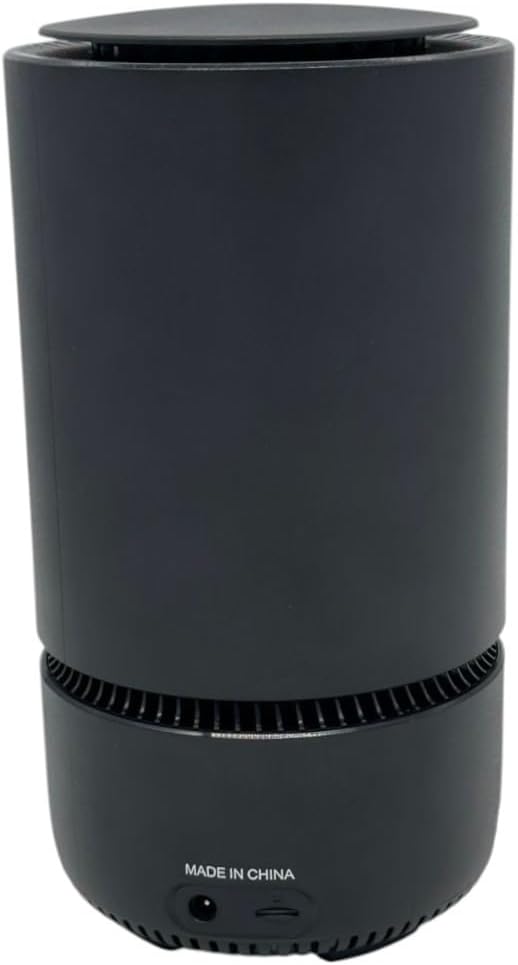
Figure 2: Rear view of the ZAIN-Greenpacket 5G CPE E5-250MK, showing the power input and SIM card slot.
3.3 Power Connection
- Connect the provided power adapter to the DC IN port on the CPE.
- Plug the power adapter into a standard electrical outlet. The device will automatically power on.
3.4 Initial Network Connection (Wi-Fi)
- Once powered on, wait for the indicator lights on the device to stabilize.
- Locate the default Wi-Fi network name (SSID) and password printed on the product label at the bottom of the device.
- On your computer or mobile device, search for available Wi-Fi networks and connect to the default SSID. Enter the default password when prompted.

Figure 3: Bottom view of the ZAIN-Greenpacket 5G CPE E5-250MK, showing the product label with model number, default Wi-Fi SSID, password, and power rating.
3.5 Initial Network Connection (Ethernet)
For a wired connection, connect one end of an Ethernet cable to the 2.5Gbps Ethernet port on the CPE and the other end to your computer, router, or other network device.
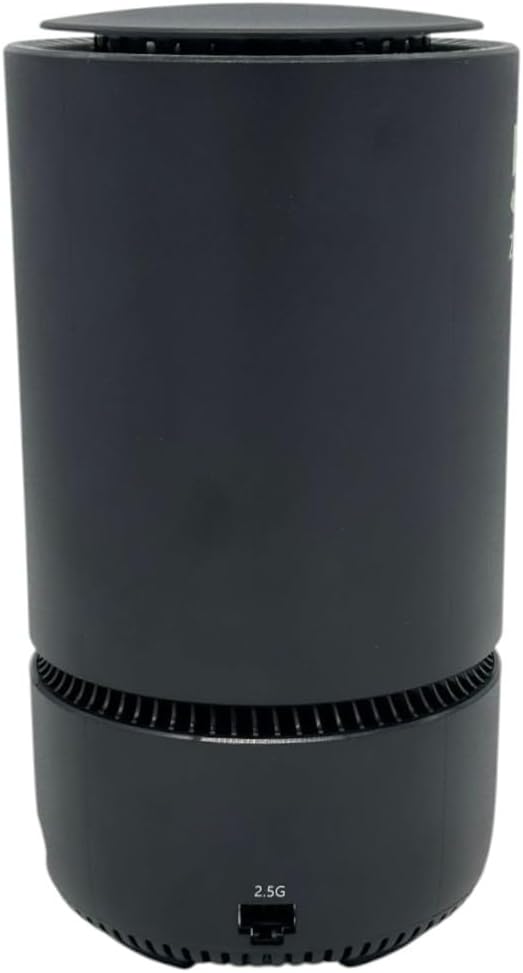
Figure 4: Side view of the ZAIN-Greenpacket 5G CPE E5-250MK, highlighting the 2.5Gbps Ethernet port.
3.6 Web Interface Access
- Open a web browser (e.g., Chrome, Firefox, Edge) on a device connected to the CPE's network.
- Enter the default IP address (e.g., 192.168.1.1) found on the device label into the browser's address bar and press Enter.
- Log in using the default username and password, also found on the device label.
- Follow the on-screen wizard to configure your internet settings, change the default Wi-Fi name (SSID), and set a strong, unique Wi-Fi password for enhanced security.
4. Operating Instructions
4.1 LED Indicators
The ZAIN-Greenpacket 5G CPE E5-250MK features LED indicators on its front panel to display the device's status. Refer to the device's specific documentation or the web interface for a detailed explanation of each LED's meaning (e.g., Power, 5G Signal Strength, Wi-Fi Status).
4.2 Connecting Devices
- Wi-Fi Connection: On your wireless devices (smartphones, tablets, laptops), select your configured Wi-Fi network name (SSID) and enter the password.
- Ethernet Connection: For wired devices, connect an Ethernet cable from the device to the 2.5Gbps Ethernet port on the CPE.
4.3 Managing Settings
Access the web interface (as described in Section 3.6) to manage advanced settings. This includes:
- Changing Wi-Fi network names and passwords.
- Configuring network security protocols (WPA2/WPA3).
- Setting up a dedicated IoT Wi-Fi connection for smart home devices.
- Monitoring connected devices and network traffic.
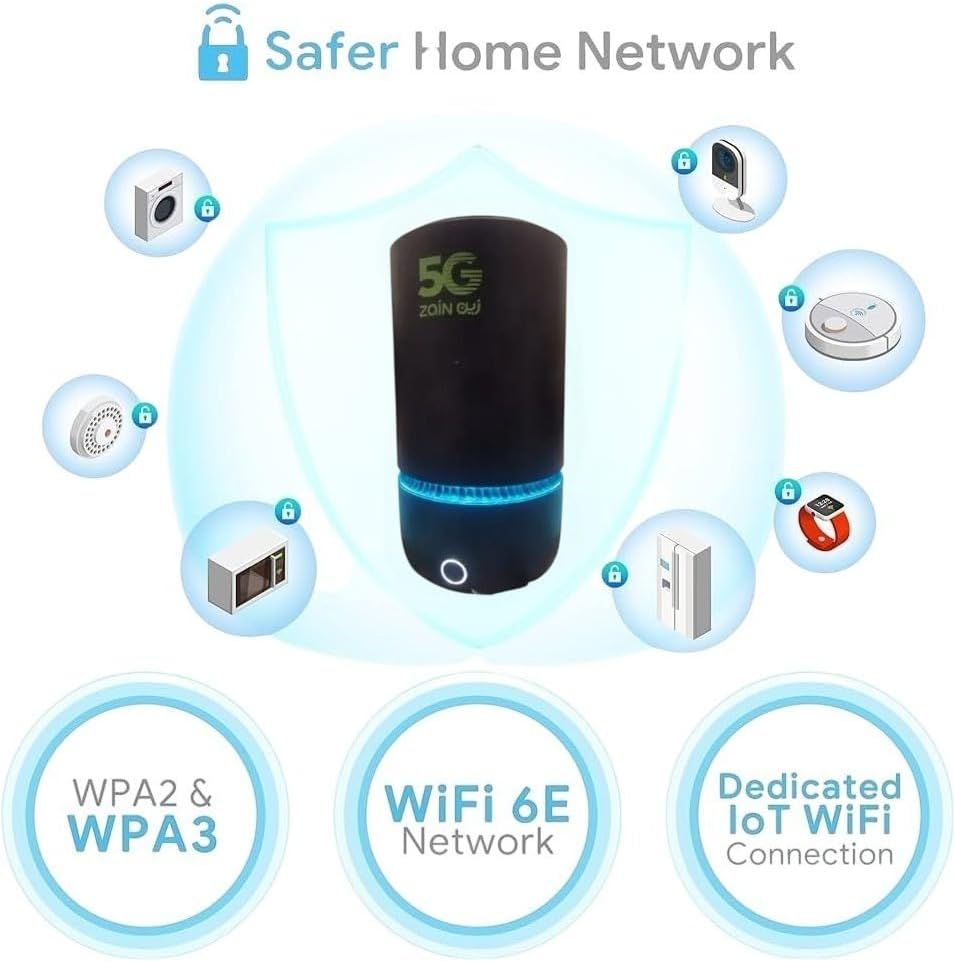
Figure 5: Diagram illustrating the ZAIN-Greenpacket 5G CPE E5-250MK's network security features, including WPA2 & WPA3, WiFi 6E Network, and Dedicated IoT WiFi Connection.
5. Maintenance
5.1 Cleaning
Keep the device clean and free from dust. Use a soft, dry cloth to wipe the exterior. Do not use liquid cleaners or abrasive materials, as these can damage the device.
5.2 Firmware Updates
Periodically check the device's web interface for available firmware updates. Keeping your device's firmware up-to-date ensures optimal performance, security, and access to new features. Follow the on-screen instructions carefully during the update process.
5.3 Restarting the Device
If you experience network issues or slow performance, a simple restart can often resolve the problem. Unplug the power adapter from the device, wait for approximately 10 seconds, and then plug it back in. Allow the device a few minutes to fully boot up and re-establish connections.
6. Troubleshooting
6.1 No Internet Connection
- Check 5G Signal: Verify the 5G signal strength indicator on the device. If the signal is weak or absent, try repositioning the CPE.
- SIM Card: Ensure the SIM card is correctly inserted and active with your service provider.
- Service Provider: Confirm there are no outages or issues with your internet service provider.
- Restart: Perform a device restart as described in Section 5.3.
6.2 Slow Speeds
- Placement: Ensure the device is placed in an optimal location for 5G reception, away from interference.
- Network Congestion: High network traffic in your area or too many devices connected to your CPE can affect speeds.
- Subscription Plan: Verify your internet subscription plan with your service provider to ensure it meets your speed expectations.
- Firmware: Ensure your device's firmware is up-to-date.
6.3 Wi-Fi Connection Issues
- Wi-Fi Enabled: Confirm that Wi-Fi is enabled on both the CPE and your connecting device.
- Password: Double-check that you are entering the correct Wi-Fi password.
- Restart: Try restarting the CPE and your connecting device.
6.4 Factory Reset
If issues persist after trying the above steps, you may perform a factory reset. Warning: This will erase all custom settings and restore the device to its original factory defaults, including Wi-Fi SSID and password.
- With the device powered on, locate the reset button (often a small pinhole) on the device.
- Use a paperclip or a similar pointed object to press and hold the reset button for approximately 10 seconds until the indicator lights flash.
- Release the button. The device will restart with factory default settings. You will need to reconfigure your internet and Wi-Fi settings.
7. Specifications
| Model Number | E5-250MK |
| Network Type | 5G |
| Max Wireless Speed | Up to 3600Mbps |
| Ethernet Port | 1 x 2.5Gbps |
| Antenna | High Gain |
| Dimensions (L x W x H) | 28.8 x 15.3 x 14.6 cm |
| Weight | 1.36 kg |
| Power Input | 12V 3.0A |
| Security Protocols | WPA2, WPA3, WiFi 6E, Dedicated IoT WiFi |
8. Warranty and Support
This product comes with a limited warranty. For detailed warranty terms, conditions, and duration, please refer to the warranty card or documentation included in your product package. Keep your proof of purchase for any warranty claims.
For technical support, service inquiries, or further assistance, please contact your point of purchase or the authorized service center. Contact information may be available on the product packaging or the manufacturer's official website.


