
1. Introduction
This manual provides essential information for setting up, operating, maintaining, and troubleshooting your HP OmniStudio X 27-cs1010 All-in-One Desktop PC. Please read these instructions carefully before using your device to ensure optimal performance and longevity.
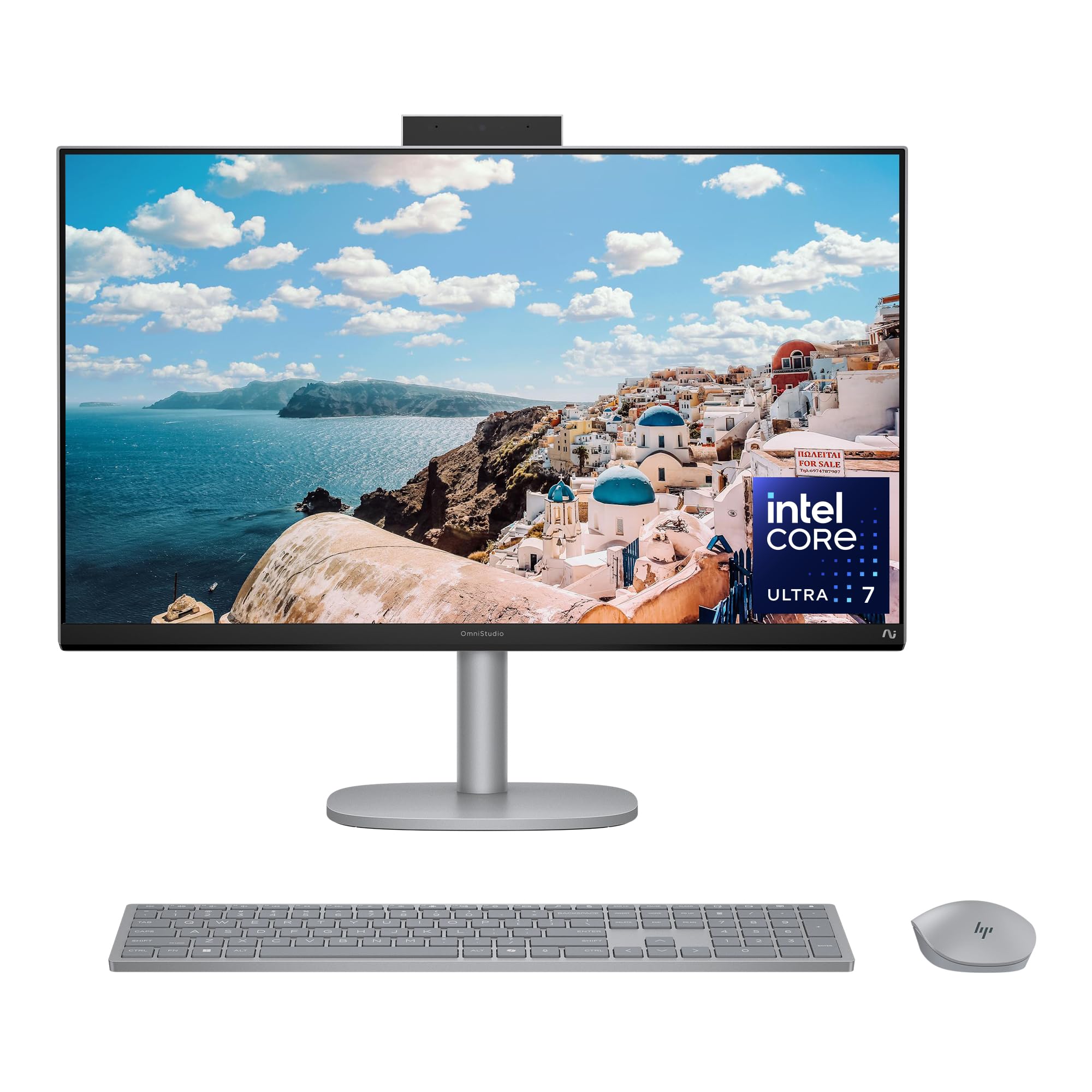
Image 1.1: HP OmniStudio X 27-inch All-in-One Desktop PC, front view.
2. What's in the Box
Verify that all components are present in the packaging:
- HP OmniStudio X All-in-One 27-cs1010 Desktop PC
- HP Meteor Silver Wireless Keyboard
- HP Meteor Silver Wireless Mouse
- 180 W AC Power Adapter
- Setup Instructions

Image 2.1: Illustration of items included in the product box.
3. Initial Setup
3.1 Connecting Peripherals
- Keyboard and Mouse: The included wireless keyboard and mouse are pre-paired. Insert the USB receiver (usually found in the mouse battery compartment) into an available USB port on the PC.
- External Devices: Connect any external devices such as printers, external hard drives, or additional monitors to the appropriate ports. Refer to the port diagram below.
3.2 Power Connection
- Connect the 180 W AC power adapter to the power input port on the back of the All-in-One PC.
- Plug the power adapter into a grounded electrical outlet.
3.3 First Boot
- Press the power button, typically located on the side or back of the display.
- Follow the on-screen instructions to complete the Windows 11 Home setup, including language selection, network connection, and user account creation.

Image 3.1: Rear and side view illustrating available ports including USB Type-C, USB Type-A, HDMI In/Out, Headphone/Microphone Combo, and RJ-45 Ethernet.
4. Operating Your PC
4.1 Windows 11 Home
Your HP OmniStudio X comes with Windows 11 Home pre-installed. Familiarize yourself with the operating system's interface, Start menu, and taskbar for efficient navigation.
4.2 Touchscreen Functionality
The 27-inch FHD IPS touchscreen allows for intuitive interaction. Use gestures such as tap, swipe, pinch-to-zoom, and scroll directly on the display. The screen features DC Dimming technology to reduce flicker for comfortable viewing.

Image 4.1: A user interacting with the FHD IPS touchscreen for entertainment.
4.3 AI Features and Productivity
- Intel Core Ultra 7 Processor: The integrated Intel Core Ultra 7 256V processor with AI Boost enhances performance for demanding tasks and AI-accelerated applications.
- Intel Arc Graphics: The Intel Arc Graphics 140V provides advanced creation and gaming capabilities.
- Microsoft Copilot: Utilize Copilot for AI assistance, intelligent answers, and image generation. Access it quickly via the dedicated Copilot key on the keyboard.

Image 4.2: The Microsoft Copilot interface displayed on the HP OmniStudio X screen.

Image 4.3: Close-up of the Copilot key on the included HP wireless keyboard.
4.4 Communication and Connectivity
- Windows Studio Effects: Enhance video calls with features like automatic framing, background blur, voice focus, and eye contact correction.
- 5MP Poly Camera Pro: The built-in camera includes a manual shutter for privacy and AI Noise reduction for clear audio.
- Wi-Fi 7 and Bluetooth 5.4: Enjoy fast wireless connectivity for streaming and connecting accessories.
- Poly Studio Audio: Experience high-quality audio with dual 5W speakers.

Image 4.4: A user engaged in a video conference, demonstrating Windows Studio Effects.
4.5 Wellness Features
The PC includes AI-powered wellness features designed for user comfort:
- Screen Distance Reminder: Gently blurs the screen if you are too close, encouraging proper posture and reducing eye strain.
- Presence Sensing: Automatically locks and wakes your PC, saving power and enabling quick return to work.

Image 4.5: A user performing creative tasks, highlighting the PC's design for wellbeing.
5. Maintenance
5.1 Cleaning Your PC
- Screen: Use a soft, lint-free cloth lightly dampened with water or a screen-cleaning solution. Avoid harsh chemicals.
- Chassis: Wipe the exterior surfaces with a soft, dry cloth. For stubborn marks, use a slightly damp cloth.
- Keyboard and Mouse: Use a soft brush or compressed air to remove dust and debris. Wipe surfaces with a damp cloth if necessary.
5.2 Software Updates
Regularly check for and install Windows updates and HP driver updates to ensure optimal performance, security, and access to the latest features. These updates can be managed through Windows Settings.
6. Troubleshooting
6.1 Power Issues
- PC does not turn on: Ensure the power adapter is securely connected to both the PC and a working electrical outlet. Try a different outlet.
- PC shuts down unexpectedly: Check for proper ventilation around the PC to prevent overheating. Ensure all cables are secure.
6.2 Display Issues
- No image on screen: Verify the PC is powered on. If an external monitor is connected, ensure it is also powered on and correctly configured.
- Touchscreen unresponsive: Restart the PC. Ensure the screen is clean and free of obstructions.
6.3 Connectivity Issues
- No Wi-Fi connection: Check if Wi-Fi is enabled in Windows settings. Restart your router and the PC.
- Bluetooth device not connecting: Ensure the Bluetooth device is in pairing mode and within range. Check Bluetooth settings on the PC.
7. Specifications

Image 7.1: Physical dimensions and weight of the HP OmniStudio X 27-inch All-in-One PC.
| Feature | Detail |
|---|---|
| Model Name | HP OmniStudio X All-in-One 27-cs1010 Desktop PC |
| Operating System | Windows 11 Home |
| Processor | Intel Core Ultra 7 256V (up to 4.8 GHz) |
| Graphics | Intel Arc Graphics 140V |
| Memory (RAM) | 16 GB LPDDR5x RAM (8533 MT/s) |
| Storage | 2 TB PCIe Gen4 NVMe M.2 SSD |
| Display | 27-inch FHD (1920x1080) IPS Touchscreen |
| Audio | Dual 5 W speakers; Poly Studio |
| Webcam | 5MP Poly Camera Pro with manual shutter |
| Wireless Connectivity | Intel Wi-Fi 7 BE201 (2x2), Bluetooth 5.4 |
| Ports | 1x USB Type-C (10Gbps), 2x USB Type-A (10Gbps), 1x HDMI-out 1.4, 1x HDMI-in 1.4, Headphone/Microphone Combo, RJ-45 Ethernet |
| Dimensions (W x D x H) | 24.11 x 7.88 x 21.15 inches |
| Weight | 18.96 Pounds |
| Power Supply | 180 W AC Power Adapter |
| Environmental Certifications | EPEAT Gold with Climate+ registered, ENERGY STAR Certified |
8. Warranty and Support
8.1 Limited Warranty
Your HP OmniStudio X 27-cs1010 Desktop PC comes with a 1-year limited hardware warranty from the date of purchase. This warranty covers manufacturing defects and hardware malfunctions under normal use conditions.
8.2 Technical Support
HP provides 1-year limited technical support for software and initial setup. For assistance with software issues, driver updates, or initial configuration, please contact HP Support.
8.3 Contacting Support
For warranty claims or technical assistance, please visit the official HP support website or refer to the contact information provided in your product documentation. Have your product model number (27-cs1010) and serial number ready when contacting support.


