
EPOMAKER WIN60 HE
EPOMAKER Aula WIN60 HE 60% Wired Magnetic Keyboard User Manual
Model: WIN60 HE
1. Introduction
The EPOMAKER Aula WIN60 HE is a high-performance 60% wired magnetic keyboard engineered for precision and speed, particularly beneficial for competitive gaming. It integrates advanced Hall Effect switches, offering unparalleled responsiveness and customization. This manual provides comprehensive instructions for setup, operation, maintenance, and troubleshooting to ensure optimal performance and longevity of your keyboard.

Figure 1: EPOMAKER Aula WIN60 HE 60% Wired Magnetic Keyboard (Black)
2. Key Features
- Up to 0.01mm RT Sensitivity: Experience instant response with minimal key travel, allowing for precise and rapid command execution.
- 0.3ms Latency Tested, 8000Hz Polling Rate: Achieves ultra-low latency, providing an 8x faster response compared to traditional gaming keyboards.
- 60% Ultra-compact Layout: Space-saving design enhances mouse movement and ergonomics, ideal for both gaming and professional use.
- Snap Tap & Dynamic Keystroke: Snap Tap prioritizes the latest input for quick directional changes, while Dynamic Keystroke enables up to 4 actions in a single keypress for complex combos.
- Adjustable Actuation Point: Customize each key's actuation from 0.08mm to 3.4mm in 0.02mm increments (Max version: 0.1mm to 3.4mm in 0.01mm increments).
- Double-shot Durable Keycaps: Custom keycaps with vibrant, fade-resistant legends for a premium and long-lasting feel.
- Stunning RGB Backlighting: Over 20 lighting modes and 16.8 million colors customizable via the online driver.
- Online WEB Driver: Simplifies settings and parameter adjustments with real-time visual feedback, compatible with all operating systems.

Figure 2: Overview of WIN60 HE's core features including hot-swappability, tray-mount design, multi-OS compatibility, 0.3ms latency, anti-ghosting, Hall Effect switches, adjustable trigger distance, double shot ABS keycaps, and 8000Hz polling rate.

Figure 3: Detailed breakdown of features such as adjustable actuation point, Rapid Trigger (RT), ultra-low latency, Hall Effect switch mechanism, tray mount structure, ABS keycaps, and USB-C wired connection.
3. Setup Guide
3.1. Package Contents
Before setting up your keyboard, please verify that all items are present in the package:
- EPOMAKER Aula WIN60 HE Keyboard
- Keycap & Switch Puller
- Detachable USB-A to USB-C Cable
- Extra Magnetic Switch
- Detachable Keyboard Ribbon
- Dust Cover

Figure 4: Contents included in the EPOMAKER Aula WIN60 HE keyboard package.
3.2. Initial Connection
To begin using your EPOMAKER Aula WIN60 HE keyboard, follow these steps:
- Locate the detachable USB-A to USB-C cable included in the package.
- Connect the USB-C end of the cable to the USB-C port on the keyboard, typically located on the top edge.
- Connect the USB-A end of the cable to an available USB port on your computer (PC, Laptop, Gaming Console, etc.).
- The keyboard should be automatically recognized by your operating system. No additional drivers are required for basic functionality.
Figure 5: Close-up of the USB-C wired connection point on the keyboard.
4. Operation
4.1. Adjustable Actuation Point
The Hall Effect switches allow for precise customization of each key's actuation point. This feature is crucial for tailoring the keyboard's responsiveness to your specific needs, whether for rapid keypresses in gaming or precise typing.
- The actuation point can be adjusted from 0.08mm to 3.4mm (Standard version) or 0.1mm to 3.4mm (Max version) in fine increments.
- Adjustments are made through the online web driver software. Refer to Section 4.4 for details on accessing the web driver.
Figure 6: Diagram illustrating the adjustable actuation point range of the Hall Effect switches.
4.2. Rapid Trigger and Dynamic Keystroke
These advanced features provide a competitive edge in gaming:
- Rapid Trigger (RT): Allows keys to actuate and reset based on movement rather than a fixed point, enabling extremely fast repeated presses and directional changes in FPS games.
- Dynamic Keystroke: Introduces true analog input, allowing for up to four distinct actions within a single keypress, facilitating complex combos and macros.
Both Rapid Trigger and Dynamic Keystroke settings are configured via the online web driver.
4.3. RGB Backlighting
The WIN60 HE features vibrant RGB backlighting with extensive customization options:
- Over 20 pre-set lighting modes are available.
- Choose from 16.8 million colors to personalize your keyboard's aesthetic.
- Lighting effects and colors can be adjusted using the online web driver.
- Basic lighting controls via FN key combinations:
FN+SPACEBAR: Turn RGB lighting On/Off.FN+R.ALT: Change lighting effect.FN+R.CTRL: Change lighting color.
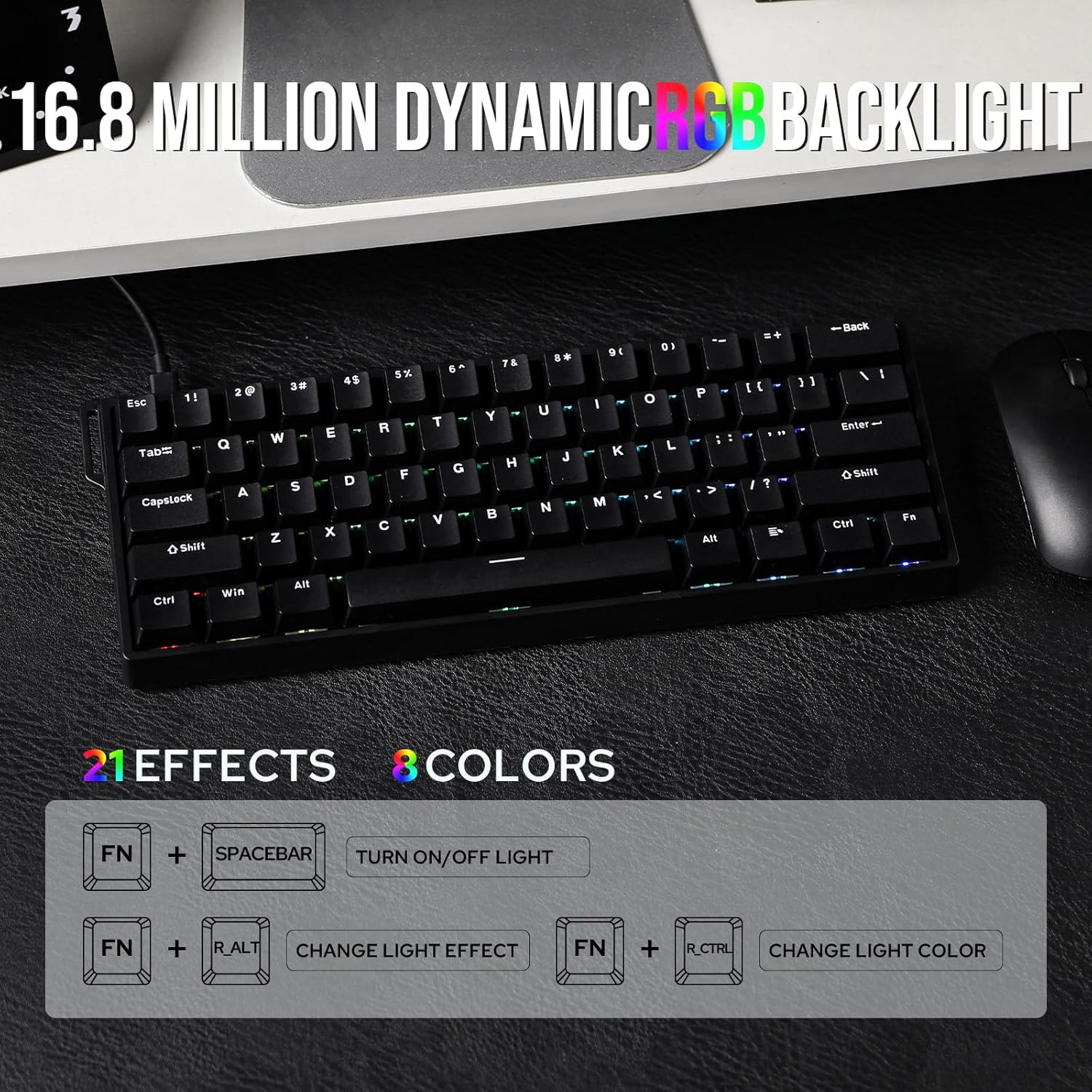
Figure 7: Illustration of the 16.8 million dynamic RGB backlight with various effects and color options, along with FN key combinations for basic control.
4.4. Online Web Driver Software
The WIN60 HE utilizes an intuitive online web driver for comprehensive customization without requiring local software installation. This ensures compatibility across various operating systems (Mac, Windows, Android).
- Access the web driver by visiting the official EPOMAKER website or the specific URL provided in your product documentation.
- The web driver allows you to:
- Customize actuation points for individual keys.
- Configure Rapid Trigger and Dynamic Keystroke settings.
- Adjust RGB lighting effects, colors, and brightness.
- Remap keys and create macros.
- Update keyboard firmware (if available).
- Ensure your keyboard is connected to your computer and your computer has an active internet connection to use the web driver.

Figure 8: Screenshot of the AULA Web Driver interface, demonstrating seamless access and compatibility with various operating systems for keyboard customization.
4.5. Typing Experience Demonstration
Observe the typing sound and feel of the EPOMAKER Aula WIN60 HE keyboard in the official video below:
Video 1: Official EPOMAKER Aula WIN60HE Typing Video. This video demonstrates the acoustic and tactile feedback of the keyboard during use, showcasing its sound profile and key feel.
5. Maintenance
5.1. Cleaning
Regular cleaning helps maintain the keyboard's appearance and functionality:
- General Cleaning: Use a soft, lint-free cloth slightly dampened with water or a mild cleaning solution to wipe down the keycaps and keyboard body. Avoid excessive moisture.
- Dust Removal: Use compressed air to remove dust and debris from between the keycaps and switches.
- Keycap Cleaning: For deeper cleaning, keycaps can be removed using the provided keycap puller and washed with mild soap and water. Ensure they are completely dry before reattaching.
5.2. Switch Replacement (Hot-Swap)
The WIN60 HE features hot-swappable switches, allowing you to easily replace or customize them without soldering.
- Use the included switch puller to carefully remove existing switches. Grip the switch firmly with the puller and gently rock it while pulling upwards.
- Align the pins of the new Hall Effect switch with the holes on the PCB. Ensure the pins are straight to avoid bending.
- Gently press the new switch into place until it clicks securely. Do not force the switch if it doesn't go in smoothly; check pin alignment.

Figure 9: Illustration of the hot-swappable design, showing magnetic switches, hot-swap sockets, plate-mounted stabilizers, and south-facing LEDs.
6. Troubleshooting
If you encounter issues with your EPOMAKER Aula WIN60 HE keyboard, please refer to the following common solutions:
| Problem | Possible Cause | Solution |
|---|---|---|
| Keyboard not responding | Loose cable connection, faulty USB port, driver issue. | Ensure USB-C cable is securely connected to both keyboard and computer. Try a different USB port or a different cable. Restart your computer. |
| RGB lighting not working or incorrect | Lighting mode disabled, software conflict, incorrect settings. | Press FN + SPACEBAR to toggle lighting. Check settings in the online web driver. Ensure no other keyboard software is interfering. |
| Keys not registering or double-typing | Dust/debris under keycap, faulty switch, incorrect actuation setting. | Clean under the keycap with compressed air. If issue persists, try hot-swapping the switch with an extra one. Adjust actuation point in the web driver. |
| Web driver not detecting keyboard | Browser compatibility, internet connection, keyboard not in correct mode. | Ensure a stable internet connection. Try a different web browser. Verify the keyboard is properly connected via USB. |
For more advanced troubleshooting or persistent issues, please refer to the comprehensive guides available on the EPOMAKER official website or contact customer support.
7. Specifications
| Feature | Detail |
|---|---|
| Brand | EPOMAKER |
| Model | WIN60 HE |
| Layout | 60% (61 Keys, ANSI Layout) |
| Connectivity | Wired (USB-C) |
| Switch Type | Hall Effect Magnetic Switches |
| Actuation Point | Adjustable from 0.08mm to 3.4mm (0.02mm increments); Max version: 0.1mm to 3.4mm (0.01mm increments) |
| Polling Rate | 8000 Hz |
| Keycaps | Double-shot ABS |
| Backlighting | RGB (16.8 million colors, 20+ modes) |
| Structure | Tray-Mount |
| Item Weight | 2.16 pounds (approx. 0.98 kg) |
| Package Dimensions | 13.46 x 6.77 x 2.24 inches (approx. 34.19 x 17.20 x 5.69 cm) |
| Country of Origin | China |

Figure 10: Rear view of the keyboard showing product information and specifications in multiple languages.
8. Warranty and Support
8.1. Warranty Information
EPOMAKER products typically come with a standard manufacturer's warranty covering defects in materials and workmanship. For specific warranty terms and duration, please refer to the warranty card included with your product or visit the official EPOMAKER website.
8.2. Customer Support
If you require technical assistance, have questions about your product, or need to initiate a warranty claim, please contact EPOMAKER customer support through the following channels:
- Official Website: Visit the EPOMAKER Store on Amazon or their direct website for FAQs, support articles, and contact forms.
- User Manual (PDF): A detailed PDF user manual is available for download here.
Please have your product model number (WIN60 HE) and purchase details ready when contacting support to facilitate a quicker resolution.
Related documentsWIN60 HE


Ask a question about this manual
Ask about setup, troubleshooting, compatibility, parts, safety, or missing instructions. Manuals+ will review the question and use this page’s manual context to help answer it.