
1. Introduction
This manual provides detailed instructions for setting up, operating, and maintaining your WONLINK AX1500 WiFi 6 Extender Booster. This device is designed to expand your existing WiFi network coverage, eliminate dead zones, and provide stable, high-speed internet access throughout your home or office.
2. Product Overview
The WONLINK AX1500 WiFi 6 Extender Booster (Model WL-NE3601) is a dual-band device supporting both 2.4 GHz and 5 GHz frequencies, compliant with the 802.11ax (WiFi 6) standard. It features four high-gain, rotatable antennas for optimal signal transmission and reception.

Front view of the WONLINK AX1500 WiFi 6 Extender Booster, illustrating its signal broadcasting capabilities.
Key Features:
- WiFi 6 Technology: Experience faster speeds and improved network efficiency.
- Dual Band Support: Operates on both 2.4 GHz and 5 GHz bands for versatile connectivity.
- Wide Coverage: Extends WiFi signal to eliminate dead zones and cover large areas.
- High-Gain Antennas: Four adjustable antennas enhance signal strength and stability.
- Multi-Mode Functionality: Supports Repeater, Access Point (AP), and Router modes.
- Easy Setup: Quick installation via WPS or web browser interface.
- Ethernet Port: Includes a Gigabit Ethernet port for wired connections.
- Broad Compatibility: Works with various WiFi-enabled devices including gaming consoles, laptops, smartphones, and smart TVs.

The extender showcasing its core features: WiFi 6 technology, ultra-speed performance, dual-band support, and one-tap WPS setup.

Close-up of the extender highlighting its four high-gain, rotatable external antennas, designed for flexible positioning, stable WiFi coverage, and enhanced signal transmission.
3. Setup and Installation
The WONLINK AX1500 Extender offers multiple setup methods for your convenience. Choose the method that best suits your needs.
Method 1: WPS (Wi-Fi Protected Setup)
- Plug the extender into a power outlet near your main router.
- Wait for the Power LED on the extender to turn solid blue.
- Press the WPS button on your main router.
- Within 2 minutes, press the WPS button on the extender (located on the side).
- Wait for the WiFi, 2.4GHz, and 5GHz LEDs on the extender to turn solid blue, indicating a successful connection.
Method 2: Via Web Browser (Manual Setup)
- Plug the extender into a power outlet.
- Connect your computer or smartphone to the extender's default WiFi network (e.g., "WONLINK_Ext").
- Open a web browser and enter
192.168.10.1in the address bar. - Enter the default password (usually "admin") to access the configuration page.
- Follow the on-screen instructions to select your existing WiFi network and enter its password.
- The extender will reboot. Reconnect your device to the new extended WiFi network (usually your original network name with "_EXT" appended).

Step-by-step visual guide for quick setup using a smartphone or WPS one-tap setup.
Relocation for Optimal Performance:
After initial setup, relocate the extender to a position about halfway between your router and the WiFi dead zone. Ensure the location is within the range of your router. The signal indicator LEDs on the extender will help you find the best spot (solid blue indicates a strong signal).
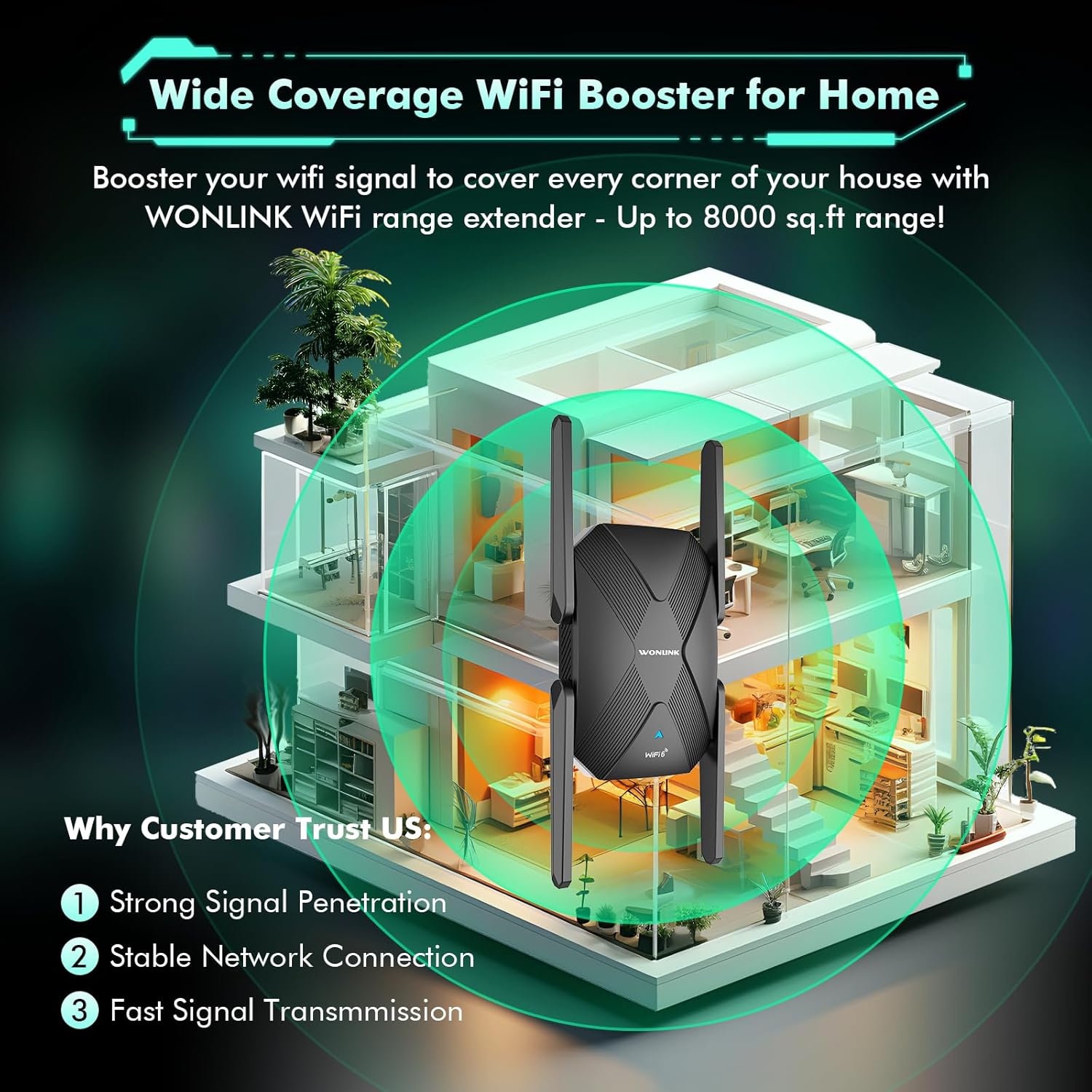
Diagram illustrating the extender's ability to boost WiFi signal and cover large areas within a home, ensuring strong signal penetration and stable connections.
4. Operating Modes
The WONLINK AX1500 Extender supports multiple operating modes to suit various networking needs:
- Repeater Mode: Extends the range of your existing wireless network. This is the most common mode for eliminating WiFi dead zones.
- Access Point (AP) Mode: Transforms your existing wired network into a wireless one. Connect an Ethernet cable from your router to the extender's Ethernet port, and the extender will broadcast a new WiFi signal.
- Router Mode: Functions as a primary router, creating a new private network. This mode is typically used when you have a modem but no router.
You can switch between modes via the web management interface (192.168.10.1) after logging in.
5. Performance
The AX1500 WiFi 6 Extender is designed to deliver high-speed, lag-free internet. With dual-band support, it offers:
- 5 GHz Band: Up to 1200 Mbps, ideal for high-bandwidth activities like online gaming, 4K/8K video streaming, and video conferencing.
- 2.4 GHz Band: Up to 300 Mbps, suitable for general web browsing, file transfers, and downloading.
The device's advanced dual-core chip and four high-gain antennas ensure stable network connections and efficient data transfer, even with multiple devices connected simultaneously.

Visual representation of the extender's dual-band speeds: 1200Mbps for 5GHz and 300Mbps for 2.4GHz.

Image demonstrating the broad compatibility of the extender with devices such as laptops, smartphones, tablets, gaming consoles, smart TVs, and security cameras.
6. Maintenance
To ensure optimal performance and longevity of your WONLINK AX1500 Extender, consider the following maintenance tips:
- Placement: Avoid placing the extender near obstructions, large metal objects, or devices that emit strong electromagnetic interference (e.g., microwaves, cordless phones).
- Firmware Updates: Regularly check the manufacturer's website for the latest firmware updates to ensure optimal performance and security.
- Cleaning: Keep the device clean and free from dust. Use a soft, dry cloth for cleaning. Do not use liquid cleaners or aerosols.
- Ventilation: Ensure the extender has adequate ventilation to prevent overheating. Do not block the ventilation holes.
- Reset: If you experience persistent issues, a factory reset may resolve them. Use a pin to press and hold the Reset button (often combined with WPS) for about 5-10 seconds until the LEDs flash.
7. Troubleshooting
If you encounter issues with your WONLINK AX1500 Extender, try the following troubleshooting steps:
- No Power: Ensure the extender is securely plugged into a working power outlet. Check if the power outlet is functional.
- No Internet Connection:
- Verify that your main router has an active internet connection.
- Check the signal strength LEDs on the extender. If they are red or off, relocate the extender closer to your main router.
- Restart both your main router and the extender.
- Slow Speed:
- Ensure the extender is placed in an optimal location (refer to 'Relocation for Optimal Performance' above).
- Try connecting to the 5 GHz band for higher speeds if your device supports it.
- Minimize interference from other electronic devices.
- Cannot Access Web Management Page:
- Ensure your device is connected to the extender's WiFi network.
- Verify you are using the correct IP address (
192.168.10.1) and default password ("admin"). - Clear your browser's cache or try a different browser.
- WPS Setup Failure: If WPS setup fails, try the manual setup method via web browser.
8. Specifications
| Brand | WONLINK |
| Model | WL-NE3601 |
| Wireless Standard | 802.11ax (WiFi 6) |
| Data Transfer Rate | Up to 1500 Mbps (1200 Mbps on 5 GHz, 300 Mbps on 2.4 GHz) |
| Frequency Bands | 2.4 GHz and 5 GHz (Dual Band) |
| Antennas | 4 x High-Gain External Antennas |
| Ports | 1 x Gigabit Ethernet Port |
| Compatible Devices | Gaming Console, Laptop, Personal Computer, Smart Television, Smartphone, Tablet |

Close-up of the product label, indicating the model number WL-NE3601, default IP address 192.168.10.1, and default password 'admin'.
9. Warranty and Support
For warranty information and technical support, please refer to the documentation included with your product or visit the official WONLINK website. Keep your purchase receipt for warranty claims.


