
1. Introduction
Thank you for choosing the EDJO 2.4GHz Wireless Keyboard and Mouse Combo. This product is designed to provide a comfortable, efficient, and quiet computing experience. Featuring a full-size ergonomic keyboard with a wrist rest and a 3-DPI adjustable mouse, this combo offers seamless wireless connectivity and long-lasting rechargeable batteries. This manual will guide you through the setup, operation, and maintenance of your new device.
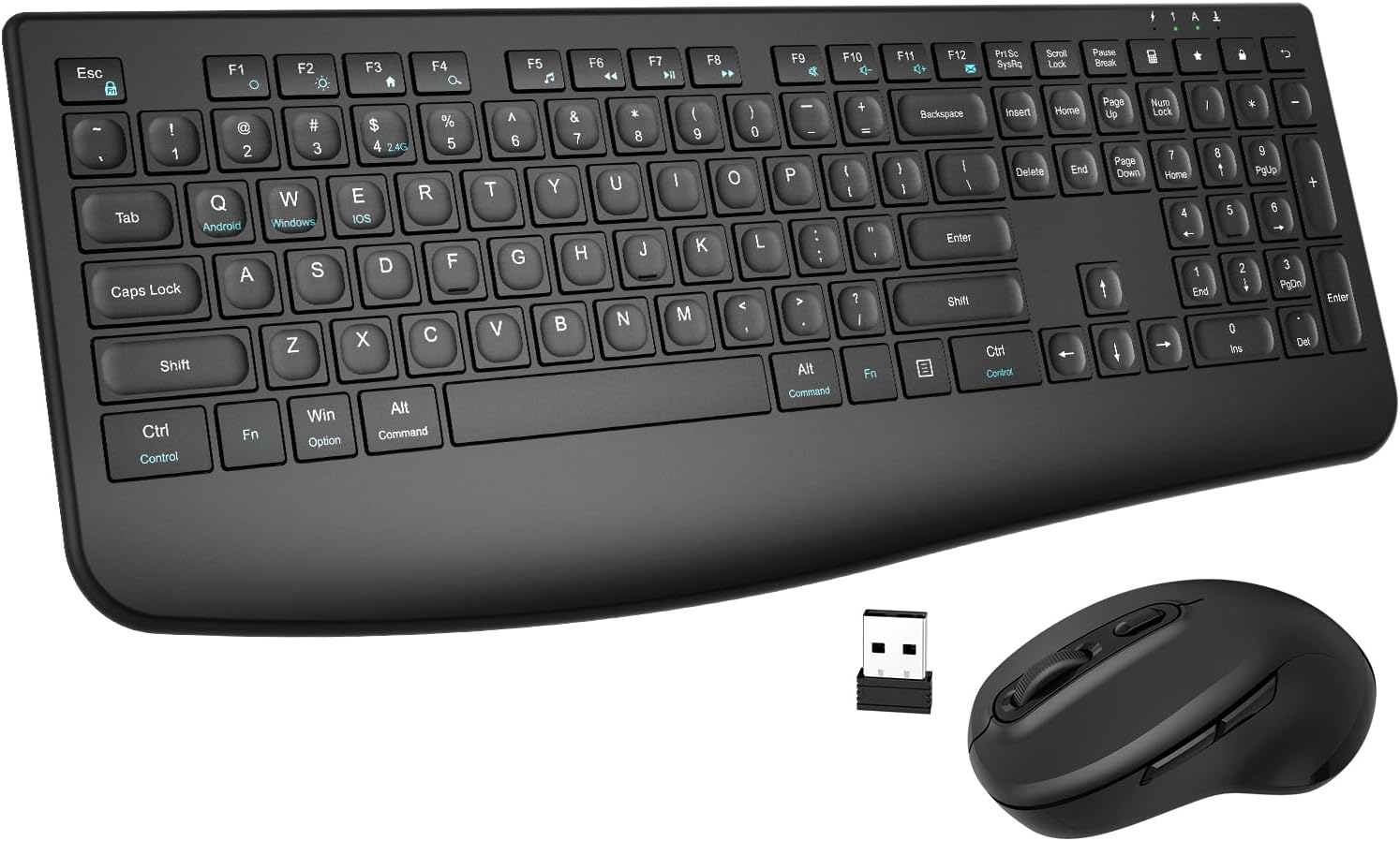
Image 1.1: The EDJO Wireless Keyboard and Mouse Combo, showcasing the full-size keyboard with integrated wrist rest and the ergonomic mouse, along with the compact USB receiver.
2. Package Contents
Please check the package carefully to ensure all items are present:
- 1 x Wireless Keyboard
- 1 x Wireless Mouse
- 1 x USB Receiver (stored on the back of the keyboard)
- 1 x User Manual
- 1 x Type-C Charging Cable

Image 2.1: Illustration of the package contents, including the keyboard, mouse, USB receiver, user manual, and Type-C charging cable.
3. Product Overview
3.1. Dimensions and Design
The keyboard and mouse are designed for portability and comfort. The keyboard features a slim profile and a 7-degree tilt for ergonomic typing, while the mouse offers a comfortable handshake grip.

Image 3.1: Detailed dimensions of the full-size wireless keyboard and mouse, highlighting their compact and ergonomic design.
3.2. Ergonomic Features
The keyboard includes a gel-infused wrist rest and a 7-degree tilt angle to promote a more relaxed hand and wrist position, reducing fatigue during extended use. The mouse's design supports a natural hand posture.
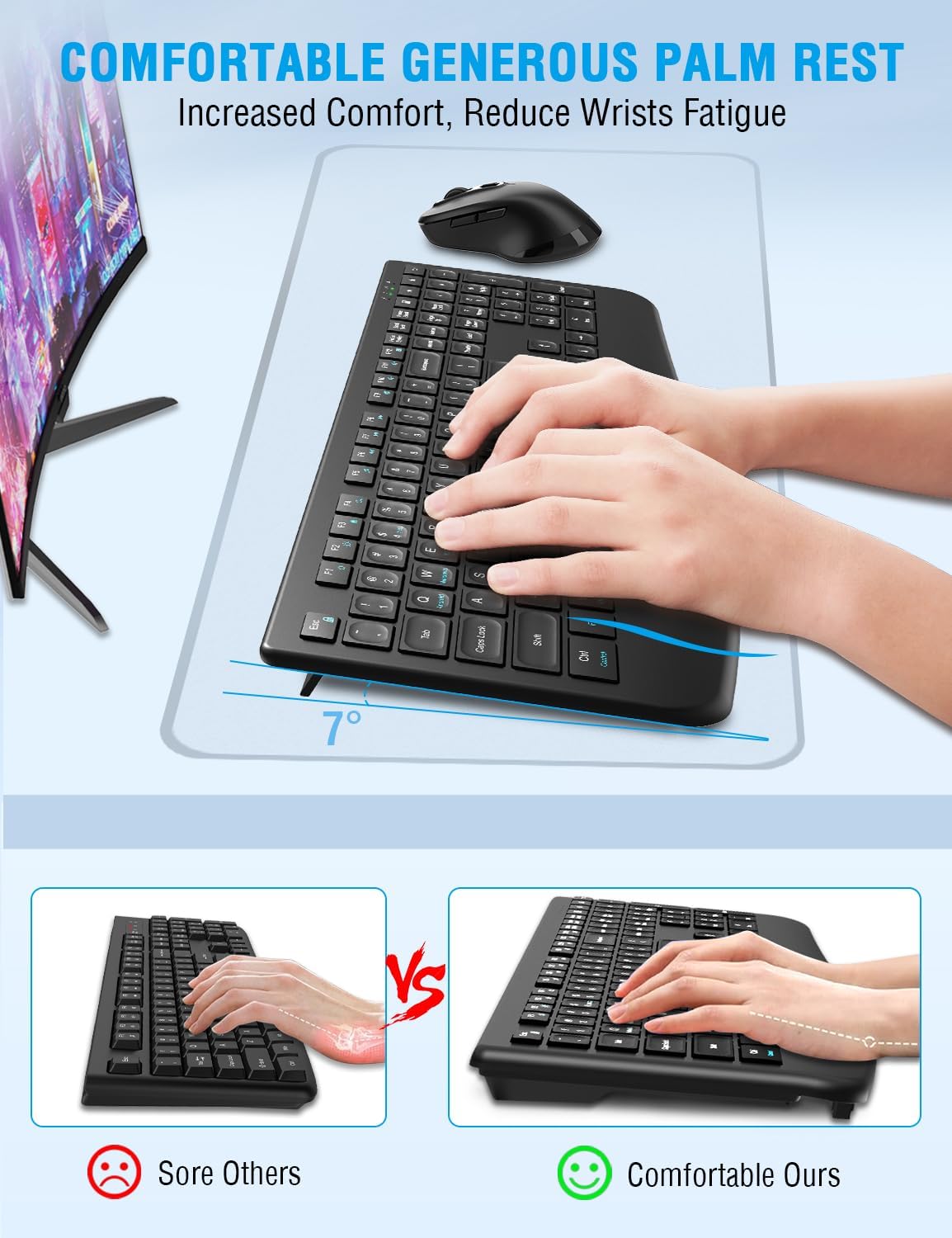
Image 3.2: Demonstration of the comfortable and generous palm rest on the keyboard, designed to increase comfort and reduce wrist fatigue.
3.3. Silent Operation
Both the keyboard and mouse are engineered for silent operation. The keyboard's Silent-Elastic design reduces key clatter by 95%, and the mouse features micro-dampeners for quiet clicks, making it ideal for quiet environments.

Image 3.3: Visual representation of the silent design of both the keyboard and mouse, emphasizing reduced noise for improved focus.
4. Setup Instructions
4.1. Connecting the USB Receiver
- Locate the USB receiver. It is typically stored in a compartment on the back of the keyboard.
- Plug the USB receiver into an available USB port on your computer (PC, Laptop, Chromebook, etc.).
- The system will automatically detect and install the necessary drivers. No additional software installation is required.

Image 4.1: Diagram showing the single USB receiver connecting both the keyboard and mouse to a laptop, illustrating the 2.4GHz wireless connection and 33ft wireless range.
4.2. Powering On
- Keyboard: Locate the ON/OFF switch, usually on the top edge or back of the keyboard, and slide it to the 'ON' position.
- Mouse: Locate the ON/OFF switch on the bottom of the mouse and slide it to the 'ON' position.
The devices should connect automatically to the USB receiver. If they do not connect, ensure the receiver is properly inserted and the devices are powered on.
4.3. Initial Charging
The keyboard and mouse come with built-in rechargeable batteries. For optimal performance, it is recommended to fully charge them before first use.
- Connect the provided Type-C charging cable to the charging port on the keyboard and mouse, and the other end to a USB power source (e.g., computer USB port, USB wall adapter).
- A full charge takes approximately 2 hours.

Image 4.2: Visual guide for charging the keyboard and mouse via their Type-C ports, indicating charging time and standby hours.
5. Operating Instructions
5.1. Keyboard Functions
The full-size keyboard features 109 keys, including a numeric keypad and 12 convenient shortcut keys (F1-F12) for quick access to media controls, volume, and other functions. Refer to the key legends for specific shortcut functions.
5.2. Mouse Functions
The mouse is equipped with 6 buttons and adjustable DPI settings:
- Left/Right Click: Standard mouse buttons.
- Scroll Wheel: For vertical scrolling.
- DPI Switch Button: Located behind the scroll wheel. Press to cycle through 3 DPI levels (800, 1200, 1600 DPI) to adjust cursor sensitivity.
- Forward/Back Buttons: Located on the side of the mouse, typically used for navigating web pages.

Image 5.1: Diagram illustrating the 3 adjustable DPI settings (800, 1200, 1600) and the location of the DPI switch button on the mouse, along with other button functions.
5.3. Compatibility
The EDJO Wireless Keyboard and Mouse Combo is widely compatible with various operating systems and devices, including:
- Windows 7/8/10/XP/Vista
- Mac OS
- Linux
- Chromebook
- Personal Computers (PC)
- Laptops
- Televisions (with USB support)

Image 5.2: Visual representation of the wide compatibility of the keyboard and mouse with various operating systems and devices, including Windows, Mac, Chrome, and UNIX.
6. Maintenance
6.1. Cleaning
- To clean the keyboard and mouse, power them off and disconnect the USB receiver.
- Use a soft, lint-free cloth slightly dampened with water or a mild cleaning solution.
- Avoid using harsh chemicals, abrasives, or excessive moisture.
- For dust between keys, use compressed air.
6.2. Battery Care
- The devices feature dual 350mAh/300mAh rechargeable batteries.
- A full charge provides over 480 hours of work/gaming time.
- The smart sleep mode reduces idle power consumption by 67%. The devices will enter sleep mode after 3 minutes of inactivity. Press any key or move the mouse to wake them up.
- Recharge when the low battery indicator light appears (if applicable) or when performance degrades.
7. Troubleshooting
If you encounter issues with your EDJO Wireless Keyboard and Mouse Combo, please refer to the following common solutions:
| Problem | Possible Cause | Solution |
|---|---|---|
| Keyboard/Mouse not responding | Low battery; Device is off; USB receiver disconnected; Interference. | Charge the devices; Ensure devices are ON; Re-insert USB receiver; Move closer to receiver or away from other wireless devices. |
| Lag or delayed response | Distance from receiver; Interference; Low battery. | Ensure devices are within 33ft of the receiver; Minimize interference from other 2.4GHz devices; Charge the devices. |
| Mouse cursor erratic or not moving smoothly | Dirty sensor; Incorrect DPI setting; Uneven surface. | Clean the mouse optical sensor; Adjust DPI setting using the DPI button; Use on a smooth, opaque surface. |
| Keyboard keys not working | Dirt under key; Software issue. | Clean around the affected key; Restart your computer. |
8. Specifications
| Feature | Detail |
|---|---|
| Product Dimensions | 12.28 x 6.69 x 0.63 inches |
| Item Weight | 2.07 pounds |
| Model Number | C231S |
| Connectivity Technology | 2.4GHz Wireless (USB Receiver) |
| Keyboard Features | Full Size, Ergonomic Design, Wrist Rest, Rechargeable, Slim, Quiet |
| Mouse Features | 3 DPI Adjustable (800/1200/1600), Rechargeable, Quiet |
| Battery Capacity | Keyboard: 350mAh, Mouse: 300mAh |
| Charging Port | Type-C |
| Compatible Devices | Laptop, Television, Personal Computer, Chromebook |
| Color | Black |
9. Warranty and Support
The EDJO Wireless Keyboard and Mouse Combo comes with a 12-month warranty service. This warranty covers manufacturing defects and ensures your product functions as intended under normal use.
If you have any questions, concerns, or require technical assistance, please do not hesitate to contact EDJO customer support. Our team is committed to providing prompt and helpful responses to ensure your satisfaction.
Please refer to the contact information provided with your purchase or visit the official EDJO website for support details.