
1. Introduction
The First Alert SC5 Battery Smart Smoke and Carbon Monoxide (CO) Alarm is a 2-in-1 device designed to enhance your home's fire and CO safety. This smart alarm provides alerts whether you are home or away, integrating with compatible smart home systems to offer comprehensive protection.
This manual provides essential information for the proper installation, operation, and maintenance of your First Alert SC5 alarm. Please read it thoroughly before installation and keep it for future reference.
2. Safety Information
Important: This device detects both smoke and carbon monoxide. It is not designed to detect natural gas, propane, or other combustible fuels.
- Always follow local building codes and regulations for alarm placement and installation.
- Do not paint the alarm. Paint can clog the sensing chambers and prevent the alarm from operating properly.
- Do not install in areas with high humidity, extreme temperatures, or excessive dust/dirt.
- Test the alarm weekly to ensure proper operation.
- Replace batteries immediately when the low battery warning sounds.
- Never ignore any alarm. Investigate the cause and take appropriate action.
3. Product Features
- Smart Connectivity: Compatible with Google's Nest Protect Alarm and sends alerts to your phone via the First Alert app if smoke and CO are detected.
- Interconnected System: When one alarm sounds, all compatible alarms in your home will sound, providing widespread notification.
- Low Battery Notifications: Notifies you when batteries are low, eliminating unexpected late-night chirps.
- Voice Alerts: Provides a Heads-Up warning with voice alerts that specify the type and location of danger in your home.
- Precision Detection Technology: Equipped with advanced sensing technology to help reduce nuisance alarms and provide early warning.
4. Setup and Installation
4.1 Unboxing and Initial Inspection
Carefully remove the alarm from its packaging. Inspect the device for any signs of damage. Ensure all components are present: alarm unit, mounting bracket, and installation hardware.
4.2 Battery Installation
This model is battery-powered and requires 6 C batteries (included). Open the battery compartment on the back of the unit and insert the batteries, ensuring correct polarity. Close the compartment securely.
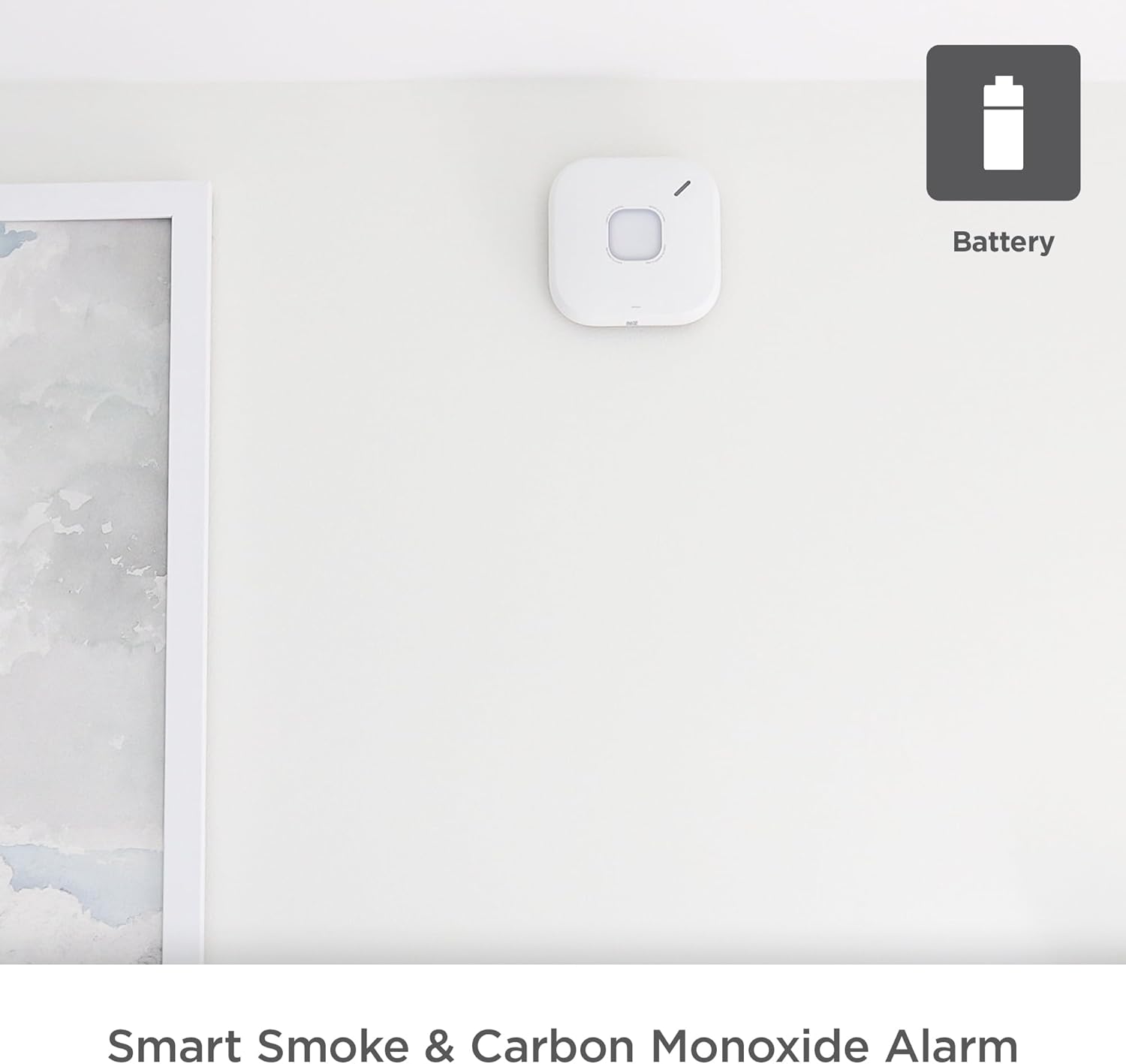
Figure 4.2.1: First Alert SC5 Battery Smart Smoke & Carbon Monoxide Alarm mounted on a wall, indicating its battery-powered nature.
4.3 Mounting Location
For optimal protection, install smoke and CO alarms on every level of your home, including basements, and in every bedroom. Avoid installing near windows, doors, or vents where drafts could interfere with detection. Also, avoid areas prone to high humidity or extreme temperatures.
4.4 Mounting the Alarm
- Attach the mounting bracket to the ceiling or wall using the provided screws. Ensure it is securely fastened.
- Align the alarm unit with the mounting bracket and twist clockwise until it locks into place.
- Once mounted, the alarm will perform a self-test.

Figure 4.4.1: Installation of the First Alert SC5 alarm on a ceiling.
4.5 Connecting to the First Alert App
Download the First Alert app from your device's app store. Follow the in-app instructions to connect your SC5 alarm to your home Wi-Fi network and integrate it with your smart home system, including Google Nest Protect if applicable. This enables remote alerts and monitoring.

Figure 4.5.1: The First Alert SC5 alarm, emphasizing its smart features and compatibility.
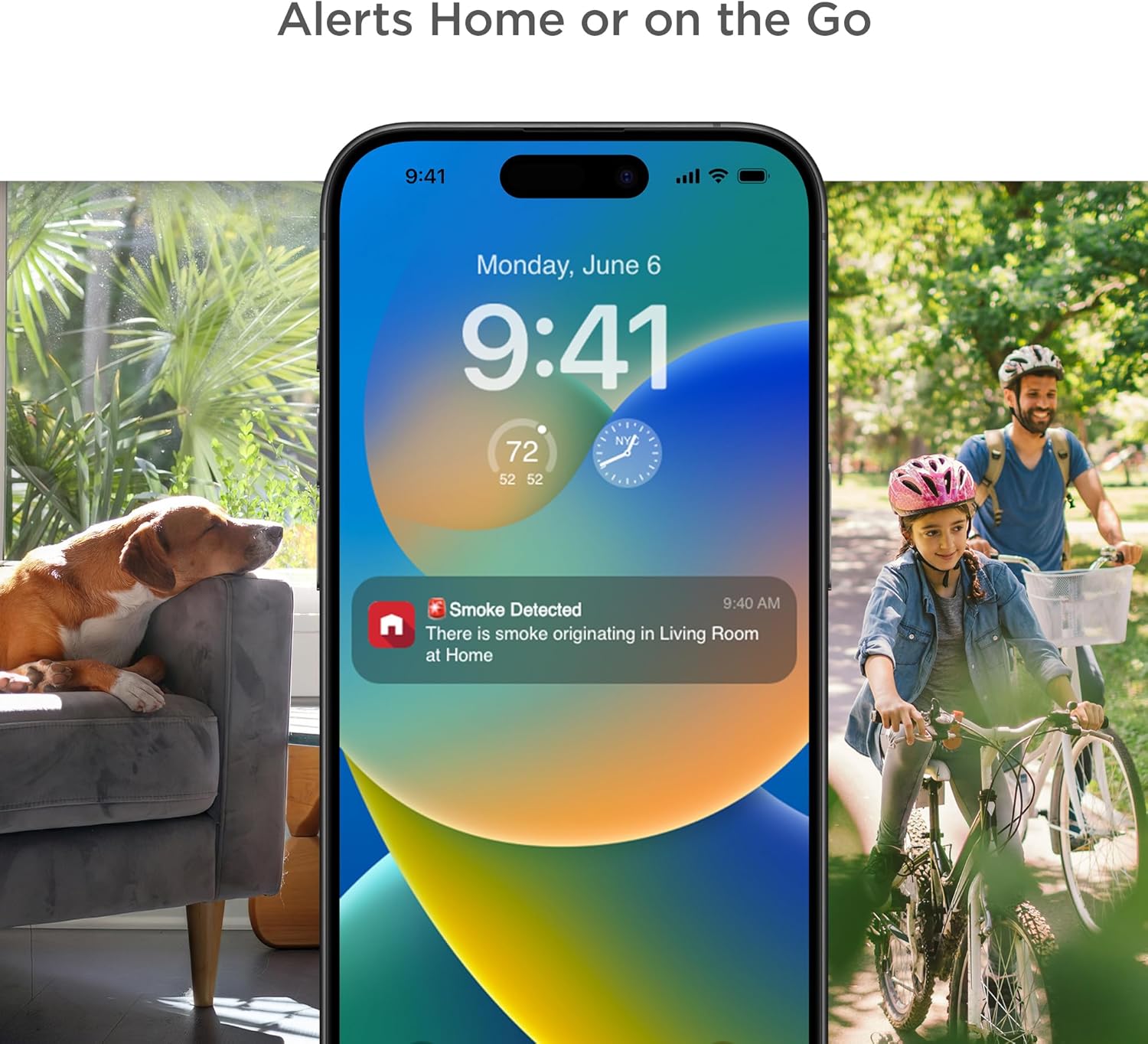
Figure 4.5.2: The First Alert app providing remote alerts to your smartphone.
5. Operating the Alarm
5.1 Testing the Alarm
Press and hold the test button on the alarm. The alarm will sound a series of loud beeps and voice announcements. This confirms the alarm's electronics, battery, and horn are working. Test weekly.

Figure 5.1.1: The First Alert SC5 alarm with its central test button.
5.2 Understanding Alarm Signals
- Smoke Alarm: Three loud beeps, pause, three loud beeps. Voice alert: "Fire! Fire!"
- Carbon Monoxide Alarm: Four loud beeps, pause, four loud beeps. Voice alert: "Carbon Monoxide! Carbon Monoxide!"
- Low Battery Warning: A single chirp every 60 seconds. Voice alert: "Low Battery."
- End of Life Warning: Two chirps every 30 seconds. Voice alert: "Replace Alarm."
5.3 Silencing the Alarm
In case of a nuisance alarm (e.g., from cooking smoke), press the test/silence button on the alarm or use the First Alert app to temporarily silence the alarm. The alarm will automatically reset after a few minutes if the smoke/CO clears.
5.4 Interconnect Feature
The SC5 alarm is designed to interconnect with other compatible First Alert and BRK alarms, as well as Google Nest Protect alarms. When one interconnected alarm detects smoke or CO, all compatible alarms in the system will sound, providing enhanced safety coverage throughout your home.

Figure 5.4.1: Interconnection of compatible alarms for whole-home safety.
6. Maintenance
6.1 Cleaning Your Alarm
Clean your alarm at least once a month. Use a soft brush or a vacuum cleaner with a soft brush attachment to remove dust and debris from the alarm's vents. Do not use cleaning solvents or sprays directly on the alarm.
6.2 Battery Replacement
When the alarm indicates a low battery (a chirp every 60 seconds and voice alert), replace all 6 C batteries immediately. Use only recommended replacement batteries. Refer to section 4.2 for battery installation instructions.
6.3 Alarm End of Life
The First Alert SC5 alarm has a 10-year lifespan. After 10 years from the date of manufacture, the alarm will signal its end of life (two chirps every 30 seconds and voice alert). At this point, the entire unit must be replaced to ensure continued protection.
7. Troubleshooting
| Problem | Possible Cause | Solution |
|---|---|---|
| Alarm chirps once every 60 seconds | Low battery | Replace all batteries immediately. |
| Alarm sounds frequently without apparent smoke/CO | Nuisance alarm (cooking, steam, dust) or improper placement | Press silence button. Relocate alarm if nuisance alarms persist due to placement. Clean alarm. |
| Alarm does not sound during test | Dead batteries, improper installation, or unit malfunction | Check battery installation. Replace batteries. Ensure unit is properly twisted onto mounting bracket. If problem persists, replace unit. |
| Alarm chirps twice every 30 seconds | End of life warning | Replace the entire alarm unit. |
| App connectivity issues | Wi-Fi signal issues, app error, or incorrect setup | Ensure strong Wi-Fi signal. Restart app and alarm. Re-attempt setup process. Consult First Alert app support. |
8. Specifications
| Attribute | Detail |
|---|---|
| Brand | First Alert |
| Model Number | SMCO600NV |
| Style | Battery |
| Power Source | Battery Powered |
| Batteries Required | Yes, 6 C batteries (included) |
| Color | White |
| Product Dimensions | 5.75"D x 1.6"W x 5.75"H |
| Item Weight | 1 Pound |
| Alarm Type | Audible, Voice Alerts |
| Sensor Type | Photoelectric Smoke, Electrochemical CO |
| Lifespan | 10 Years |
| Connectivity | Wi-Fi, Compatible with Google Nest Protect |
| UPC | 194160013724 |
9. Warranty and Support
First Alert provides a limited warranty for this product. For detailed warranty information, please refer to the documentation included with your purchase or visit the official First Alert website. For technical support, troubleshooting assistance, or to inquire about replacement parts, please contact First Alert Customer Service.
Online Support: www.firstalert.com
Note: Product specifications and features are subject to change without notice.


